Digital Quilts

Each year, I do a lesson about Harriet Powers, a local famous American who created story quilts about the Bible.  I bring in a replica of her 1st Bible quilt, invite students to imagine the stories it might tell, share the story of Harriet Powers, read excerpts of the book Stitching Stars, and explain some of the panels of the quilt.  This year, I wondered how I might incorporate technology into the lesson, so I decided to try making a digital quilt.

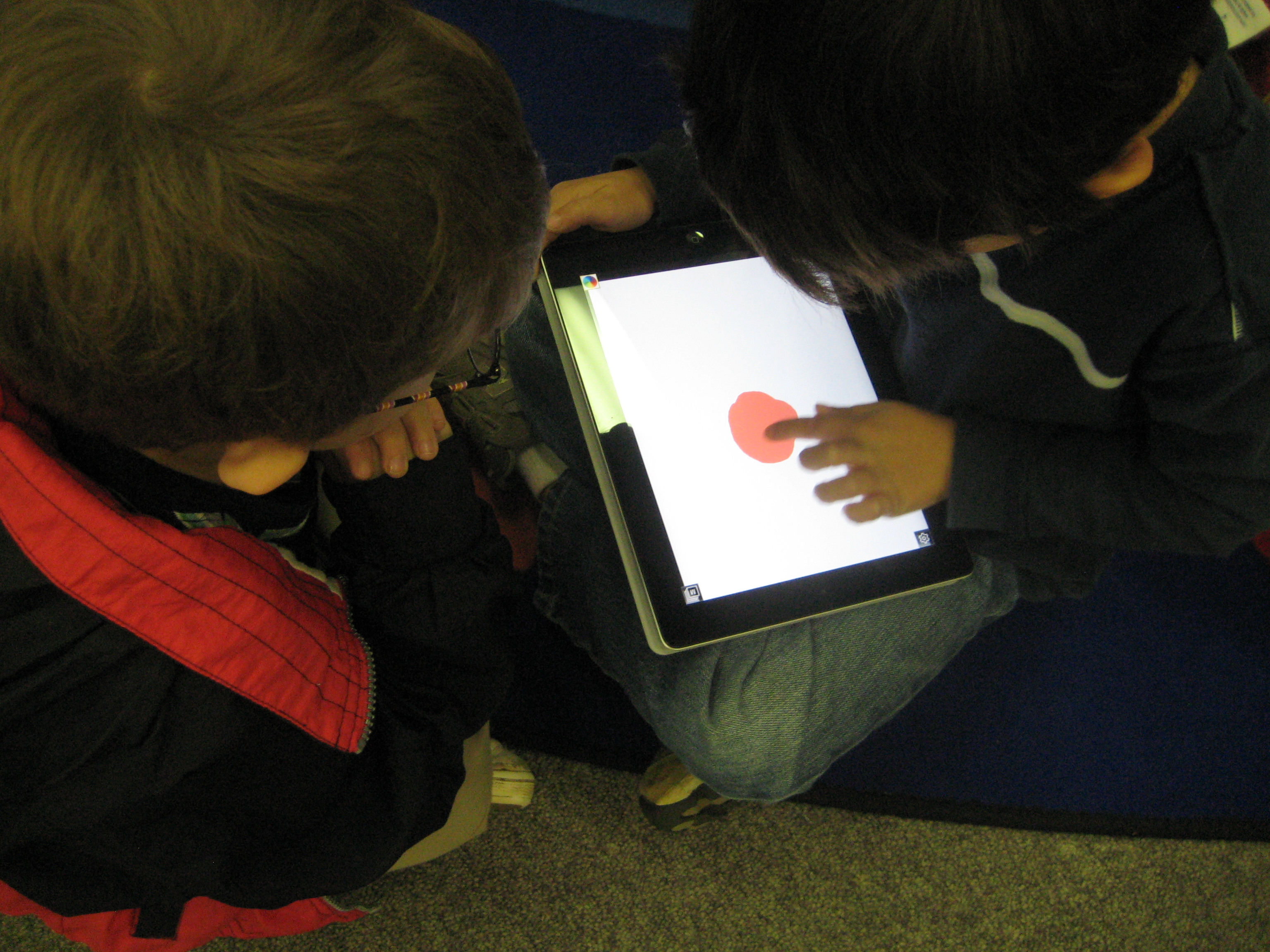
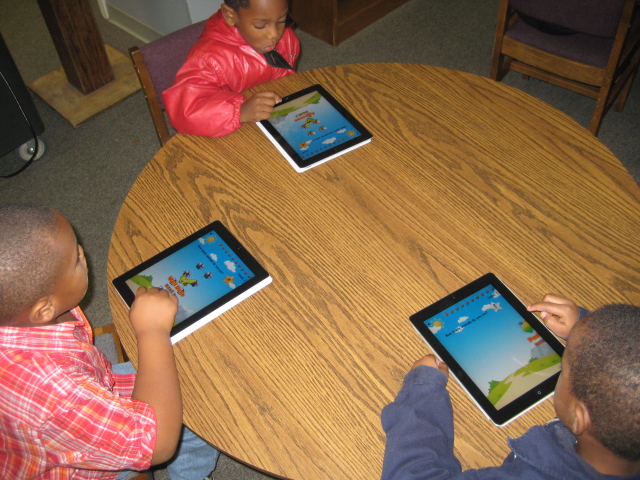
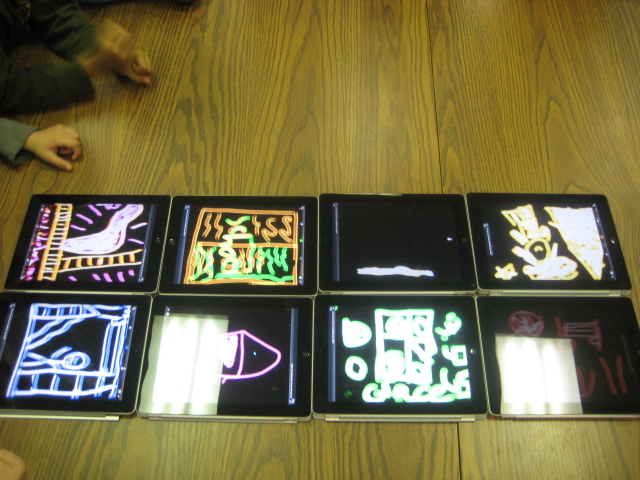
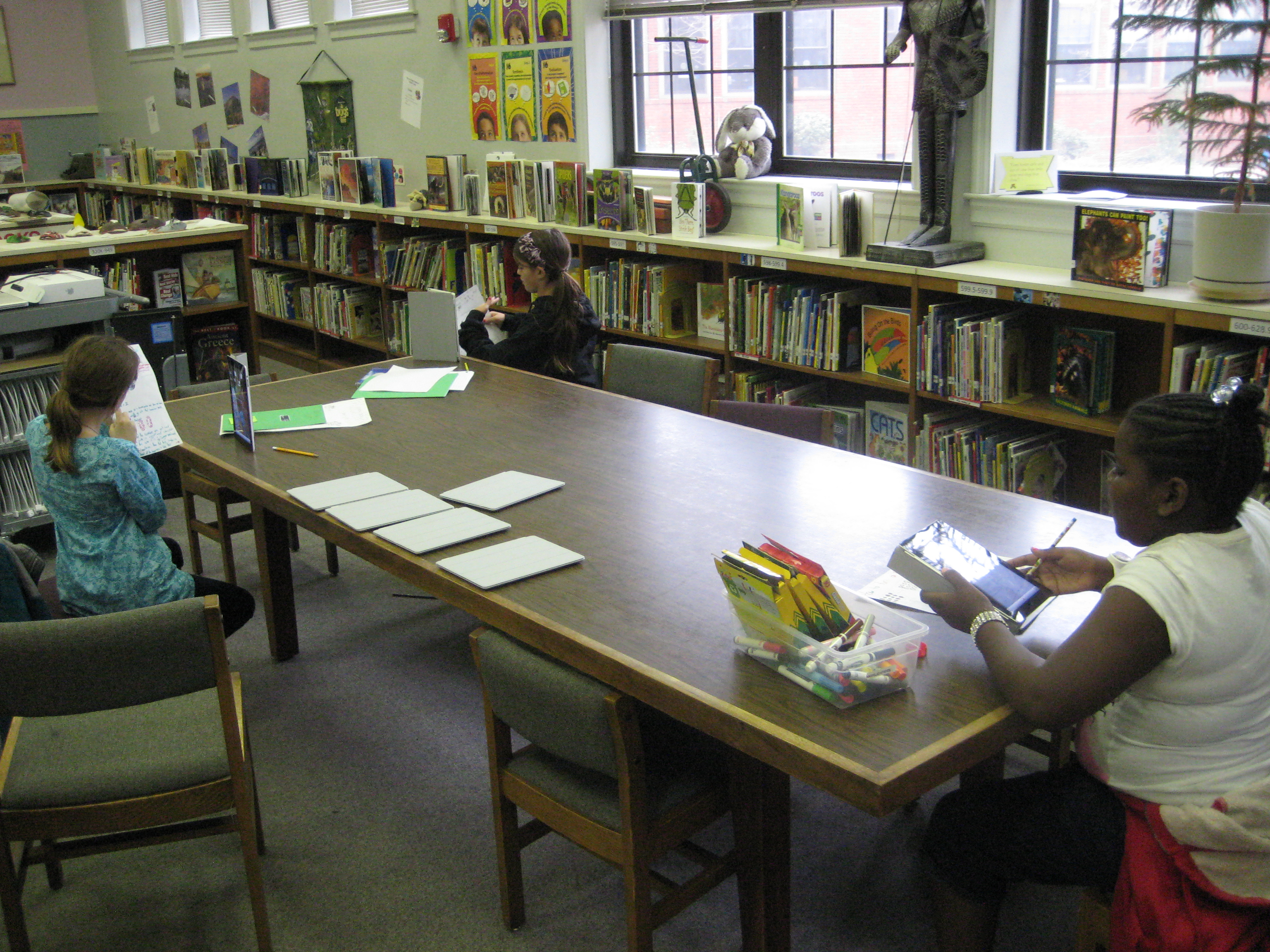
At the conclusion of the lesson, students in the 1st grade class paired up and thought about what a quilt square might look like that told a story about Barrow School.  Then, they each got an iPad with the Glow Coloring app open.  They used the black background and glowing colors to quickly draw their square.  Finally, students placed their iPads on a table to make one large iPad digital quilt.

One of the funniest things that happened during this lesson was when a student drew on the iPad in glowing blue and then held up his finger to check to see if the blue paint was on his finger.  🙂

I really liked the end product, but I wish that I had more time for the lesson.  We didn’t really have time to finish the quilt squares.  I also would have liked for each student to tell the story of their square to another partner group.  We also could have looked at the collective quilt and thought about how it represented our school as a whole and what other stories might have been included.

All in all it was a good first attempt that I will definitely replicate and expand.
This slideshow requires JavaScript.

Football Double Threat: An ebook triple review

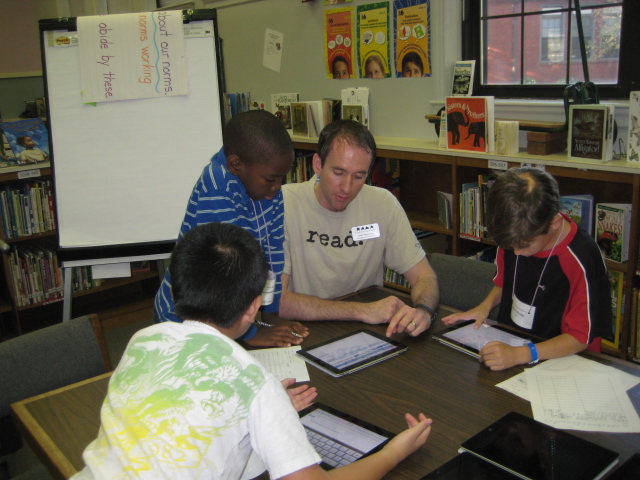
Three 5th grade boys just finished a book study with me in the library using our e-readers.  The boys were interested in reading something football-related, so we looked at several options before deciding on Matt Christopher’s Football Double Threat.  Three days each week, the boys came to the library, read aloud at a table, and discussed the book.  They also used the e-readers to highlight text and to look up words that they didn’t understand.  At the end, the boys each wrote a review and used the iPads to record their reviews.  Here they are for your enjoyment:


5th grade Student Math Tutorials

Three students filming their tutorials

Ms. Cross’ 5th grade ELT class has been doing some amazing work demonstrating various aspects of their math standards.  Each student took a different standard and found ways of demonstrating that standard through drawings, manipulatives, and explanation.  She was so impressed by their work that she thought it would be helpful for the students to create tutorials on their math components that could be used as mini-lessons or review sessions throughout the year in class.  The tutorials could even be used by other classes.

In planning for this, we thought that students should have options for how they might document their process in solving various math problems.  One option was using Glogster to create a review poster.  Students would have written components, video or audio components, and possibly images of their work.  Another option was to use the iPad to film a tutorial using all the pieces that had been created during the project.

Clare sets up her recording booth on a media center table

So far, one student has chosen Glogster & iPad and 5 students have chosen the iPad.  These 6 students explored their options on these tools and did some initial experimenting to see how each tool worked best.  Then, students spread out around the media center and used their tool to begin creating.  I conferenced with each one to talk about what was working, what they had questions about, and what they might consider trying.  On their own, students met with one another to show their work in progress and give one another feedback.

After getting all the pieces in place for creating their final product, the six students worked one final time in the media center to create their videos on the iPads.  Their videos were uploaded to dropbox on the iPad, downloaded into My Videos under their accounts, and then put into their teacher’s network dropbox.  I took the videos and also uploaded them to our media center YouTube page.  Much of my time during these final steps was spent troubleshooting and also showing a few of the students how to do the many steps to get the videos to where they needed to be.  After that, these students helped the other students.  I love how quickly students figure things out and how willing they are to teach and support one another!

This slideshow requires JavaScript.

International Dot Day (Extreme September 15-ish)

Students using Drawcast to make dots on the iPad

I thoroughly enjoy collaborating with preK.  They have a very organic planning process that comes from the things that the students get energized about or the things that come up naturally in their classrooms.  Last week, a preK teacher asked me if I would read The Dot by Peter Reynolds to her class.  Her class had been examining what it means to be an artist and she is pulling in multiple ways of discussing the topic through activities and literature.

As soon as she mentioned The Dot, I remember International Dot Day on September 15th and how sad I was that I missed the celebration this year at our school (I have big plans for next year!).  So…I thought, why not just celebrate now instead of waiting.  I examined the Dot day resources online and discovered the Dot Project  using iPads to create dots.  I took this idea and looked for a free app rather than the drawing app that the students in the Dot Project used.

In the lesson, we read the book and discussed what it means to be an artist.  Following the lesson, each student took a turn to make a dot using the app Drawcast.  I gave very little instruction on Drawcast so that students could discover things for themselves.  I only showed them how to change their colors and brush sizes.  Students got busy making their dots, and I circulated and gave them tips when they needed to erase or when they couldn’t figure out how something worked.  Each finished dot was saved on the iPad and then uploaded to Dropbox.  On my own computer, I pullled the images from Dropbox and imported them into Animoto to make a video of all of the dots.

This same process repeated for 2 other classes and the final video was shown on our morning broadcast.

This trial run gave me some experience with dots on the iPad for next September’s Dot Day and at the same time gave students an opportunity to use a new technology while expressing their artistic selves to an authentic audience.

This slideshow requires JavaScript.

Book Choice Champions Final Steps

The Book Choice Champions, a group of 11 boys in 2nd-5th grades, finalized their project today.  Their job has been to use a budget of $1500 to purchase books for the media center that are about topics that students are interested in.  They’ve been through a long process, including surveying 199 students at our school.  Last week, they finalized their book order and now we are waiting on it to come in.  Today, the boys made some final pieces to advertise the books as well as show people the process they went through.  Some worked on posters.  Others made a commercial for BTV, while others worked on an Animoto of the process.  Even though today was our last official meeting, several of the boys want to continue meeting to plan ways to promote the books to the school.  One idea was to take pictures of all of the books and make another Animoto for BTV.  Here is the Animoto that they made today to show the process that they went through.

Book Choice Champions.

Summarizing with Sock Puppets

Brainstorming for the script

I recently blogged for the Georgia Library Media Association about using the Sock Puppets app on the iPad.  Since that post, I introduced the app at a faculty meeting.  I recorded a quick, light-hearted puppet show to introduce our faculty meeting.  Then, a couple of teachers came up and did an impromptu puppet show to show how easy sock puppets is to use.  We finished by having teachers think about how this app might be used with their students.

During the faculty meeting, Mrs. Freeman emailed me to collaborate on a summarizing lesson using sock puppets.  Her 4th grade class has been working on summarizing skills during reading, and she thought that the 30-second time restraint of this app would encourage students to carefully think about how to summarize a story.

Checking in with Mrs. Freeman

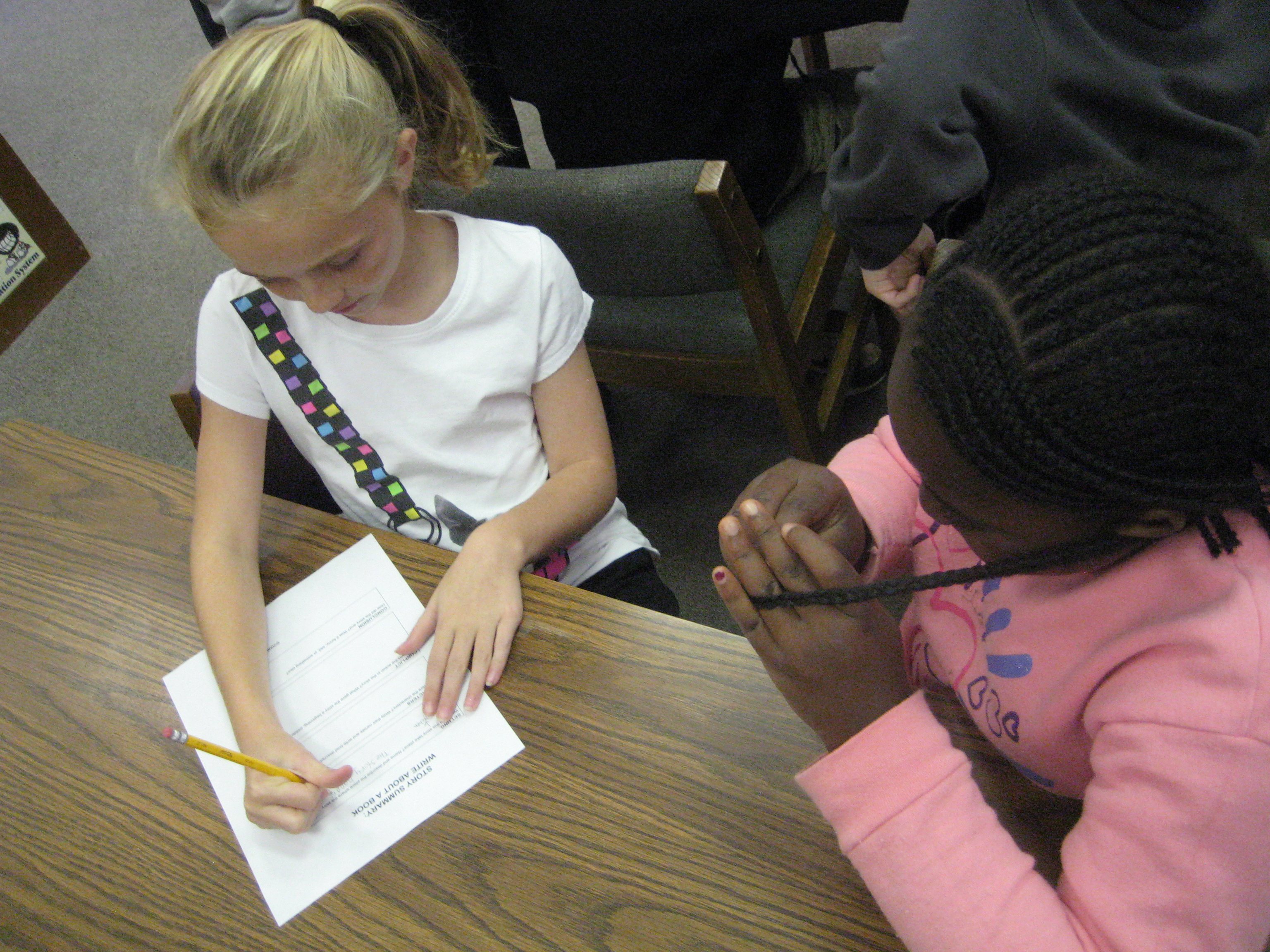
We read Spork by Kyo Maclear.  Students worked with partners to fill out a graphic organizer to help them think about summarizing the story.  The organizer included setting, characters, beginning/middle/end, and conclusion.  On the back of the organizer, partners created a script for their sock puppets.  I encouraged them to be as creative as they wanted to with the script, but that the one thing that had to be in the script was a summary of the story.

Most groups wrote scripts that had the puppets talk back forth in this manner:

Sock puppet 1:  What are you reading?

Sock puppet 2:  Spork.

Sock puppet 1:  What’s it about?

Sock puppet 2:  It’s about….

Other groups had the puppets do a summary but then ended with the sock puppets getting into an argument or singing a song.  Other groups tried to get the sock puppets to become actual characters from the book and act out the events of the story.  Each group had their own take on how to weave in a summary while still being creative with their scripts.

Before each group could get an iPad to begin recording, students showed their script to an adult:  Me (the media specialist), Mrs. Freeman, our instructional coach, and two paraprofessionals.  Finally students recorded and saved their sock puppet stories.  While they were recording, I walked around and gave tips on features of the app that students were forgetting to use.

Recording the script

At the end, we sat in front of the smart board and used an adapter to display the puppet shows.  We had fun and laughed together, but we also pointed out things in the puppet shows that could be improved for next time.  Students noticed how background noise affected the recording and how the pitch of each student’s voice affected the way the sock puppet talked in the end.

All in all, I felt like it was a creative, successful lesson that we learned from for future lessons.  I loved that students were creators of new content and that their work had an immediate audience ready to give feedback.

This slideshow requires JavaScript.

PreK and iPads: A Counting Story

Last week, I was sitting in a faculty meeting analyzing grade level math data with PreK.  As I listened in, I heard them talk about students from the previous quarter who had not met the standard for counting to ten.  They were making plans for new standards that were coming up in the current quarter, but also thinking about how to continue to support this group of students who needed to work on the previous quarter standards.

Counting Lite App

I pulled out my iPhone and searched the iTunes app store for counting apps, and found multiple free apps that we might try.  Most of the free apps were limited versions of the larger paid versions, but for our purposes, the free versions were enough to try.  I suggested that we might try some of these apps on our 10 iPads, and the teachers were eager to give it a go.

Today, the 2 teachers pulled together a group of students and brought them up.  I gave very little whole group instruction on what to do other than introducing the iPad and how to touch the screen.  I went around to each iPad and opened the app that students needed, and they started.  As usual, I was amazed at how quickly students started interacting with the iPads.  The teacher, a volunteer, and I went around to each student and prompted them to talk out loud because part of this lesson was to have the students practice counting.  They touched objects on the screen, counted aloud, and the apps also counted aloud and wrote the number on each object as it was touched.  I appreciated the ease of use of the iPads with PreK because the adults were able to focus on content instruction rather than having to instruct on how to use the technology.  Students left feeling successful with using the technology and with counting, and the teacher left feeling like students had practiced multiple standards through a few apps and was eager to come back to use the iPads some more.

I started this year with a flexible plan for the iPads that the district is having me pilot.  I’ve listened to teacher and student needs and searched for how the iPad might be a tool to support those needs.  The excitement over the device is growing, and I have a feeling that our small cart of 10 iPad is going to be in high demand very soon.

This slideshow requires JavaScript.

Book Choice Champions Begins

Surveying students using iPad and Google forms

Once again, I’ve set out on a journey with a group of students to make decisions on what books are purchased for the library in a project called Book Choice Champions.  This year, I set aside $1500 in book fair profits for a budget that is completely decided on by students.  Once again, our school is doing enrichment clusters on Wednesdays, so from 9-10AM I have a group of 11 students in grades 2nd-5th that come to the library to work on this project until late November.  The students self-selected which enrichment cluster they would be in based on their interest in the cluster topic.  The surprising part of this is that the group of students I’m working with is all boys.

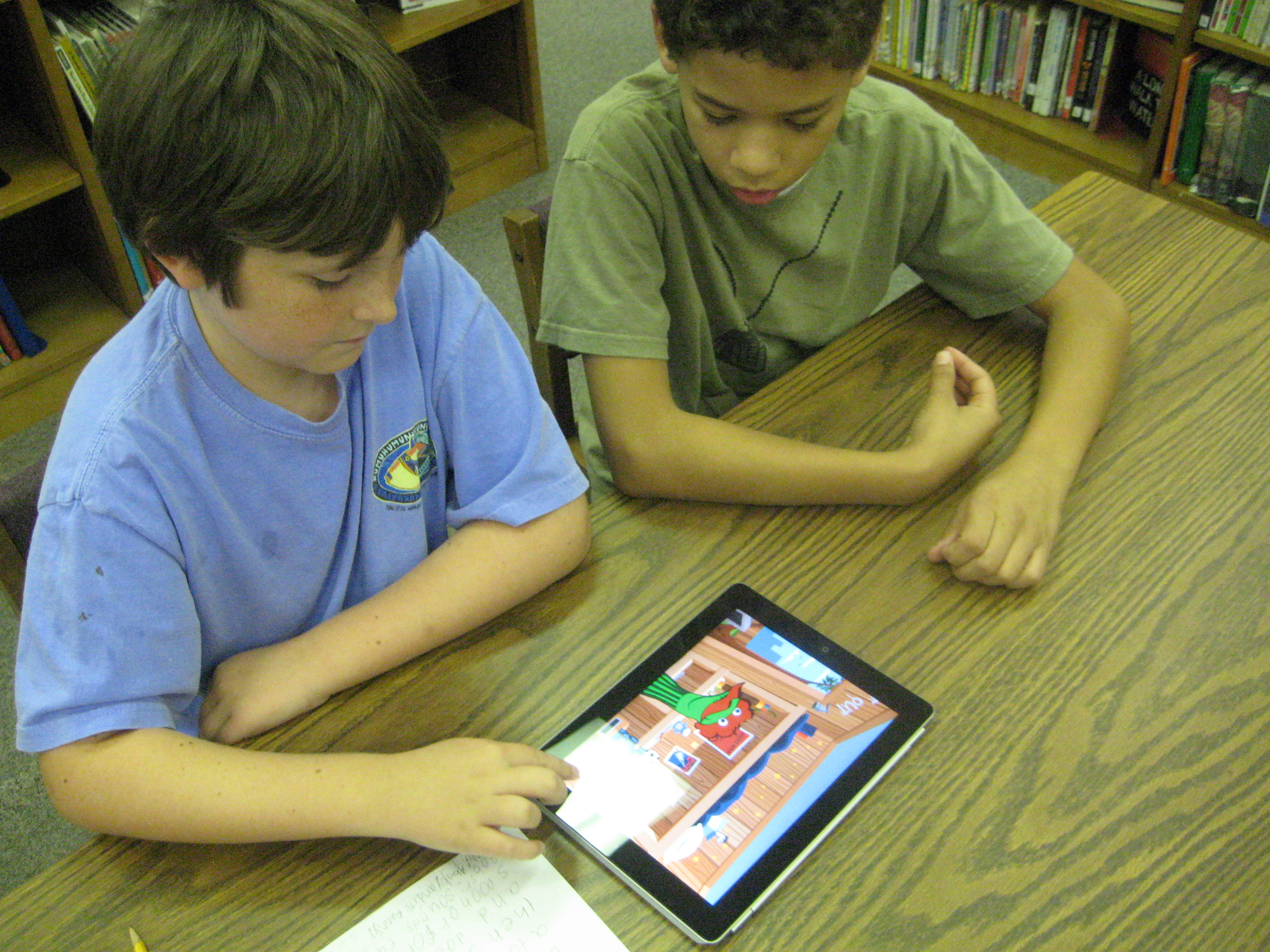
On day 1, the boys immediately noticed that no girls were in the group and they saw this as a problem.  How would they buy books that were supposed to be for the whole school without having girl representation in the group?  They decided to survey students from the whole school and felt that it was important to know how many boys and how many girls answered the survey.  They also wanted to know what grades students were in so that all grades were represented in the decisions.  Two students in the group were in a similar group last year and they talked about the problems that we had with surveying, especially using blank paper and simply asking people what they liked to read.  For this reason, they decided to develop a Google survey that could be done on laptops, desktops, smartboards, and iPads.  They felt it was important to ask about various categories of books such as animals/sports/fairies/etc, kinds of books such as chapter/picture/informational/etc, and to give students a chance to request specific books or series.

The next problem was when would students take the survey.  We knew we didn’t want to interrupt instruction, so we thought of the least disruptive process we could.  They came up with several idea that they are now trying:

  • Ask their teachers when they could come get an iPad from the media center to survey their own classes
  • Ask 3rd-5th grades to take surveys on the iPads and desktop computers in the media center during morning arrival time before going to homerooms.
  • Ask K-2nd grades to take the surveys on iPads in the art room during morning arrival time before going to class.
  • See which grade levels seem to be missing from the survey results and ask specific teachers if there is a time to come into their room to do surveys
  • If needed, email the survey to teachers to use on their smartboards
Today, we asked PreK teachers permission to pull students to survey.  Members of the book choice champions read the survey to them and filled in the results on the iPad.  Also today, several students have come to the media center throughout the day to borrow an iPad to take to their classroom and to recess to do more surveys.  At the beginning of today, we only had 14 results and by the writing of this post 85 students out of 500 have been surveyed.  That’s pretty impressive for a group of 11 students.
Our next steps will be to look at this data and make decisions about where we will focus our time.  I’m so excited by the energy and passion that this group has.  All 11 boys truly want to be a part of the process and they’re stepping up to offer ideas and make decisions.

This slideshow requires JavaScript.