And We’re Off! (with a new take on library orientation)

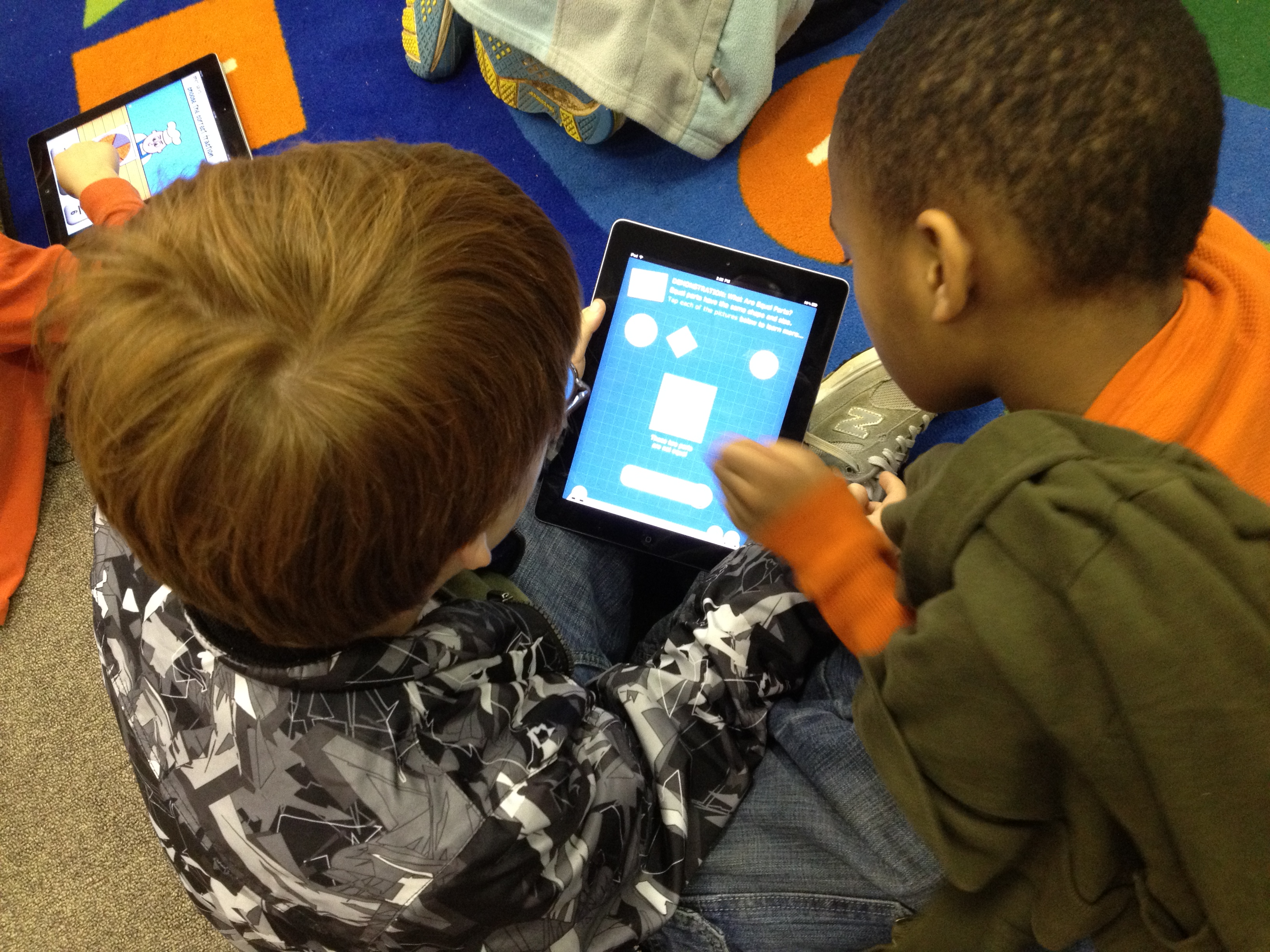
IMG_0856I’ve always wanted to try something different for library orientation rather than have the students sit on the carpet for 30-45 minutes while I talk on and on about how to use the library, check out books, and take care of books.  This year, especially, I knew that students would be eager to explore their new library space rather than sit and stare at it from a distance.  So….I made a plan for 2nd-5th grade and a plan for K-1.

For K-1, we stayed as a whole group and watched a few of the videos together.  I may try letting 1st grade scan one of the QR codes just for practice, but I felt like whole group with a story was still the way to go for the younger students.  We read the book Sky Color by Peter Reynolds to make connections to the library being a place to be creative and think outside the box.

For 2-5, I made a list of the major topics that I wanted students to think about when learning about the spaces in the library and the basic functions such as checking out a book.  From there, I made a video for each of those topics using an iPad and  uploaded it to Youtube.

http://www.youtube.com/watch?v=tXyCKIQwTo8

I took each link and generated a QR code.  I put each QR code on its own piece of paper with some brief instructions.  For example, the check out QR code said to scan the code and go to the circulation desk before watching.  On our iPad cart, I downloaded a QR reader and tested all of my codes to make sure they worked.IMG_0833

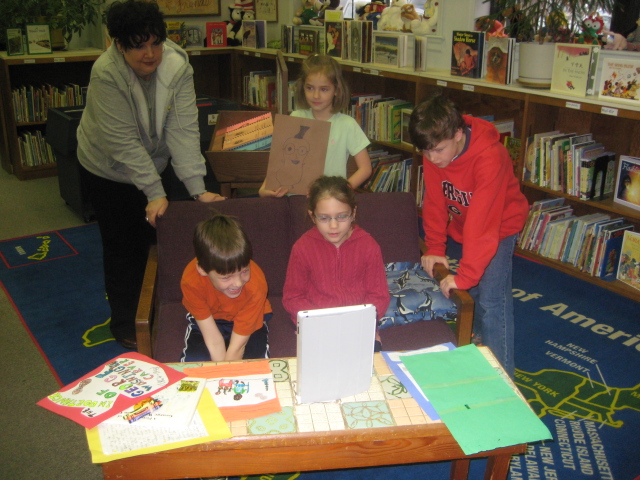
During orientation, I put out the QR codes that I felt like that grade level needed the most.  Lower grades had fewer QR codes to scan while the upper grades had them all.  For some classes I made a table of codes that were the “must scan” codes and then a table of codes for “if you have time”.  We started our time on the carpet in order to do a welcome, refresh using iPads safely, and to demo scanning a QR code.  Next students got an iPad and plugged in some headphones from the library (or their own) and began scanning codes.  I would love to say that it was perfectly smooth, but of course students had trouble adjusting sound, some headphones weren’t plugged in all the way, and some headphones weren’t working.  However, once the glitches smoothed out, it was amazing to see students productively wandering around the library with iPads doing a self-guided tour just as they would do in a museum.  In the process, they walked the entire library, tried out multiple places to sit, found out about technology they would use throughout the year, and saw books that they wanted to checkout.  I felt like even though they heard the same information each student gained something different out of the orientation.

At the close, we came back together to share some things that they learned about our library.  I wish that we had more time for this reflection because it gave me so many insights into what students valued in the library and what they were still wondering about.  At checkout, I saw students doing some of the exact same things that I did in the video.  I also saw students looking for books that they saw on shelves in the videos.  Overall, students got a lot of the same information, but this was much more engaging,  involved movement, and gave students the option to watch something again if they didn’t understand.  We’ll see how this translates into library use during the year, but I felt much better about how this new take on orientation went.

Today was exciting.  For the first time, I saw 2 years of planning a library space begin springing into action.  I saw how much the students are going to move this furniture around to meet their needs.  I saw how visible the books were on the shelves, which leads me to think we’ll have even more circulations this year.  This was only day one of classes.  I can’t wait to see how the space grows, evolves, and becomes useful to the students and the kinds of learning they will take on for years to come.

Found Poetry with the Word Mover App

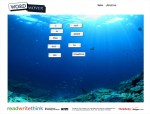
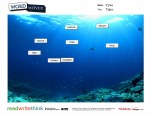
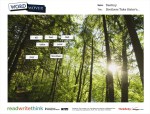
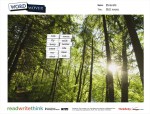
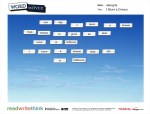
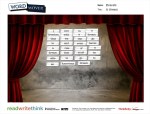
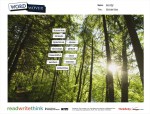
IMG_0392I always love collaborating with Ms. Hocking in Kindergarten.  A few weeks ago, she shared a great iPad app by Read Write Think called Word Mover.  It’s basically a magnetic poetry app.  You can choose from a word bank or from several famous works such as the I have a Dream speech and America the Beautiful.  In each word bank, you can also add your own words, change the font, and the color.  You can also choose from several backgrounds to put behind your poem.  Students drag the words in any order that they want to create their poem just like you would do with magnetic poetry on the fridge.  Students give their poem a title and save it to the camera roll.  From there, you can use the image however you want.  Ms. Hocking plans to display the poems on her smart board during April.  IMG_0393

This was a great tie-in to found poetry.  We also talked about how you could walk the halls f the school and borrow words from the student work that is hanging on the walls in order to write  a new poem.  The Kindergarten class used this tool without a lot of instruction.  Ms. Hocking and I walked around and helped students with questions.  The most common help needed was being able to read one of the words.  They really didn’t have problems using the technology.

Take a look at the poetry gallery below.


iPad Photography Part 2

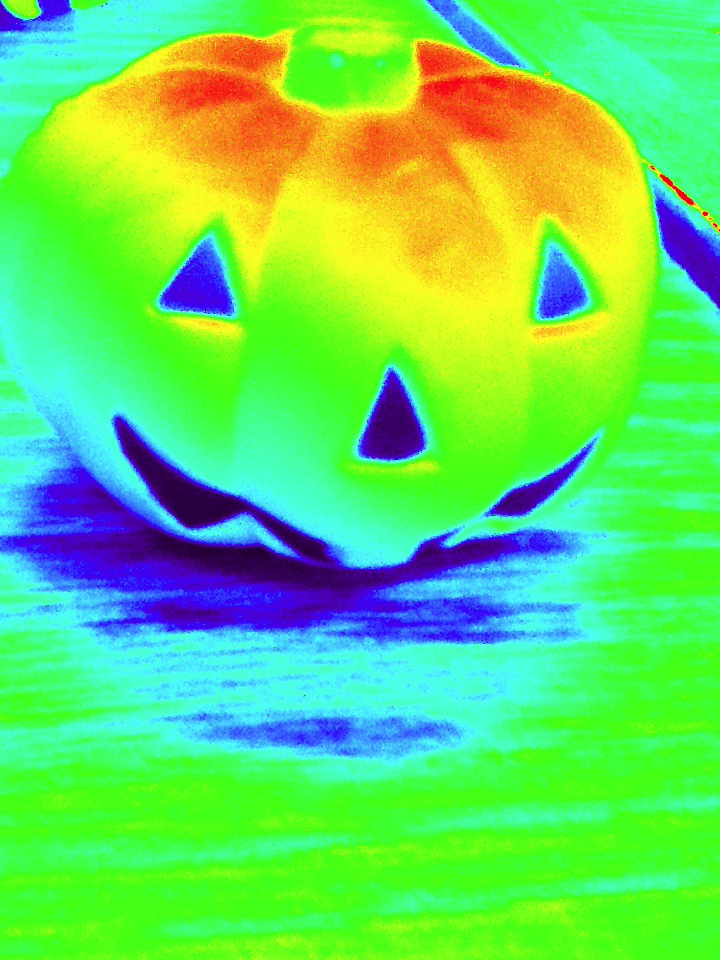
Last week half of Mrs. Hunter’s ELT class came to the library to work on iPad photography.  Read about it here.  Over the past 2 days, the other half of her class came for the same exploration.  Once again, students chose their favorite photo to email to me for our blog gallery.  Enjoy many of their Halloween inspired photos below and feel free to leave comments about their work.

This slideshow requires JavaScript.

iPad Photography

A group of 4th grade ELT students have been studying photography with their spectrum teacher, Mrs. Hunter.  They have also been working in the library to learn about digital photography and tips for taking great photos.  They collaborated on a Google doc to crowdsource a list of tips for taking digital photos, and they have explored many artistic ways to take photos around our school.

Over the past 2 days, these students have used our iPads to try even more ways of taking photographs.  Students explored the following apps:

  • Photobooth-Take a photo with many fun options.
  • Camera!-Take a photo and apply many options to edit it.
  • Pic Stitch-make collages and apply filters, stickers, and many other effects to each picture.
  • Panorama-take a panoramic photo and apply filters to it.
  • Pic Collage-Make a collage of photos from the camera roll, add text & stickers & backgrounds.
  • Tap FX-Take a photo or use the camera roll and apply effects & filters
  • PS Express-Use a picture from the camera roll and do basic to advanced photo editing.

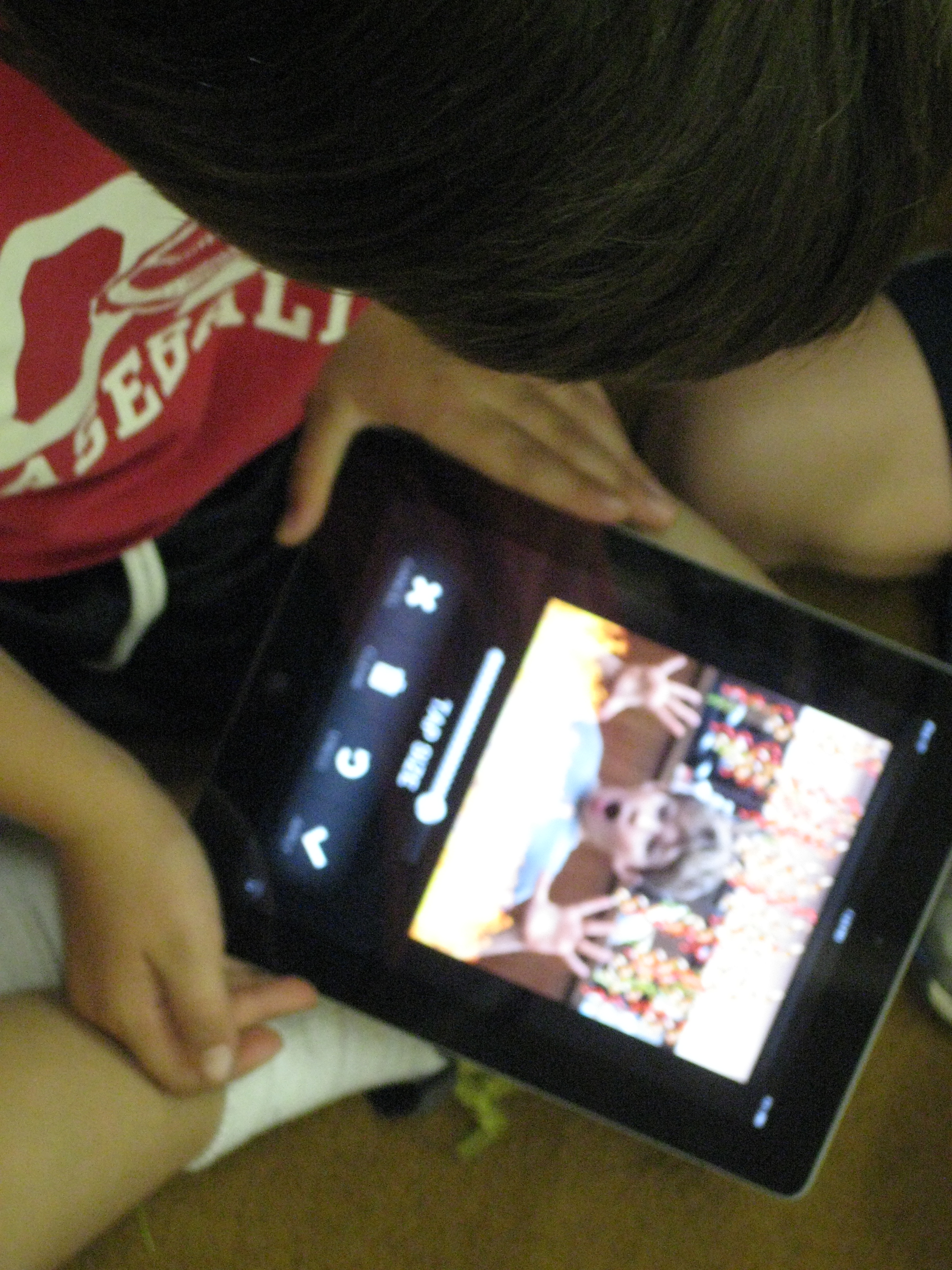
The favorite by far was Tap FX because of the many explosions and fire effects you could add to a picture.

Once students tried several apps for taking photos and editing them, I asked them to select their favorite and email it to me.  They used their school Google accounts to attach their picture.  For many, email was still a new task, so this did slow us down a bit.  I loved seeing their creativity in taking photographs but also in using apps to apply filters and effects to their pictures.  I think their work has a lot of implications for future projects.  These students could become consultants that teach others how to use the various photography apps for projects.
Take a look at their favorites in this gallery:

This slideshow requires JavaScript.

Fetch! Lunch Rush! App

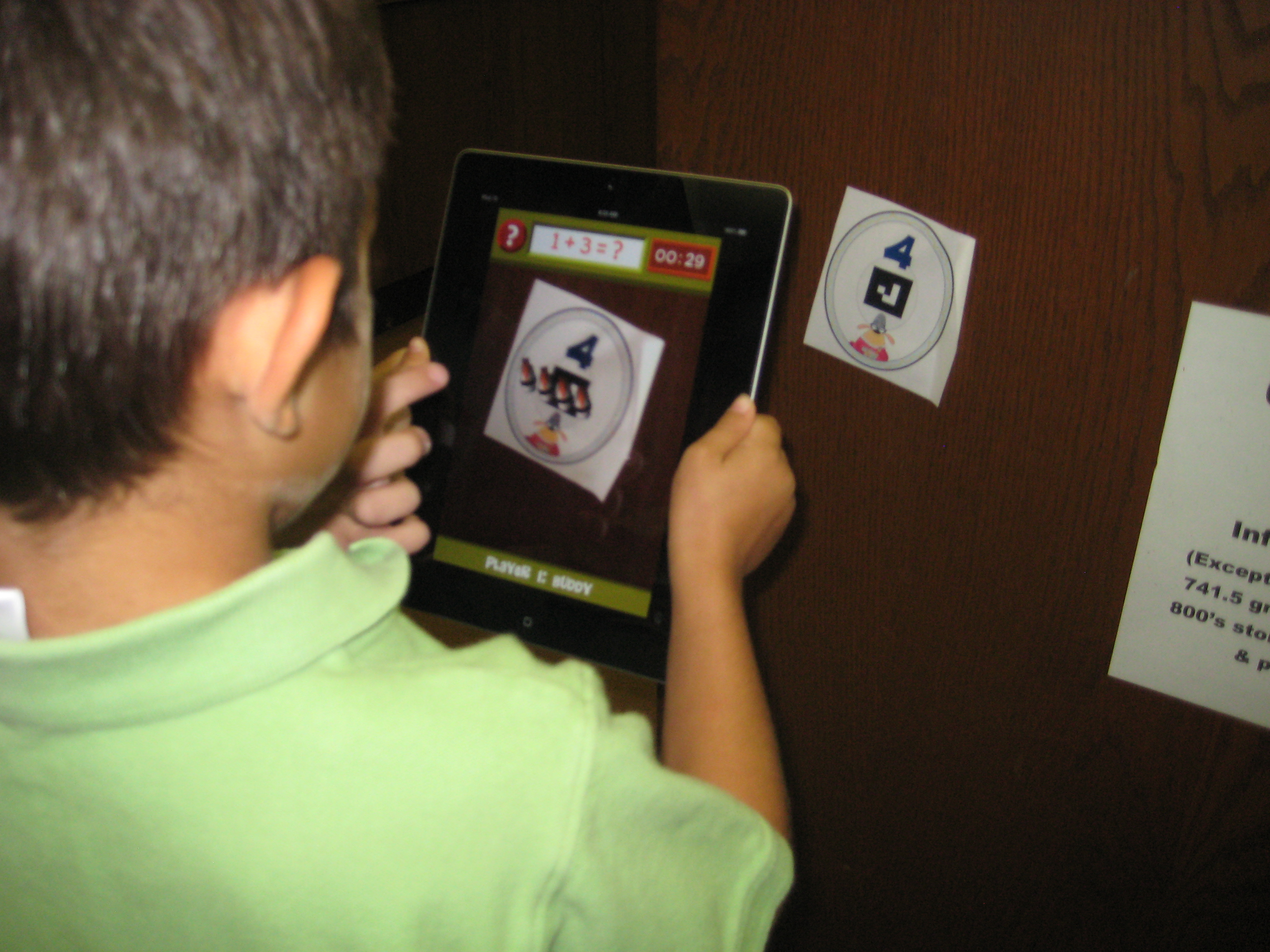
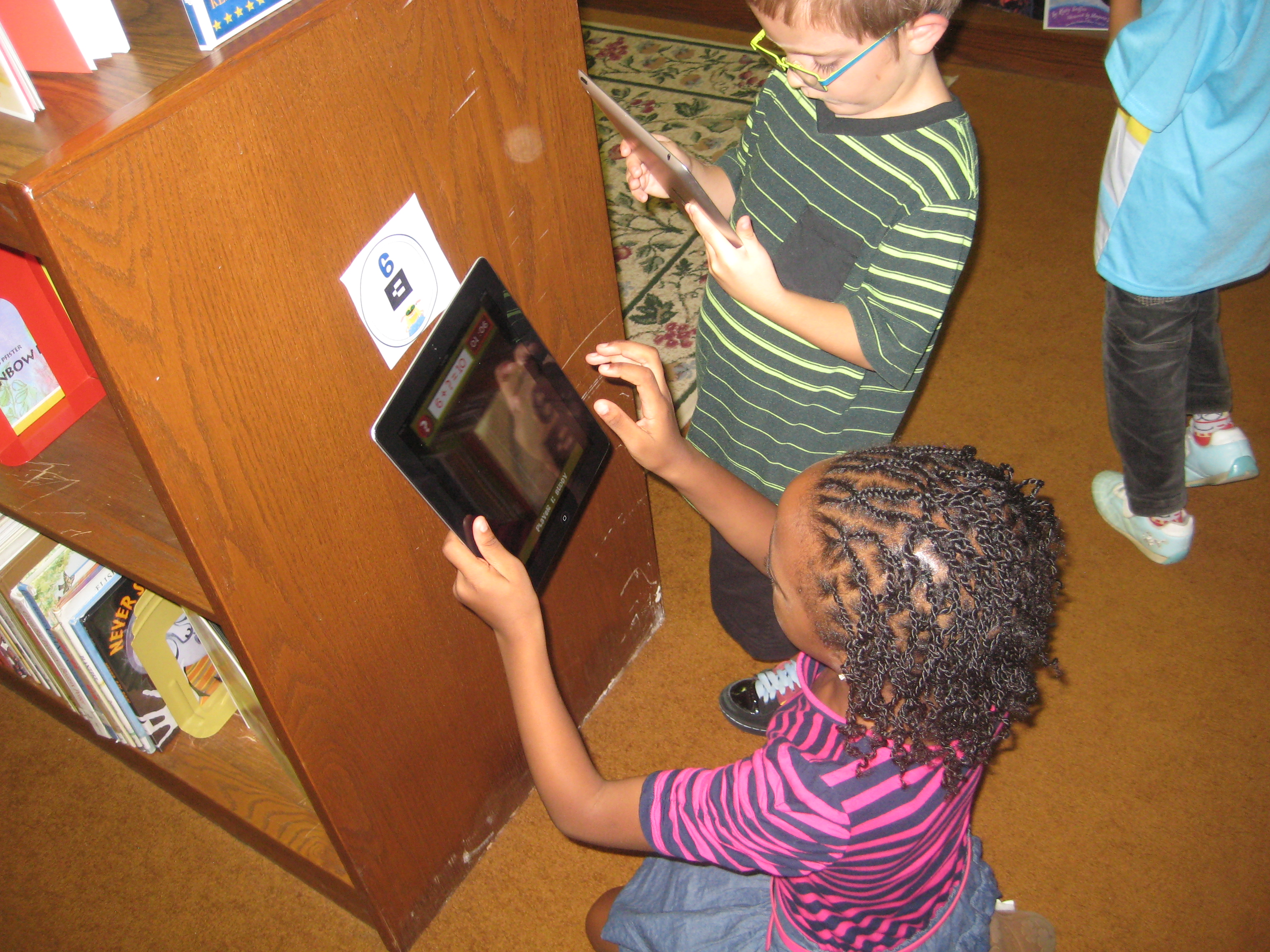
Recently, on one of my favorite blogs, Free Technology for Teachers, Richard Byrne featured the app Fetch! Lunch Rush! for iPhone (also can be for iPad).   I immediately downloaded it, played around with it, and loved it.  I emailed all lower grade teachers to see if it might benefit their students with practicing some basic math facts, and the entire 1st grade team signed up to give it a try.  I printed out the cards  and posted them around the media center so that the game took on a true scavenger hunt feel.  The basics of the game are that you have basic math facts that add or subtract up to 10.  You have 10 printed cards with numbers and symbols on them to post around the room.  The app gives you a fact, you find the answer, you point the iPad at the picture, a picture of sushi appears on your screen, and you tap it to send it to lunch.  The app times how long it takes to answer the problems and increases in difficulty as accuracy and speed increase.

Students began on the carpet for a very brief demo of how the app worked.  Some students were paired together on 1 iPad (up to 4 players can play on 1 device).  Other students worked alone.  It was amazing to watch how active the students were.  They were scurrying about the media center looking for answers, pointing their iPads at the answer, tapping the augmented reality sushi, and moving on to the next problem.  Along the way, students got problems that were challenging to them.  The teacher and I gave them tangible objects to help them (fingers, popsicle sticks, markers, etc).  They stopped on the floor or at tables to figure out the answer before moving to find the card on the wall.  Students also began to get missing integer problems like 3 + ____ = 9.  These were the most challenging for first graders, but the challenge didn’t stop them.  They were eager to get an answer and continue the game.  

This app pulled together so many great learning pieces for students.  There was gaming, movement, problem solving, the cool factor, and technology.  The teacher made observations and then went back to the classroom to practice more strategies that will help students develop their math fact fluency.  I hope more apps like this one cross our path because it was fun, engaging, and took boring math fact practice to a whole new level!

This slideshow requires JavaScript.


International Dot Day 2012 @barrowmc

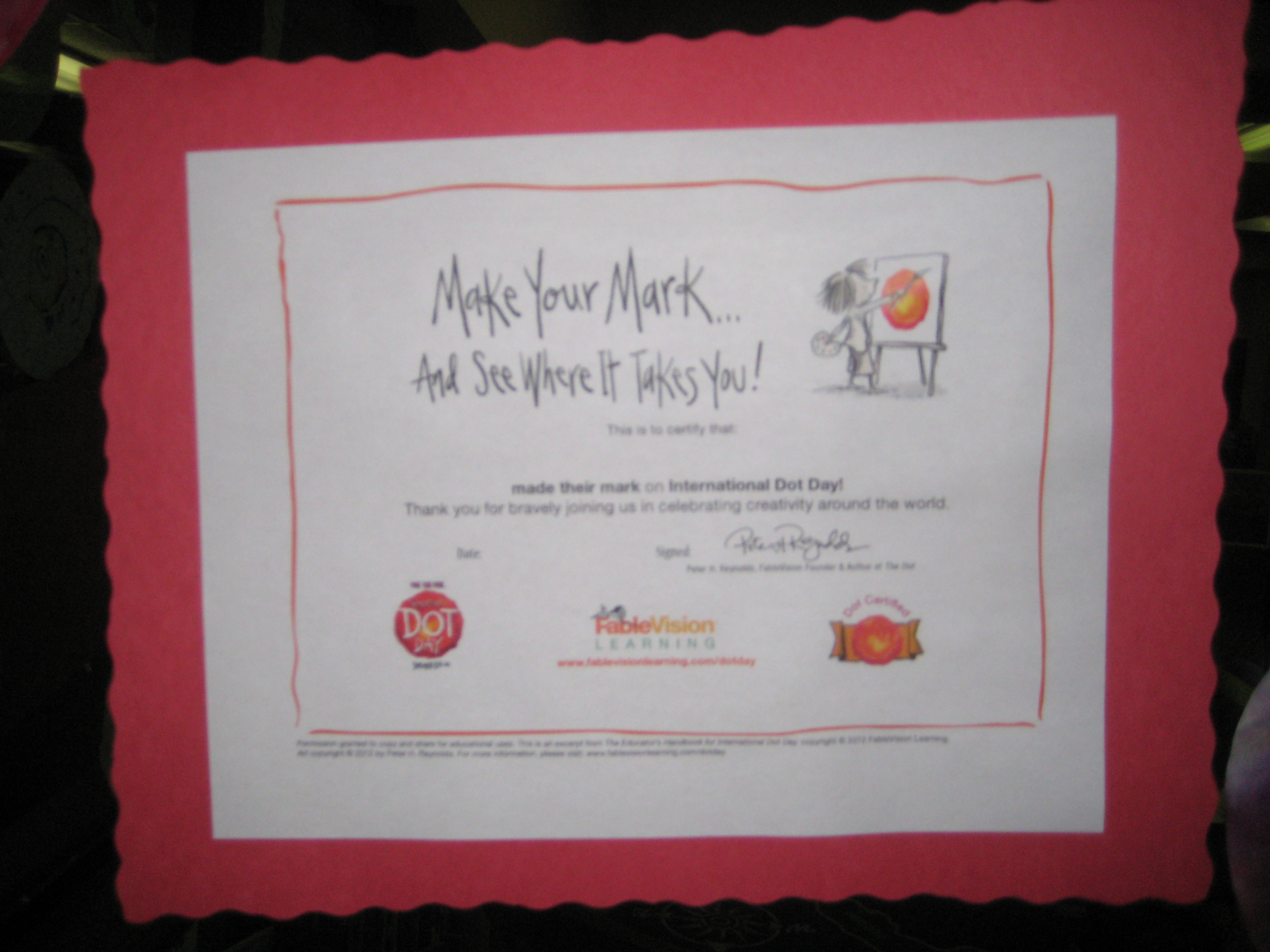
September 15(ish) is International Dot Day.  We’ve been celebrating for the past week in the Barrow Media Center.  Numerous classes came to listen to The Dot by Peter Reynolds.  We talked about the importance of making your mark on the world and avoiding the words “I can’t”.  After our discussion, students moved to tables and made dots in 2 different ways.

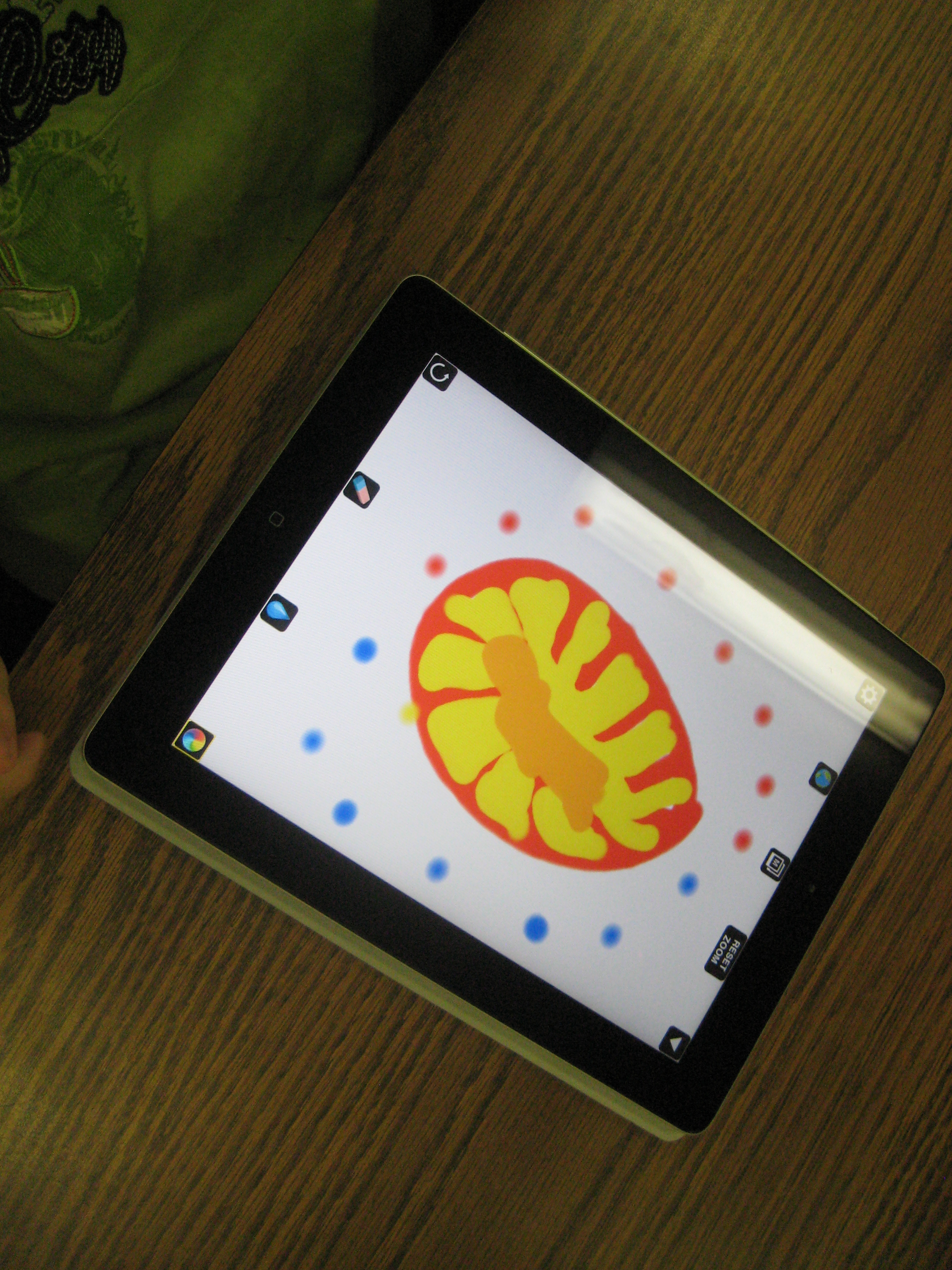
Using Drawcast on the iPad, students made digital dots in a variety of ways.  They saved their images to the iPad photo gallery.  We took those dots and imported them into a collective dot folder and used Animoto to make a digital dot gallery.  We also made a QR code and displayed it outside the library to link to our Animoto video.

At the other tables, student had access to coffee filters, markers, crayons, and color pencils.  They decorated their coffee filters in creative ways.  All of the paper dots filled the windows of the media center to the point that you almost couldn’t see in!  Some students used a spray bottle of water to spray their filters so that the color ran together.  After many classes came, we realized that our sprayed dots had created even more dots in the drying area.  The final class, Ms. Olin’s class, wrote on the drying paper “Barrow School Made Their Mark” and we displayed this in the hallway as well.

We hope our creativity will inspire others to make their mark on the world!


http://www.youtube.com/watch?v=xs37blo4nPk


http://www.youtube.com/watch?v=O4MrbMI7Oxk

Exploring the Solar System

Right now our 4th grade is working on the Georgia Performance Standards dealing with the solar system and stars.  They kicked off their unit of study in class with a KWL chart.  With that knowledge named and questions formed, they came to the library for an exploratory lesson to further expand their knowledge and spark additional questions before they continue their unit of study in the classroom.

We began our time together as a whole group.  I sparked their interest with my own research of the end of the shuttle program, the price tag for a seat on a Russian shuttle, and updates on the Mars Rover.  Next, students got to choose from two books to read aloud:  You Are the First Kid On Mars by Patrick O’Brien and The Planet Hunter: The Story Behind What Happened to Pluto by Elizabeth Rusch.  I was actually surprised that they picked The Planet Hunter because we had talked so much about the Mars rover and they were excited about it.  Nevertheless, we read the story and they were amazed to learn that scientists could change the definition of what a planet is and things we once called planets are now called something different. They wondered if there would ever be a day that Earth would not be a planet anymore.

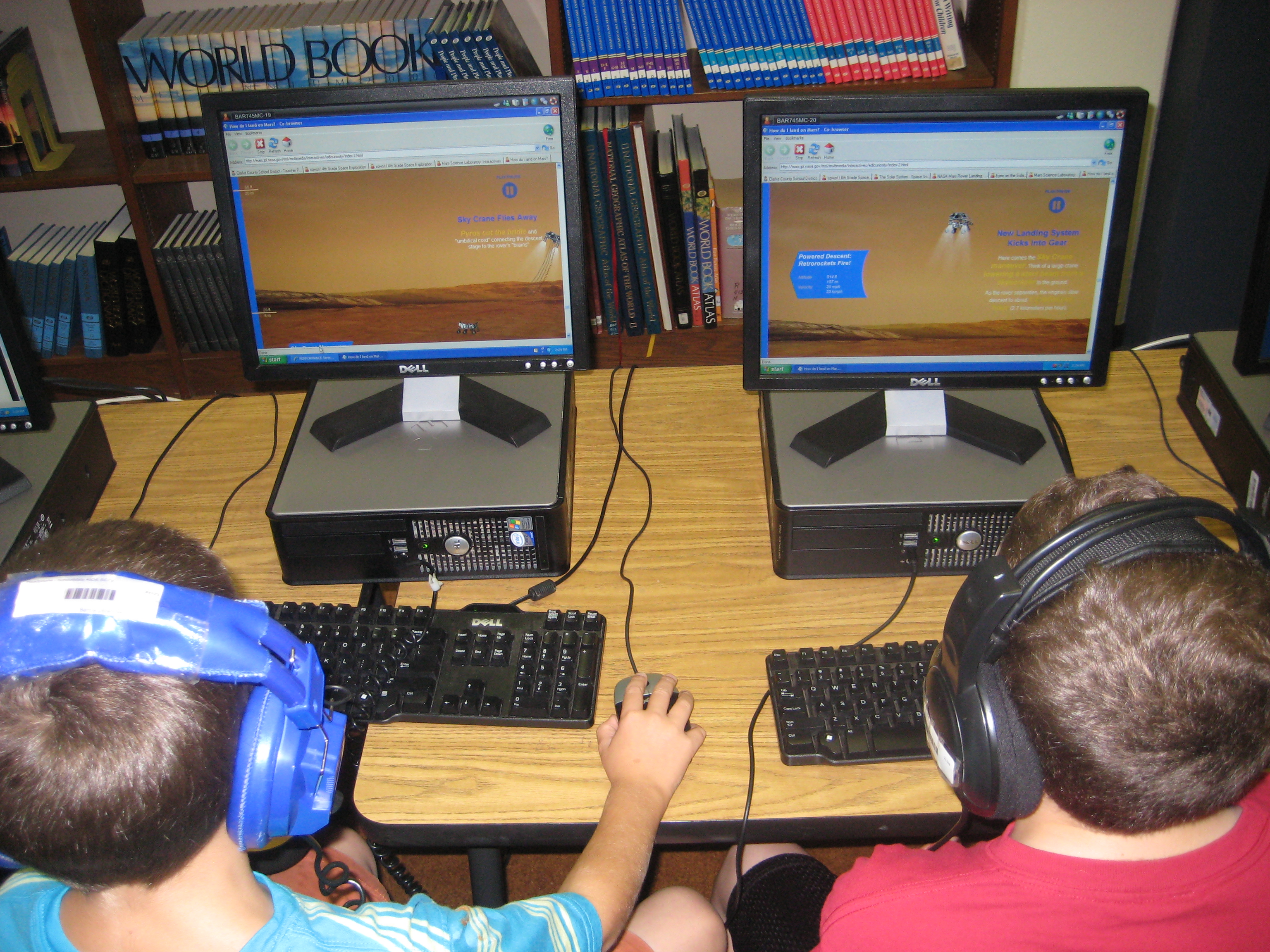
After our book exploration, students split into 2 groups.  One group went to the desktop computers and used a pathfinder created with Sqworl to explore YouTube videos and interactive sites.  The other group used our 10 iPads to explore a variety of free solar system and constellation apps such as Distant Suns, Moon, Solar System, NASA Viz, Stellarium, GoSkyWatch, and Planets.  Groups switched halfway through our time so that they went to both centers.

The students left with excitement about the solar system.  They left with questions and a desire to continue learning.  When one student discovered something in an app, video, or interactive site, they immediately wanted to share it with other students in the class.  Without any prompting, they were teaching one another how to use the tools.  The teacher and I served as facilitators in both groups.  One student even said he wanted to go build a model rocket after watching one of the YouTube videos.  They will carry this new knowledge and energy back into their classroom to continue their unit of study on the solar system.

In total, this took about 45-60 minutes, but I feel like the energy that was created in the students at the front end of their unit will be well worth the time and exploration.


This slideshow requires JavaScript.

Digital Learning Day @David C. Barrow Elementary Media Center

Today was National Digital Learning Day.  I honestly didn’t plan anything specifically for the day, but rather looked at what we were already doing today and highlighted it.  Using technology as a natural part of learning to both consume information and create it is a big part of our media center vision and mission.  I appreciate this day to highlight the great work going on around our country, but I didn’t feel like I needed to go over the top with planning digital learning, when it’s already a part of what we do.  Here’s a glimpse of the kinds of learning that took place today in the Barrow Media Center.

  • 11 students used e-readers to download samples of multiple books and read them to make decisions about what e-books they will commit to reading
  • Two enrichment clusters used iPads, desktops, and laptops to explore different ways of using these devices.  These 2 groups (one younger students and one older students) are trying to explore as many ways these devices can be used so that they can promote their use throughout the school among students and teachers.  Two Kindergarten teachers are leading these groups and working in the media center.
  • A 1st grade class learned about the Athens quilter, Harriet Powers, and created a digital quilt using the iPads.
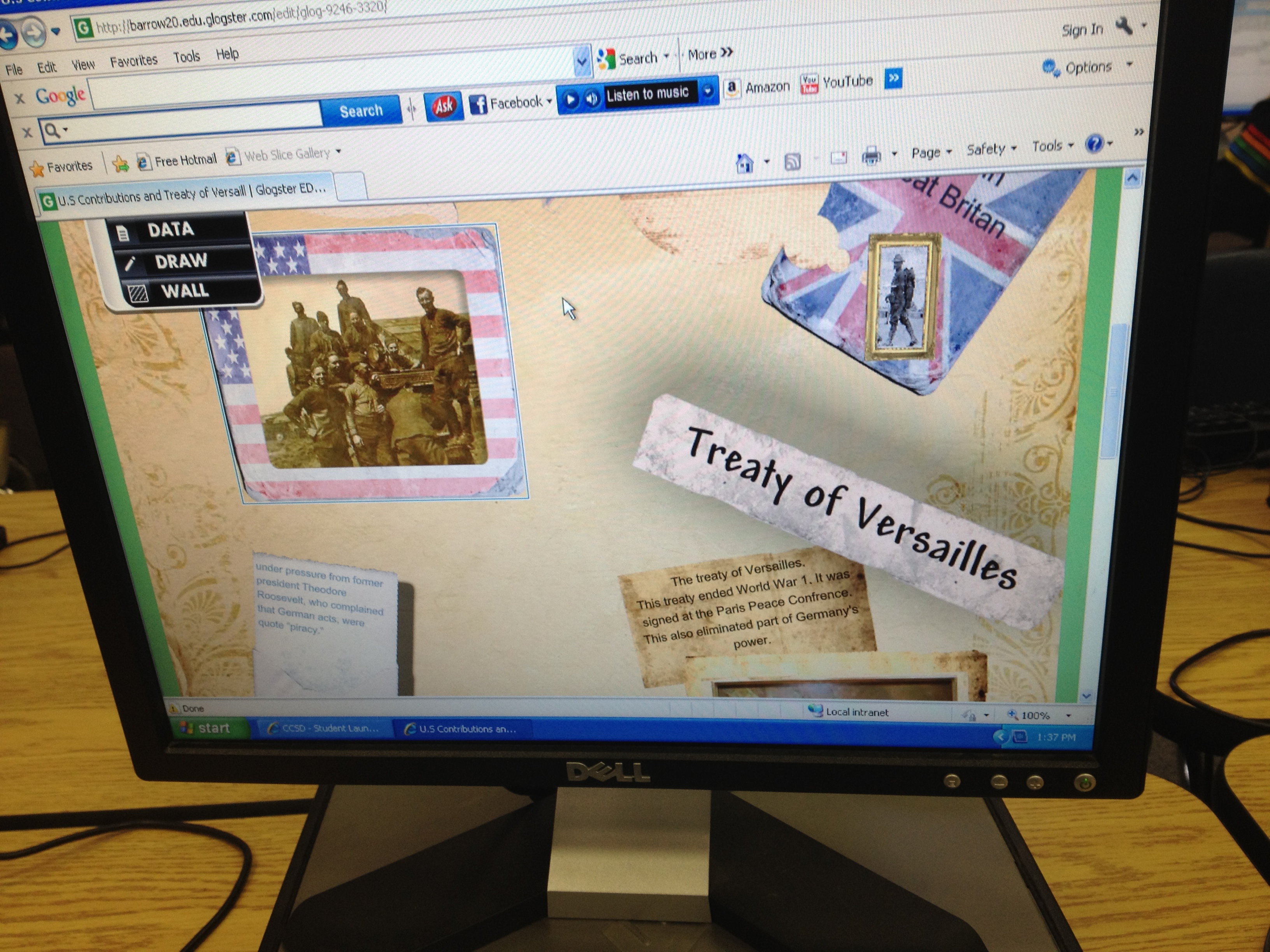
  • Three 5th grade classes worked on collaborative projects encompassing 3 units of social studies standards.  They are taking research they found and creating glogs in Glogster.  At this point they are linking their glogs to videos online, embedding screencasts of Google Earth tours or timeline reviews, and creating audio segments introducing their glogs.
  • A kindergarten group used the e-readers to listen to picture books and/or practice reading the books independently and doing summaries.
  • I held a professional learning session for teachers on Google docs so that they could learn how to begin collaborating on documents.  Our teachers do a lot of collaboration, so the use of Google docs is going to help them share multiple documents and streamline their time.

This slideshow requires JavaScript.

How do you celebrate digital learning day every day?

Buddy iPad Math: A First Grade & Fifth Grade Collaboration

Our 5th grade and 1st grade buddies returned to the media center today for another round of media center collaboration on math standards.  Now the 1st graders are working on fractions.  The 5th graders worked with their own teacher ahead of time to view the 1st grade fraction standards and familiarize themselves with what was expected of 1st graders.  Their teacher encouraged them to stretch the 1st graders thinking within reason.

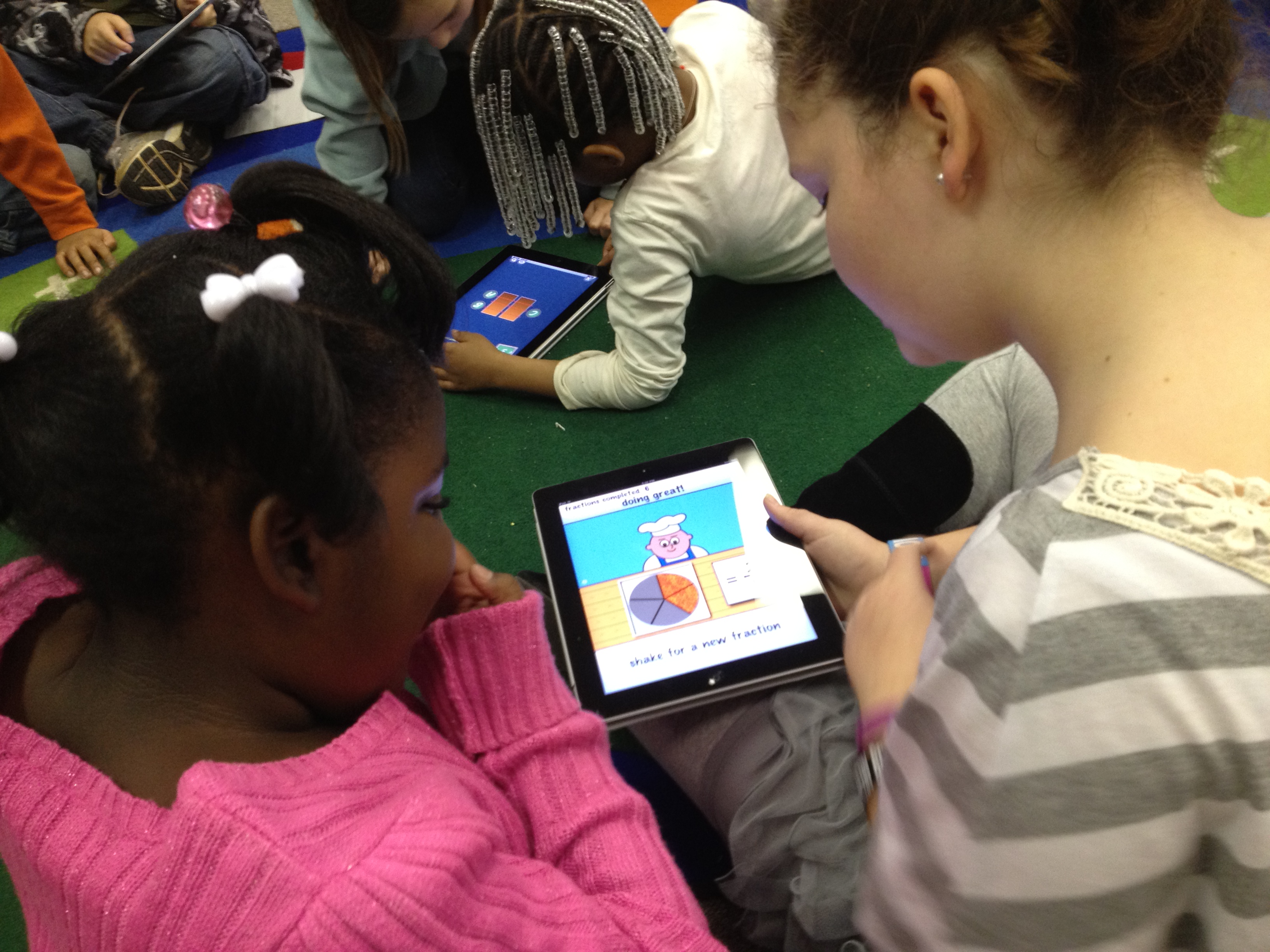
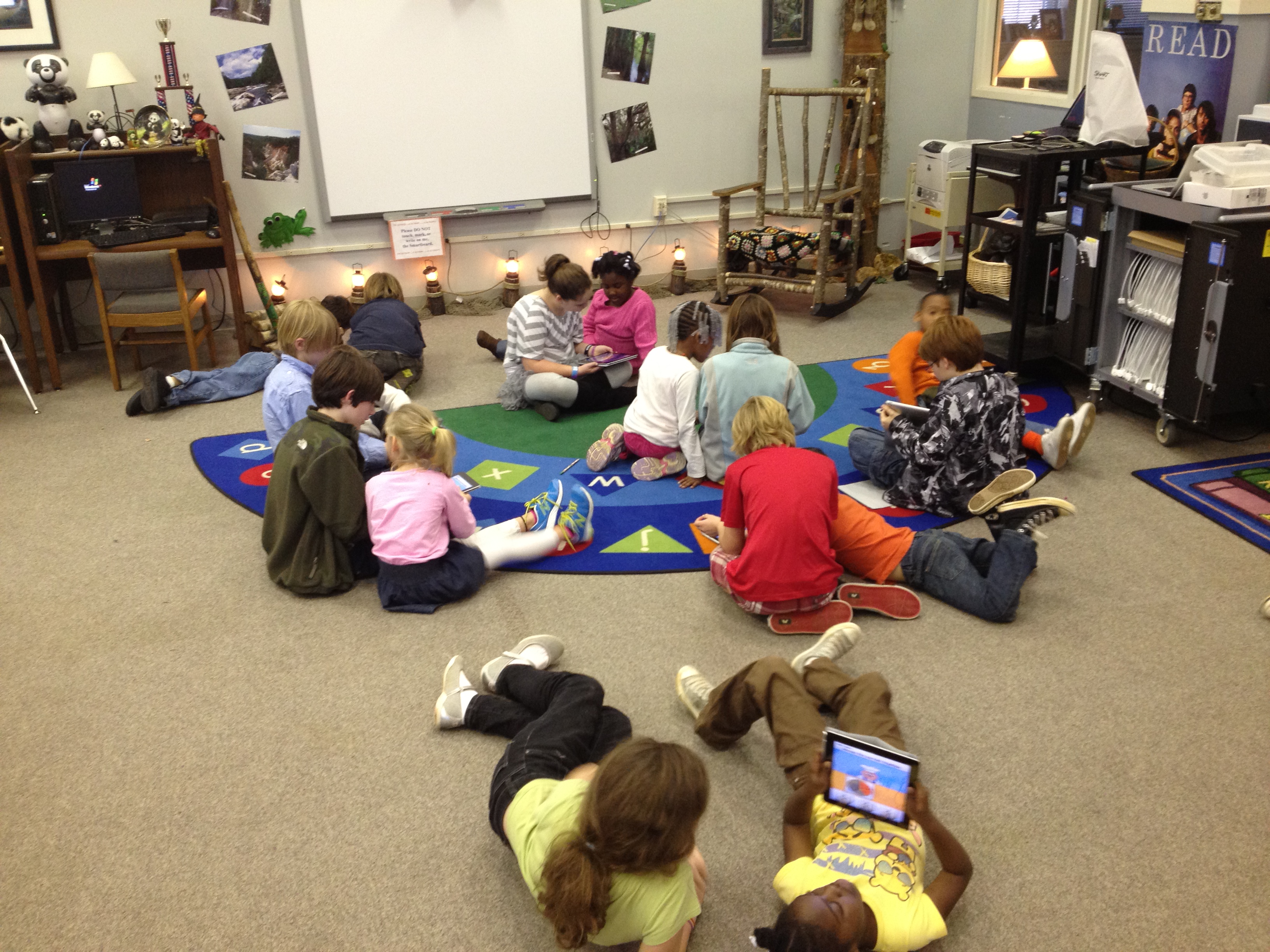
Today, we started on the carpet in the media center.  I used the document camera to display the book Fraction Action by Loreen Leedy.  I only showed pieces of the book at a time because I paused and allowed the students to work with their buddies to draw representations of the various fractions from the book on the iPad.  They used any of the drawing apps that were installed.  Once they drew their representation, students closed iPads and we looked at the representations in the book before moving to another fraction.  We looked at 1/2, 1/3, and 1/4 in the book.

Next, the groups split.  Half of the students used a pizza fraction app on the iPads while the other half went to the computer lab and used several fraction websites that were compiled by the teachers.  I stayed with the students on the iPads and had conversations with them about the fraction app.  When they reached a point where they were getting bored with the app, we moved to other math apps to practice basic 1st grade math facts.

We plan to continue the fraction lesson on another day by incorporating some fractions that move beyond the 1st grade fractions.

George Washington Carver: A Digital Product

Students view their first attempt at a video and give one another feedback

A group of 1st and 3rd grade students have been collaborating with one another to learn about George Washington Carver.  They used print and internet resources to gather research to learn about him.  They also along the way decided that he deserved to be represented on some of our US currency, so they incorporated their knowledge of persuasive writing to explain why he deserved to be on the $1000 bill. These students used an inquiry approach and were facilitated by various adults including their classroom teachers, gifted teacher, and me (the media specialist).  The goal was to let these students guide the process and make decisions about what to create.  As adults, we offered possibilities, but tried to leave decisions in their hands. Today, these students came to the media center with all of their final pieces and used an iPad to record their final presentation.  They used art, informational writing, persuasive writing,  and solo and choral reading to present their information.  After a practice video, they made some minor adjustments and recorded their final piece.  They learned how to import their video from the iPad into their documents on the computer.  They will continue to make decisions about how their final video is used, but for now, I have uploaded their video on Youtube for you to enjoy.

http://youtu.be/FzHGV6WuiKs