Cybersafety 2012

FireShot Screen Capture #029 - 'Digital Literacy and Citizenship Classroom Curriculum I Common Sense Media' - www_commonsensemedia_org_educators_curriculum
Last year, our media specialists were charged with the task of teaching cybersafety to all of our students.  We don’t have an official curriculum, so each of us has curated our own version of what to teach.  I’ve found Common Sense Media’s K-12 curriculum to be very useful.  It offers lessons on multiple topics at all grade levels and also has all the resources you need in one place.  It also integrates into Edmodo if you use that tool with your classes.  Common Sense Media is also the adopted curriculum of the Mooresville Grade School District in North Carolina, which I recently visited to see their 1-to-1 technology initiative.

Since cybersafety is not the only thing that I teach, I wanted a way to deliver the content efficiently to all classes while also being consistent in what I said.  I wanted the lesson to be interactive and not take up too much space on the library calendar so that I could continue to support the many collaborative projects going on in our school.

I decided to schedule 2 sessions in Adobe Connect to teach all of the classes simultaneously.  K-2 had a 45-minute session and 3-5 had an 60-minute session.  Ahead of time, I put copies of any handouts students would need in teacher boxes.  Teachers logged in to our Adobe Connect Meeting room at the schedule time.  About 5 minutes before we began, we did a sound and video check.  Classes that had issues or classes with a sub combined with other classes.  I planned a mix of presenting, class discussions facilitated by the teachers, polls, and videos.  I also left time at the end of each session for students to ask questions.

For K-2, I used the lesson “Going Places Safely”.  We talked about how the Internet is really like going on a field trip.  Many of the rules that you use to stay safe on a field trip apply when you are online.

For 3-5, I used the lesson “Rings of Responsibility”.  We talked about how you have responsibilities for yourself, your friends and family, and the larger community when you go online.

As an add-on to these lessons, I displayed the Digital Citizenship posters from Common Sense Media and talked about students’ roles as good digital citizens.  At the close of the lesson, teachers had their students sign a class digital citizenship poster.

We will continue to offer follow-up lessons throughout the year.  I hope that this introduction will spark some open dialogue between students and adults about digital citizenship, cyberbullying, and ethical use of information.

You can view the archives of the sessions below.  Please note that some parts of the session will not be seen in the archive because classes watched a video in their classroom or had a discussion in their classroom that wasn’t a part of the recording.

K-2 Cybersafety

3-5 Cybersafety

Paul Revere Transliteracy: A Third Grade Collaborative Project

Back in September, third grade took a transliteracy approach to exploring rocks and minerals.  After participating in this experience, Mrs. Shealey, 3rd grade teacher, had some ideas for how the transliteracy approach could inspire the Paul Revere standards that 3rd grade was about to work on.  She scoured the internet for resources and developed her own Sqworl pathfinder to share with students.  She also developed a menu of projects that students could choose from.  After introducing the idea to her team, we all met together to continue brainstorming and think about how technology could be incorporated with the menu ideas.

Ideas included:

  • Make a map of Paul Revere’s ride with important events, photos, and videos using Google Earth & Google maps
  • Create a newscast of Paul Revere’s ride with eyewitness accounts.  Use the iPad to film the newscast and iMovie to edit.
  • Use Museumbox to create various cubes about Paul Revere:  his ride, his character traits, events leading to American Revolution, etc.
  • Create a piece of art related to Paul Revere.  Use Photo Story, iPad, or Glogster to display the art and talk about it.
  • Write a poem or a song about Paul Revere.  Use the iPad to film a performance of the song/poem.

Ideas continue to be added to this menu.  We decided to narrow the technology focus to just a few tools:  Glogster, Museumbox, Photo Story, Animoto, iPad & iMovie, and Google Earth/Maps.  Many of these tools were new to students so we wanted students to have a chance to explore each tool before committing to a project or tech tool.  We decided to have a technology fair where each class could come and tour through the tech tools to gain some familiarity with each tool to inform their decisions.  I saw this as the perfect opportunity to bring in student expertise, so Ms.  Hicks, a spectrum teacher, helped identify students who could teach other students about each of the tools.  Google Maps and Museumbox were new to all students, so I led the station on Museumbox and Todd Hollett, technology integration specialist, led the station on Google Maps.  

The students and adults setup their stations, and each class came through the library for about 30-40 minutes to see mini-presentations and play around with each tech tool.  Students freely moved from table to table and at times needed encouragement to move on.  Many students wanted to stay at one table to become an expert in a tool, but that was not the point of the tech fair.  Expertise will develop later.  We just needed them to be familiar enough with each tool to know what it was capable of doing.  Even though all students did not make it to all stations, each class had a good representation of students who visited enough of the stations to be able to share back in class.

Our next step is for students to decide on their project and tech tool.  The teachers will then group these students into groups based on their tech tool.  Then, during a block of time each day, students using the same tech tool will meet in the same room so that they can support one another as needed.  I’ve seen amazing things happen when a large group of students using the same tool are in the same room.  They discover things that I would have never had time to figure out or teach to everyone and they willingly share their learning with other students.  I think we will be pleasantly surprised by the knowledge that students gain about these tools during this process.

The teachers and I will also support students with the technology, but we also want our focus to be on supporting students in locating quality information for their projects.  We will rely on the pathfinder as well as books from our library for this endeavor.  I can’t wait to see what students come up with!

This slideshow requires JavaScript.

Election Centers 2012

October was busy!  I had big plans to do multiple kinds of election lessons with classes and time just slipped away from me.  Our school did a mock election through Youth Leadership Initiative.  I also did a storybook character election using “for president” books and a Google form.  Several classes are still completing that lesson this week and we’ll announce the storybook president on Friday.

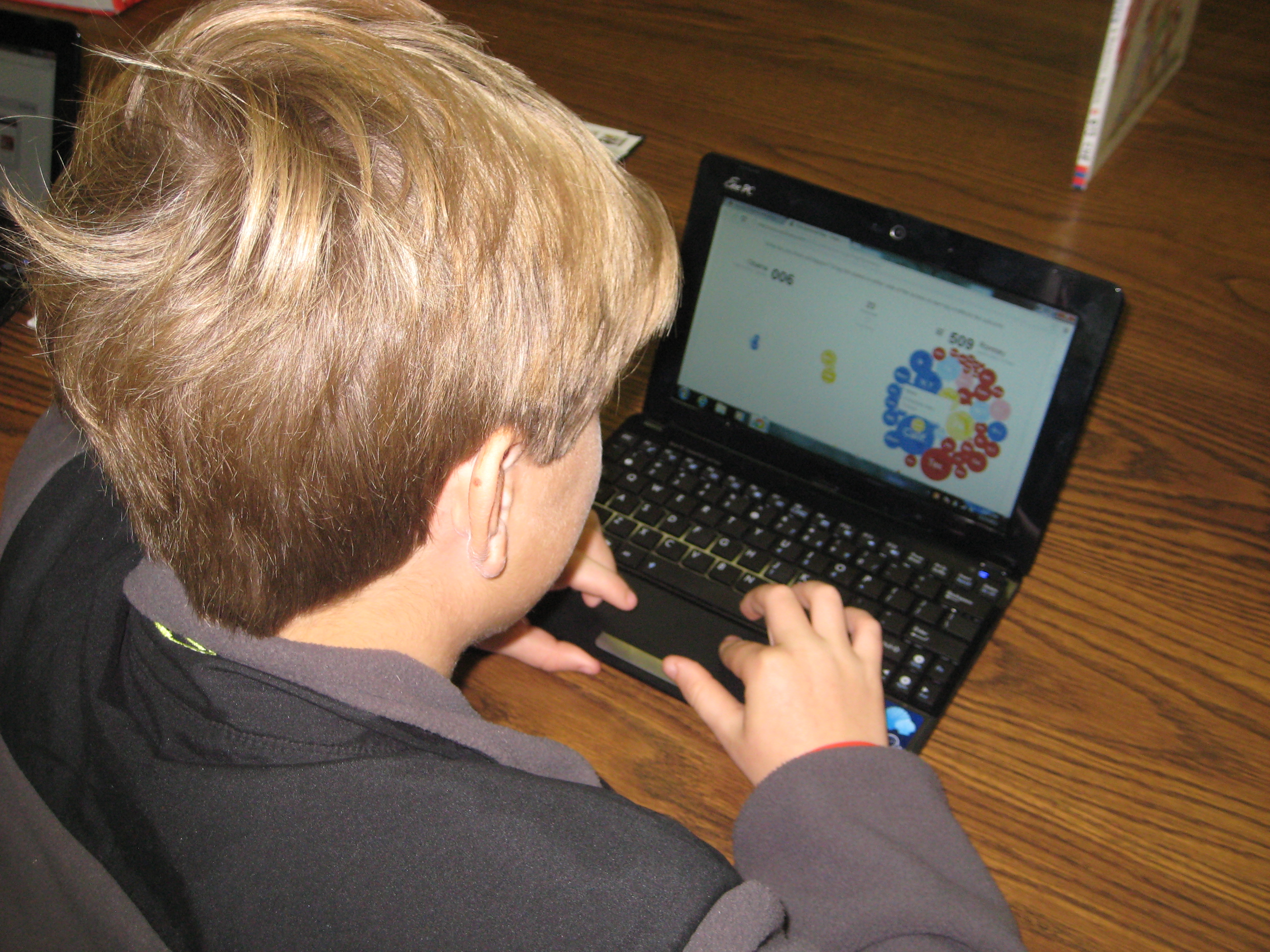
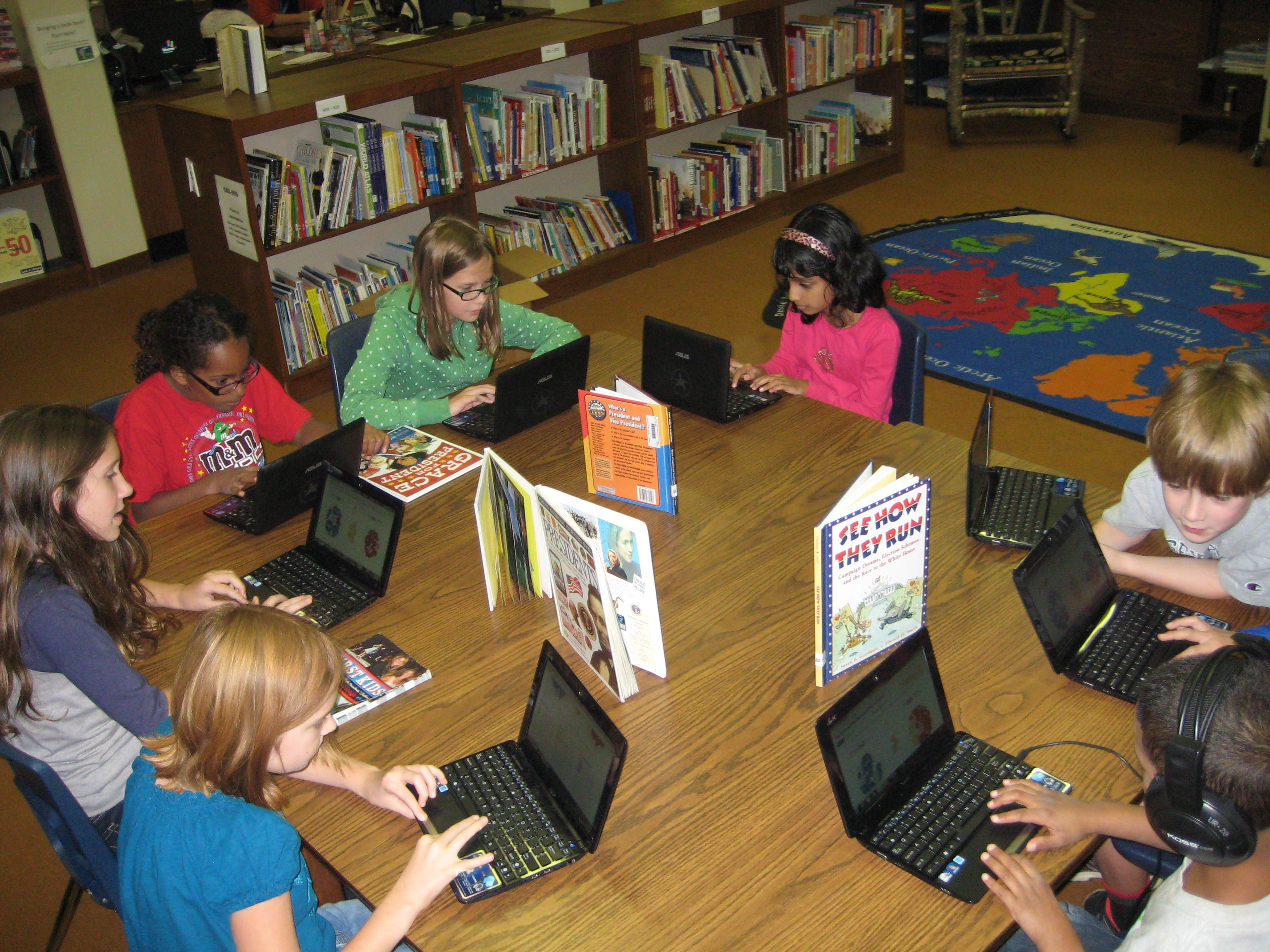
Today, all of 4th grade came for an election lesson.  I put together an election pathfinder with various links:  information about the election, Youtube videos of the candidates and election analysis, interactive election games, electoral college interactive maps, candidate-matching surveys, and campaign sites.  Since our 4th graders now have 1 to 1 netbooks, they brought those to the library.  I did a quick intro on the carpet and previewed a few of the sites.  Then, students went to tables to choose which sites they focused on.

One of the most popular sites was the NY Times electoral college floating bubbles.  This site showed states that had already chosen their candidate vs states that were undecided.  For each state, the site listed reasons the state was decided or undecided.  Students could move the undecided bubbles to either candidate to see how that would impact the election.  Many were amazed at the number of states already decided based on previous voting and polls.

Another popular site was USA Today’s Candidate Match.  This site allowed students to take a stance on a variety of topics and see how that matched with candidates beliefs.  Students could even look at what the 2 candidates have said about the topic.  I loved seeing kids having discussions with adults and peers about the issues and choosing their candidates based on the issues rather than on popularity or what their peers were choosing.

Again, I was amazed at the level of engagement these students were able to sustain for an extended amount of time when they were offered choice and variety.  I even had election, president, and voting books on the table for those who were waiting on sites to load or those that were tired of the technology.  Very few of the books were used, but some students did find them valuable.

At the close of the exploration, I had students answer a Google form (also found on the pathfinder).  Students had to tell something they learned, tell if their opinion on the candidates had changed, and tell how many electoral votes it took to win.  I wanted a mixture of fact and opinion questions for the closing.  After students completed the survey, we came back to the carpet to see the results.  It was nice to quickly grab some facts from the spreadsheet to share rather than having students tell facts aloud.  It saved time and allowed students to be anonymous.  We ended with a brief conversation on being an informed voter.

Even though I didn’t get to do as much with as many classes as I wanted, I was proud of the impact that these resources had with our 4th grade students.  Now, I have sent the pathfinder link to the classroom teacher to push out to students through Edmodo.  They will continue to use these resources in class.

This slideshow requires JavaScript.

09

iPad Photography Part 2

Last week half of Mrs. Hunter’s ELT class came to the library to work on iPad photography.  Read about it here.  Over the past 2 days, the other half of her class came for the same exploration.  Once again, students chose their favorite photo to email to me for our blog gallery.  Enjoy many of their Halloween inspired photos below and feel free to leave comments about their work.

This slideshow requires JavaScript.

4th Grade Native American Research

I am so thankful for time to get together with other librarians to learn.  We recently had a professional learning day in our district where many of our school librarians/media specialists shared how they are using Google apps with students.  The amazing Tanya Hudson, librarian at Chase Street Elementary, shared how gadgets could be embedded in Google forms.  She had used this tool with a 1st grade Common Core lesson using the book How to Make an Apple Pie and See the World.  Her sharing made my brain wheels start turning about how this gadget might be used with other projects.

Our 4th grade is currently studying Native Americans.  Their standards have them look at how location and environment affect the food, shelter, and clothing of groups of Native Americans in each region of the United States.  Once again, I used a transliteracy model to think about all of the ways that students could experience these 6 groups of Native Americans.  I pulled informational books, folk tales, and stories from each group and put them at tables.  In the computer lab, students used a pathfinder which included Youtube videos, databases, and informational sites on clusters of Native Americans but also group-specific information as well.  Students used a graphic organizer to gather their information.

Filling out the Google form

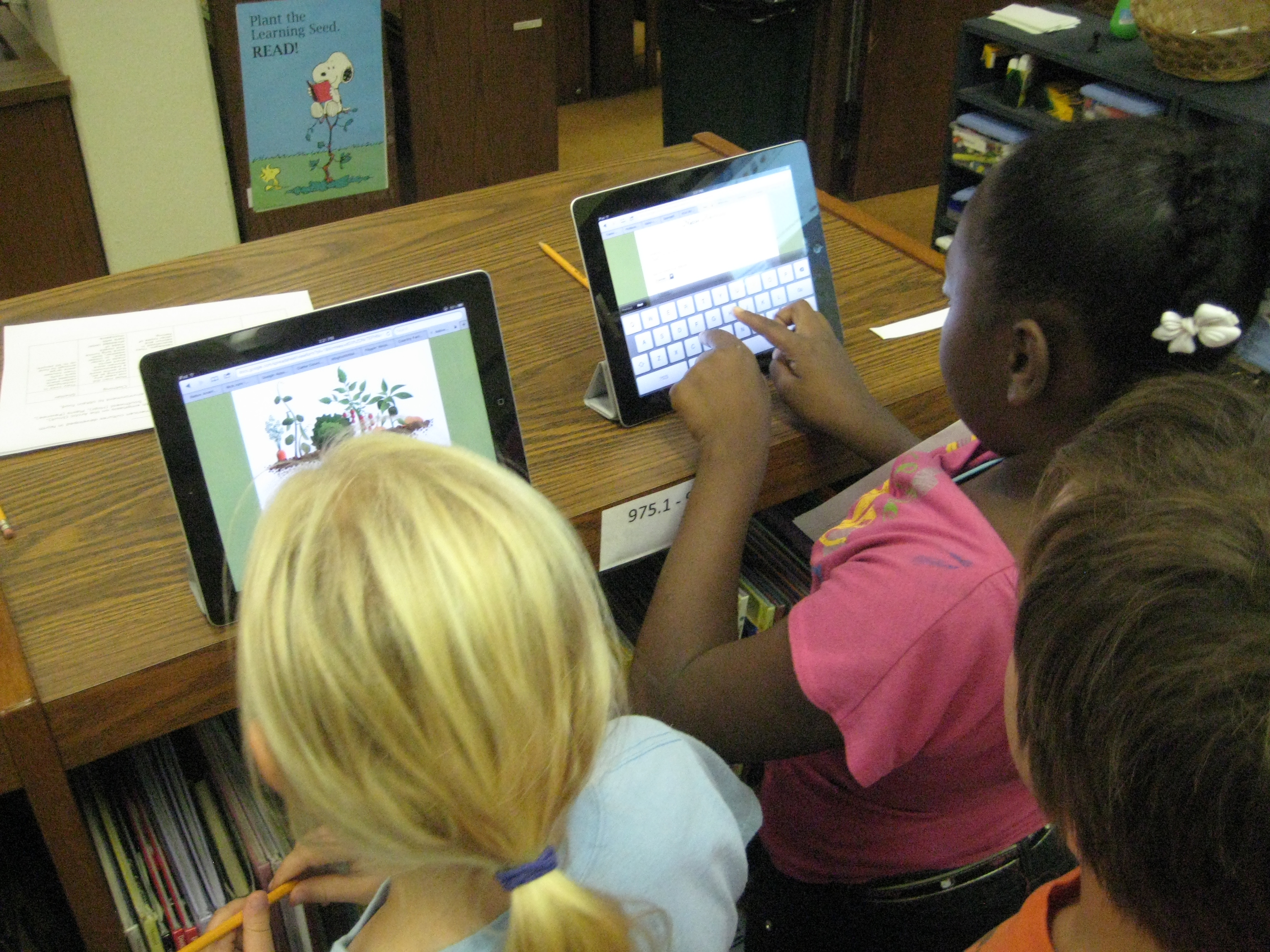
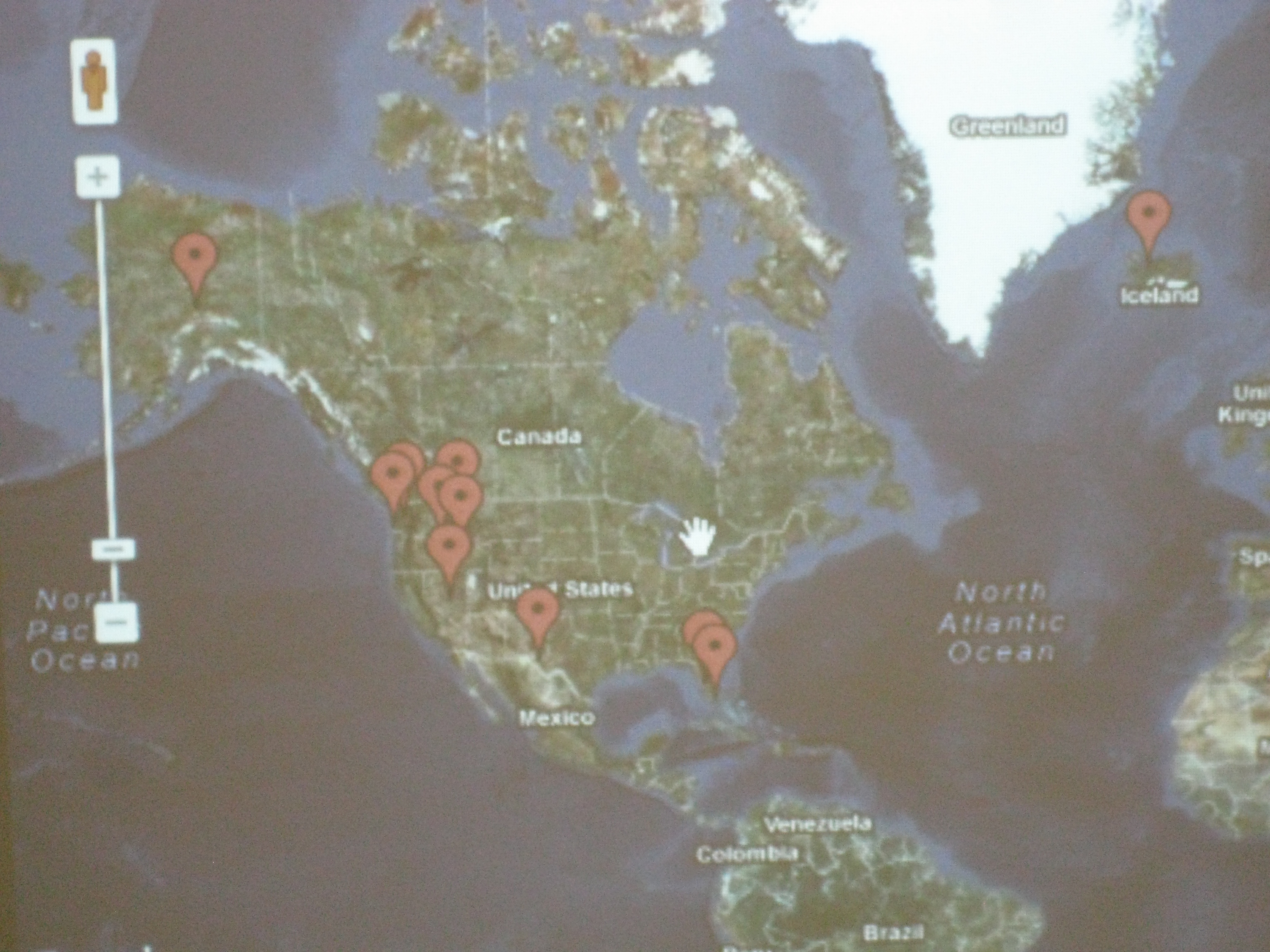
For the portion inspired by Tanya Hudson’s work, I created a Google form and asked 2 questions:  What is the Native American group you discovered? and What is their location?  I used 2 iPads as a station in the library where students could go and input thisinformation as they discovered locations in their research.  I also embedded a map gadget in the form so that each time a student filled out the form, it pinned a location on a Google map.  This map was displayed on the smart board.  As the map started to populate, students began exploring what other students had posted onto the map, and an interesting thing happened.  Students quickly discovered that students were entering incorrect information.  The coolness of the iPad was causing some students to skip their research or type what they “thought they knew” into the form.  The great thing was that other students started to call them out on this error.  Other students discovered that you had to be specific on the location.  Simply typing “southwest” did not necessarily put a pin in the right place of the map.  Students began looking for specific states or, even better, specific cities.  Our time simply wasn’t long enough, but a logical next step would be to have students begin to weed through the information in the form and decide what is valid and what is not.  The data can be easily erased and disappears from the Google map.  I already have one student who is interested in doing this by himself, but I think a whole class exploration would also be great because it lends itself to authentic conversation about why we do research in the first place.

Google map with pins

Once again in this experience I allowed students to freely move from place to place.  Most migrated and remained at computers, while others stayed at the books for the majority of their time.  Students who went to the books commented on how much information was in one place rather than having to look at multiple places on the computer.  It was interesting to hear this come from them rather than me telling them myself.  So many interesting conversations and teachable moments occurred  and I wished that our time could be extended.  This will be helpful in future planning to schedule multiple sessions or longer sessions with classes.  In all, I think students gathered enough information collectively that they can share their information back in the regular classroom.

Storybird with Kindergarten

Mrs. Kelly Hocking’s Kindergarten class has been hard at work collaborating with me in the media center on writing stories from art.  This idea was initiated in their classroom, and Mrs. Hocking asked me how I might support their class in doing this exploration using some kind of technology.

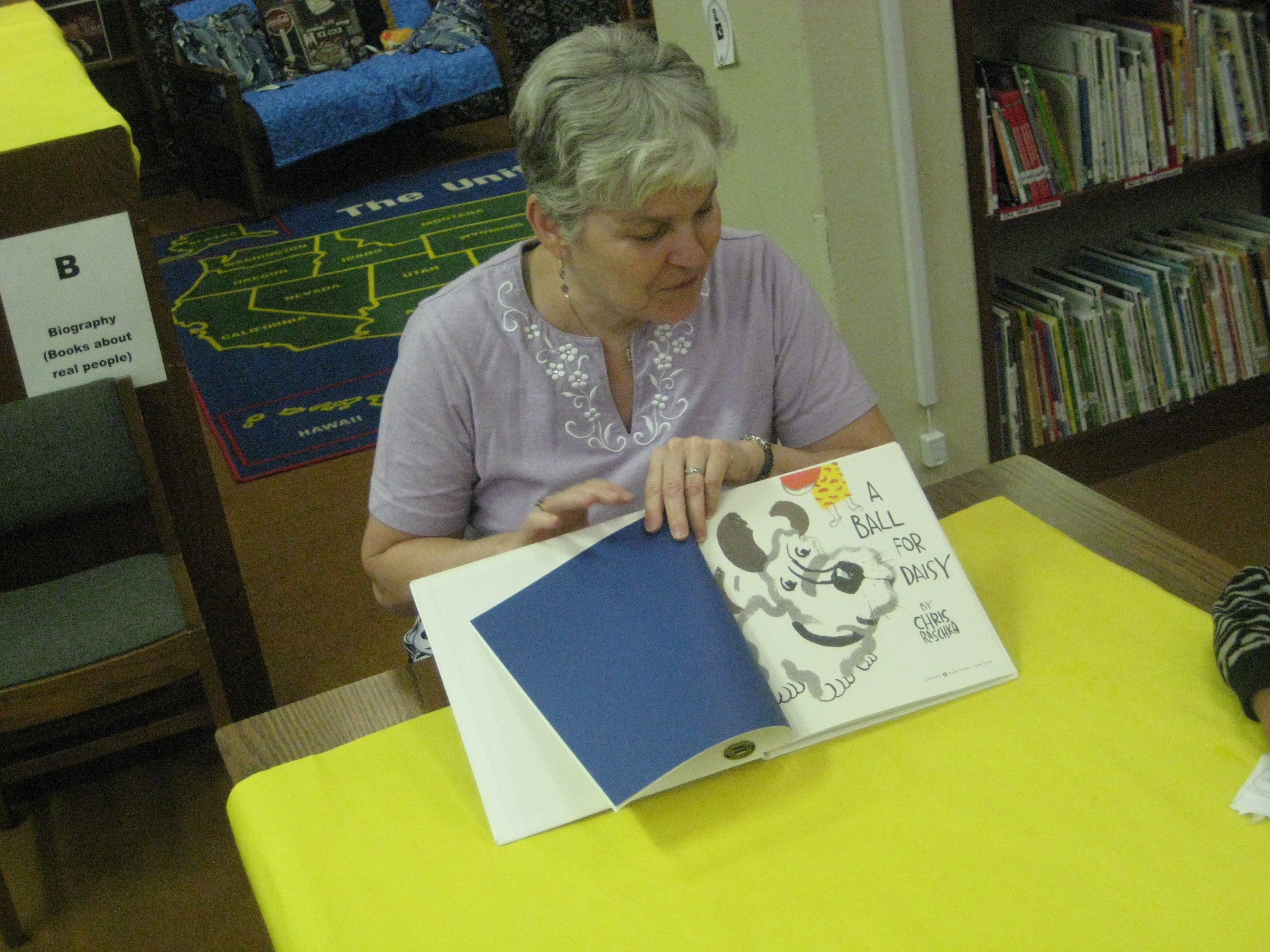
To start, I showed the class Storybird very briefly.  Storybird offers collections of artwork that inspire stories.  You select images from a collection and add your story.  Then, you publish your digital book to the web.

We spent the remainder of the first session looking at a wordless picture book under the document camera.  We used Andy Runton’s Owly and Wormy: Friends All Aflutter.  On each page, we asked ourselves who is in the picture?, where are they?, and what are they doing?  We split into 4 groups to look at even more wordless books in a smaller setting.  The classroom teacher, paraprofessional, special education teacher, and EIP teacher all supported a group.  I rotated between all 4 groups and took over groups if the teacher needed to give a particular student more support.

A couple of weeks went by where the students continued to use wordless books in their classroom to practice telling stories from art.  When they returned to the media center, I did a whole group modeling of how to use Storybird.  We looked at features like how to add a page, how to drag and drop a picture, and where to type the words.  We also talked about putting together a story and how you have to think carefully about which picture makes the most sense to come next in the story.  Finally, we talked about how to go back and re-read your story and make changes if needed.

The final lesson was back in small groups in the media center.  Each group had the same adult leaders and a laptop logged into storybird.  Each group had a different account.  The adult facilitated each group in creating their own storybird, but the students were expected to interact with the technology and construct the story.  The adult did most of the typing while the students selected pictures, typed limited text, and added pages.  Even in small groups, it was a challenge to maintain focus, but each group completed their story in our 45 minute time block.

These students are the only students in the school to have used Storybird, so they are now available to show other students and teachers in the school how it works.  I look forward to trying this again with many more classes.

This slideshow requires JavaScript.


Read their Storybirds here:

Dragon Bat Girl Attacks Creepy Girl

Super Lightening Boy Saves the Day

The Party

The Happy Fairy and the Five Birds

Third Grade Rockhounds

Our third grade is just beginning a study of rocks and minerals in their standards.  We are taking an inquiry approach to this study and using the lens of transliteracy as we plan.

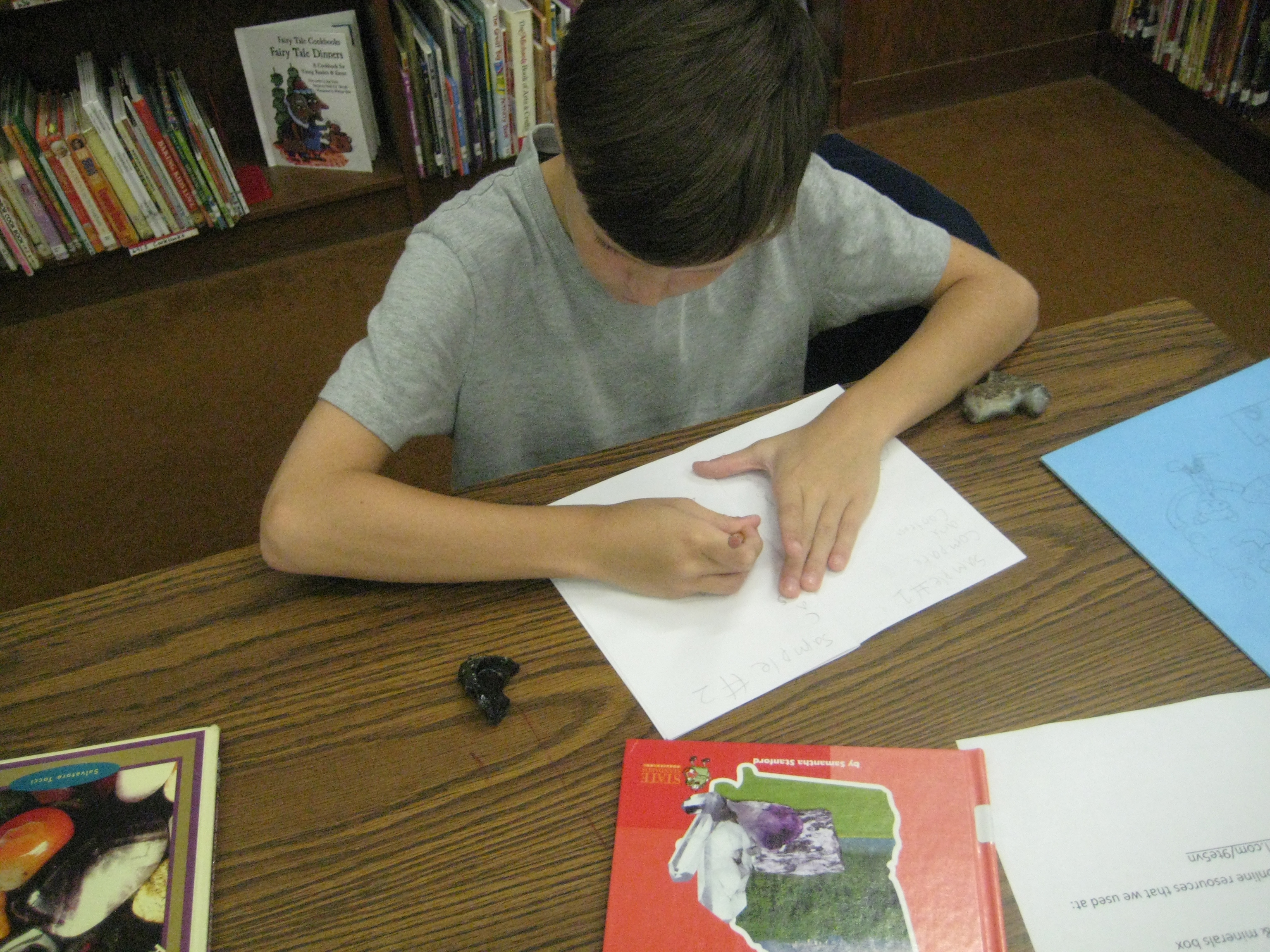
In class, students began a KWL in their science journals.  They wrote what they know about rocks and what they wonder about before coming to the library.  I planned groupings of experiences to give them multiple platforms for looking at rocks.  One stations was a big box of rocks and minerals that I collected in my childhood during yearly visits to Santa’s Land in Cherokee, NC where we always stopped at the “ruby mine”.  Students could explore the rocks and minerals using hand lenses and write observations or sketches in their journals.  Another station had multiple informational books about rocks and minerals as well as poetry using photographs of rocks.  The final station was at the computer where I created a pathfinder of games, videos, interactive sites, ebooks, and informational sites about rocks and minerals.

Students started in the floor where I talked about transliteracy and the natural flow in and out of different platforms of information.  We talked about how more questions will develop the more that you research and how to document those new questions in the science journals.  Rather than ask students to switch every 20 minutes or so to a different center, I gave them the freedom to move in and out of centers as they chose.

I gave them a little structure by providing a sheet that asked them to visit 4 books, 7 websites, and the box of rocks and minerals.  Students were welcome to move back and forth between the stations as many times as they needed.  For example, a student might make an observation of a rock in the box, look in books to identify the rock, go back to the box to clarify observations, and visit websites to confirm the identification.  The classroom teacher, spectrum teacher, and I floated among the groups and conferenced with students to encourage them to be curious and to document their learning.  As always, some students had a natural curiosity and freely documented their learning, while others needed more guidance and support.

Now the classes will return to their rooms to use the information they gathered to support their study of rocks and minerals.  They will revisit the resources I’ve gathered throughout the study.

This is a model I am starting to replicate in more and more lessons.  I love the freedom that it offers students and the support it offers for individualized instruction.

This slideshow requires JavaScript.

Fetch! Lunch Rush! App

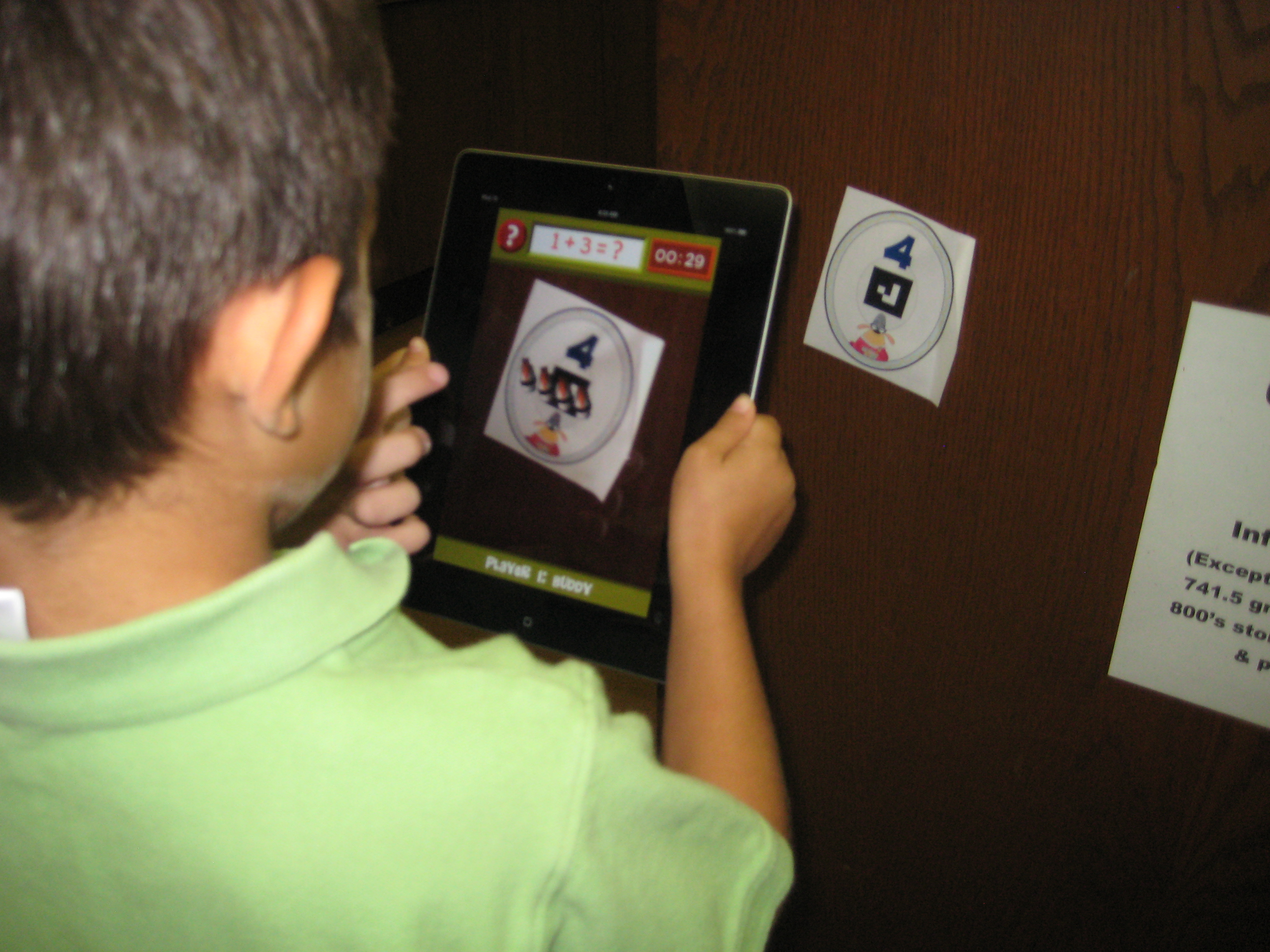
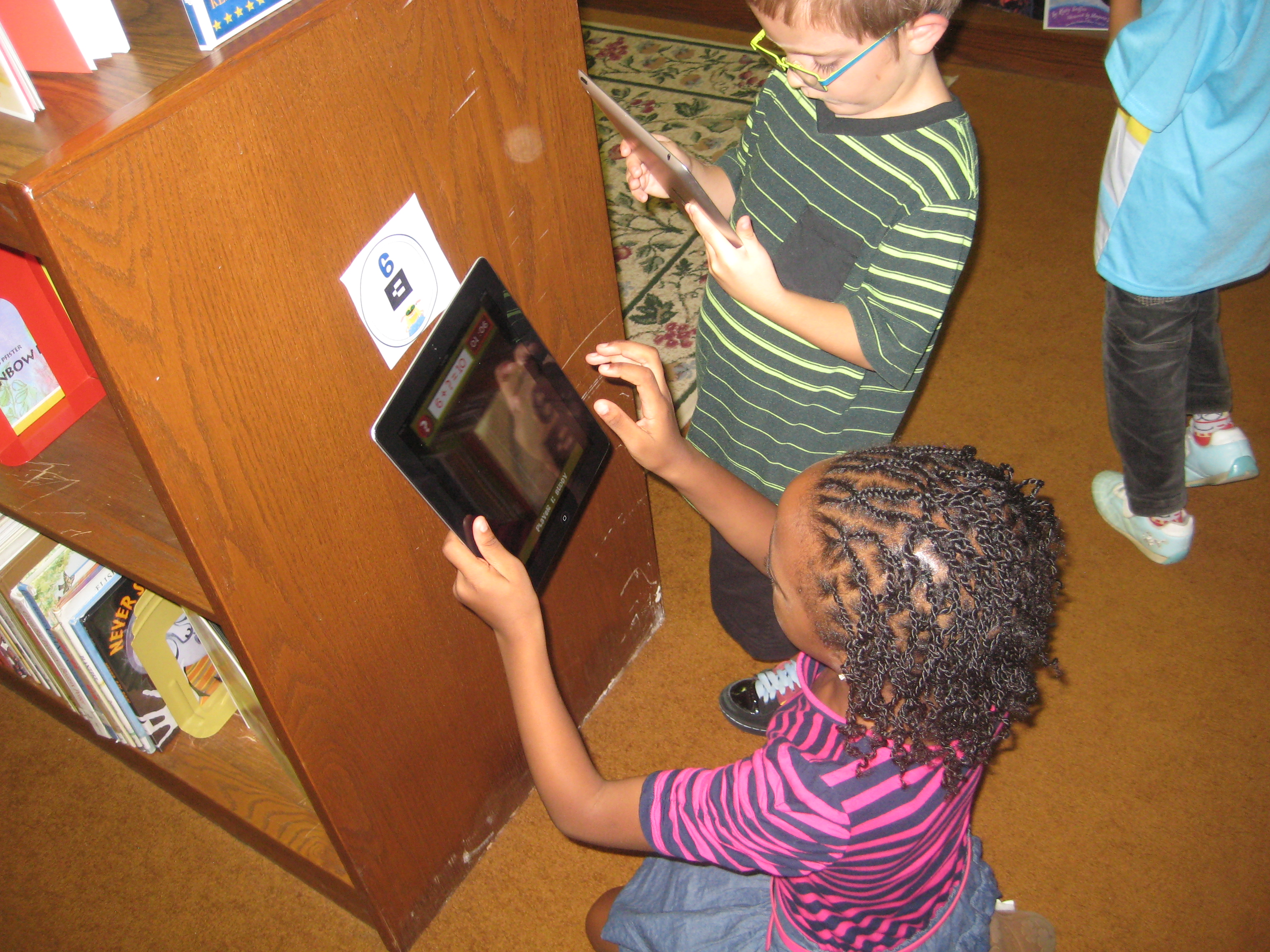
Recently, on one of my favorite blogs, Free Technology for Teachers, Richard Byrne featured the app Fetch! Lunch Rush! for iPhone (also can be for iPad).   I immediately downloaded it, played around with it, and loved it.  I emailed all lower grade teachers to see if it might benefit their students with practicing some basic math facts, and the entire 1st grade team signed up to give it a try.  I printed out the cards  and posted them around the media center so that the game took on a true scavenger hunt feel.  The basics of the game are that you have basic math facts that add or subtract up to 10.  You have 10 printed cards with numbers and symbols on them to post around the room.  The app gives you a fact, you find the answer, you point the iPad at the picture, a picture of sushi appears on your screen, and you tap it to send it to lunch.  The app times how long it takes to answer the problems and increases in difficulty as accuracy and speed increase.

Students began on the carpet for a very brief demo of how the app worked.  Some students were paired together on 1 iPad (up to 4 players can play on 1 device).  Other students worked alone.  It was amazing to watch how active the students were.  They were scurrying about the media center looking for answers, pointing their iPads at the answer, tapping the augmented reality sushi, and moving on to the next problem.  Along the way, students got problems that were challenging to them.  The teacher and I gave them tangible objects to help them (fingers, popsicle sticks, markers, etc).  They stopped on the floor or at tables to figure out the answer before moving to find the card on the wall.  Students also began to get missing integer problems like 3 + ____ = 9.  These were the most challenging for first graders, but the challenge didn’t stop them.  They were eager to get an answer and continue the game.  

This app pulled together so many great learning pieces for students.  There was gaming, movement, problem solving, the cool factor, and technology.  The teacher made observations and then went back to the classroom to practice more strategies that will help students develop their math fact fluency.  I hope more apps like this one cross our path because it was fun, engaging, and took boring math fact practice to a whole new level!

This slideshow requires JavaScript.


International Dot Day 2012 @barrowmc

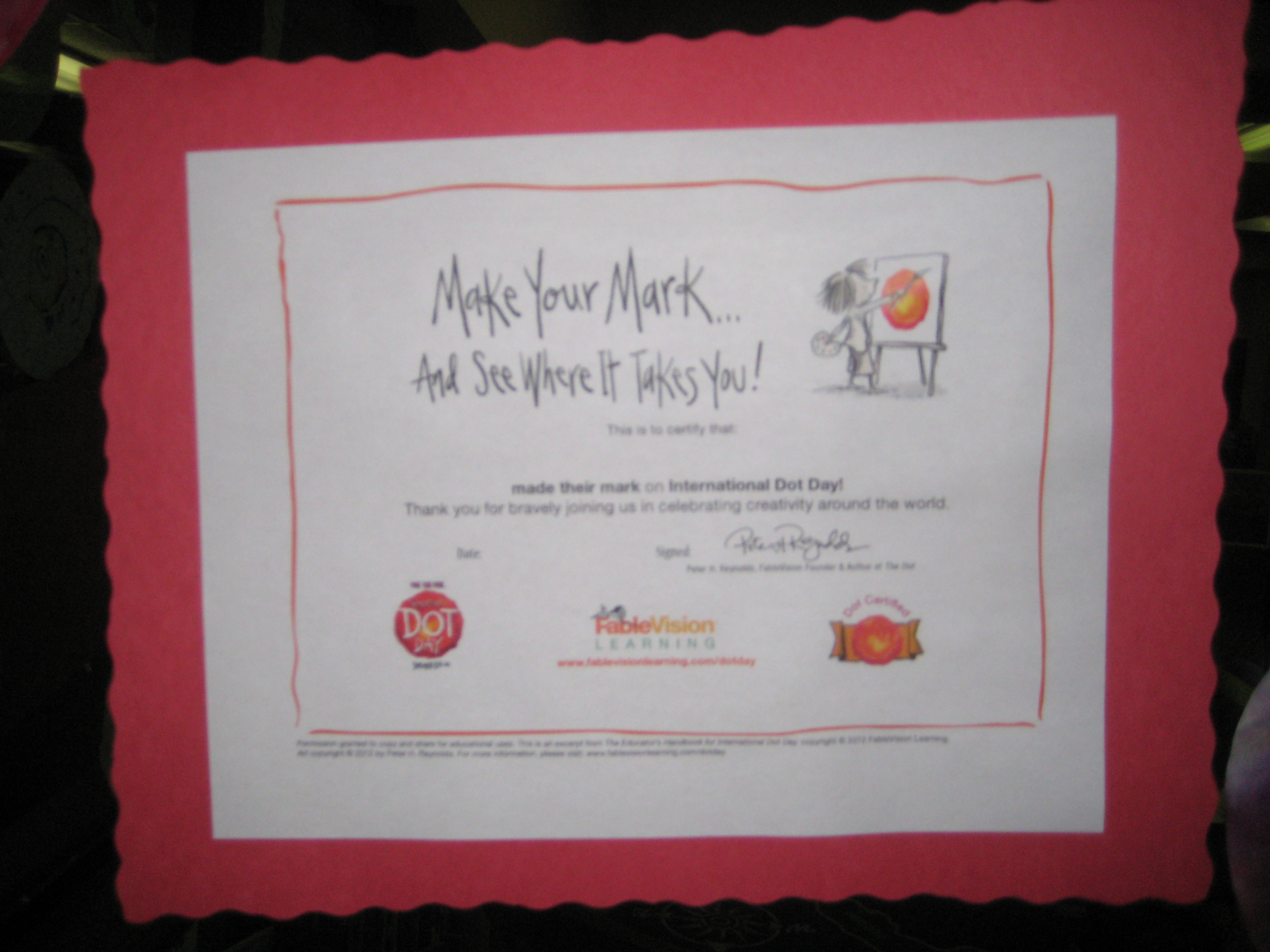
September 15(ish) is International Dot Day.  We’ve been celebrating for the past week in the Barrow Media Center.  Numerous classes came to listen to The Dot by Peter Reynolds.  We talked about the importance of making your mark on the world and avoiding the words “I can’t”.  After our discussion, students moved to tables and made dots in 2 different ways.

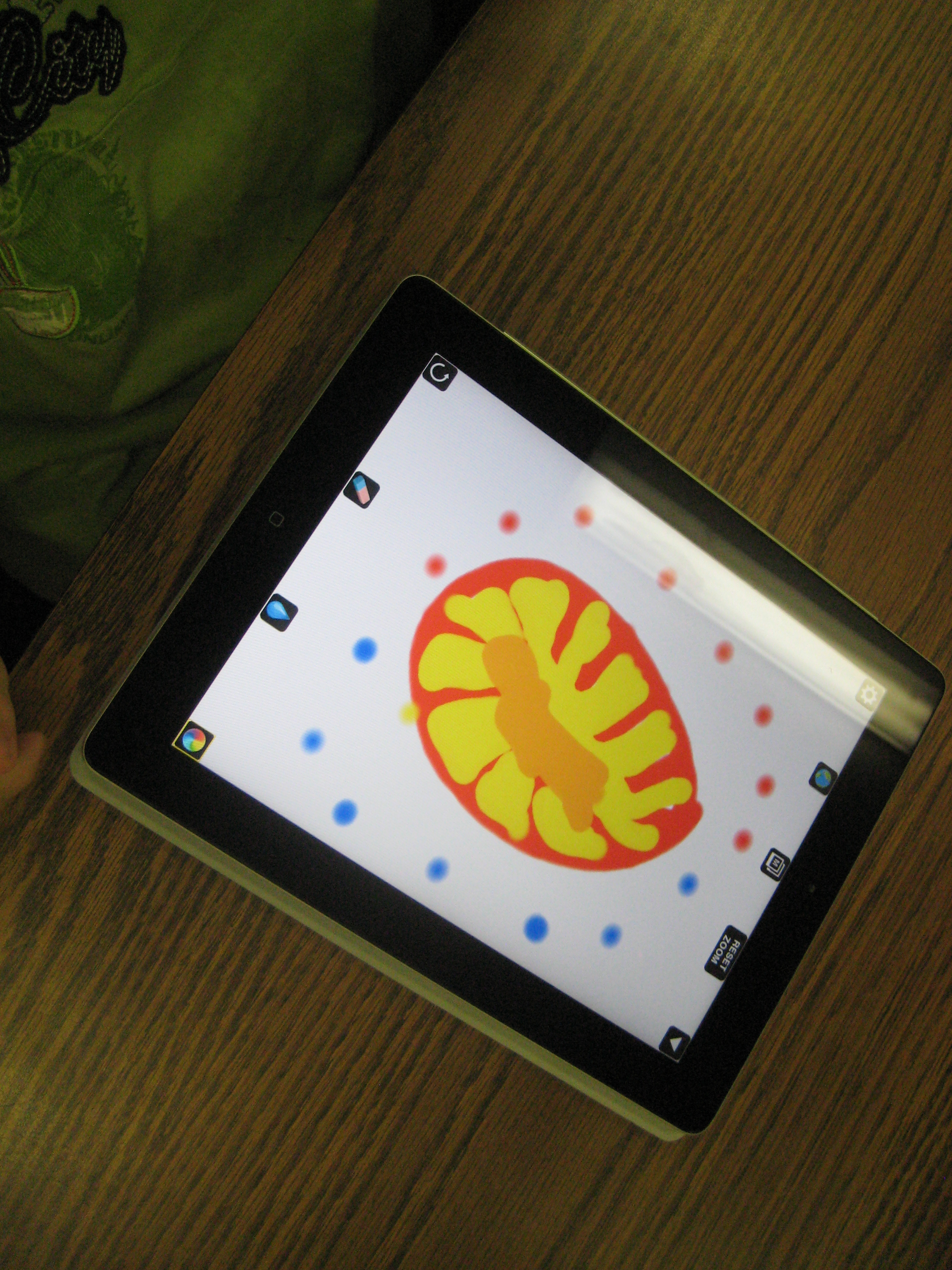
Using Drawcast on the iPad, students made digital dots in a variety of ways.  They saved their images to the iPad photo gallery.  We took those dots and imported them into a collective dot folder and used Animoto to make a digital dot gallery.  We also made a QR code and displayed it outside the library to link to our Animoto video.

At the other tables, student had access to coffee filters, markers, crayons, and color pencils.  They decorated their coffee filters in creative ways.  All of the paper dots filled the windows of the media center to the point that you almost couldn’t see in!  Some students used a spray bottle of water to spray their filters so that the color ran together.  After many classes came, we realized that our sprayed dots had created even more dots in the drying area.  The final class, Ms. Olin’s class, wrote on the drying paper “Barrow School Made Their Mark” and we displayed this in the hallway as well.

We hope our creativity will inspire others to make their mark on the world!


September 11th: Another Transliteracy Experience

Last year, the 5th grade participated in a series of experiences around September 11th.  We used transliteracy as a lens to plan these experiences so that across a full day, students were learning about September 11th in a non-linear, cross-platform way.  This year, we continued this idea and built upon it.  Both 5th grade teachers, our 5th grade spectrum teacher, and myself each planned an experience for students to rotate through.  The teachers also thought about the day as a whole and what they could add to the day to support the study of September 11th, which is a part of the 5th grade standards.

Students began their day in their homeroom morning meetings viewing a brief speech from Barack Obama declaring September 11th as a day of remembrance.  After students went to ELT and specials, we launched into our 4 experiences. Students spent 30 minutes at each experience with a 5 minute transition window.

Center Descriptions:

1) Learning more about the attacks on the Twin Towers in New York City and the brave response of its citizens through a wonderful children’s book by Maira Kalman, Fireboat: The Heroic Adventures of the John J. Harvey. This old fireboat which was first launched in 1931 was called into duty by the NYC fire department and volunteers responded so that water could be pumped to battle the raging fires of the Twin Towers. One teacher will read this book aloud (a very special book to her and her young grandson from a visit to the 9/11 Museum together in NYC) to students and they will be able to also watch news video of the John J. Harvey.
2) To help students learn more about how the nature of heroism, another teacher will share from two more books:, Messages to Ground Zero that includes how children responded in poems and letters about heroes of 9/11, and 14 Cows for America BY Carmen Deedy, about how the Maasai people of Africa responded to 9/11. They will respond with their own artistic rendering of a postage stamp celebrating heroes of 9/11.
3) A lesson about haiku poetry which will review the magic of the brief three-line poem with seventeen syllables to express a feeling or image and students will write their own Haiku for Heroes.
4) Technology sites on 9/11 and Wallwisher Reflection -Students will view multiple interactive websites, videos, oral histories, eyewitness accounts, and more in order to build a picture of the events of the day.  Students will have full choice of which sites they visit and how long they spend at each site.  http://sqworl.com/9vf2t4  After processing what they have seen, they will write a reflection, memory, wish, etc. on a collaborative Wallwisher wall.  http://wallwisher.com/wall/barrow911-2012

During recess, students participated in an alternative recess picking up trash and offering their service to the school.  They closed their day by thinking about our local first responders and writing letters to thank them for their service in the community.

Once again, I was amazed to look around and see all of the ways that students were engaging with the events of September 11th.  Some students were listening to the 911 phone calls with the planes.  Some were looking at diagrams of the towers and what was located on each floor, including the impact zone.  Some were watching National Geographic video footage of the events of the day.  Some were looking at memorials created across the country.  Others were listening to oral histories of family members of victims and 9/11 survivors.  Each experience carried over to the next and inspired discussions and creations made in the other experiences.  For example, I noticed one student who had viewed images of people jumping from the twin towers and then used that image in her haiku that she wrote in another experience.

I continue to think that there is a lot to learn from this type of planning.  Students left the day talking and energized.  I have a feeling that they will go home and continue conversations with their families and hopefully continue to investigate the many resources available on 9/11.

We had a lot of press here at Barrow today, too.  UGA Grady Newsource will air a feature story at 5PM today.  You can watch live at http://www.ustream.tv/discovery/live/all?q=gradynewsource or you can view the story later by visiting their website http://gradynewsource.uga.edu/

The Athens Banner Herald will also feature our work in a story tomorrow, including the following haikus from some of our students.

HAIKU FOR HEROES
th grade students at David C. Barrow Elementary School
Poems from 5
*************************************************

Hear the sound crashing
Innocent people crying
I hear, “Let’s roll.”
~by Tymarius~

It was so tragic
Lives were lost, people were missed
You’ll be remembered
~by Caroline~

It was a bad thing
Many heroes saved the day
They were great and brave
~by Brian~

The Tragic Day
Screams fill flaming streets
As sad tears roll down faces,
We watch the horror.
~by Emily~

So many lives lost
A lot of damage for us
So many heroes
~by Henry~

Chaos everywhere
Heroes save lives and risk them
Death of love and friends
~by Ryan~

I feel unhappy.
I feel like I wanted to help them.
I am very sad.
~by Jasiyah~

9/11
Insidious, mean
People dying, lives ending
A new beginning
~by Parker~

I didn’t realize
Passengers had lost their lives
People risked their lives
~by Joel M~

What they did was sad.
Those terrorists were so mean.
It was so, so sad.
~by DeMontre~

This slideshow requires JavaScript.