Coding and Beyond with PreK Using Sphero, Osmo, iPads, Computers, and Books

PreK Coding (27)

I love it when a small seed of an idea turns into something much more.  A few weeks ago, I approached PreK about using our Sphero to practice writing letters.  I knew that PreK was working on forming the letters of the alphabet and I thought that the Sphero Draw and Drive app would be a perfect way to merge letter practice with some programming.  I originally thought that small groups might come to the library and use the Sphero with me, but further brainstorming with Ms. Heather resulted in us deciding to do 5 centers that students would rotate through in order to experience many technology, math, and literacy experiences.

Ms. Heather’s class has been bubbling with excitement about coming to the library to try out all of these centers.  Ms. Heather split the class up into 5 groups which was 4-5 students per group.  Ms. Heather, Ms. Melissa (parapro), Ms. Callahan (parent), and I all led a center and one center was independent.  Each center lasted about 10 minutes and took up about an hour with transitions. Here’s what they did.

Center 1:  Hour of Code programming with Sphero

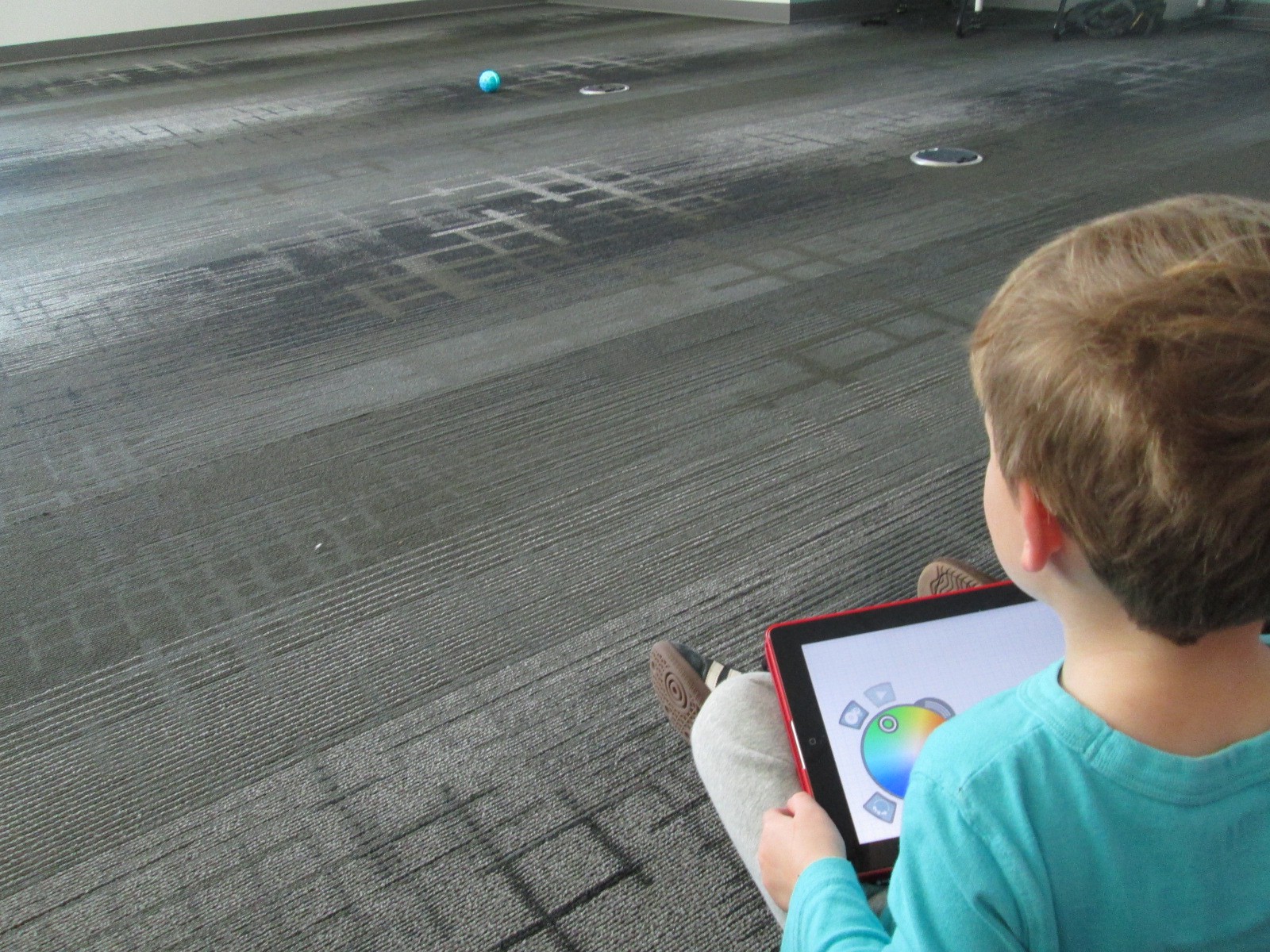
Since this week is our hour of code, I was so glad that PreK got to experience an aspect of coding.  While coding didn’t fill up our hour, it certainly sparked their interest in how to make a computer or robot do what you want it to.  Students sat in a row and each took a turn to think of a letter to practice drawing.  Using the Draw and Drive app on iPad, students drew a letter and pressed play.  The Sphero drove around the carpet in the shape of that letter.  With a shake of the iPad, the letter was erased and the next student had a turn.

We repeated this process over and over until we were out of time.  Each time the robot rolled around the floor there was a burst of excitement.  As the facilitator, I asked students about the letters that they were drawing to make sure that they understood what they were trying to draw.

Center 2:  Osmo Tangrams and Words

Our Osmo devices are one of our favorite tools in the library.  The Osmo is came out this summer.  It includes a base to put the iPad in and a red attachment to place over the camera.  Osmo comes with 2 sets of tools to use with the apps: a set of letter tiles and a set of tangrams.  The three apps are free to download but you must have the base and attachment for them to work.  For this center, students used the Junior version of the Words app.  This app gives students a picture with a matching word.  The beginning sound of the word is missing and students have to lay the correct letter tile in front of the iPad.  If it is correct, the red attachment “sees” the letter tile and magically adds it to the word on the screen.  If it is incorrect, students have to try again.

Students also used the Introduction to Tangrams in the tangrams app.  This app shows students 2-3 tangram pieces pushed together.  For this beginning phase, the colors of the tangrams on the screen match the colors of the actual tangrams.  As students correctly place the tangrams on the table in front of the iPad, the red attachment “sees” them and fills in with black on the screen.  When they are all correct, a new combination is shown.

This center was one that needed adjustment as we went along depending on student needs and strengths. Some needed to focus more on the shapes while others were ready to think about letter sounds in words.  All students had a blast watching the magic of the Osmo happen on the screen and table.

Center 3: Starfall on Computers

Ms. Heather facilitated the computer center.  I put out a computer, mouse, and headphones for each student in the group.  One part of this center was simply using fine motor skills to practice using a mouse.  The other part was to use Starfall to continue practicing letters and sounds.

Center 4: Reading

A parent volunteer read aloud stories that I pulled.  The selections were Peanut Butter and Jellyfish, Job Site, and Stars.  She had students engaged in discussion about the story and the pictures all along the way.

Center 5: iPads

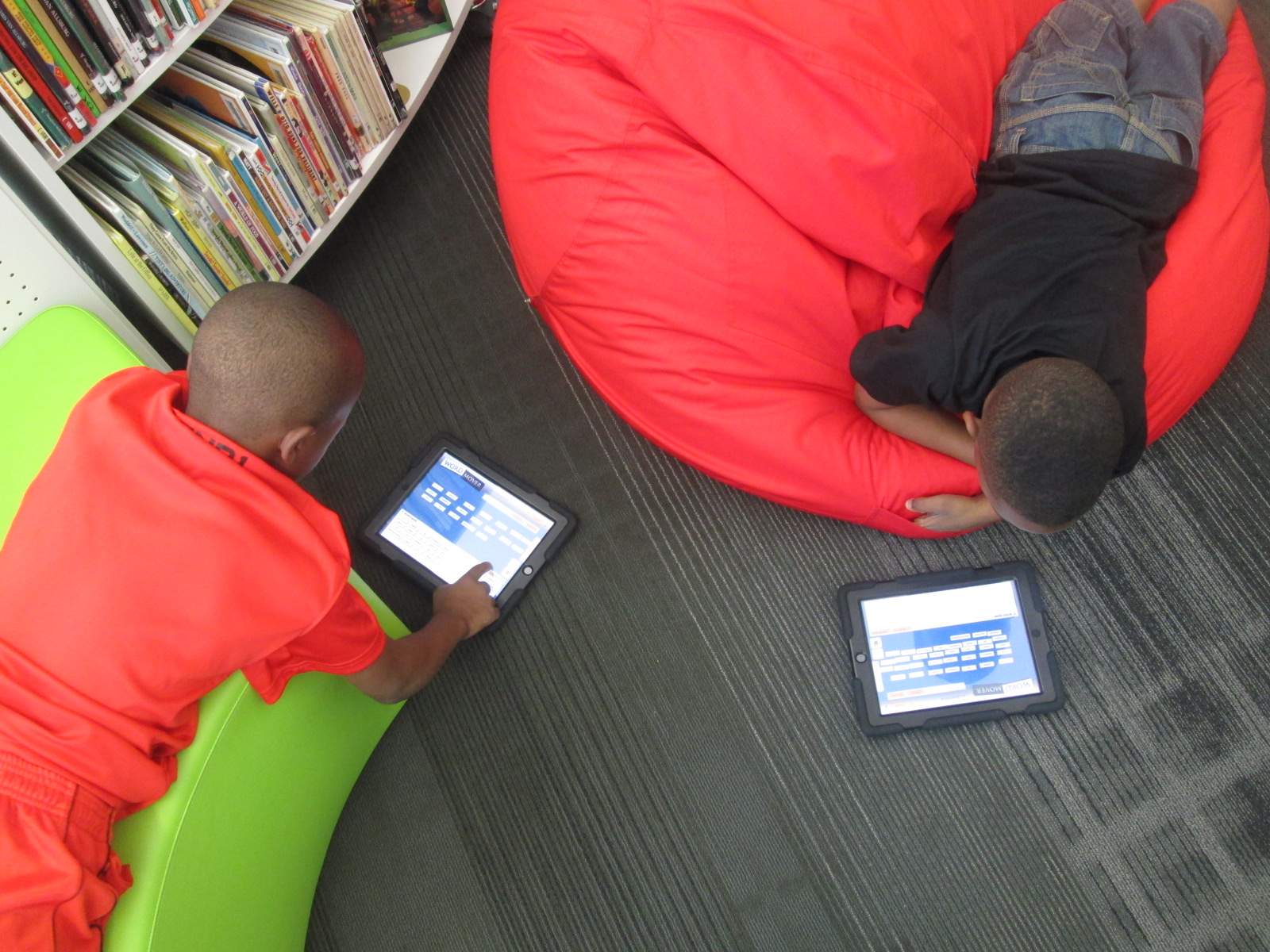
PreK has 5 iPads in each classroom.  Students have a variety of word apps that they can use at their own center time in class, so they are used to using these apps independently.  This made the perfect independent center since we didn’t have 5 adults.  Students sat on the bean bags by the windows and used the iPads by themselves for the 10 minutes of this center.

I think many times people think that our younger students can’t use technology or they are unsure of what to do with younger students.  I love giving things a go and seeing what happens.  We were amazed by students’ engagement and excitement today.  Some asked, “Can we do this every day?”  That was a sure sign of success.  When working with younger students, you have to think about what your barriers might be.  For us, we wanted smaller groups in order to have more adult support if needed.  We also wanted smaller groups so that students wouldn’t be waiting around since we only have 1 Sphero and 3 Osmos.  Using the teacher, parapro, parent volunteer, and me helped to make this possible.  You might have a different barrier, but I hope that you will consider what you might leap into with your youngest learners in your building.

Kindergarten Narrative Writing Using Chromville Augmented Reality (and a little Skype too)

IMG_2789 IMG_2804Kindergarten is revisiting narrative writing at the close of the year.  This year, they have also worked very hard on the standard

ELACCKW6 Production and distribution of writing: With guidance and support from adults, explore a variety of digital tools to produce and publish writing, including in collaboration with peers.

With this standard as our guide, we have explored tools such as Storybird, Padlet, and Flipgrid to publish our writing.  We’ve also used digital tools such as Pebble Go and the Capstone Interactive Library to gather information for our writing.

The Kindergarten teachers wanted to try one more digital tool, so I met with them to brainstorm.  We tossed around a lot of ideas, but we ended up deciding to try a brand new tool called Chromville.  Chromville is an augmented reality app that was just released this year.  It offers 6 different coloring pages.  Five of the coloring pages have a setting and a character and the sixth coloring page is a “create your own” character with no setting.  First you color your page.  Then, you use the Chromville app to select the matching setting and scan the page.  Once the screen turns green and you wait 3 seconds, the character and setting come to life on the iPad and the character begins to move around and interact with the setting.

IMG_2928 IMG_2933

From my own experience with Kindergarten students, I’ve seen how visual they are, and I thought that seeing their character and setting in an interactive way might give them enough ideas to begin imagining their own stories.  The teachers and I mapped out what we would do in the library and in class.  It looked something like this:

  • In class, choose a setting and color it.
  • In the library, use the iPads and the Chromville app to see the setting come to life and brainstorm what to write about.
  • In class, begin the writing process by describing the character and setting as well as thinking about 3 events and a reaction that might happen in the story.
  • In the library, use the iPads to look at the Chromville character and setting again for more brainstorming and continue the writing process, including revision and publishing.
  • In class and in the library, share the final stories.
  • In the library, do a gallery walk of the all the stories by scanning the Chromville setting and reading the accompanying story

Four of the Kindergarten classes went through this process and it was very exciting to watch.  I saw some of the longest stories by Kindergarten students that I have ever seen.  Chromville was an exciting and motivating tool for them to use and they were full of energy when using it.

IMG_2932 IMG_2921 IMG_2778

We did learn a lot about what to do differently next time.  For example, we will probably opt to use crayons or color pencils next time rather than markers.  We will also avoid black as a color since the lines of the coloring page are black.  These black lines are the instructions for the iPad to read in order to generated the augmented reality scene.  Students also need to be careful not to cross over too many of the lines or color so dark that the black lines can no longer be seen.

IMG_3053 IMG_3052

Along the way, we shared our success (and our failures) with Chromville, and they were eager to learn with us.  We sent them images of pictures that didn’t scan for us and they started taking a look at them to better improve the app.

chromville skype (2)

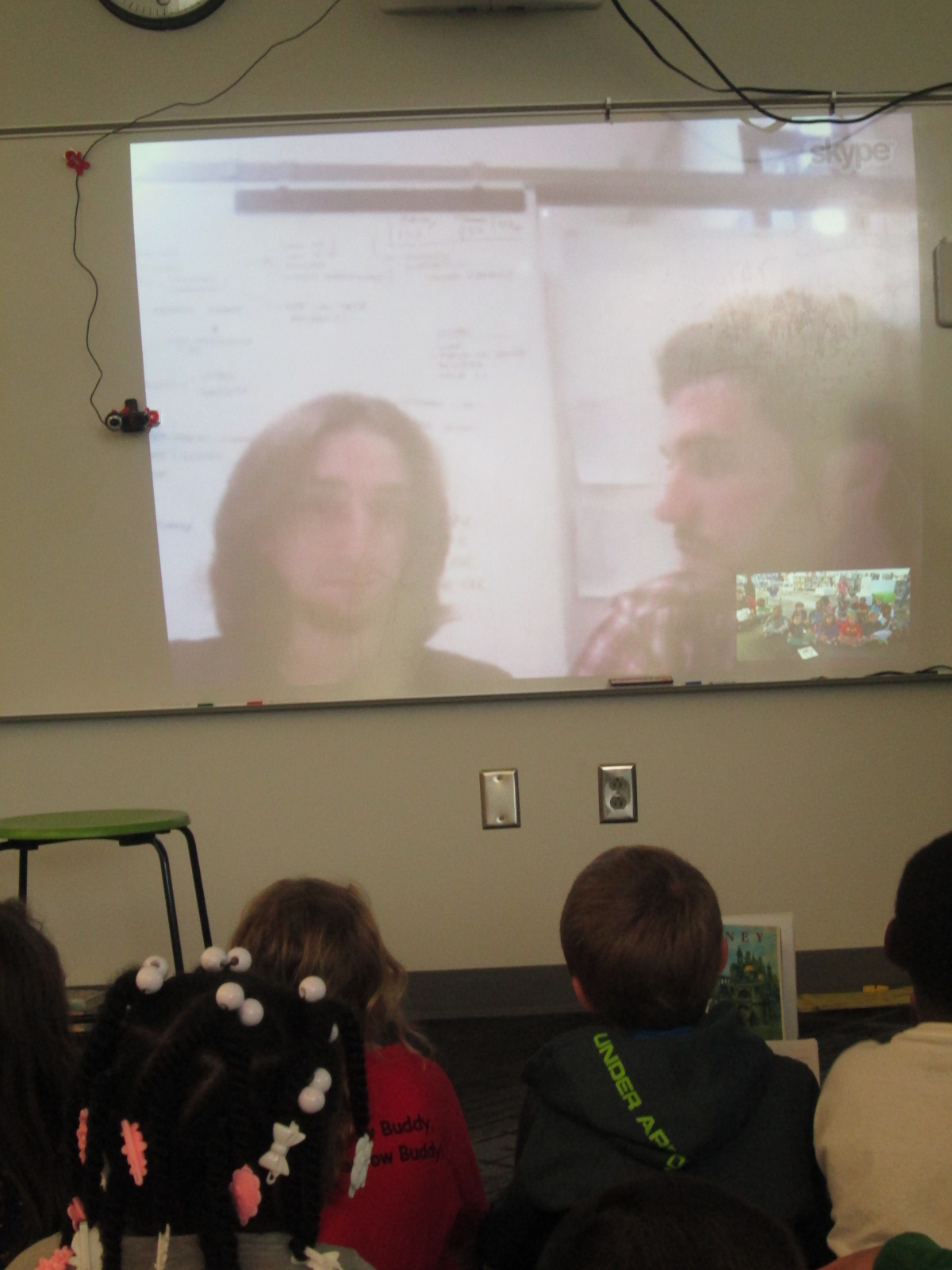
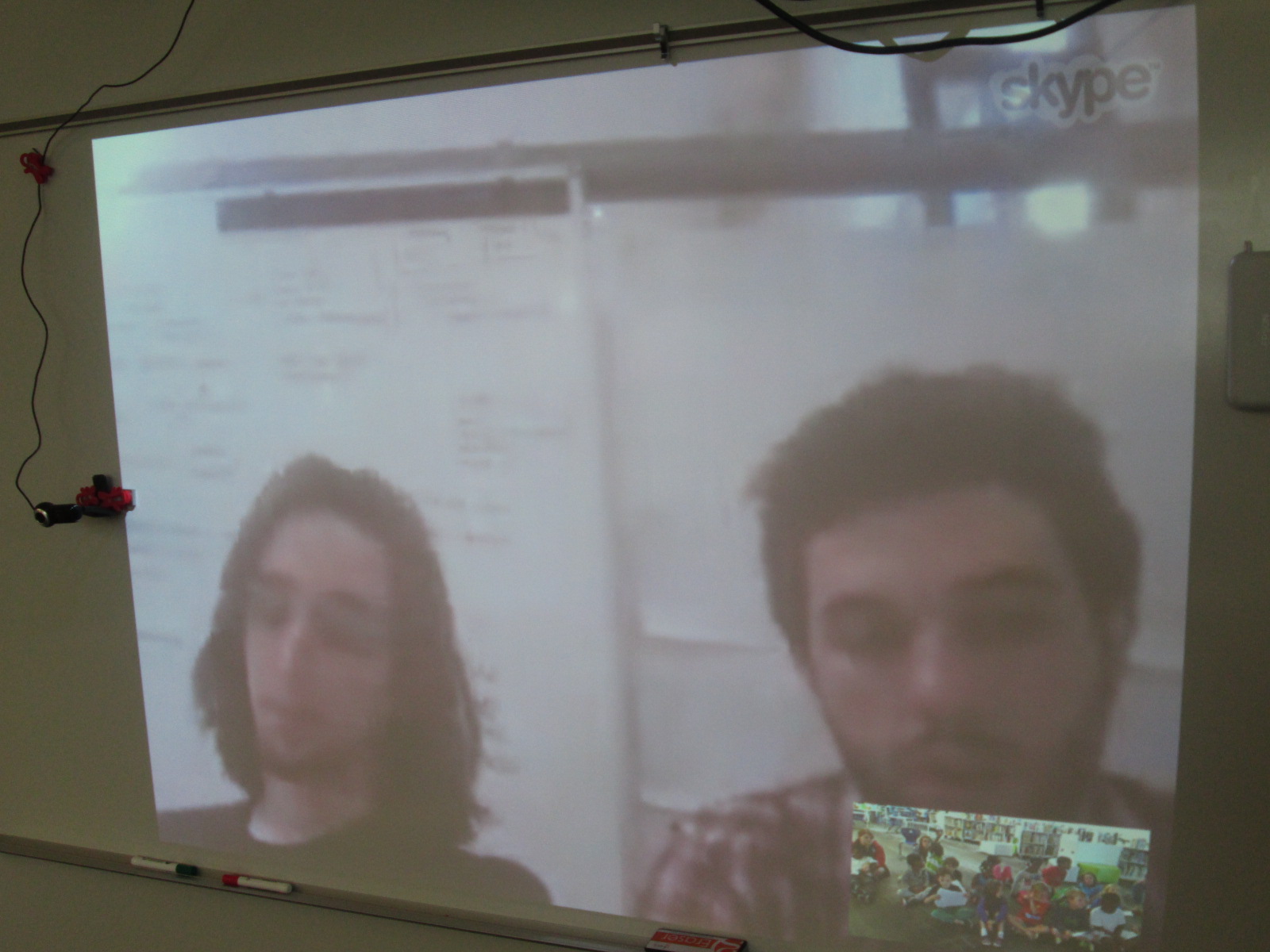
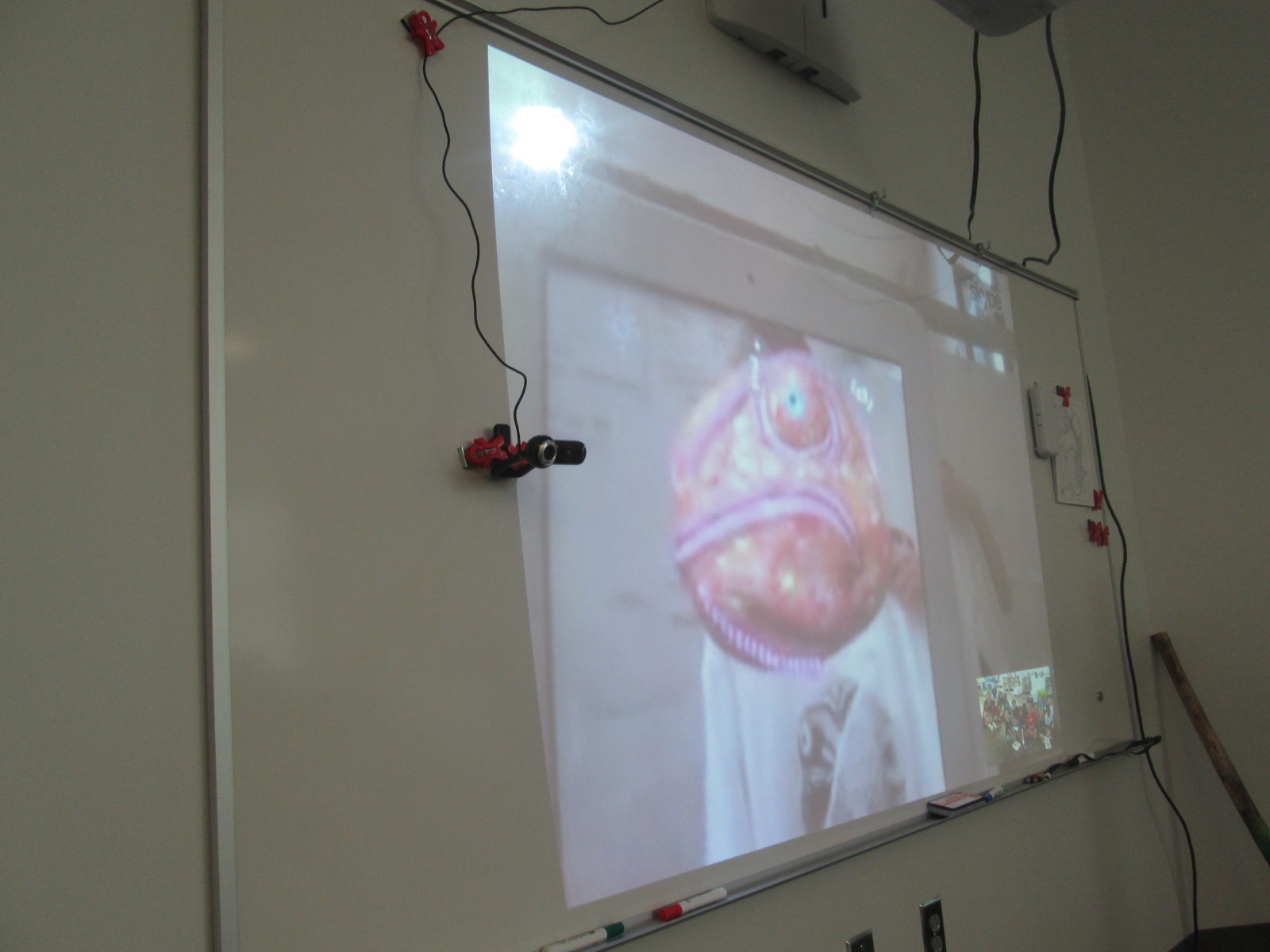
Today, Mrs. Boyle’s class Skyped with them all the way in Spain.  It was so much fun to Skype with someone in another country, but it was even cooler to see the improvements that they are working hard to create for the next update of Chromville.  We even got to see some upcoming Chromville projects as well as other augmented reality projects that the team is working on.  We loved seeing how even a t-shirt could be a part of an augmented reality project.  During the Skype, we also heard them talk about the improvements that they are making to the app.  This was such a great connection to the writing revision that students had just gone through.  It also validated all of the feedback that students have given about the app over the past few weeks.  They heard from the developers that their feedback was making a difference.

chromville skype (4) chromville skype (5)

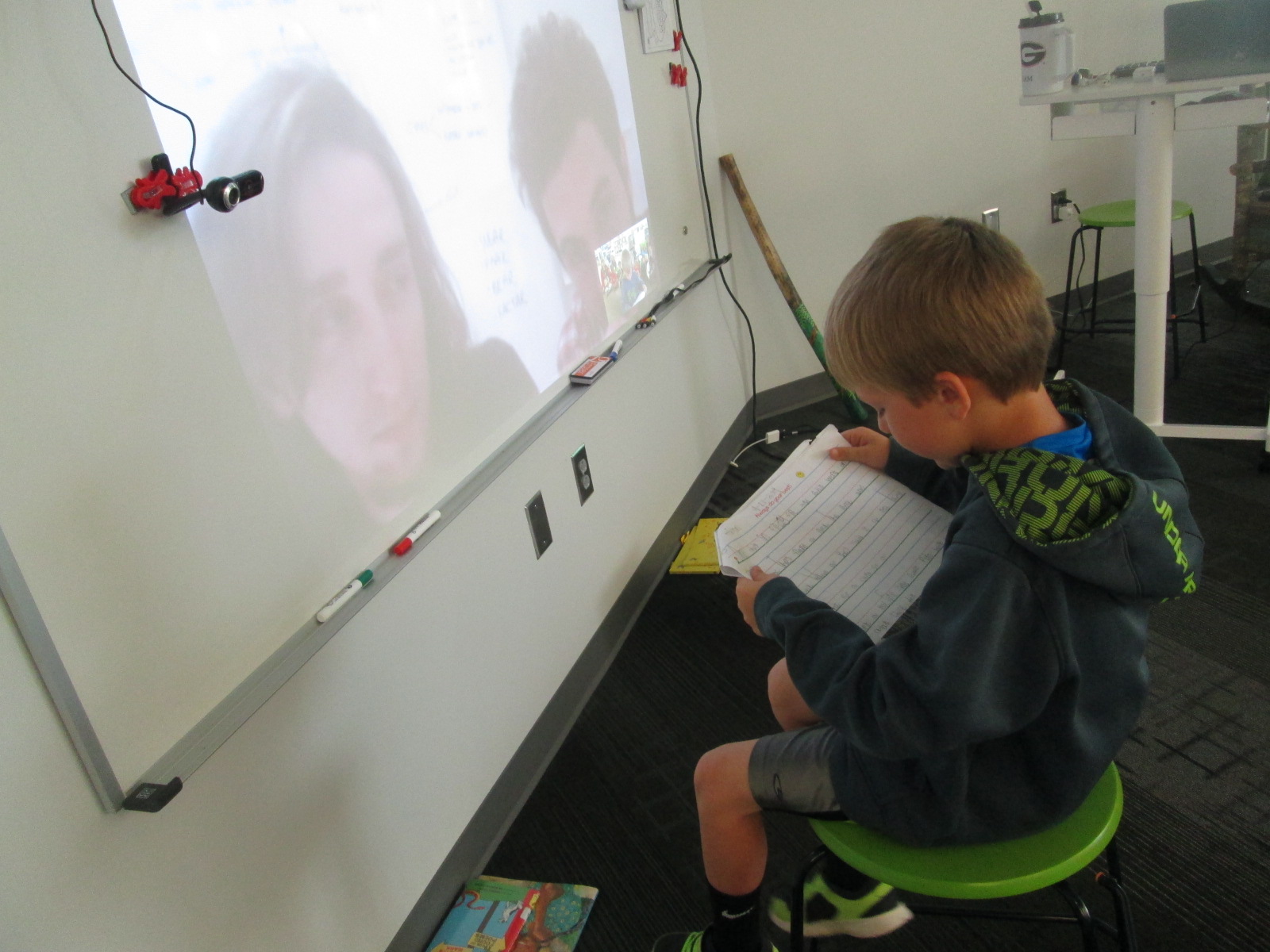
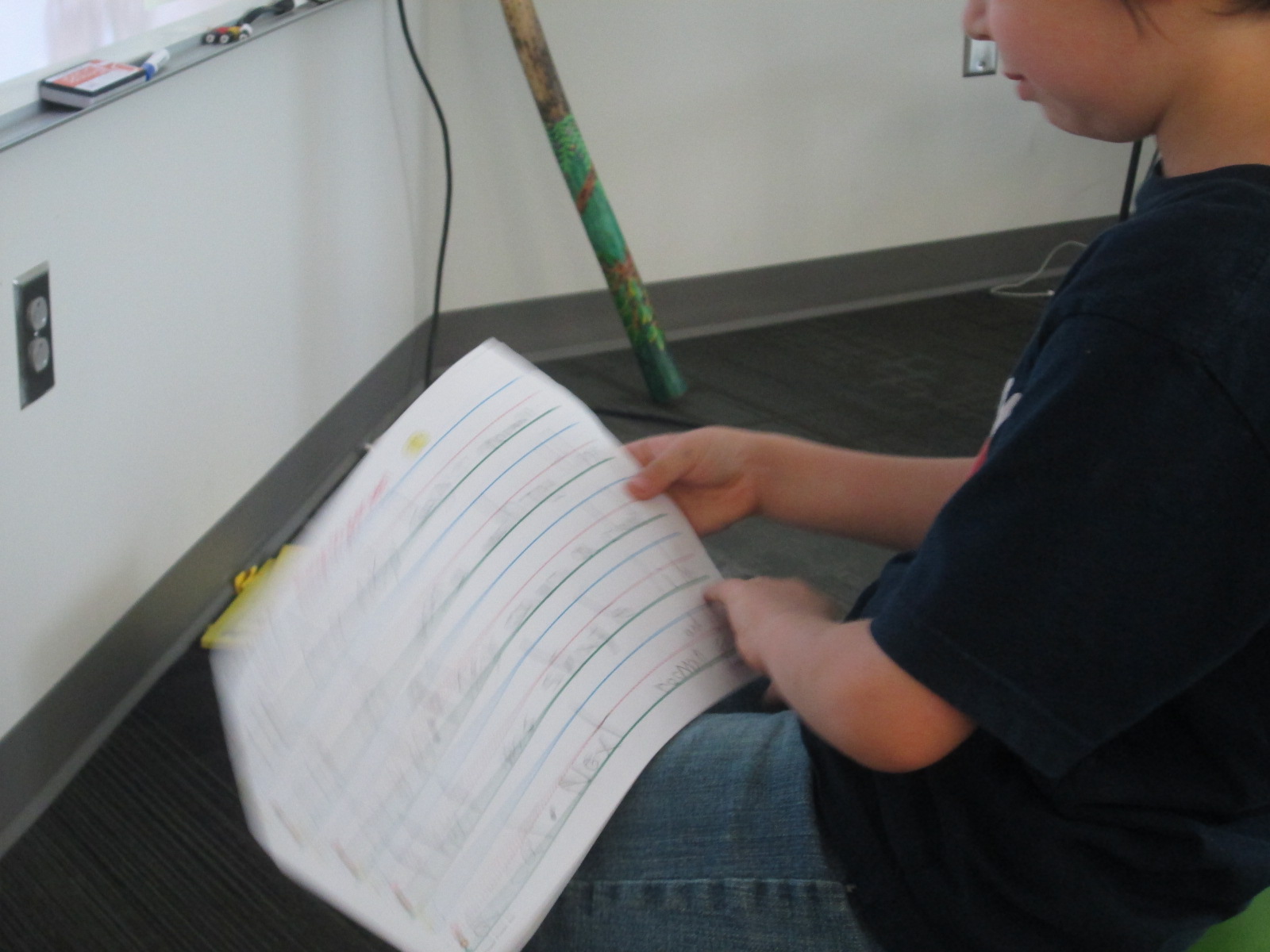
We selected one student from each of the Chromville settings to share their stories with the Chromville team.  Each student showed his/her coloring page first and then read the story.

chromville skype (10) chromville skype (15) chromville skype (13) chromville skype (12) chromville skype (17)

Chromville currently has a narrative writing contest going on using the Greenland setting but Kindergarten is not eligible to enter.  This was a way to still honor their work and let the good people at Chromville hear how fantastic a Kindergarten story can be too.

chromville skype (19)

This is definitely a project we will try again.  I’m thankful for Kindergarten teachers who took a risk with me to try something totally new.  As usual, things didn’t work perfectly along the way, but that’s usually where some of the best learning happens.  Even though there were some tears, it was a great lesson that things aren’t always perfect and we have to push through failure and learn from it in order to be innovative.


Using Freedom Summer to Create Blackout Poetry

blackout poetry (14)In third grade, students learn about civil rights through the standard:

SS3H2 The student will discuss the lives of Americans who expanded people’s
rights and freedoms in a democracy.

Students specifically learn about Mary McLeod Bethune, Frederick Douglas, and Thurgood Marshall.  When these students get to 5th grade, they will spend a larger amount of time studying the civil rights movement, but I thought this would be a good time to explore some text that connected with their current understanding of civil rights.

Students spent a small amount of time sharing what they currently understand about segregation and civil rights.  They brought up things like drinking from separate fountains, riding in the back of the bus, and holding boycotts of the transportation system.

blackout poetry (13)

Then, we read Freedom Summer by Deborah Wiles.  Students immediately noticed the connections to their own understanding of segregation as the 2 main characters could not do the same things together.  They were shocked when they got to the part in the story where the two boys couldn’t go to the pool because it was closed and filled in with asphalt.  The students used words like unfair, lunatics, and furious when describing their feelings and the idea of closing things rather than follow the law.

blackout poetry (12)

After discussing the book, I showed them how some artists and poets use text that they find in the world and turn it into something new.  Austin Kleon, in Austin Texas, is one of these writers and artists.  We looked at a few of his poems called “blackout poems”.  He takes pages from newspapers or other texts and blacks out all of the words on the page except for the words in the poem.

blackout poetry (2)

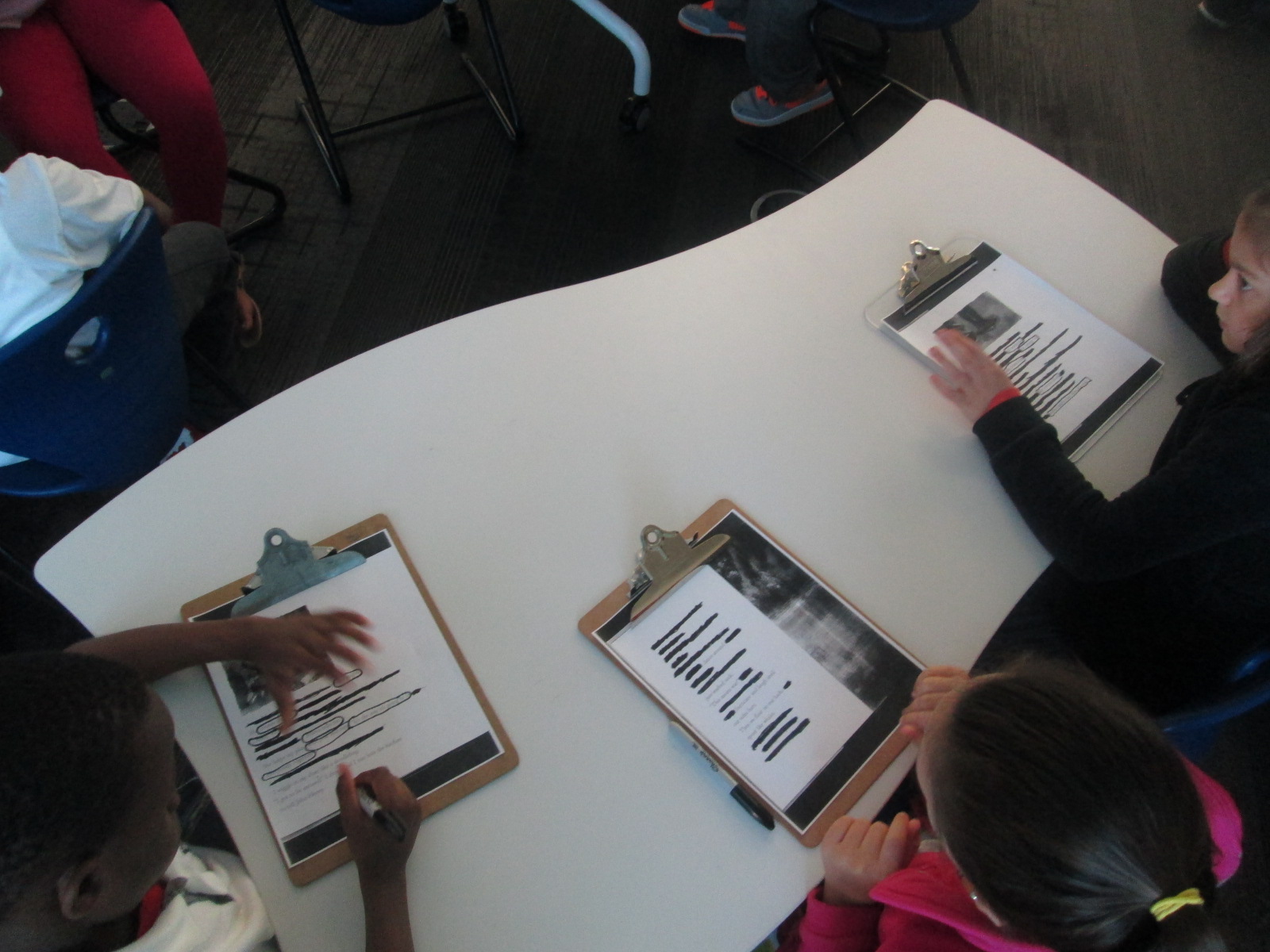
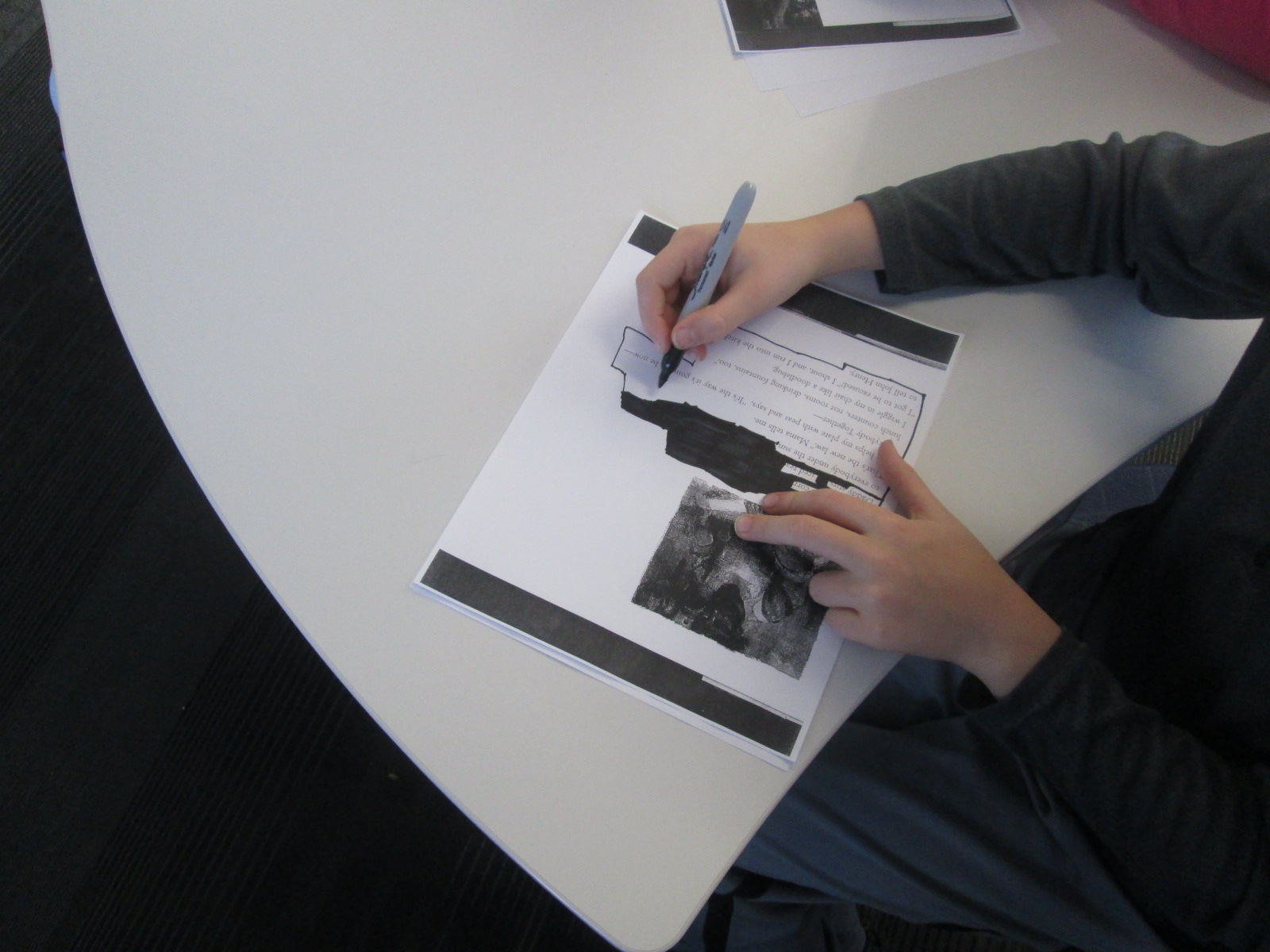
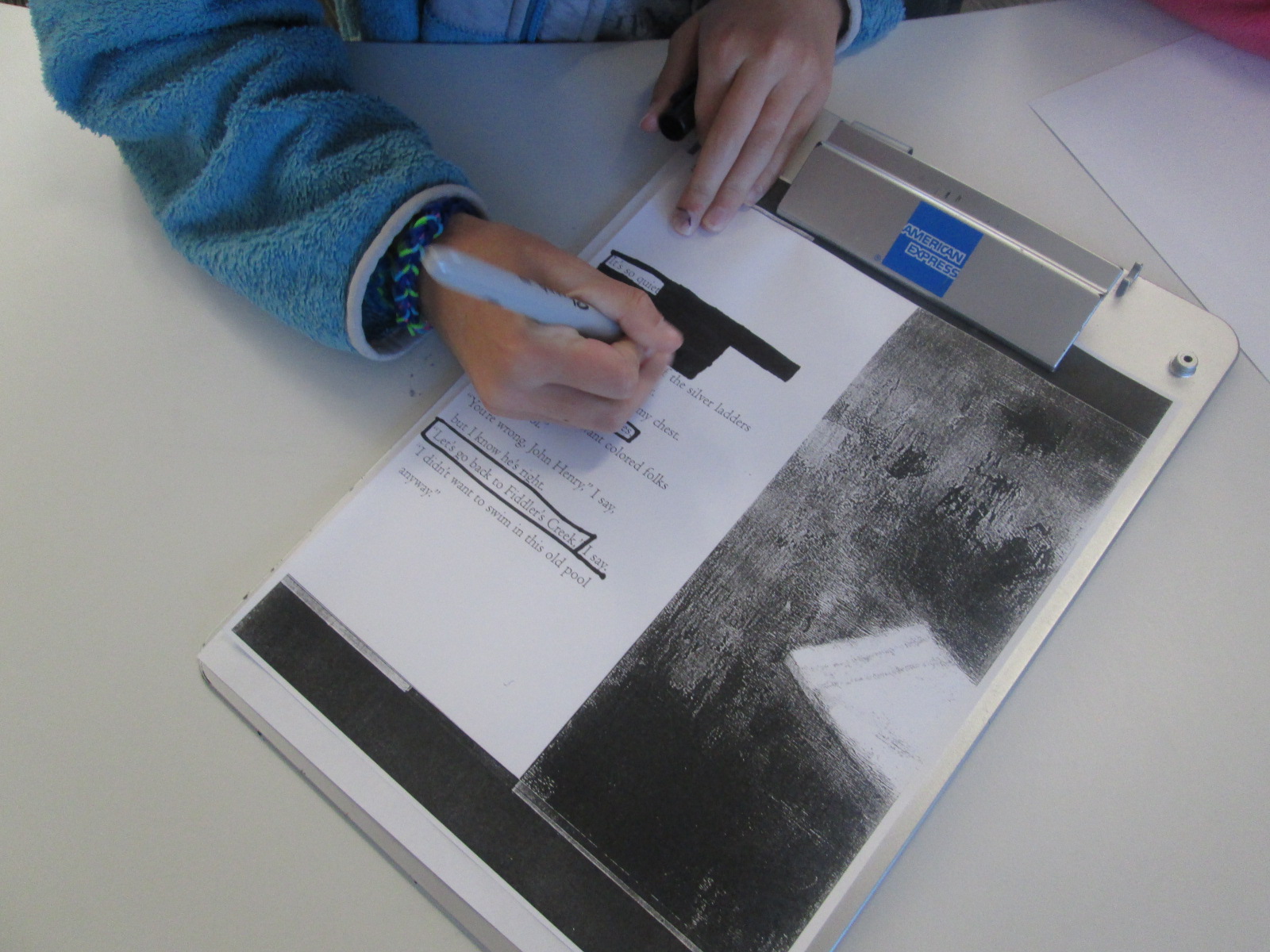
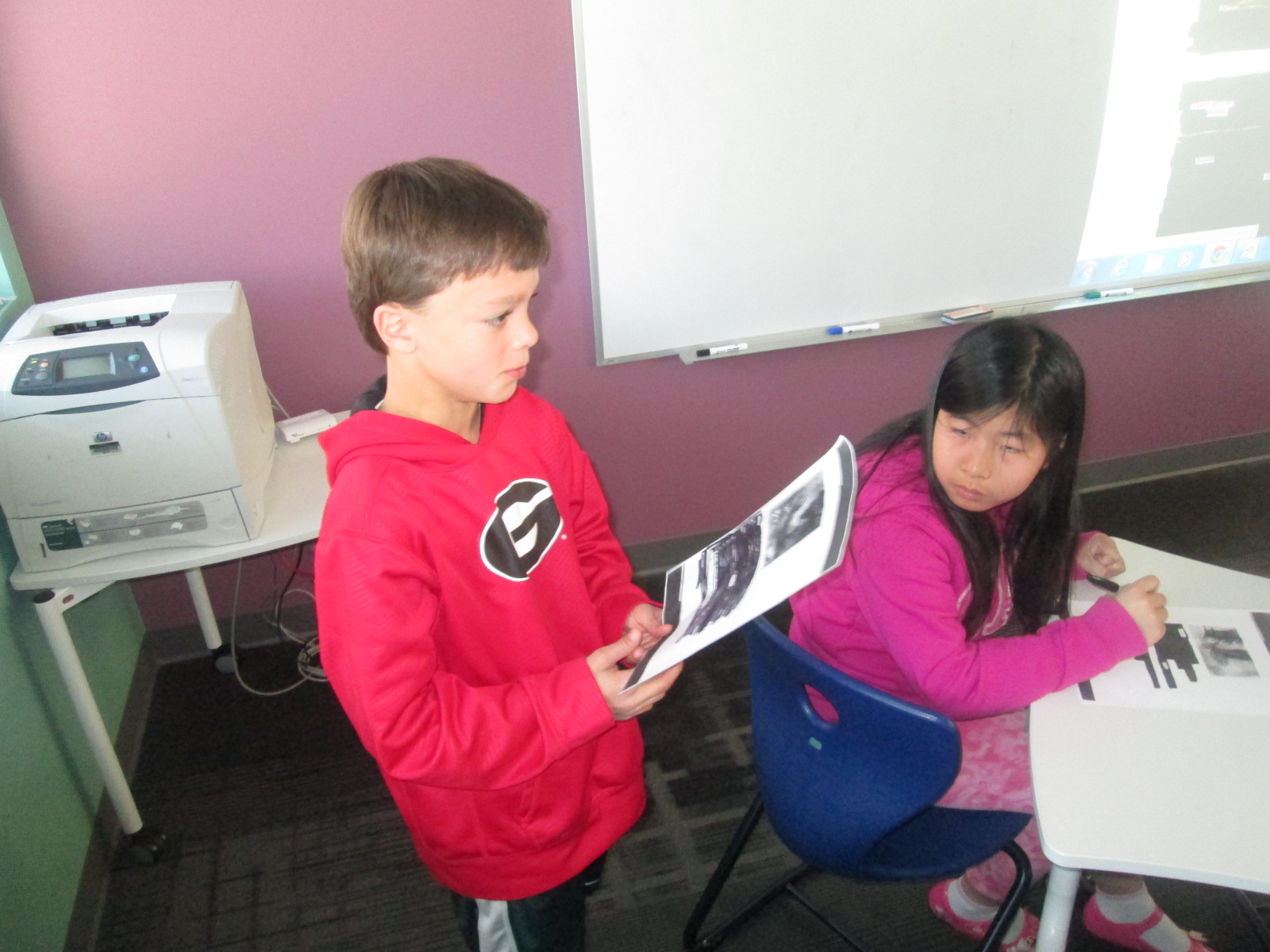
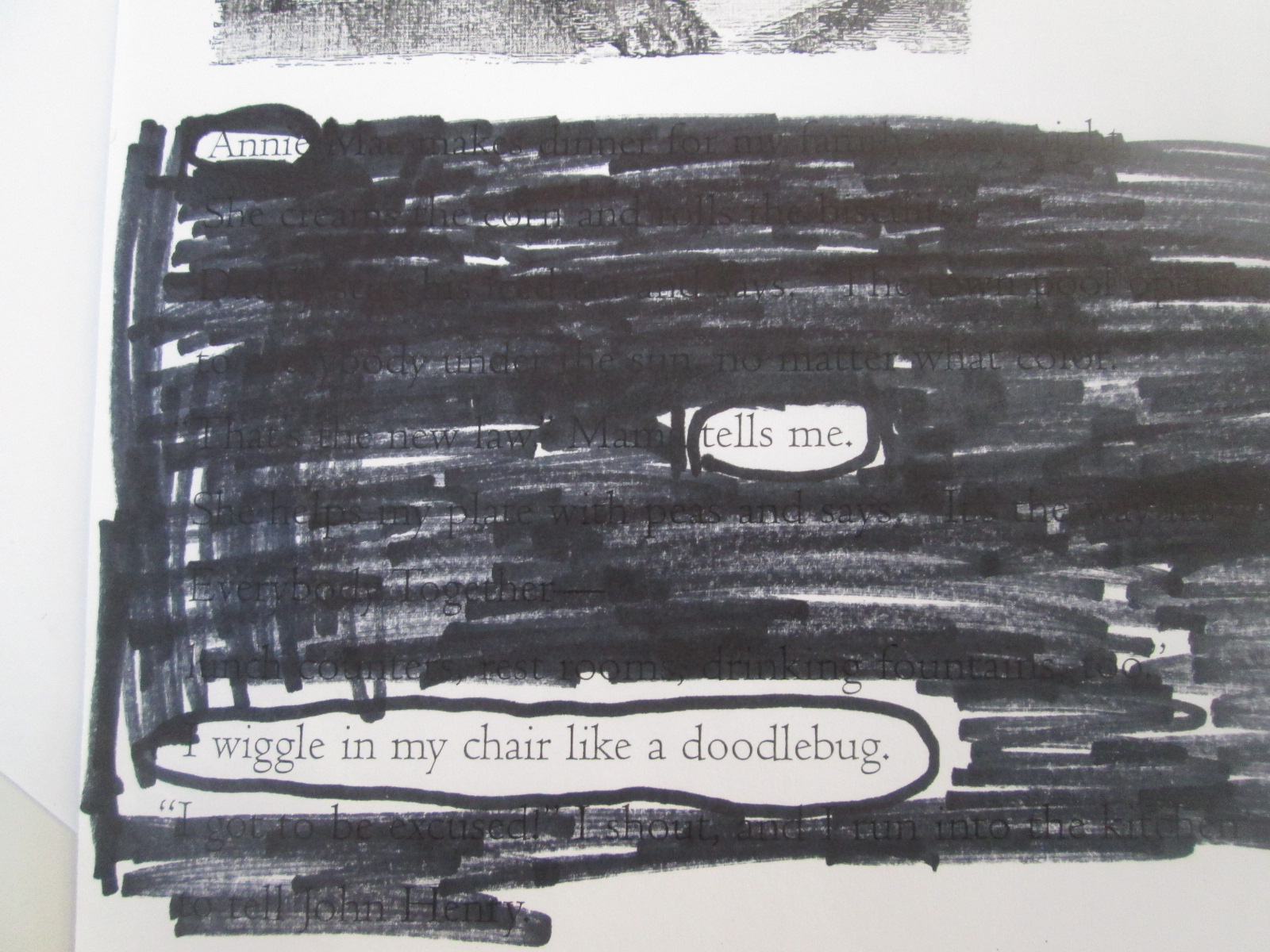
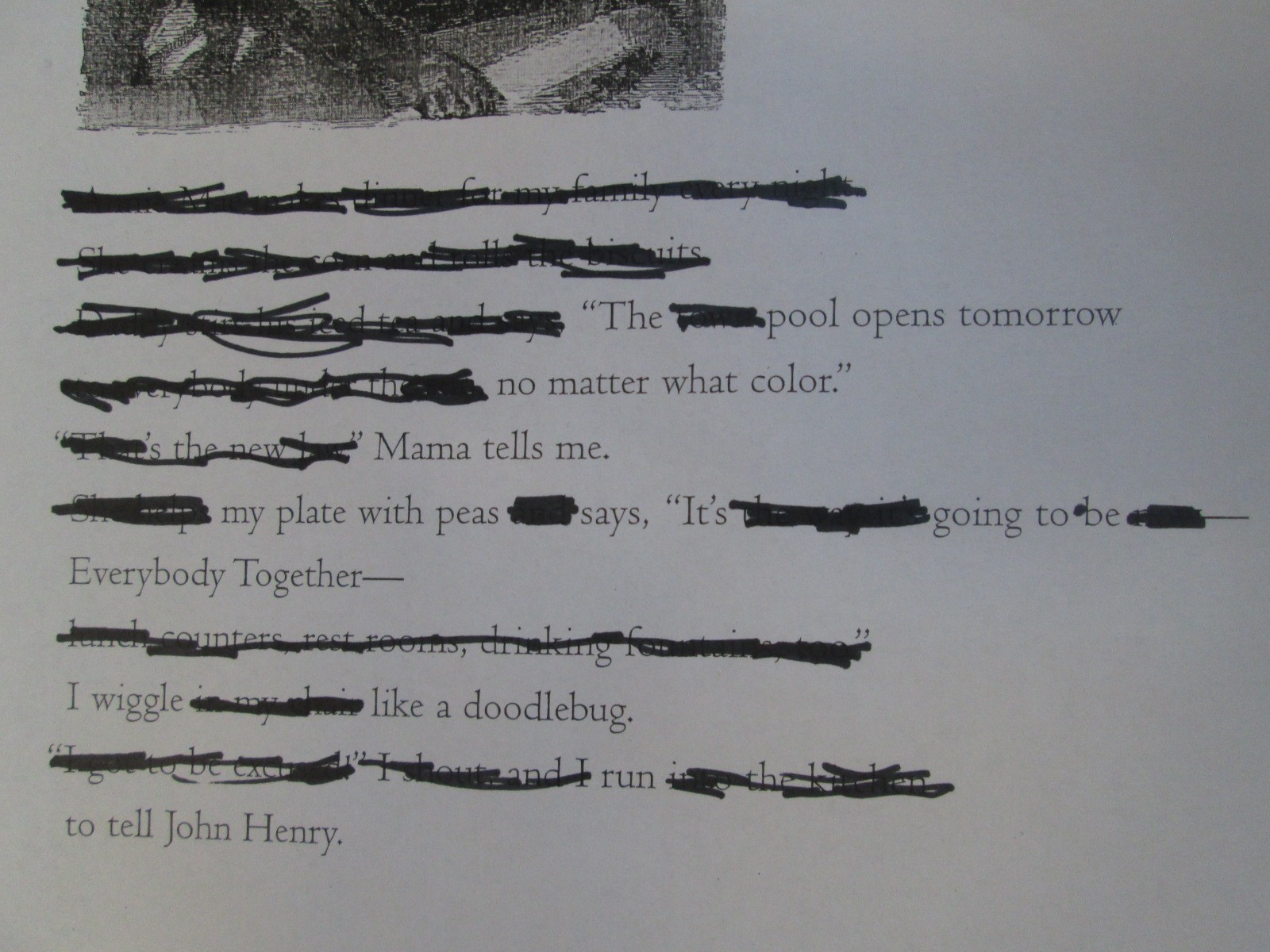
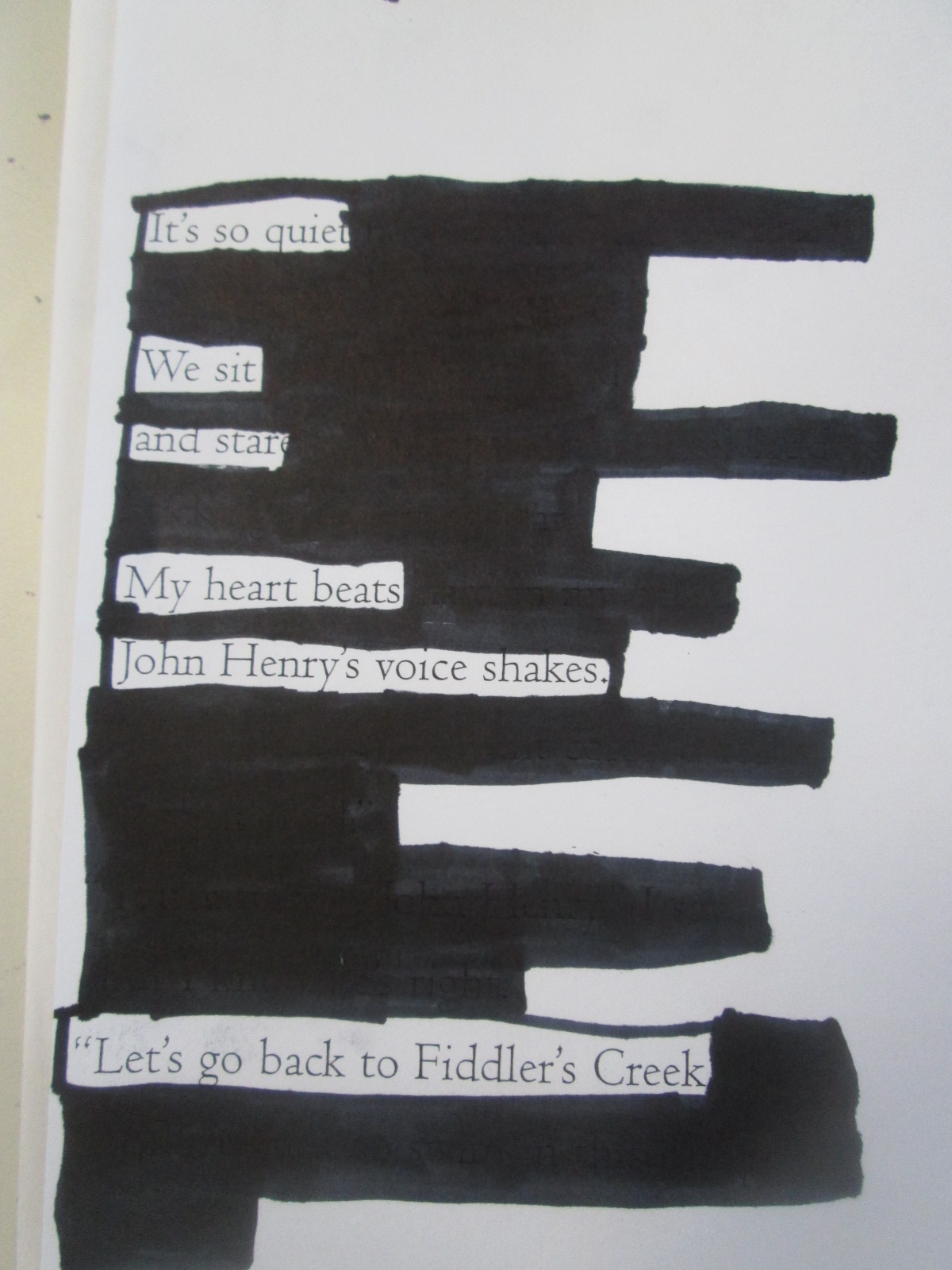
I gave the students one of three pages from Freedom Summer.  They spent time looking for words that stood out to them as a possible poem.  When they decided on the words of their poem, they circled them or drew boxes around them with a black marker.  Next, they used that same marker to blackout the rest of the words on the page.

blackout poetry (1) blackout poetry (3) blackout poetry (4)

It was interesting to see how students interpreted the exact same page in a different way.

blackout poetry (5)

We had students share their poems at the end, and it gave us a new understanding of what stood out on the page and in the story for students.  It was as if the poem helped us to look more closely at the meaning that we might all take from the text.  As usual, this was more difficult for some students than others, but we noticed that this kind of poetry did take away the barrier of spelling or deciding what to write.  We could instead focus on the meaning of the words on the page and use those words to interpret the story as a poem.

blackout poetry (1)

Here are a few of the poems that students created.

blackout poetry (9) blackout poetry (8) blackout poetry (7) blackout poetry (11) blackout poetry (10)


Digital Magnetic Poetry with the Word Mover App

IMG_3022We’ve been having a lot of fun with found poetry during poetry month.  We started with book spine poems, and we will try some blackout poems very soon.  Today we explored magnetic poetry.  When students were making book spine poems, there were several times that they really wanted to move one or two words around or there was one word that was missing that they really wanted to add.  Magnetic poetry gave them so much more flexibility in that aspect.

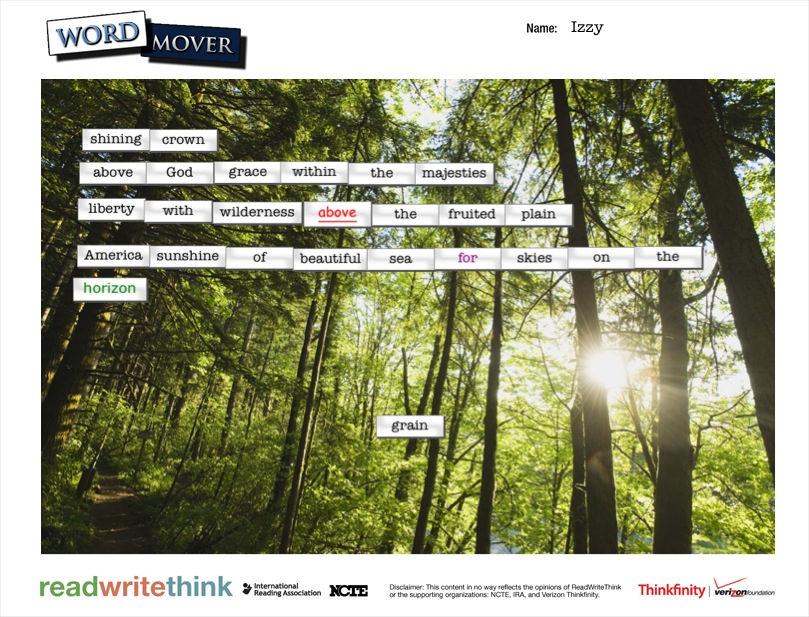
Mrs. Ramseyer’s 2nd grade was the first class to try this poetry this year.  We started by using the nature poetry on the magnetic poetry website.  I liked doing this type of poetry after book spine because students quickly saw that they really had to think about how to put groups of words together that made sense.  Books already had the words put together and students just had to decide which books and what order.  Magnetic poetry requires students to start with a bank of words and somehow make sense out of them.  We played around on the board trying to put groups of words together.  We knew that we could throw words back into the bank if we didn’t need them.  Students had many ideas of what should go together, which meant many disagreements as well.  This was a great type of poetry to do alone.

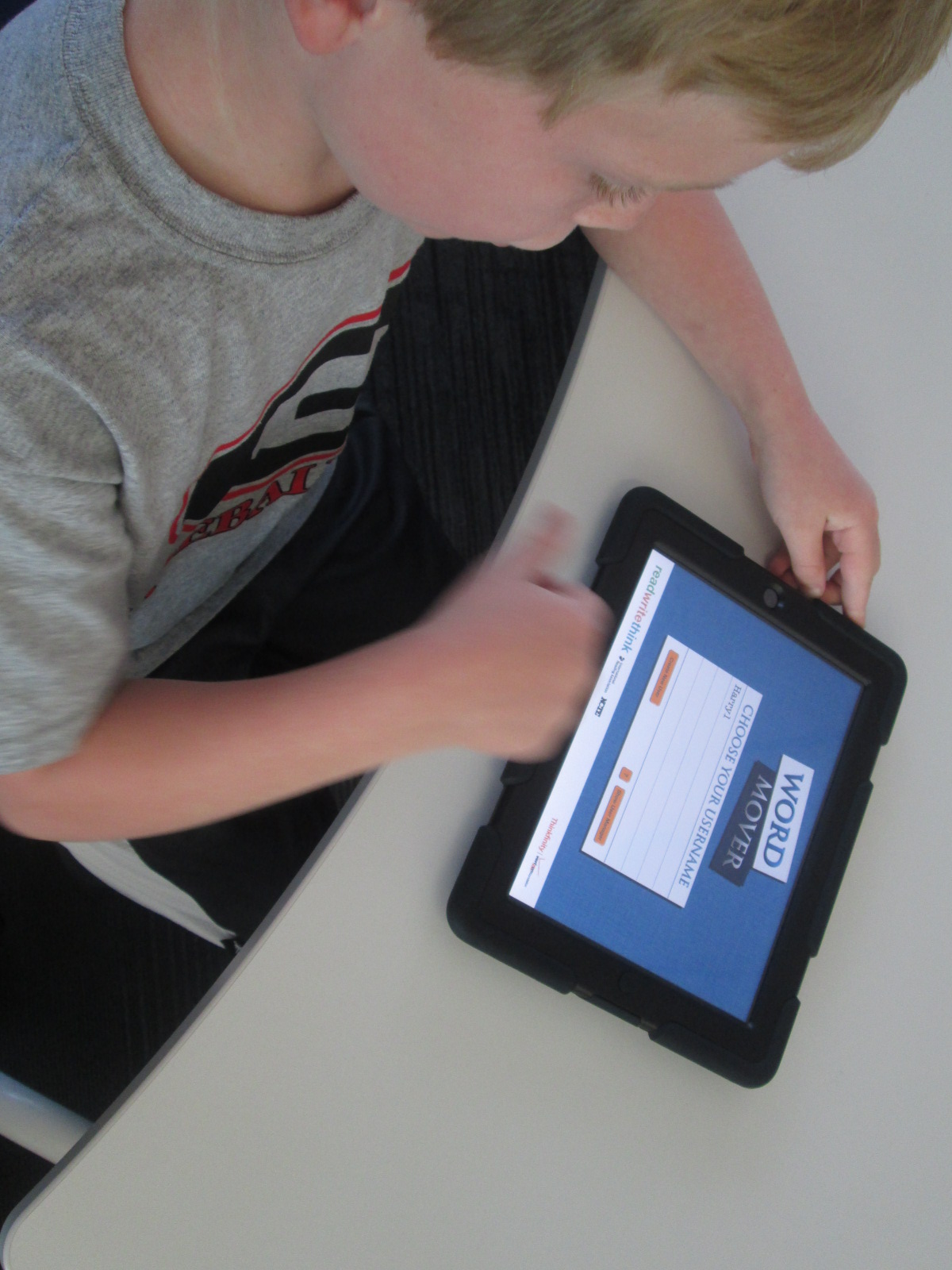
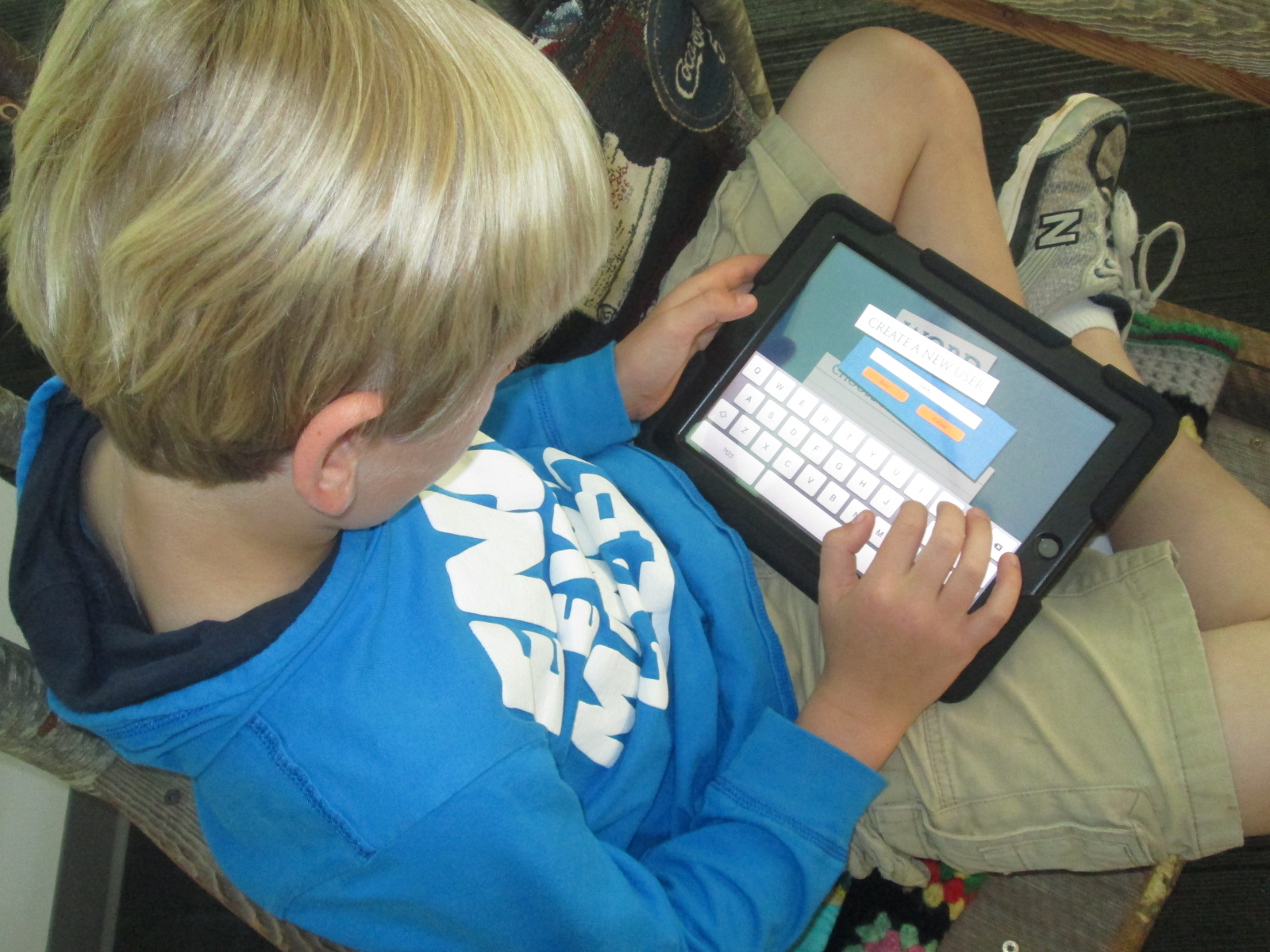
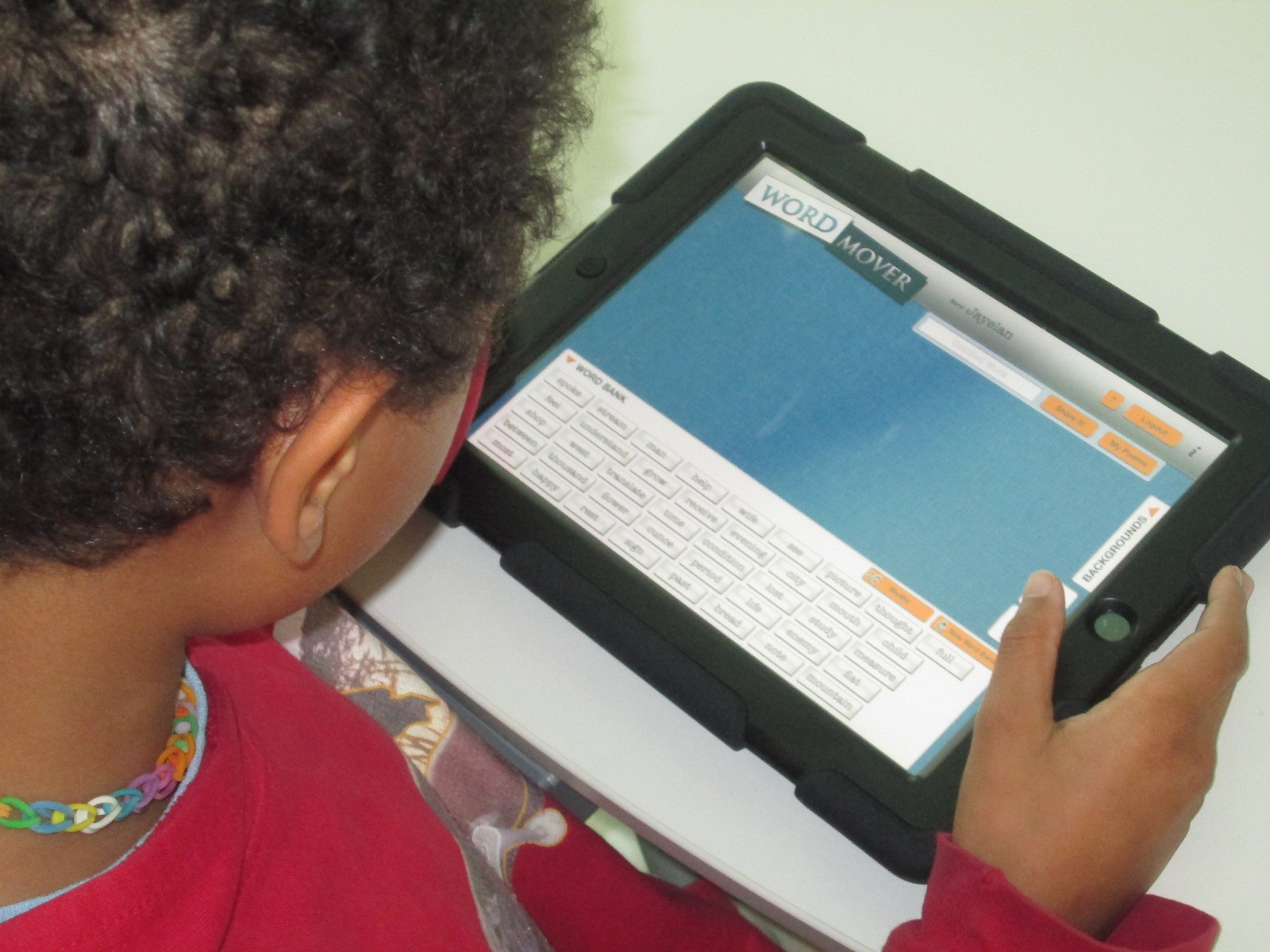
I showed students the Word Mover app on the iPad, which essentially is like magnetic poetry.  Word Mover has an iPad and android version and comes to us from Read Write Think.  There are a few options.  Students can choose a word bank or choose from several famous speeches and songs that can be remixed into a poem.  There is also an option to make your own words, but I discouraged students from starting with the “my own words” category since that would stray from the idea of found poetry.  What we all loved was that you could add any word no matter which word bank you chose.

IMG_3021 IMG_3018

Once students selected their word bank, they started dragging words onto the work space and arranging them.  Any words could go into the trash can to put them back in the bank.  Students could shuffle the words in the word bank or even get a bank of new words.

The teacher and I wandered around the media center chatting with students about what they were thinking.  As with any kind of writing, some students were naturals at this kind of poetry while others had to start over a few times.  Some of the students who chose speeches and songs like America the Beautiful and I Have a Dream had a hard time remixing rather than just copying the original.

IMG_3017 IMG_3016 IMG_3015

Mrs. Ramseyer and I both noticed that students were writing their poetry as if it was one long sentence or paragraph.  Once students told us “I’m done”, we asked them to read their poem aloud.  As we heard them pause in their reading, we suggested that those pauses might be where their line breaks should go.  Students spent a bit of time rearranging their poem so that it was in lines that naturally flowed for the reader.

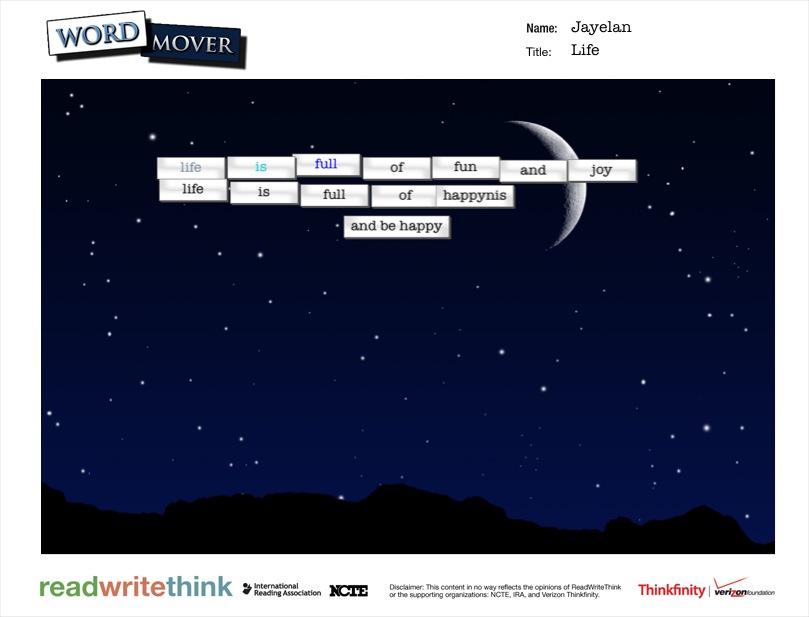
If time allowed, students chose a background and added a title to their poem.  Some students even figured out that you could change the color and font of the words.

Once poems were done, students saved them to the camera roll on the iPads so that you could enjoy them here.

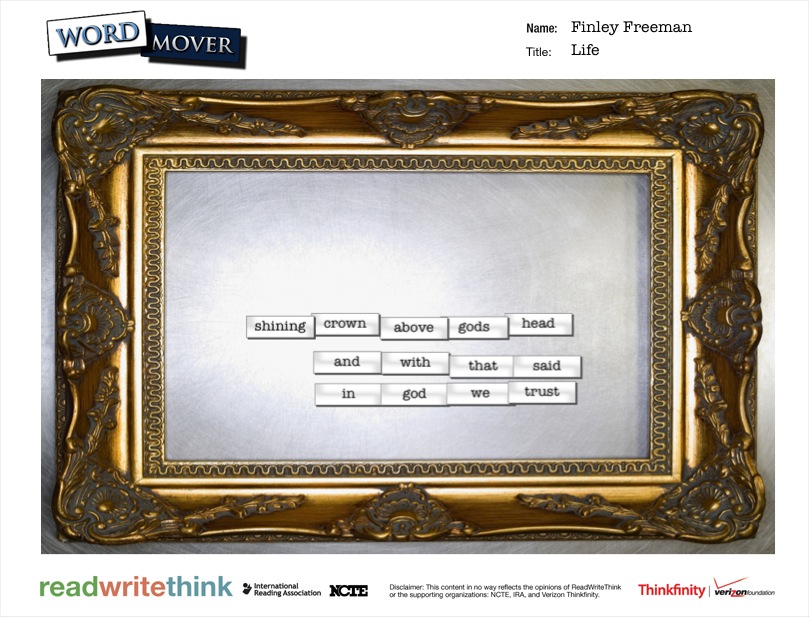
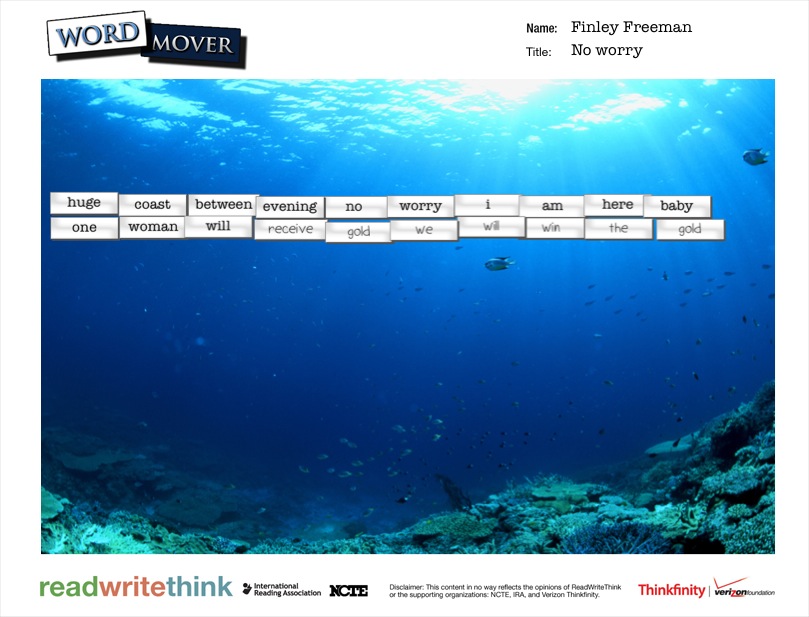
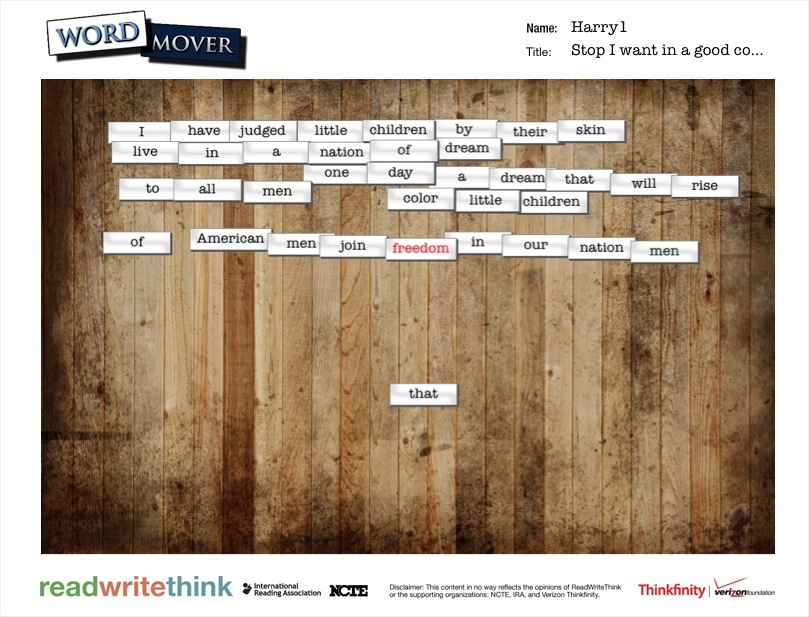
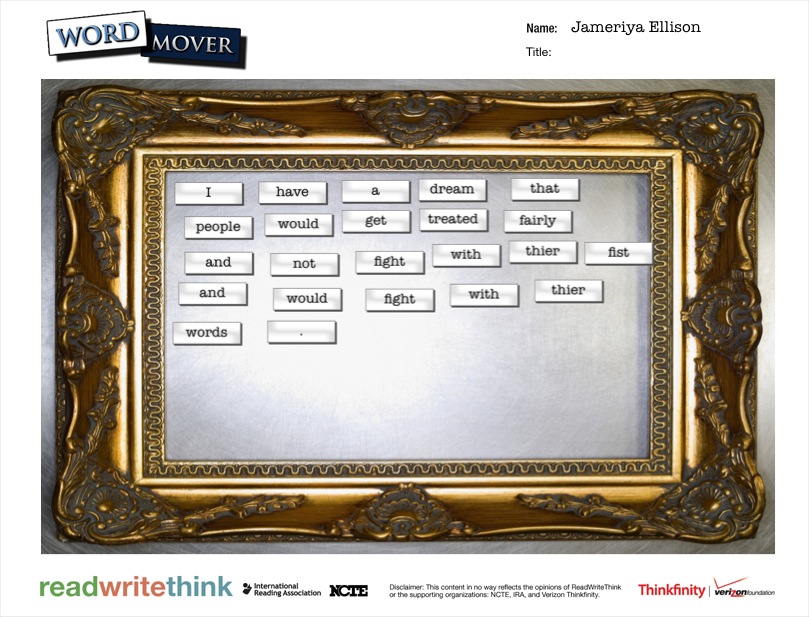
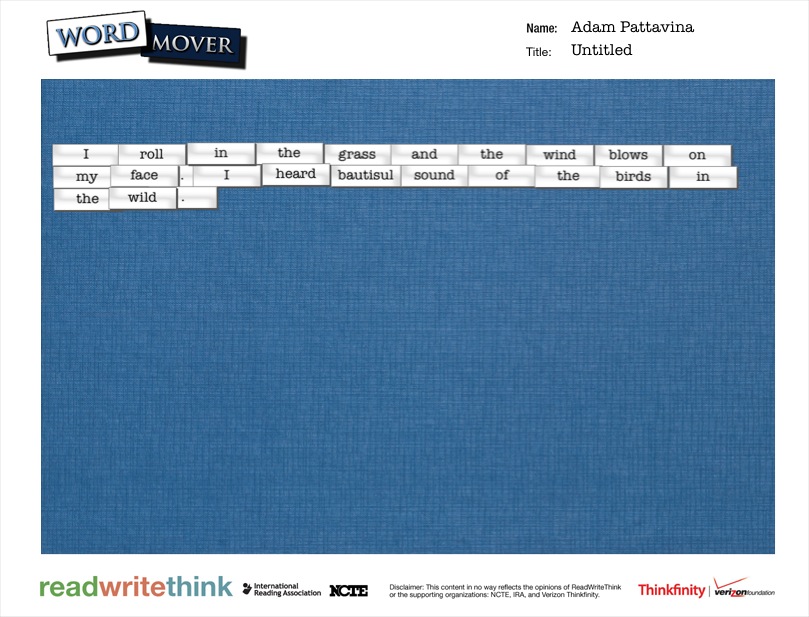
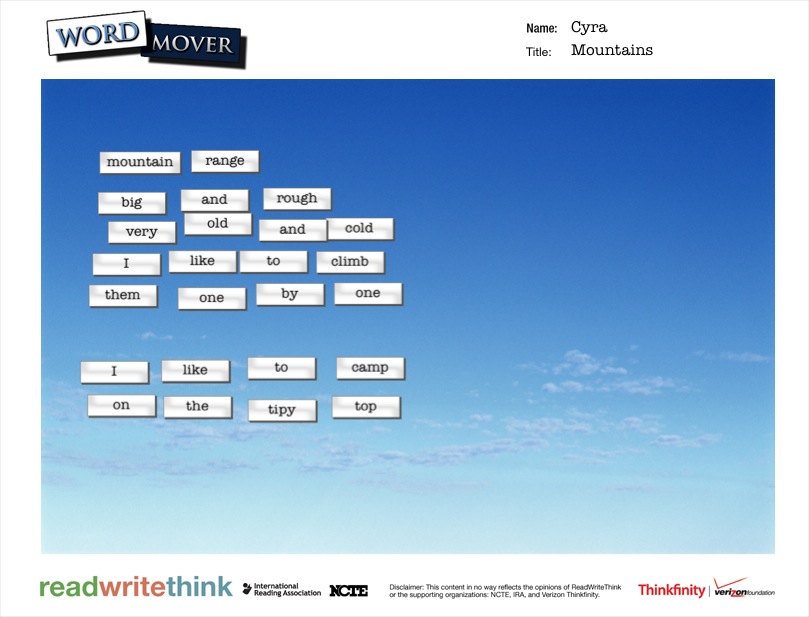
word mover (1) word mover (2) word mover (3) word mover (4) word mover (5) word mover (6) word mover (7) word mover (8) word mover (9) word mover (10) word mover (11) word mover (12) word mover (13) word mover (14) word mover (15) word mover (16) word mover (17) word mover (18) word mover (19) word mover (20) word mover (21) word mover (22) word mover (23) word mover (24) word mover (25) word mover

More Heart Poems for Banding Together

heart poems (14)Each time a group of students submits a new batch of heart poems to our Banding Together project, I smile!  They are so honest in their words.  Some of their poems are filled with joy while others are filled with sadness.  I smile because I am so proud of how they are sharing with the world “what their heart knows”.  You can read more about this project here & here.

Heart Poems

Enjoy the newest group of poems submitted yesterday and today.

Sophia David C. Barrow Elementary Treasure and everyone is everything
aesa David C. Barrow Elementary Please find lovable families so you can have food and games and fun!! please!!!!!!
Jonathan David C. Barrow Elementary My four dogs are furry when I run my fingers through their fur.
Martavious David C. Barrow Elementary Michael Jordan is the best.
Derrick David C. Barrow Elementary I would change my front yard because I want a basketball goal.
Sophia David C. Barrow Elementary Mom and Dad are the greatest treasure
Eunwoo David C. Barrow Elementary My parents and my loving sister always Bring me great joy in my heart.
Katherine David C. Barrow Elementary Love to pass to pupil to pupil
jameriya David C. Barrow Elementary Pets make me smile just seeing pets I feel like I’m in pets world.
Katherine David C. Barrow Elementary Joy to you from me
Jayelan David C. Barrow Elementary Family is love
Hamilton David C. Barrow Elementary We long for our family to take care of us
cyra David C. Barrow Elementary every one has happiness in their lives.
niv David C. Barrow Elementary Friends feel like family when you work together
David David C. Barrow Elementary I am scared of me because I get in trouble a lot and I am sensitive.
Jack S David C. Barrow Elementary Nothing is more powerful than Love.
Jermaine David C. Barrow Elementary Love brings me joy
Carinne David C. Barrow Elementary The sun shines on the other side. You bring joy.
Matthew David C. Barrow Elementary Long, poisonous, snakes make me hide
cyra David C. Barrow Elementary one smile grows into more smiles.
clara David C. Barrow Elementary I love to play in the summer breeze all around me
izzy David C. Barrow Elementary watermelon has great taste, strawberries are juicy, lemonade is sweet
and so are you:)
quavarion David C. Barrow Elementary I dream every one have a good day and a good life.
Kyleigh David C. Barrow Elementary Friends stay friends promises stay promises and we do to.
jameriya David C. Barrow Elementary Haunted houses scare me if I go in one I might cry.
jack k. David C. Barrow Elementary I love chocolate.When I think of my best friends.What do you think of chocolate?
Stefan David C. Barrow Elementary My guinea pig’s squeak is like the good morning for me.
Abney Marie David C. Barrow Elementary When frogs croak it brings peace to my ears.
Jamaria David C. Barrow Elementary My family brings joy to me.
Emma David C. Barrow Elementary Sweet, sour: candy is spectaular
Za’Ryiah David C. Barrow Elementary Dogs bring joy by just the lick of it’s tongue.
Cheyten David C. Barrow Elementary Peace is a wonderful sight that brings a heart.
Elizabeth G. David C. Barrow Elementary Love is happiness and it shines like the morning sky.
Aubrey David C. Barrow Elementary Summer summer 1,2,3 summer summer come to me so I can jump into pools oh it’s so much fun pleas summer come!!!
maya David C. Barrow Elementary Dripping wet leaves, a sunny blue sky, the birds and the bears NATURE
John H David C. Barrow Elementary Do what you want to do, reach for your dreams.
Yehyun H. David C. Barrow Elementary The beautiful trees, the beautiful flowers, the beautiful nature.
Jalondra David C. Barrow Elementary love is in our heart and it makes me happy
elijah David C. Barrow Elementary Love never hates.
Audrey David C. Barrow Elementary Love is a story that never ends
Elizabeth G. David C. Barrow Elementary Believe in love if you do it will come right in to you.
Elizabeth G. David C. Barrow Elementary Summer brings me joy.Does it to you? Come right here and count to two.
Audrey David C. Barrow Elementary It flips and it flutters goes all about.
Jihye David C. Barrow Elementary Hugs bring joy hugs bring love.
Jon M David C. Barrow Elementary puppies are joy that has come to life

Flipgrid Book Reviews with 2nd Grade

Flipgrid. Relax and discuss. 2I have a new favorite tool:  Flipgrid.  This tools allows you to setup a grid with multiple questions and students can use webcams on computers or a free iPad app to record up to 90 second responses to the questions.

Our 2nd grade is currently working on response to literature writing.  They want to create book reviews to post onto their KidBlogs.  To kickoff the writing of book reviews, we looked at a book review written a few years ago by Kindergarten teacher, Kelly Hocking.  We decided after reading the review that it was made up of 4 parts:  A hook, a short & sweet summary, connections & opinions, and recommendations.

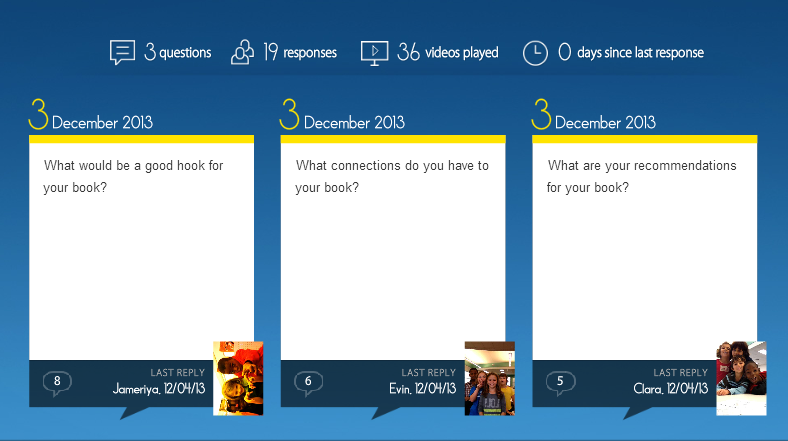
Flipgrid. Relax and discuss.Next, I read the book Carnivores by Aaron Reynolds and illustrated by Dan Santat.  I wanted students to have a chance to practice writing the parts of a book review, but rather than do it whole group, we used FlipGrid.  I created a grid with 3 questions:

  1. What would be a good hook for your book?
  2. What connections do you have for your book?
  3. What are your recommendations for your book?

Each question has a code for flipgrid.  I downloaded the app onto all of our iPads.  For the app, students just have to type in the code to access the question.  I printed each question with its corresponding code on paper to give to groups.  Students divided into groups of 4 and were assigned one of the 3 questions.  After doing this lesson with 2 different groups, I learned that for 2nd grade it was really important to write down what they were going to say, so students first wrote out their response to their question on an index card.  Then, they practiced reading the card and deciding who would say each part on the recording.  To record, students:
  • opened the app
  • typed in their code.
  • touched the plus sign
  • accepted terms
  • took a photo
  • recorded their response
  • uploaded their video by typing a name and email

The videos were all sent to our grid.  We gathered back on the floor to listen to some examples of hooks, connections, and recommendations.  I also sent the link to the teachers so that they can refer back to the hooks, connections, and recommendations that were made as they begin to write their own book reviews.  I imagine that these videos could become parts of mini-lessons about what makes a strong hook or how to write a stronger recommendation.

You can listen to their responses by visiting the grid.

I’m proud of these 2nd graders and their teachers for diving into an unknown tool.  They learned about writing book reviews, but they also learned from their failures in using a new tool and passed on their learning to the groups that come after them.  We had some great discussions about what we will remember the next time we use Flipgrid, and I know that the process will get smoother each time.   I think Flipgrid will be a tool I will come back to again and again.  In fact, I’m using it tomorrow with 4th graders to create a grid of book talks about civil rights leaders.

Kindergarten Storybirds

Two Kindergarten classes just finished a writing project using Storybird.  Storybird allows a user to select illustrations for a story, sequence them, and add text to create a book.  Any time we plan a project like this, we consider what the barriers are to artistic expression.  For Kindergarten, some of the barriers included:

  • limited knowledge of technology use due to lack of technology in that grade
  • the ability to read the text of stories that could be mentor texts
  • writing the story vs. telling the story orally

To lower the barriers, the teachers and I planned a series of lessons and opportunities to support the students.

Lesson 1:  Spend time revisiting the 3 ways to read a story:  read the words, read the pictures, retell.  Focus on reading the pictures by looking at a wordless book together.

In between lessons:  In class, students practiced telling stories from wordless books in small groups, alone, and at centers.

Lesson 2:  Look at a sequence of 3 pictures and think about a beginning, middle, and end for those pictures.

Lesson 3 (or part of lesson 2):  Look at Storybird.  Choose a topic  of pictures, like pumpkins, and choose 3 pictures to sequence that could be the beginning, middle, and end of a story.  Write the story together as a class with time to pair share ideas.

Lesson 4:  In small groups with adult support, students created a group Storybird project.  We made as many groups as we had adults.  For one class this was 4 groups and for the other it was 5 groups.  The adult’s role was to facilitate the conversation of the students and make sure each voice was heard in the group.  The adult also typed the story for the students as they told the story.  The students were supposed to show the adult what to click on at each step of the project.

In between lesson:  One group at a time came to the library and used Screencastomatic to record the audio of their story.  If students had difficulty reading the words, we whispered the words to them and they repeated them.   Videos were uploaded to Youtube.

Lesson 5:  The whole class came to the library for a premiere of their audio ebooks!


You can enjoy all of their books here!


http://www.youtube.com/watch?v=HYJNjSjBFKg


http://www.youtube.com/watch?v=ezwWTFAMrH0


http://www.youtube.com/watch?v=7UBlD2kjd_I


http://www.youtube.com/watch?v=OlKphwqHMU4


http://www.youtube.com/watch?v=hRRGEPlFZuY


http://www.youtube.com/watch?v=UN2UXuCwL30


http://www.youtube.com/watch?v=hxKzWWciBI0


http://www.youtube.com/watch?v=4WqAvko8v9E


http://www.youtube.com/watch?v=S8M85inqcB4


Thinglink Regions of Georgia with 2nd Grade

regions for thinglinkSecond grade has been studying the regions of Georgia as part of their social studies standards.  I pulled multiple resources for them to use including informational books, Georgia stories, posters of animals and plants, and regions of Georgia posters.  In each classroom, students were placed into groups to research a specific region.  This was built into both writing time and social studies.  Students were supposed to use their research to write a script for a regions of Georgia commercial.  Their job was to convince someone to visit that region by telling about the land, animals, plants, and things to do in that region.  During some of these sessions, students came to the media center in small groups for research support.   I worked with them both on researching facts and also writing scripts.  Finally in class, students designed backdrops for their commercials.

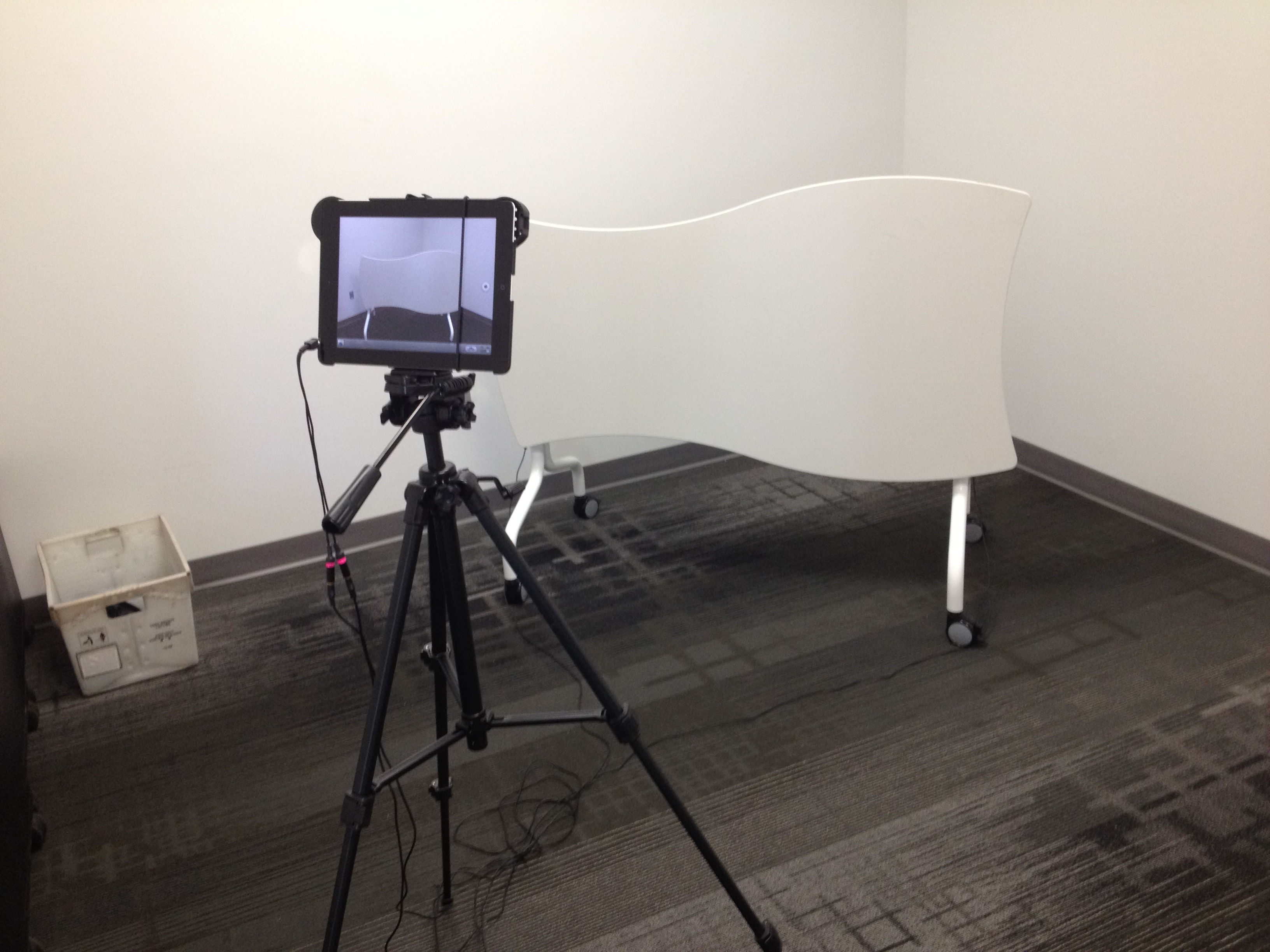
In the library, students came in small groups to film their commercials.  We filmed in our studio and used one of our fusion flip tables to tape the backdrops to.  I used an iPad to record the students acting out their commercial.  Our iPad had a dual shotgun microphone plugged in to improve the sound quality.  It was interesting to see the students’ different ideas for how to do a commercial.  Some incorporated puppets, creative slogans, and even a breakaway door.

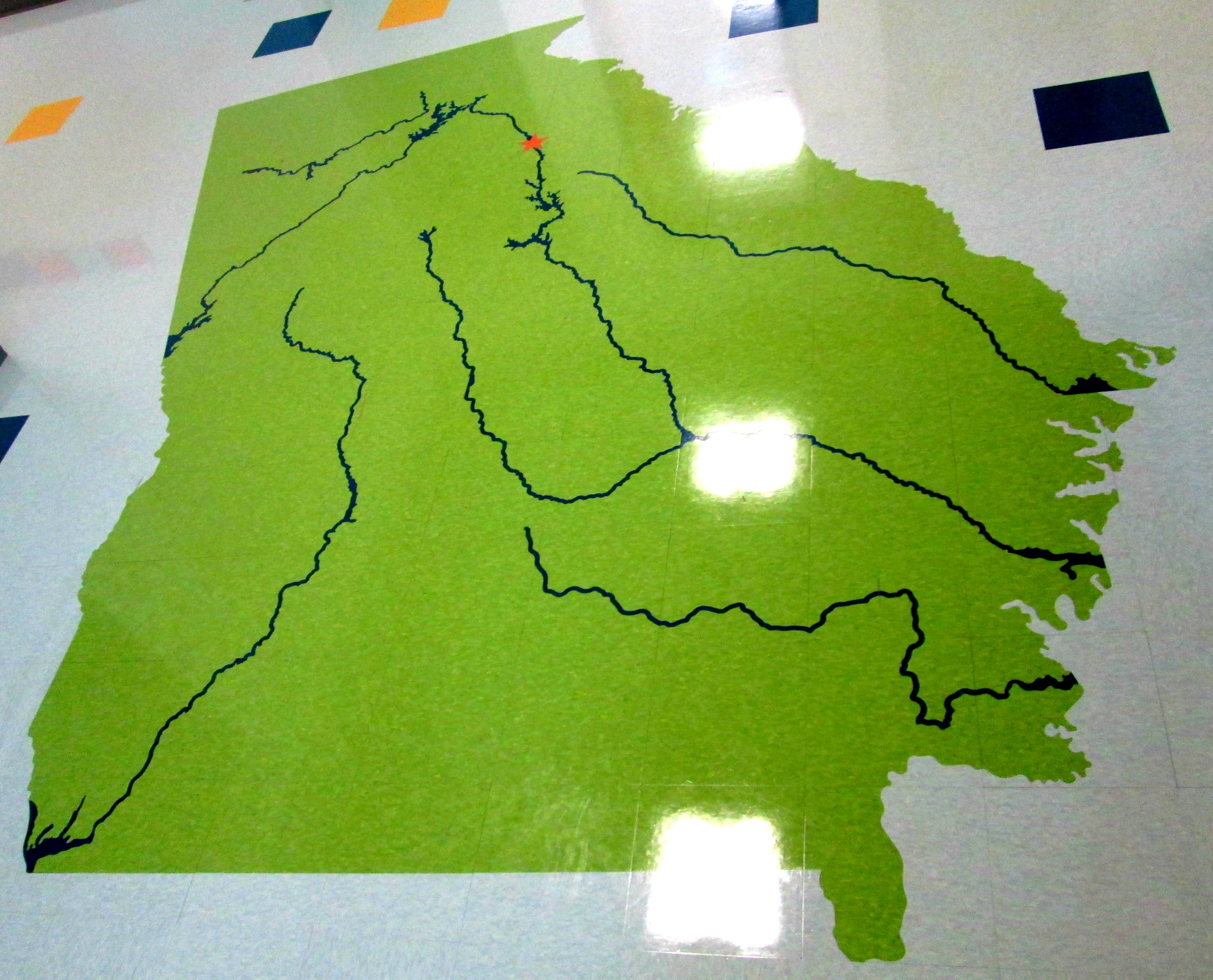
I took each video and put it into iMovie, uploaded it to Youtube, and then attached it to a Thinglink.  For our Thinglink image, I took a photograph of a map of GA which is found on the floor just outside of the 2nd grade rooms.  Thinglink allows you to attach multiple links to one image.  I’ve used Thinglink for individual projects, but I liked that this use of Thinglink pulled all of the videos into one easy to reach location.  I shared the link with teachers so that they could see the progress being made toward finishing all of the videos.  They pulled the Thinglink up on their boards and let students watch the videos that had been made so far.  It created a great review tool for where all of the regions of GA are and also allowed classes to hear the research that had been gathered in the other classrooms.  We will make a QR code for the Thinglink so that visitors with mobile devices can scan the code and visit the project.  photo (1)

This was a great first quarter project.  I think it is a stepping stone toward the next technology-related project that 2nd grade will do.  My regret is that I wish that more students could have been involved in actually creating the final product.  I wish that I had at least had a few students from each room sit and watch or help make the Thinglink.

Take a look at their work in progress here.

Rhyming Words and Storybird

Our Kindergarten students have been learning about rhyming words.  For our library lesson, we read two different stories.

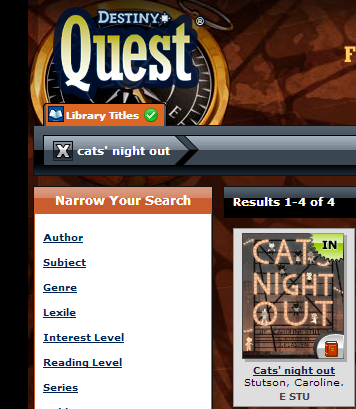
Storybird - Say What-! (Our Version)For our first story, we read Cats’ Night Out by Caroline Stutson.  Students gave me a thumbs up when they heard rhyming words.  Sometimes we paused and they told a partner the rhyming words they heard.  Other times we shared them aloud to the whole group.  We also took time to notice that there was a counting pattern in this book, counting by twos.

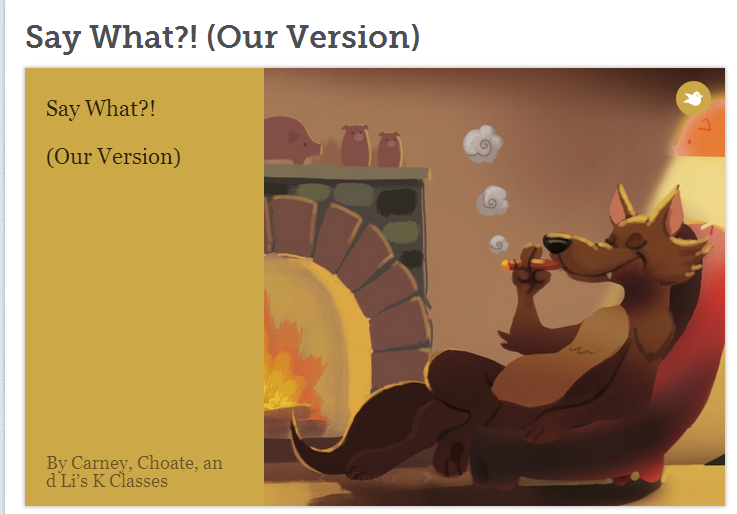
For our second story, we read Say What? by Angela DiTerlizzi.  This book explores the sounds that animals make and thinks about what animals might really be saying when they make their sounds.  This book sets up a great pattern that students can model in their own writing.cats' night out

For our work time, I put together a Storybird to use with all of the classes that participated in this lesson.  I searched for animal pictures within Storybird and pulled a few onto each page of the book.  Then, I typed the sentence starters for each animal.  “When a _______________ says _______________ does she really mean _________________________?”  Each class brainstormed rhyming word pairs for each animal picture.  It was about 2-3 pictures per class.  After the final class, we had written a collaborative ebook.  I emailed the link to all of the teachers so that students could see how the book turned out.

This lesson also served another purpose.  It was an authentic way to show a web tool that students would be using in the future.  Rather than teach about making a Storybird, students saw a Storybird in action.  Now, when we actually look at some of the steps, they’ll have a concrete example of a finished product to reference.  This was the first time that I have tried this, and I’m curious to see how it will impact future Storybird projects.

Read their final version of the story here.

Tux Paint Digital Stories with Kindergarten

A few months ago, Mrs. Kelly Hocking, Kindergarten teacher, emailed me with an idea.  She wanted to modify an idea that she found online that used KidPix.  Since we don’t have KidPix, our first step was to find an alternative.  The one that we liked the best was Tux Paint.

I met with Mrs. Hocking to talk about the logistics of installing Tux Paint on all of her netbooks and what that might look like in her center time.  She took this and ran with it as usual.  In centers, students explored Tux Paint and developed some expertise with the tool.  They figured out what worked and what didn’t.

Then, she put the students into work groups.  Each group used long rolls of paper to plan out a story and did quick sketches of their illustrations.  They used these planning sheets to draw their digital pictures in Tux Paint and type the text.  Students practiced their stories in class.

Mrs. Rockholt, the paraprofessional, brought small groups of students to the library to use Screencast-o-matic to record their stories.  We saved each screencast on a flash drive and then I uploaed them to Youtube to share with the world.  Enjoy!


http://www.youtube.com/watch?v=JsYMlM4T6ao&feature=youtu.be


http://www.youtube.com/watch?v=pYu3s9tqMB4&feature=youtu.be


http://www.youtube.com/watch?v=aB4GI2eHorg&feature=youtu.be


http://www.youtube.com/watch?v=S6hqQG7m53o&feature=youtu.be


http://www.youtube.com/watch?v=0Yh8g0Zscb4&feature=youtu.be


Two groups of students also took some time to talk about the process of the project.  Here are there thoughts.

http://www.youtube.com/watch?v=5TE_Corkspg&feature=youtu.be

http://www.youtube.com/watch?v=7qsk1_idRbM&feature=youtu.be


Next, we plan to share these with our friends at Van Meter Elementary in Van Meter, IA.  We are hoping that some of these students can show the students in Iowa how to use Tux Paint.