Letting Kindergarten Imagination Soar with Blokify and Makerbot

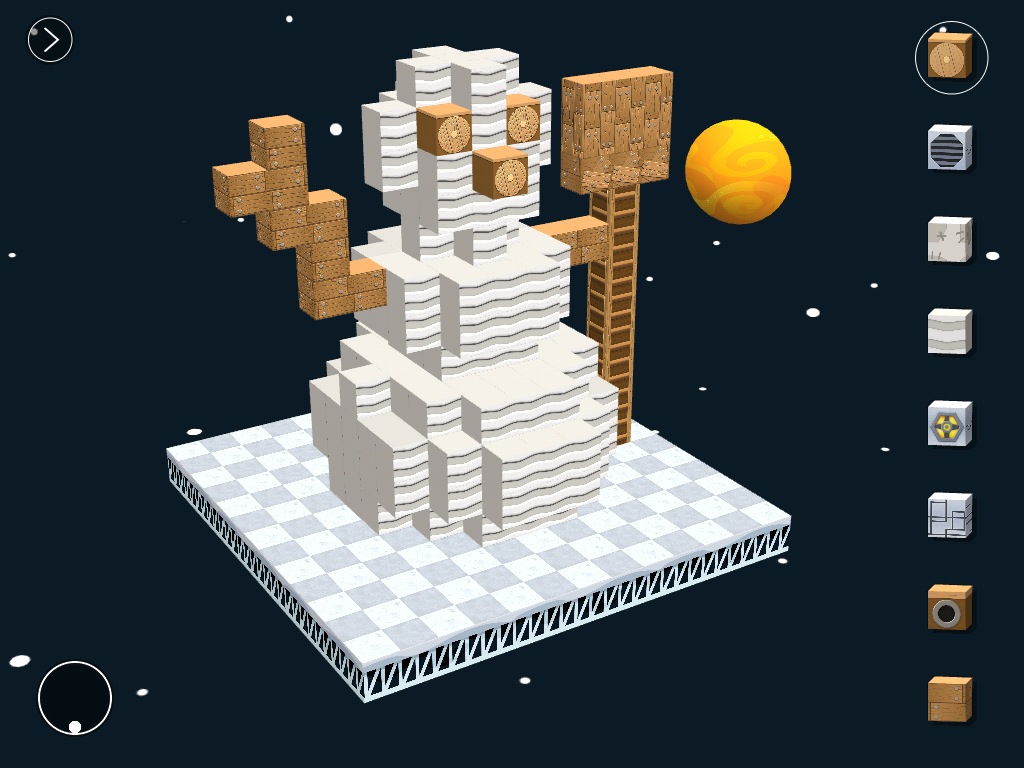
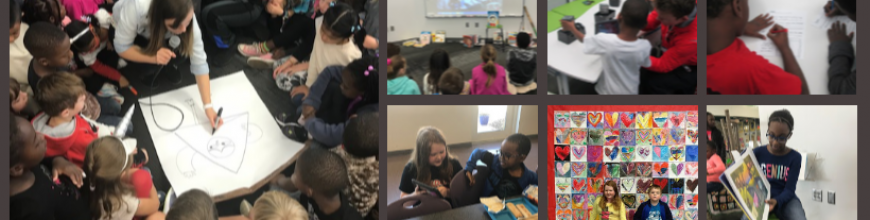
blokify (4)Mrs. Kelly Hocking’s Kindergarten class just started a collaborative project with the art teacher and the media center.  Her class has been very inquisitive about structures and sculptures and what it’s like to be inside of those structures.  For example, they’ve looked closely at the Statue of Liberty and they are fascinated with the idea of going inside and looking out from the crown.  In art, Mrs. Foretich is introducing maquette sculpture which is a small scale model of a rough draft or unfinished work.  It allows them to test how different shapes are put together without making a full sculpture.
blokify (10)

These 2 ideas started coming together in a project.  Mrs. Hocking started exploring Minecraft at home and thinking about how worlds and structures were created in the virtual world.  Then she started wondering how this might flow into the discussions her class was already having about imagining and going inside of structures.  This is when we started talking about Blokify as a tool for putting together blocks to create a larger structure.

Mrs. Kelly, the art teacher, and I all met to brainstorm.  Students will eventually build a larger sculpture out of shapes in art.  Their art standard is:

GPS: Demonstrates that shapes can be put together to make new shapes or forms.

Their essential question is:

How do artists build Sculptures?

We decided that we would start our journey with Blokify.  Blokify is a free iPad app that allows students to put a variety of blocks together to build pretty much anything and then 3D print that shape.  The files can be emailed for download into your own software for 3D printing conversion.

We decided that Blokify would be the kickoff to this larger project.  In the library, Mrs. Foretich, our art teacher, showed students some examples of maquettes and talked about how artists might make a rough draft of a larger sculpture to test some things out before making a larger sculpture.  Then, we showed students some images from Blokify’s facebook page to give students the idea that you don’t just have to make a box in Blokify.
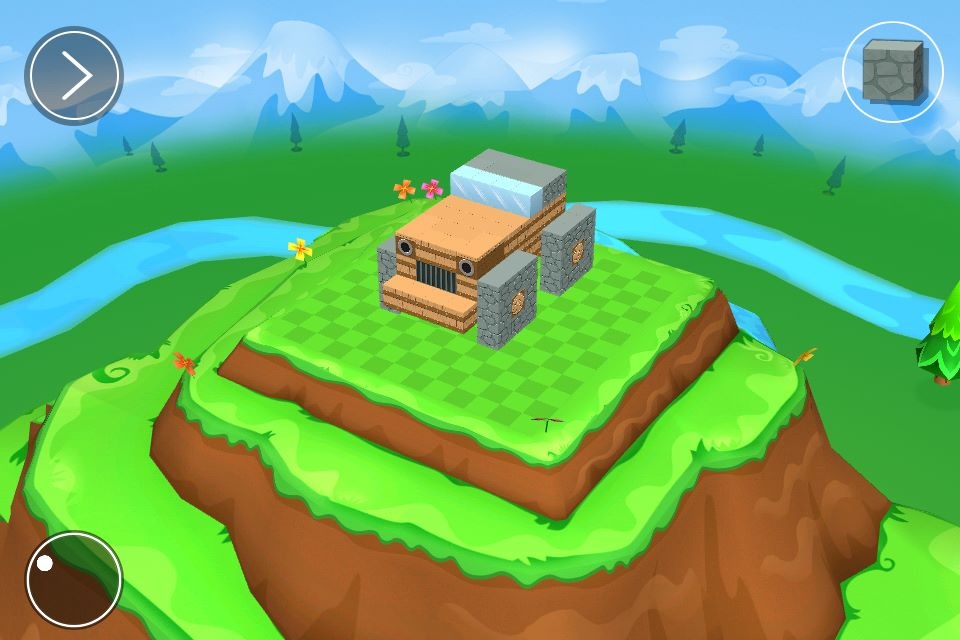
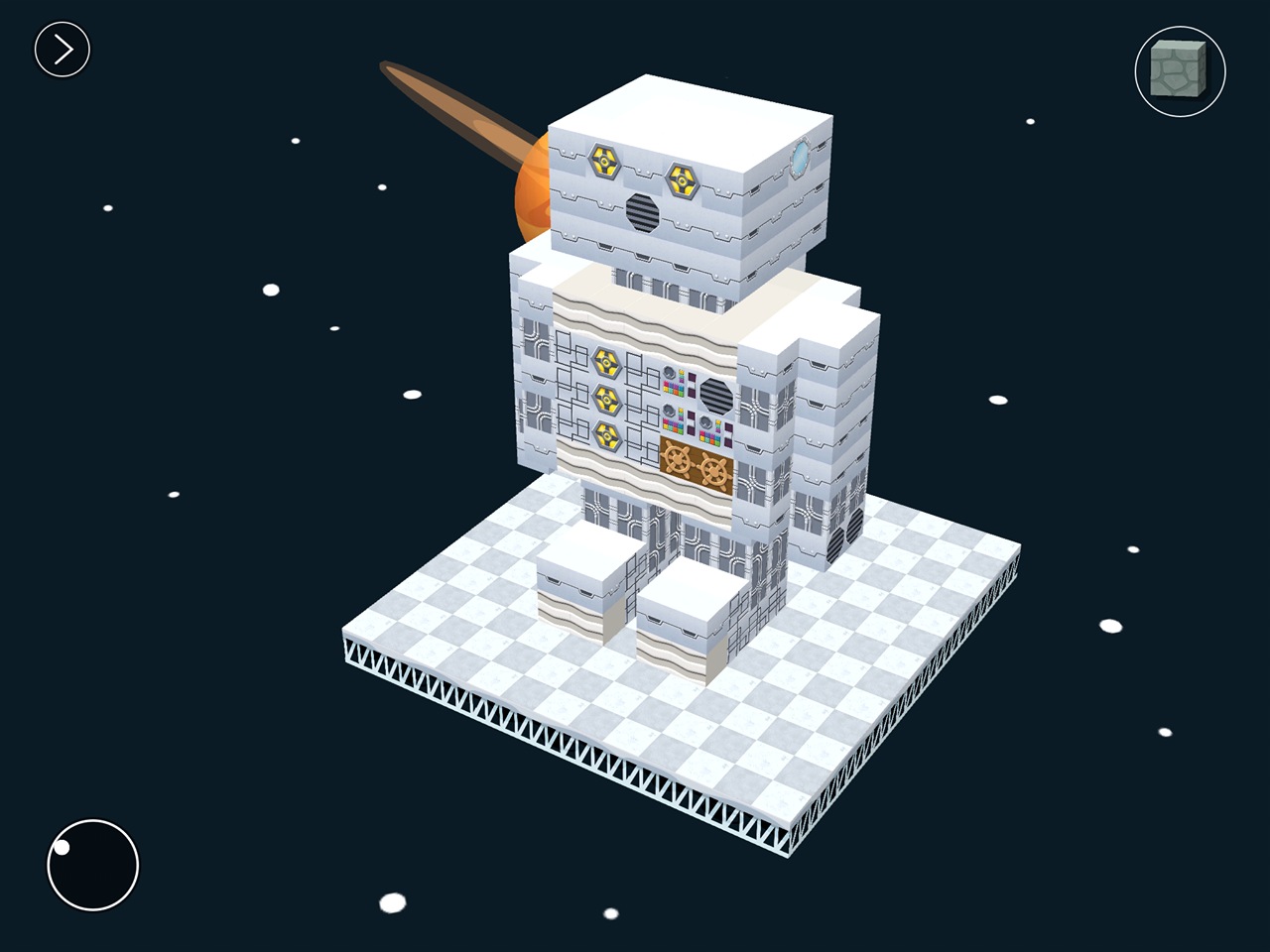
photo 1 photo 2 photo 3


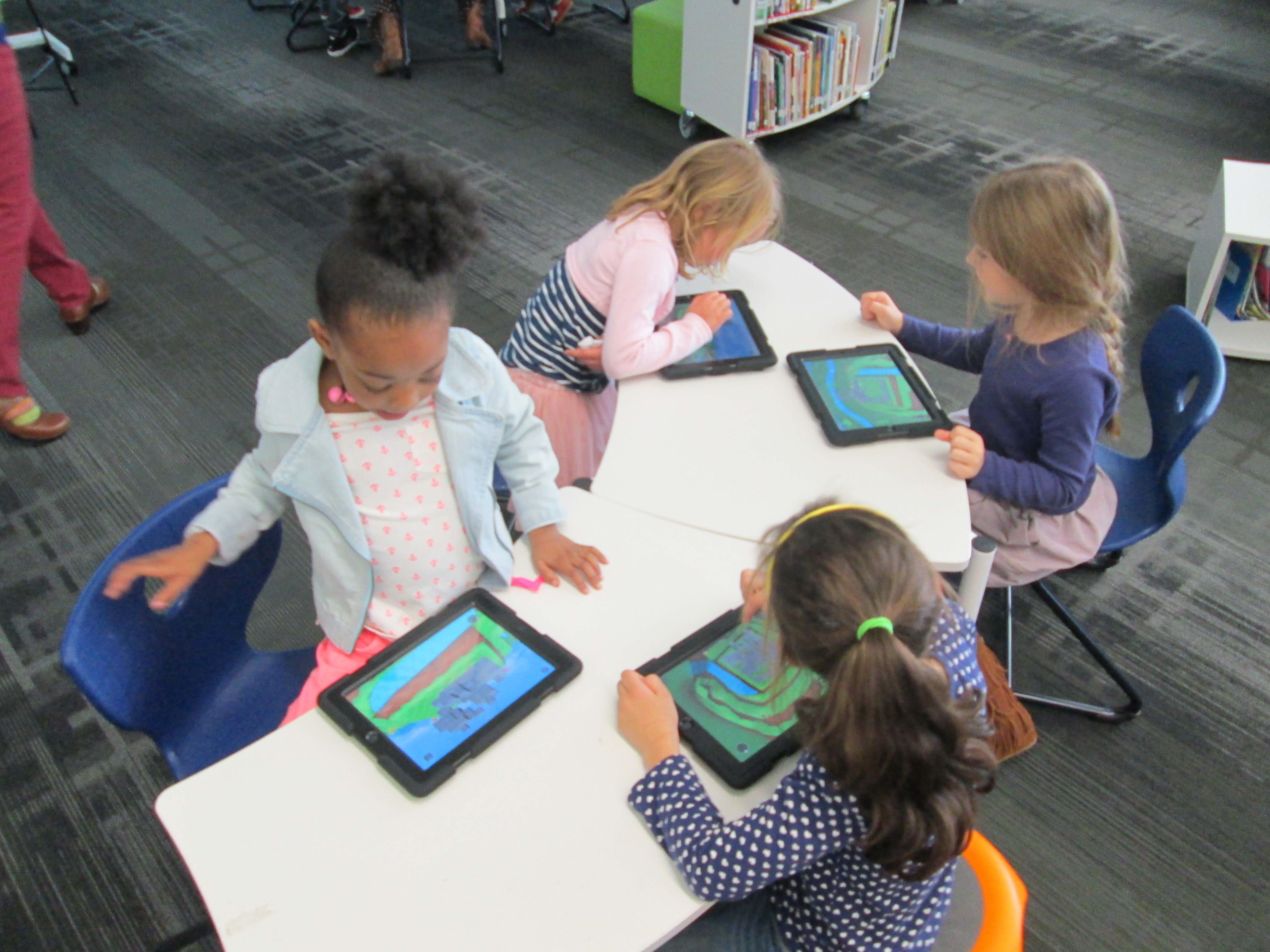
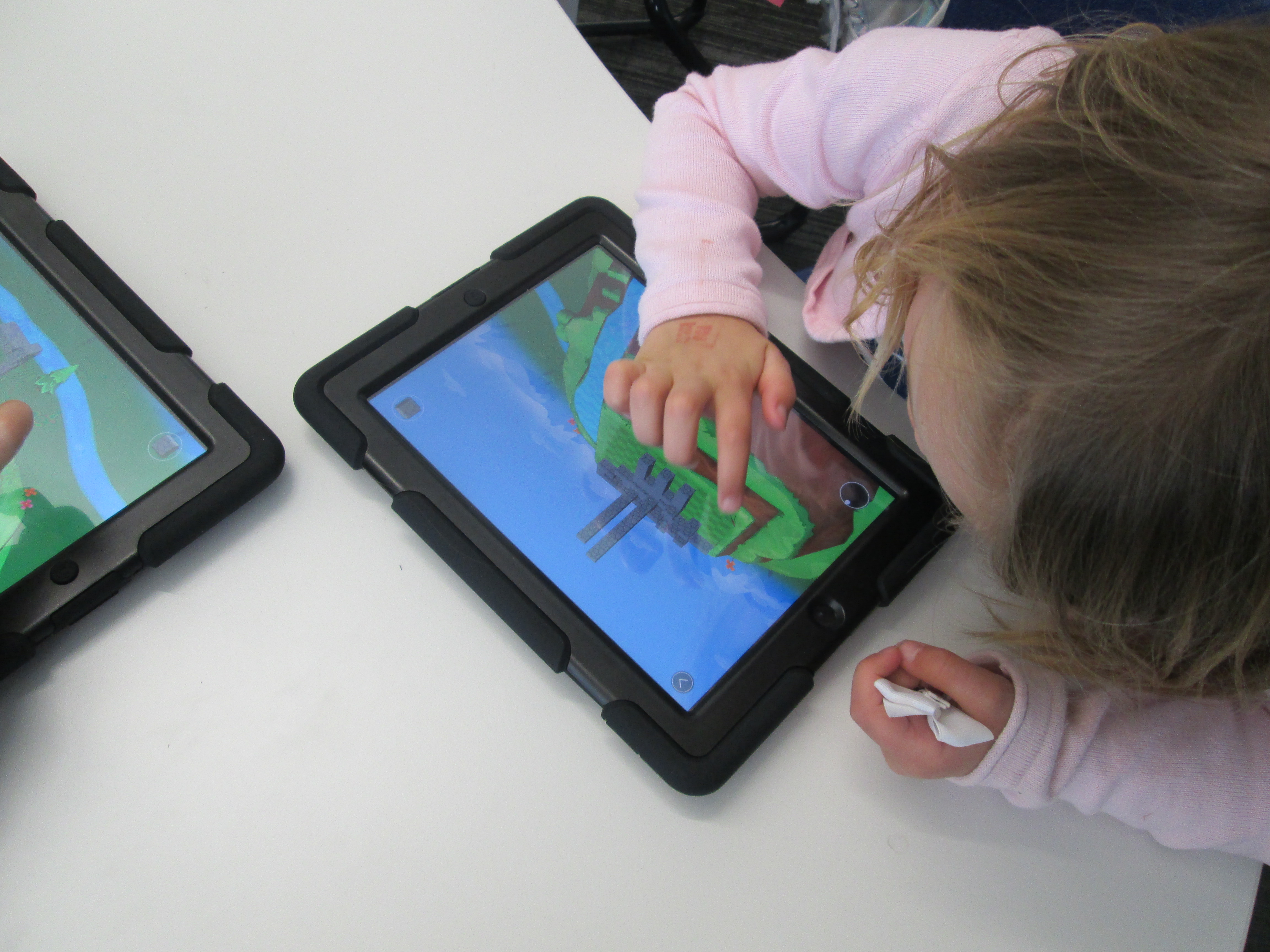
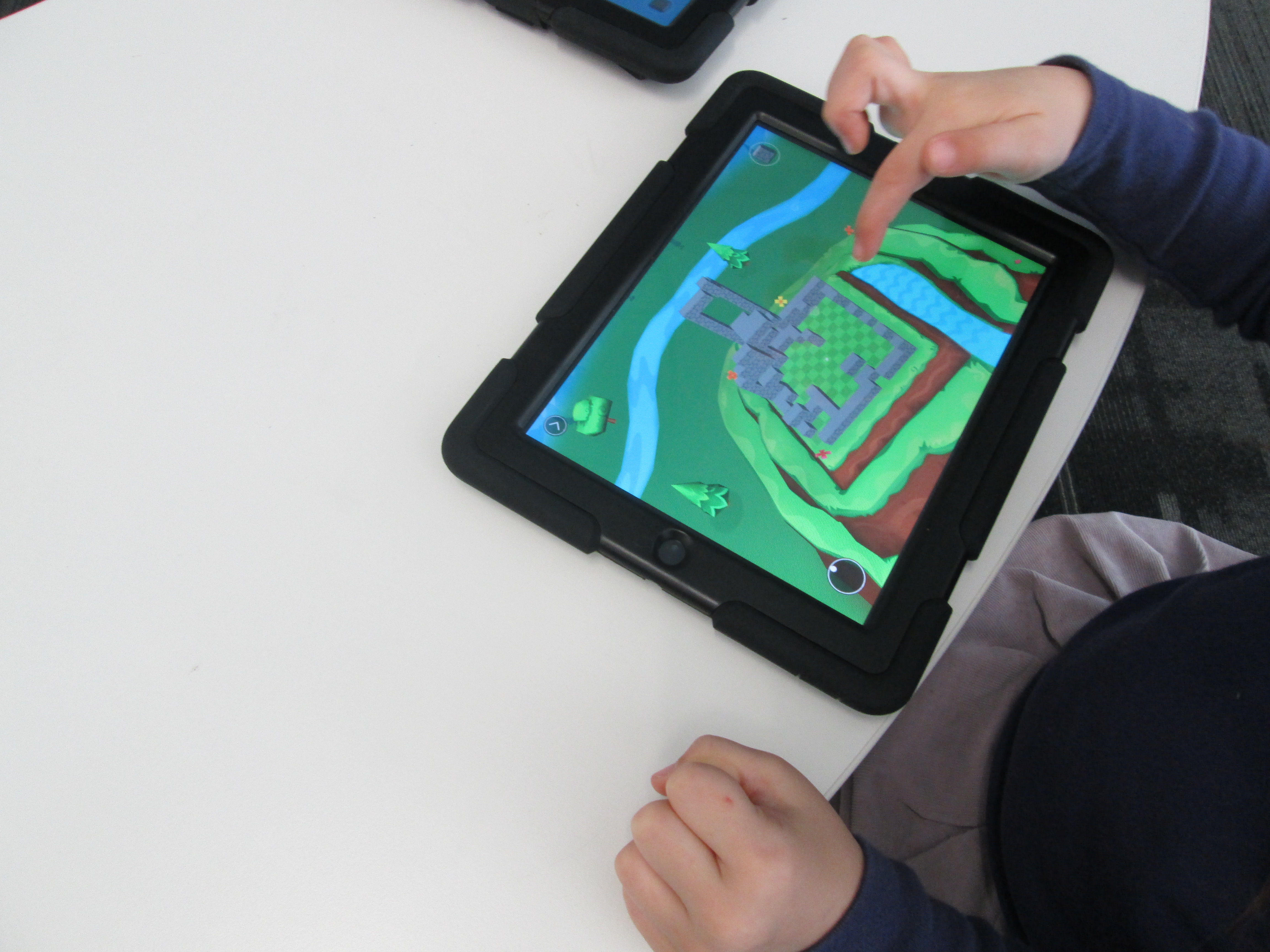
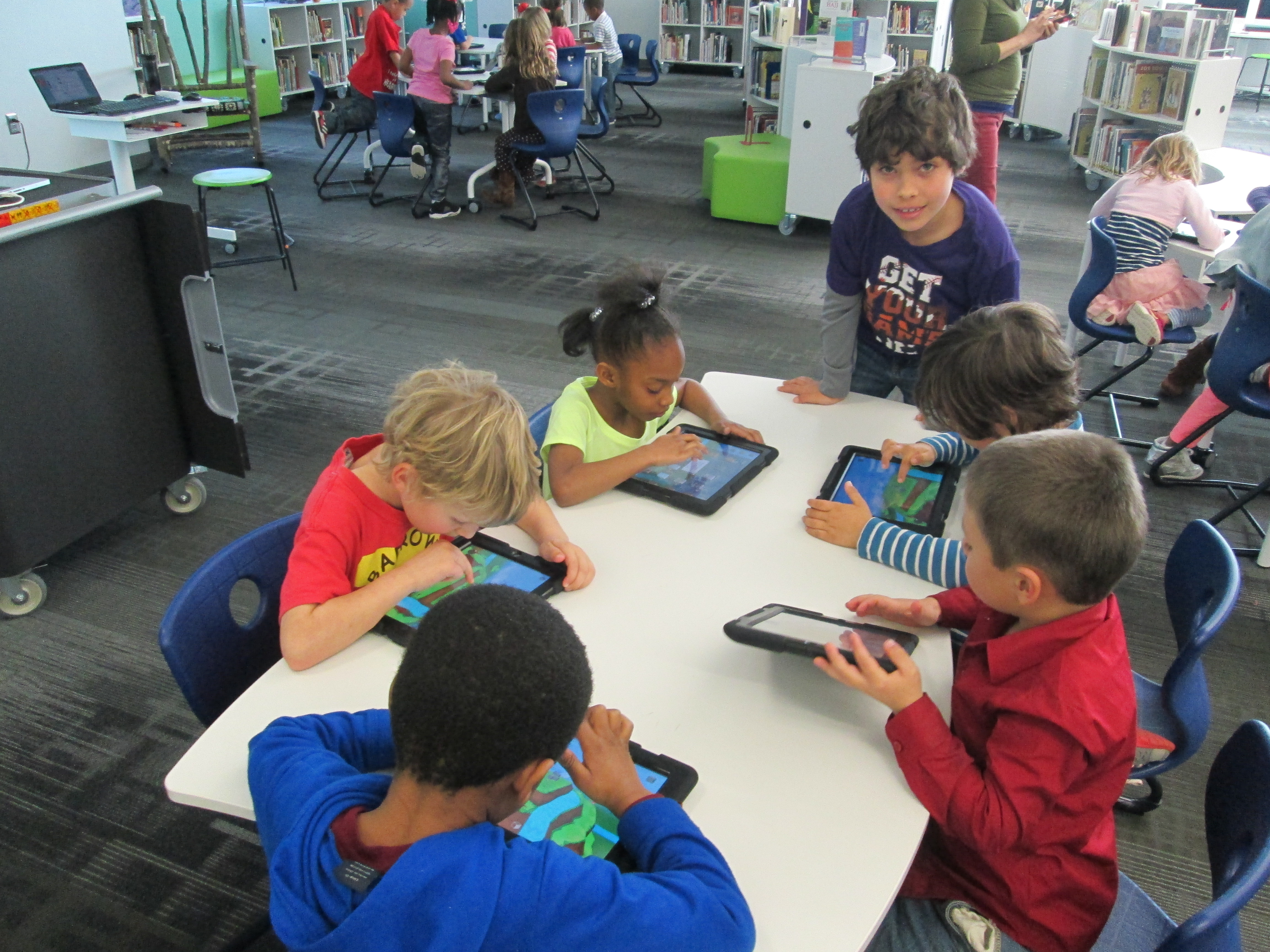
After that, students went straight to iPads and jumped in.  We didn’t spend a lot of time “teaching” them how to use the app.  Instead, we let them explore.  We also didn’t tell them what to build because we wanted them to have permission to imagine and dream as they built.  Mrs. Foretch and I walked around to tables and showed students some tips as they worked.  For example, if you hold your finger on a block it will disappear.  If you pinch the screen, you can zoom in and out.

Two of my enrichment cluster students came to support students as they worked, too.  Monica, 5th grader, and Grant, 3rd grader, were naturals at nudging Kindergarten students along without doing the work for them.  We were almost able to have a helper at every table because of them.  I was so glad that their teachers allowed them to come and share their expertise with Kindergarten.

Some students started really being strategic about where their blocks went in their structures while others liked tapping all over the screen and seeing how it turned out.  We did question a bit if we didn’t give student enough guidance, but we ultimately decided that they really needed this time to explore.  If our prints don’t quite turn out like they hoped, then it will be a learning experience about how they might rethink their own approach to designing.

blokify (13)

As always, there were some wonderful moments that happened.  One moment was when  a student who we’ve all been trying to find the right learning method was thoroughly engaged.  He was so proud of the work he did, and he showed us a way to connect with him as a learner.  I  hope that this new discovery will lead to other projects and learning experiences for him in his classroom.
blokify (6)

After students left, I had a group of 5th grade helpers email me all of the files from the iPads.  I put each file into Makerware, resized it, and saved it onto an SD card for printing.  We will print our designs after spring break.
blokify (3)

Once designs are printed, Mrs. Hocking wants students to put their structures on a piece of paper and draw the rest of the setting around the structure.  From there, students will think about the inside of their structure as well as the surroundings and begin to tell a story about their creations.  We aren’t sure yet how that piece will be captured, but I’m excited about the possibility.

In art, Mrs. Foretich will continue to explore this standard by expanding what students are building.


Exploring Chinese New Year with Kindergarten: Google Voice Search, Pebble Go, colAR Mix, and More

BeghKH6IAAAZUVXMrs. Li’s Kindergarten class has been exploring the Chinese New Year with me in the library.  During our exploration, we’ve tried out several resources for information.  First, we used Capstone’s PebbleGo database to do some pre-reading for background information.  We did this with little discussion about the holiday, but instead just focused on listening to the information to build some shared knowledge.

pebble go

Next, we thought of questions that we had about the Chinese New Year that were possibly not answered by PebbleGo.  We asked things like:

  • When is Chinese New Year this year?
  • When is the lantern festival?
  • Where is it celebrated?
  • How is it celebrated?

Before students came, I installed the Google Voice Hotword Search extension in Chrome.  This allowed us to control a Google search with our voice.  For Kindergarten students who aren’t fluent in typing, this lifted a big search barrier for them.  We took our list of questions and took turns saying:

  • “OK Google”
  • When is the Chinese New Year?

Google searched and spoke to us telling us that this year Chinese New Year begins on January 31st.  We continued this process to answer many of our questions.

IMG_1806[1]

Next, we used Grace Lin’s book Bringing in the New Year to continue our exploration.  Many facts that we had already discovered were confirmed in the text, but the book allowed us to learn some of the family structure in China and what different family member roles are.  Mrs. Li was able to help us with this part of the lesson.  Since I wasn’t sure how to pronounce some of the words, she pronounced them for us and also explained the meaning of each family member’s name.  We certainly could have used Google for this, but we had a conversation about choosing resources to answer our questions.  Since Mrs. Li was with us in the room and is an expert in Chinese culture, she was a faster option for us than taking the time to go to Google.  It’s never too early to begin surfacing the thinking process that we go through as learners when we are trying to find the answers to our questions.

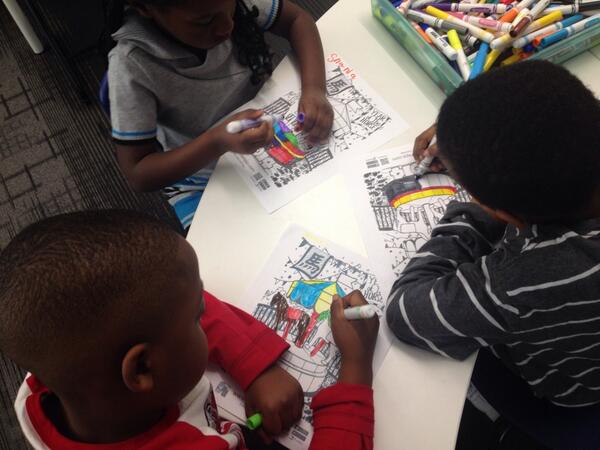
During the 2nd lesson, we once again used the Google Voice Hotword Search to explore the Chinese Zodiac.  We learned that 2014 is the “Year of the Horse”.  Students were curious about their own birth years, so we used Google to look for the signs for each of their years too.  From here, we spent some time coloring a colAR mix coloring page for Chinese New Year.  Students used the iPad app to view their carousel creations.  The app uses augmented reality to bring coloring pages to life.  The carousel pops off the page and rotates to music with they year 2014 in front of the carousel.  Students were mesmerized by their coloring page brought to life.

We explored so many skills and tools in just 2 lessons.  I want to continue this transliterate thinking of how our students can experience content across multiple platforms.  In these 2 lessons, we examined print, databases, websites, search engines, crayons/markers/paper, and augmented reality.  I’m curious to ask students later what they remember about Chinese New Year and see what stands out in their minds from these 2 days.

Observing the Day & Night Sky with Kindergarten

IMG_1377Kindergarten is working on observing the day and night sky in science, and they want to use technology to document their observations.  They are working on the following standards:

ELACCKW6 digital tools help writers write and share their stories.

ELACCKW7 writers work in groups.

SKE1 Students describe time pattterns (such as day to night and night to day) and objects in the day and night sky.

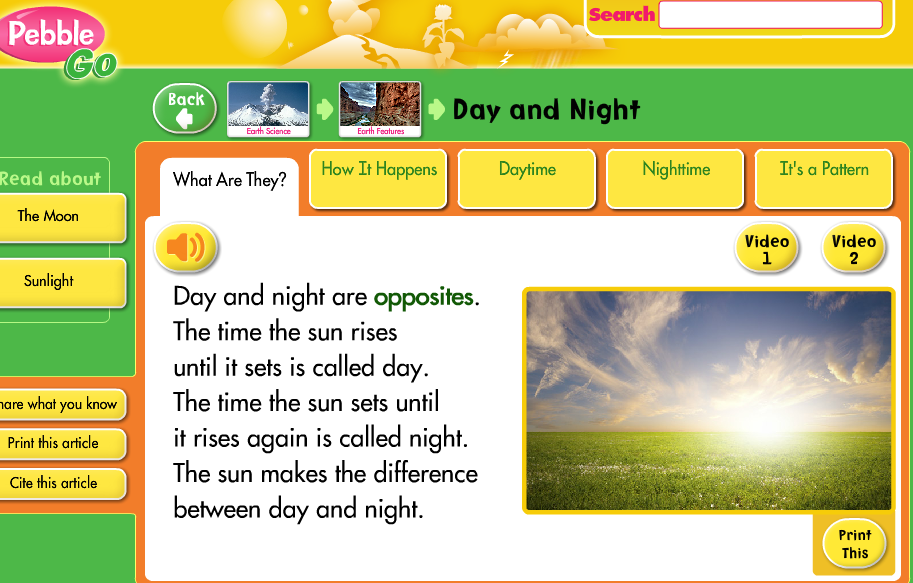
Classes came for 2 separate lessons.  During our 1st session, we used Capstone’s Pebble Go to read about day and night.

PebbleGo - Capstone Digital

Then, we read the book Sun Up, Sun Down: The Story of Day and Night by Jacqui Bailey.  During our reading of both Pebble Go and the book, students discussed the scientific reasons we have day and night.  We setup the idea of starting to “notice” things about the sky and how it changes during the day and night.

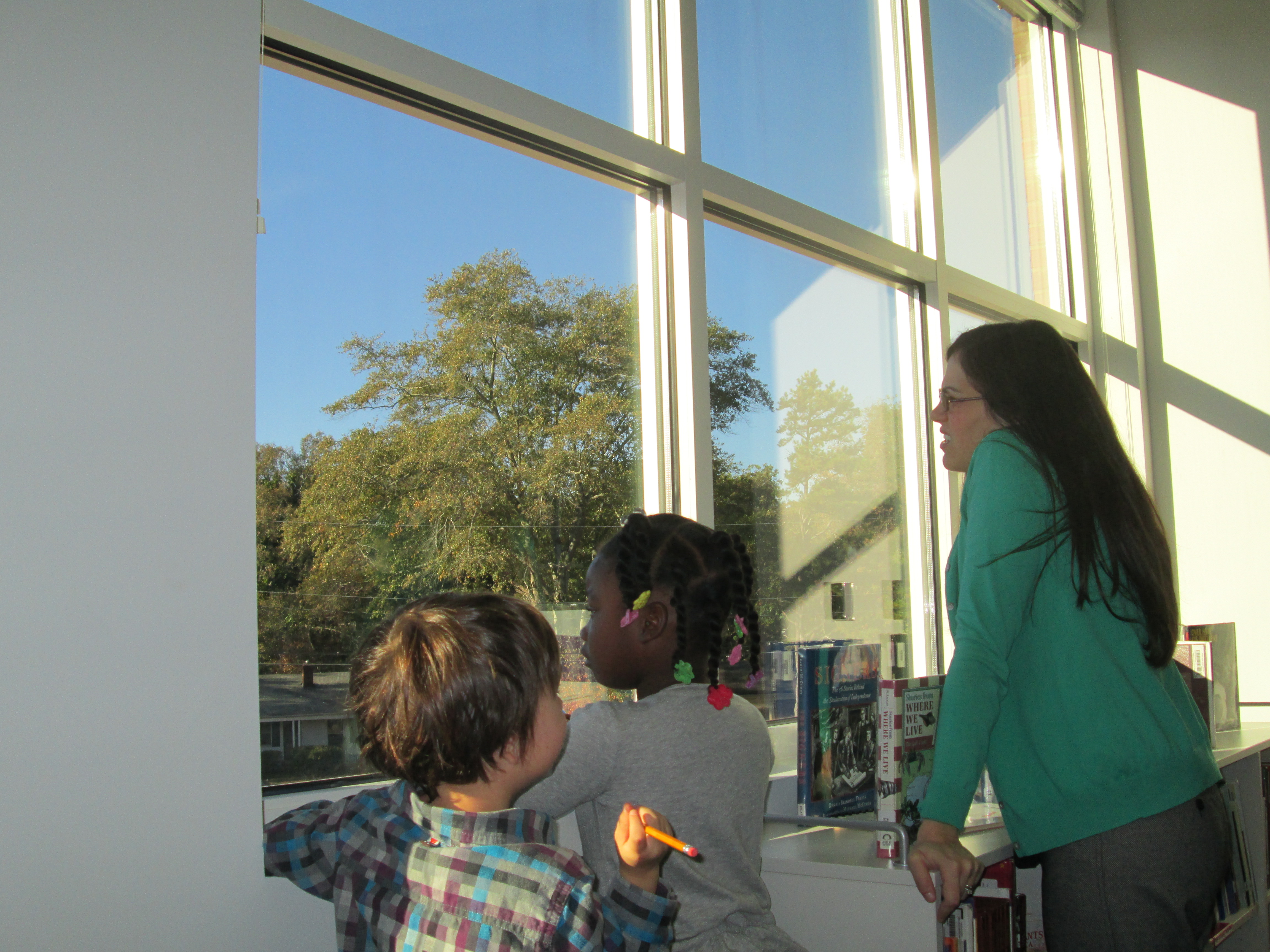
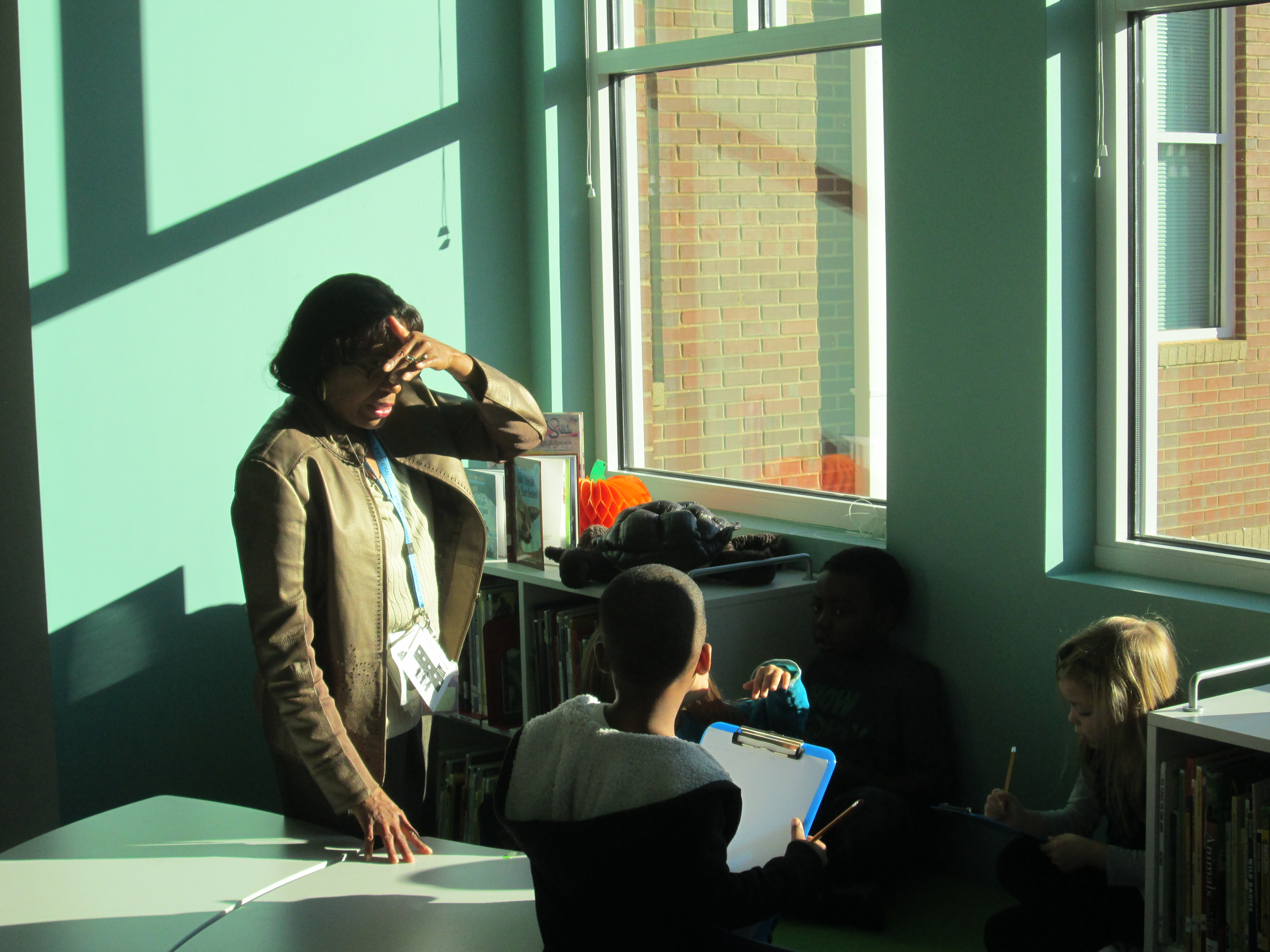
IMG_1376For our 2nd session, I opened up the blinds on our massive library windows and setup observation areas for students.  We started our time together on the floor and shared some observations we had already made at recess or at home.  We practiced saying aloud what we would write on our clipboards at the windows.  Next, the teacher paired the students together, gave them a clipboard with paper and pencil, and I placed groups in front our our windows.  The teacher, parapro, and I walked around and talked with kids about what they saw.  We encouraged them to write and sketch.  We also helped them make connections to the information that we had learned from Pebble Go and our book.  For example, the sun was blinding us in the windows on he left side of the media center but on the right side of the media center it was shady.  We remembered that the sun is at different positions in the sky throughout the day due to the Earth rotating.

Day & Night Sky Observations

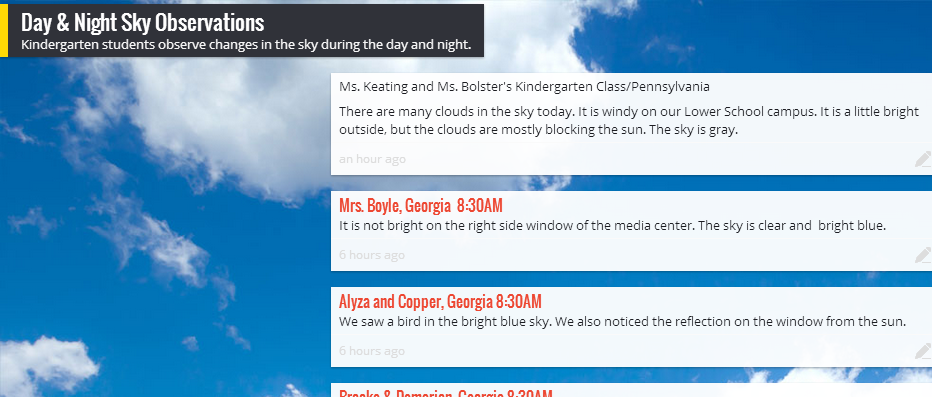
At the end, we split the class in half at our 2 projection areas.  Student groups shared what they observed and we used Padlet to capture the observations.  I tweeted the link to our padlet and later in the day Margaret Powers, Mrs. Keating, and Mrs. Bolster and their students added to the wall from Pennsylvania.  It was interesting to hear about the cloud-filled sky there compared to our cloudless sky in Georgia.

Now, the Kindergarten teachers will share this link with families and encourage them to add notes to the Padlet from home.  This will allow students to make some observations of the night sky.  Please feel free to leave some comments on the Padlet about what the sky looks like where you are!

Kindergarten Storybirds

Two Kindergarten classes just finished a writing project using Storybird.  Storybird allows a user to select illustrations for a story, sequence them, and add text to create a book.  Any time we plan a project like this, we consider what the barriers are to artistic expression.  For Kindergarten, some of the barriers included:

  • limited knowledge of technology use due to lack of technology in that grade
  • the ability to read the text of stories that could be mentor texts
  • writing the story vs. telling the story orally

To lower the barriers, the teachers and I planned a series of lessons and opportunities to support the students.

Lesson 1:  Spend time revisiting the 3 ways to read a story:  read the words, read the pictures, retell.  Focus on reading the pictures by looking at a wordless book together.

In between lessons:  In class, students practiced telling stories from wordless books in small groups, alone, and at centers.

Lesson 2:  Look at a sequence of 3 pictures and think about a beginning, middle, and end for those pictures.

Lesson 3 (or part of lesson 2):  Look at Storybird.  Choose a topic  of pictures, like pumpkins, and choose 3 pictures to sequence that could be the beginning, middle, and end of a story.  Write the story together as a class with time to pair share ideas.

Lesson 4:  In small groups with adult support, students created a group Storybird project.  We made as many groups as we had adults.  For one class this was 4 groups and for the other it was 5 groups.  The adult’s role was to facilitate the conversation of the students and make sure each voice was heard in the group.  The adult also typed the story for the students as they told the story.  The students were supposed to show the adult what to click on at each step of the project.

In between lesson:  One group at a time came to the library and used Screencastomatic to record the audio of their story.  If students had difficulty reading the words, we whispered the words to them and they repeated them.   Videos were uploaded to Youtube.

Lesson 5:  The whole class came to the library for a premiere of their audio ebooks!


You can enjoy all of their books here!


http://www.youtube.com/watch?v=HYJNjSjBFKg


http://www.youtube.com/watch?v=ezwWTFAMrH0


http://www.youtube.com/watch?v=7UBlD2kjd_I


http://www.youtube.com/watch?v=OlKphwqHMU4


http://www.youtube.com/watch?v=hRRGEPlFZuY


http://www.youtube.com/watch?v=UN2UXuCwL30


http://www.youtube.com/watch?v=hxKzWWciBI0


http://www.youtube.com/watch?v=4WqAvko8v9E


http://www.youtube.com/watch?v=S8M85inqcB4


Rhyming Words and Storybird

Our Kindergarten students have been learning about rhyming words.  For our library lesson, we read two different stories.

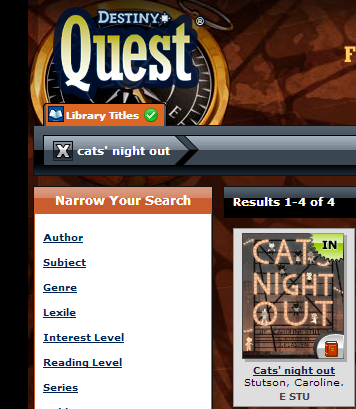
Storybird - Say What-! (Our Version)For our first story, we read Cats’ Night Out by Caroline Stutson.  Students gave me a thumbs up when they heard rhyming words.  Sometimes we paused and they told a partner the rhyming words they heard.  Other times we shared them aloud to the whole group.  We also took time to notice that there was a counting pattern in this book, counting by twos.

For our second story, we read Say What? by Angela DiTerlizzi.  This book explores the sounds that animals make and thinks about what animals might really be saying when they make their sounds.  This book sets up a great pattern that students can model in their own writing.cats' night out

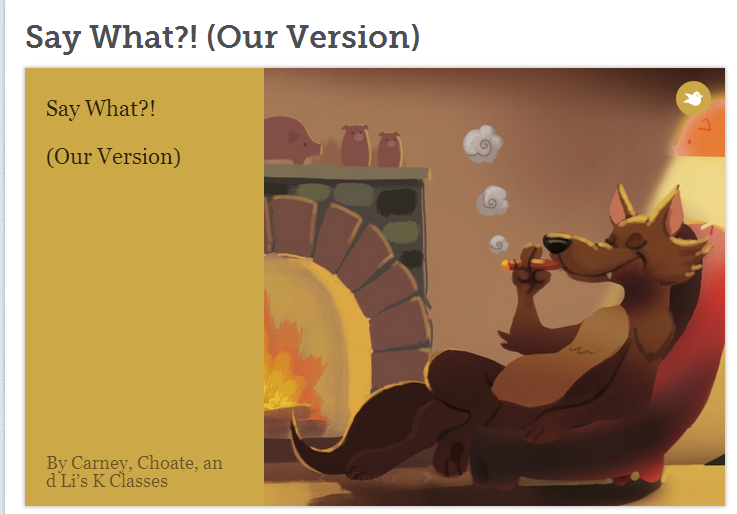
For our work time, I put together a Storybird to use with all of the classes that participated in this lesson.  I searched for animal pictures within Storybird and pulled a few onto each page of the book.  Then, I typed the sentence starters for each animal.  “When a _______________ says _______________ does she really mean _________________________?”  Each class brainstormed rhyming word pairs for each animal picture.  It was about 2-3 pictures per class.  After the final class, we had written a collaborative ebook.  I emailed the link to all of the teachers so that students could see how the book turned out.

This lesson also served another purpose.  It was an authentic way to show a web tool that students would be using in the future.  Rather than teach about making a Storybird, students saw a Storybird in action.  Now, when we actually look at some of the steps, they’ll have a concrete example of a finished product to reference.  This was the first time that I have tried this, and I’m curious to see how it will impact future Storybird projects.

Read their final version of the story here.

Book Tasting with Kindergarten Using IPICK

ipick kinder (3) The Daily 5 I-PICK Strategy is a tool that many of our teachers use with students to find a “just right” book.  I’ve found this strategy to be so much better than using the 5-finger rule because it takes into account the many ways that we all choose books.  Usually 1st grade teachers are among the first to teach this strategy, but this year Kindergarten is very interested in what this might look like for our youngest students.

I-PICK stands for:

  • I choose my books
  • Purpose:  Why am I reading?
  • Interest:  What do I like to read?
  • Comprehend:  Do I understand?
  • Know:  Do I know most of the words?ipick kinder (4)

For Kindergarten, most of these pieces are obtainable except for knowing most of the words.  We’ve also been teaching the students the ways that we read which have included reading the pictures, reading the words, and retelling the story.

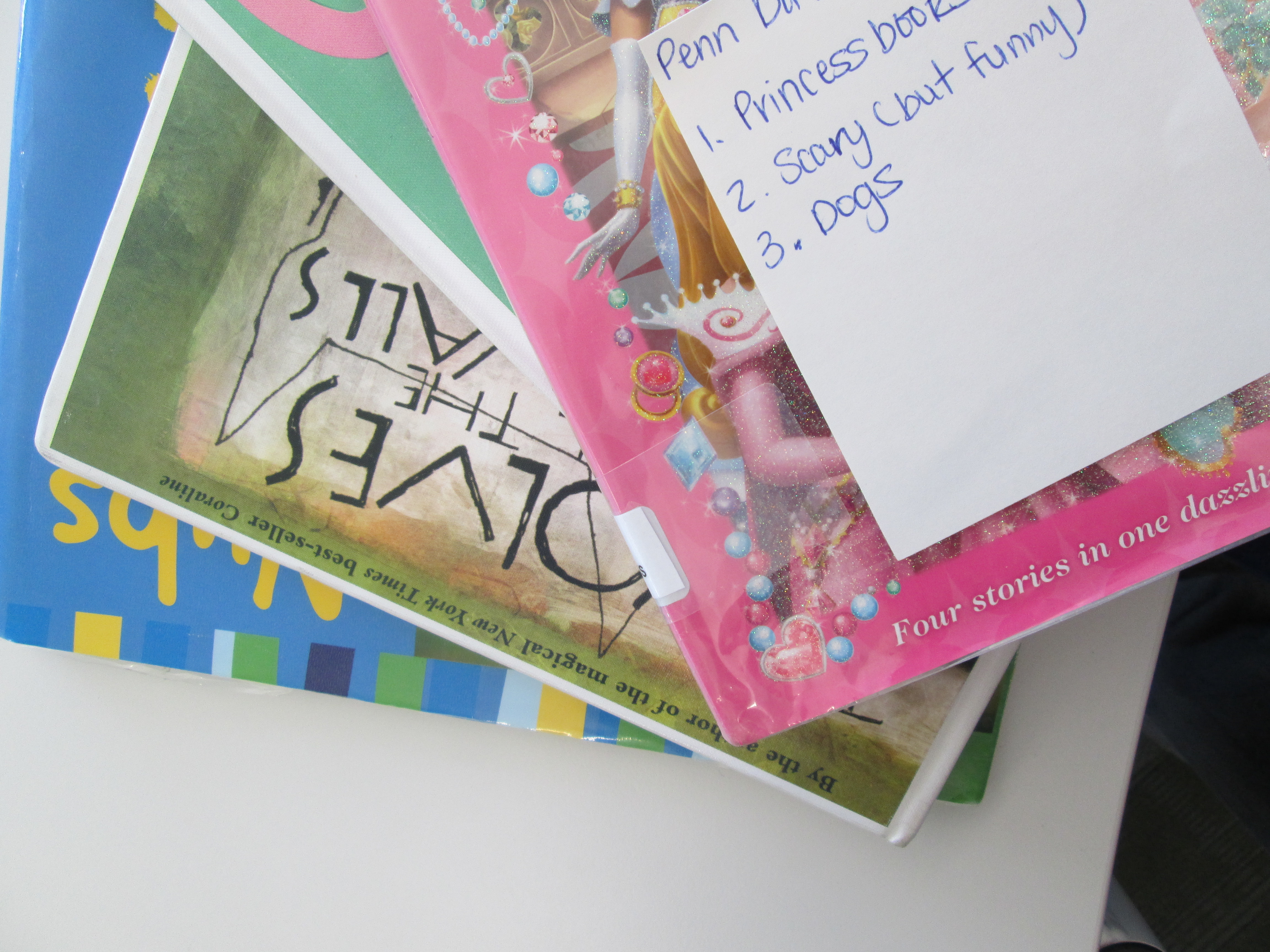
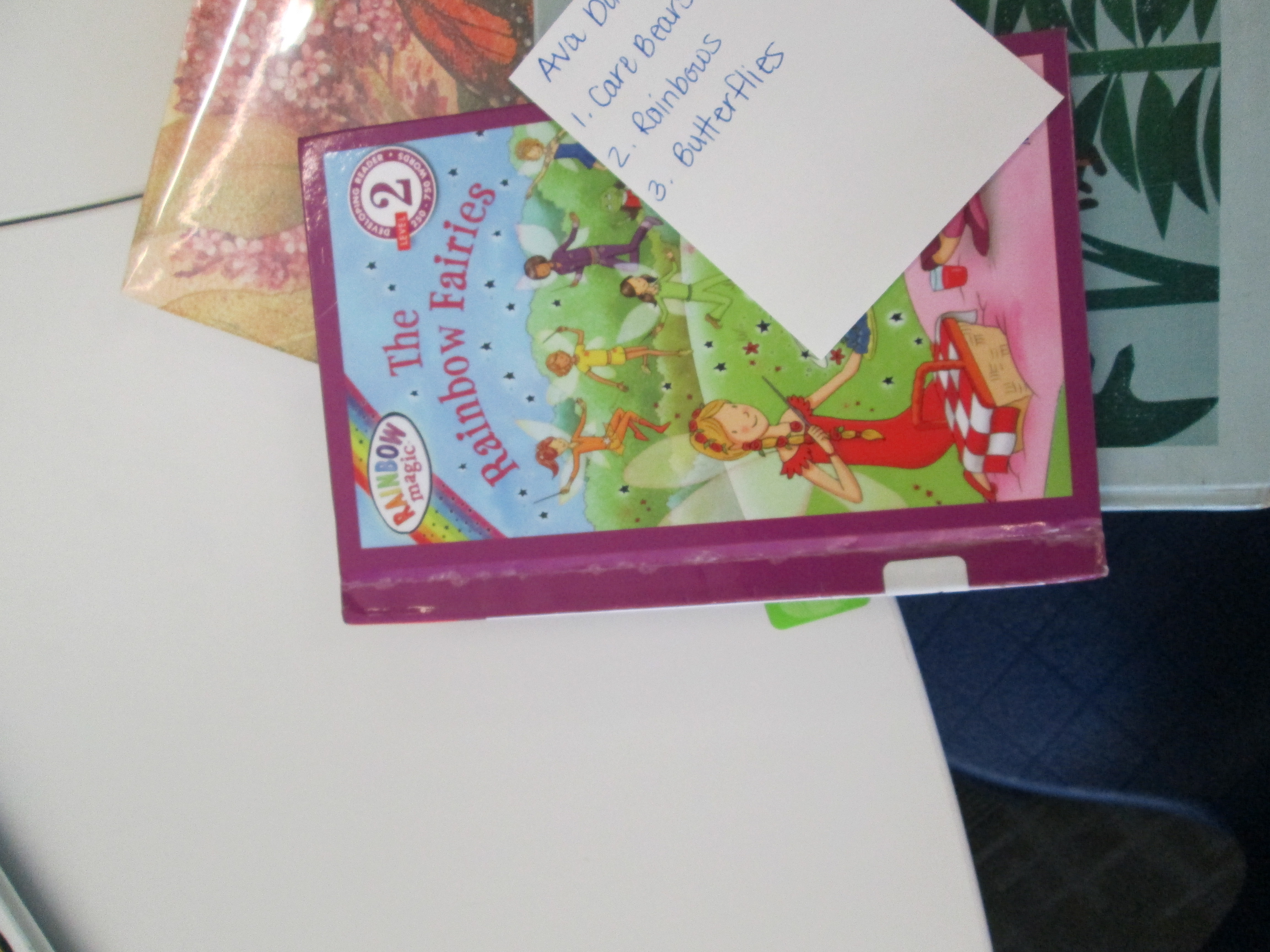
After some email conversation with a Kindergarten teacher, I proposed that we leave off the “know” part of IPICK for most of the students.  In class, students reviewed all of the steps of IPICK, but they specifically focused on “interest”.  Each student was interviewed about what they like to read and the teacher and other helpers wrote down about 3 interests for each student.  These cards were then given to me in the media center.

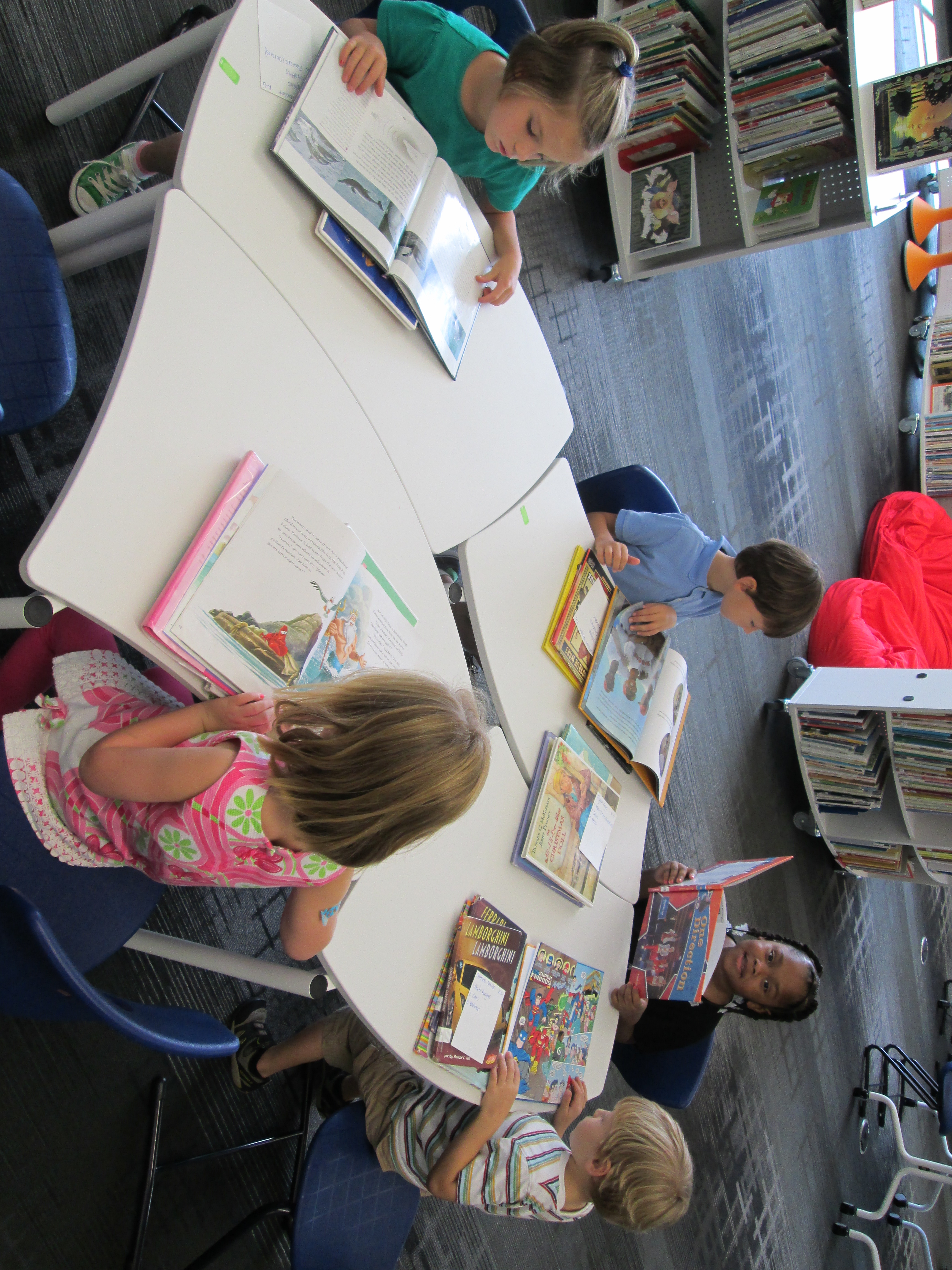
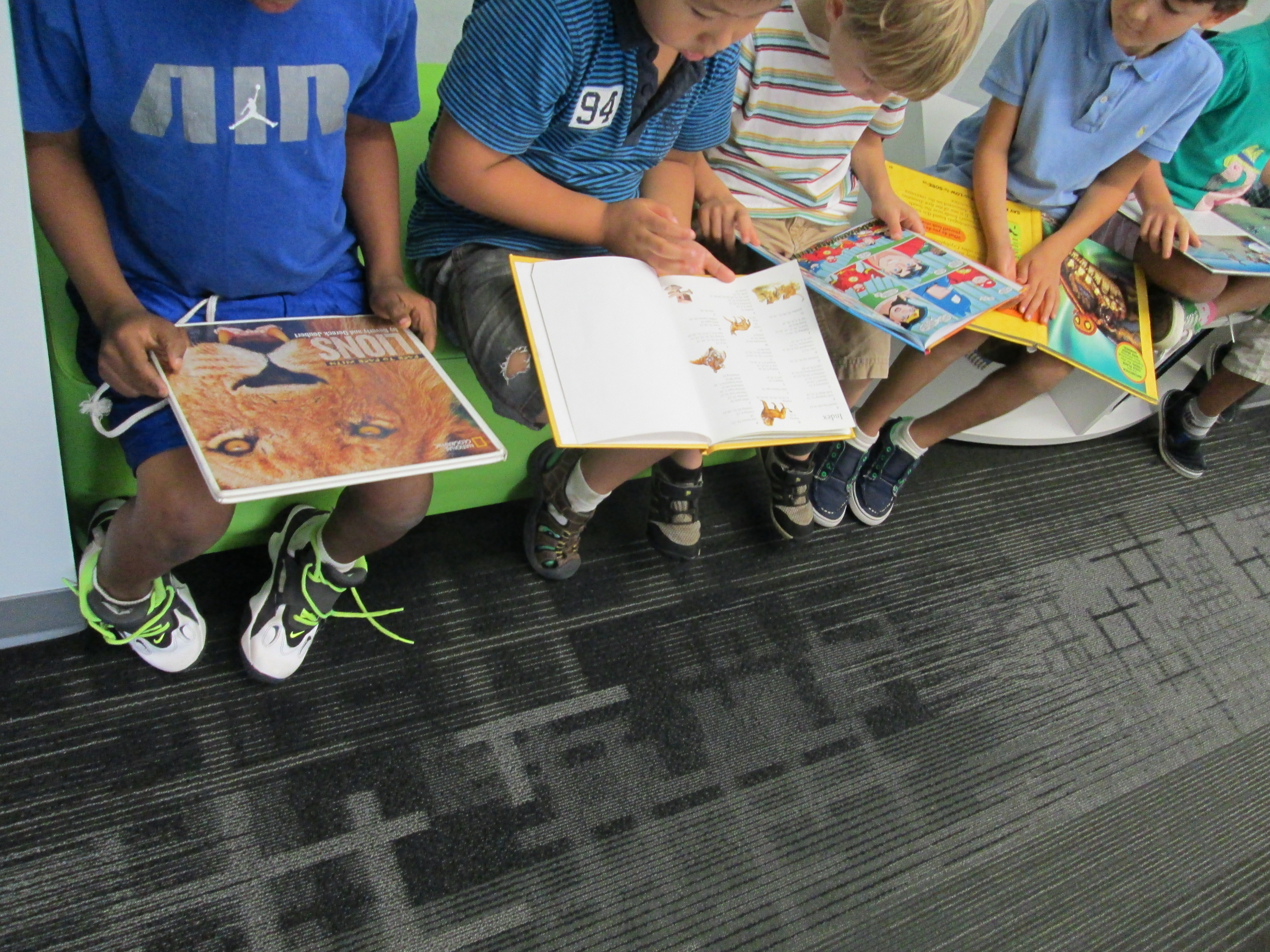
IPICK Kinder (10)I took each card and created a personal stack of books for each student.  I tried to find books that matched the interest and had plenty of pictures for students to practice reading pictures in a book.  I won’t lie.  This was very time consuming.  It took me about 45 minutes per class to pull books.  However, for the first time I could honestly say that I helped every student in a class find the books that they were interested in.

We kept our lesson very short.  On the floor, I reviewed IPICK and set our focus on comprehension.  We looked at some previously read books like Chalk to remind ourselves how to read the pictures in a book.  We also looked at informational text to practice reading a photograph and attempting to read the captions on pictures.

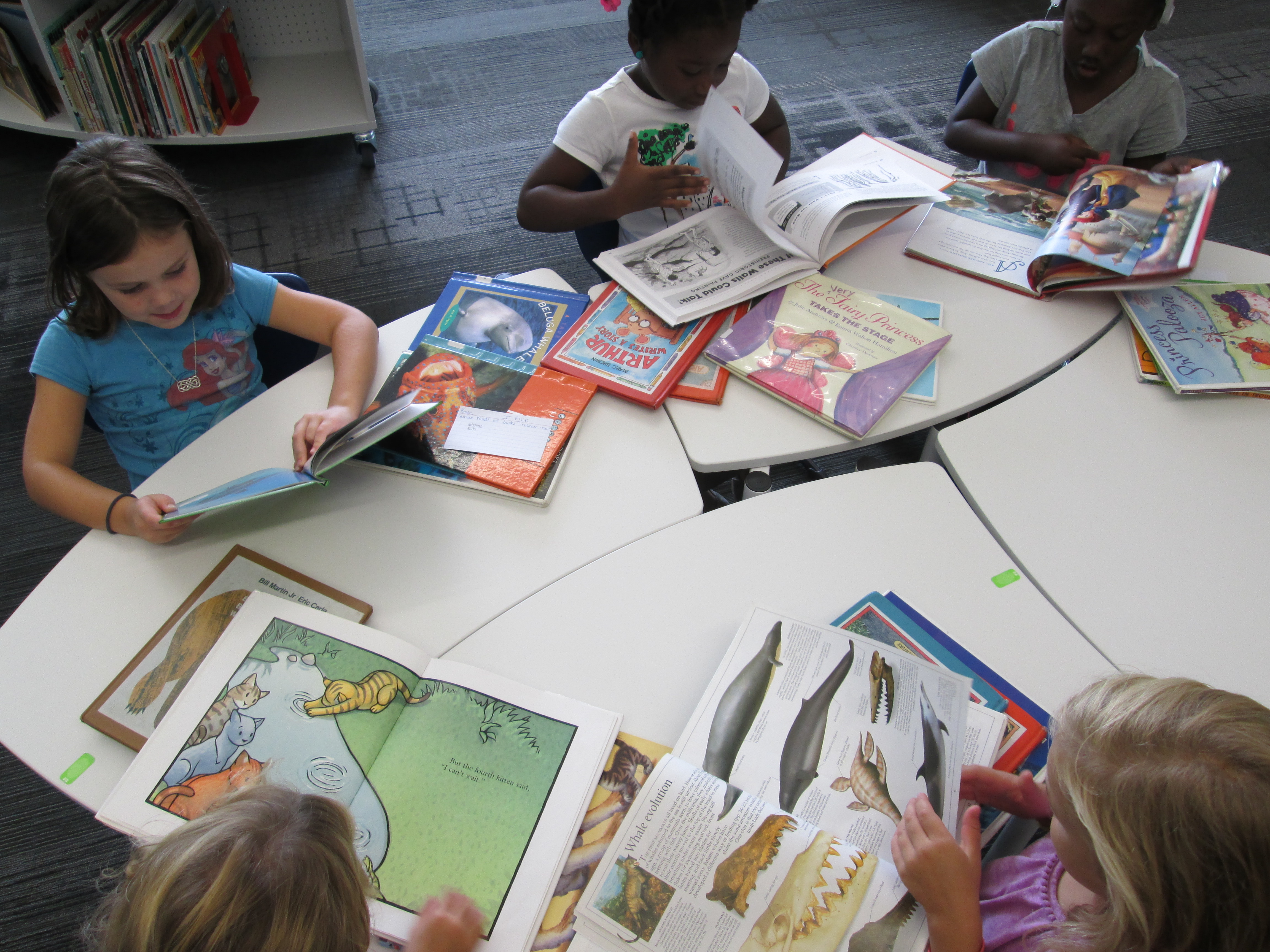
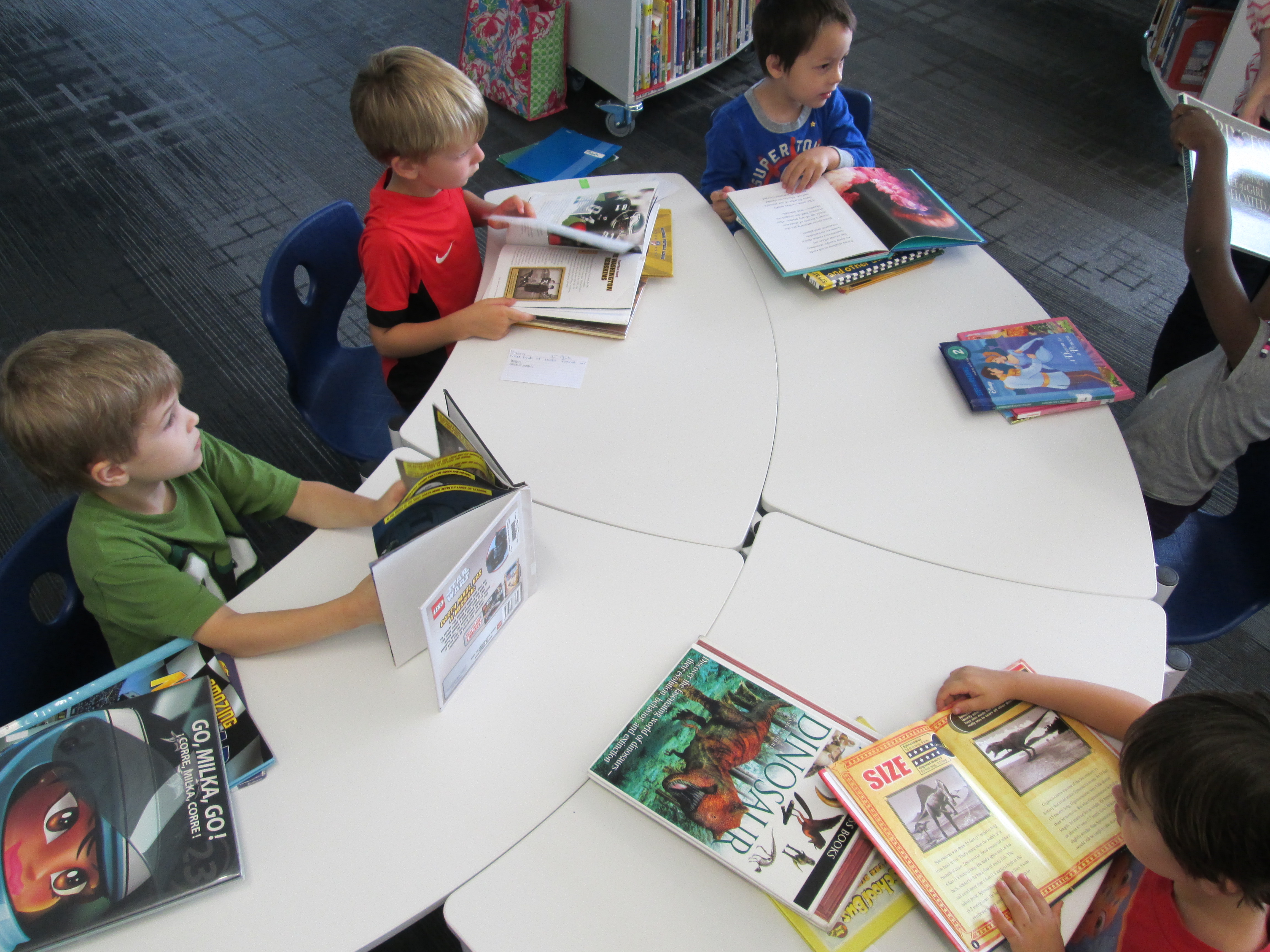
Just like in a cafe where you place your order and they call out your name, I called each student’s name and handed them the stack of books.  I reminded them that sometimes in restaurants we don’t like what we ordered and that it is ok to send it back or spit it out.  I reminded them that they would probably find several books that they liked but they needed to pick the one that tasted the best.IPICK Kinder (9)

As students sat at tables, the teachers and I walked around and had conversations with students about their books.  They told us what they were reading in the pictures.  If we saw a student quickly breezing through pages, we had a longer conversation and modeled how to slow down and carefully read a picture.  I loved how finding the book didn’t get in the way and we were actually able to have quality conversations rather than spending our time running around the shelves looking for books.

ipick kinder (6)In the end, each student chose a book.  When we asked them why they chose the book, interest was usually the winning reason.  It just reminded me of how important it is for students to find the books that they love to read even if it is Spongebob or Disney Princesses.  Every student left with a smile on their face.  I know that students missed the experience of actually finding the book on the shelf, but in the end, I felt like this experience was positive and rewarding in other ways for the students.  This is not something that I would or could do for every session, but I think it’s important for students to come to the library and find the perfect match of a book at least part of the time.ipick kinder (1)

Kindergarten Tux Paint Consultants

Today Mrs. Kelly Hocking’s Kindergarten students had so much fun Skyping with Shannon Miller’s Kindergarten and 1st Grade students in Van Meter, IA.  Shannon’s students are planning to embark on a similar project as Kelly’s students by making their own stories in Tux Paint and recording them with a screencasting tool.  The purpose of today’s Skype session was for Shannon’s students to ask Kelly’s students about what they did.

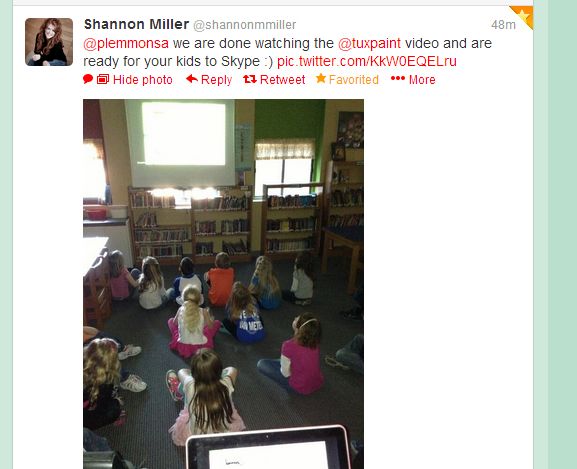
Shannon's students watched our videos in Van Meter, IA before our connection

Shannon’s students watched our videos in Van Meter, IA before our connection

Before our connection, Shannon showed her students our Tux Paint videos made in Screencast-o-matic, including the instructional video.  She let me know on Twitter that they were ready.

When we connected, Shannon’s students applauded Kelly’s students’ great work on their stories.  Then she guided them in asking questions about the process.  They asked questions like:

  • How did you decide what to write about?
  • How did you work together?
  • How did you learn to use Tux Paint?
  • What screencasting tool did you use?
  • How long did your story have to be?
  • and more

Each time a question was asked, Mrs. Kelly called on a student to answer, and sometimes she answered the question or added additional insight.  We had a computer ready with Tux Paint in case we needed it to show something.  The students also had their planning paper, which they showed to answer one of the questions.  I had a USB webcam plugged in so that I could move the camera closer to students as they talked.  Although, my camera skills weren’t great, I think the kids enjoyed seeing themselves closeup on the screen.

Now, Shannon’s K and 1st grade students plan to use Tux Paint to make their own stories and use a new screencasting tool to record them.  We ended our time by agreeing to come back together to Skype and share our work with one another before the end of the year.

Shannon, Kelly, and I could have all easily just done the teaching of Tux Paint on our own, but giving the students this ownership of the project and sharing of expertise between schools means so much more.  I think that they now look at themselves as experts with knowledge to share.  Not only do they have the knowledge, they have the support that it is ok to take a leadership role in the classroom and teach alongside the adult teacher.  They also know that they have an authentic audience that their work immediately impacts.  I hope that this idea blossoms into other opportunities for students to demonstrate their knowledge and become leaders in technology and learning for our school and beyond.

Kindergarten Experts: A Tux Paint Instructional Video

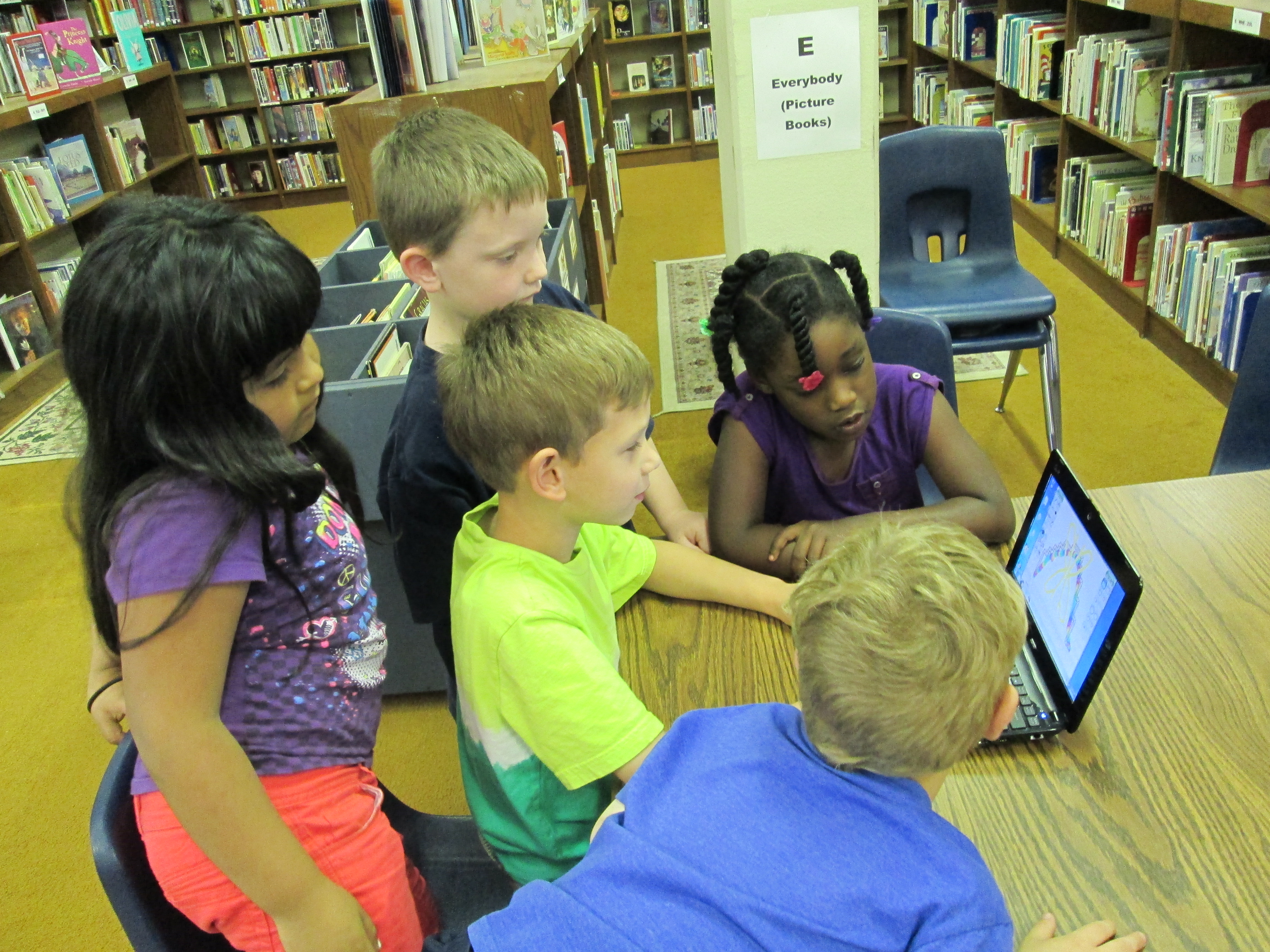
Students gathered around the netbook to plan out what they would share on the screencast.

Students gathered around the netbook to plan out what they would share on the screencast.

I was so impressed by the work that Mrs. Kelly Hocking’s Kindergarten students did on their Tux Paint stories.  You can read more about that adventure here.  We wanted to continue their work in some way so that it might inspire and support other classes in trying Tux Paint.  After some planning, we decided to have the kids make an instructional video.  Mrs. Hocking brought her whole class to the library.  We talked about how instructional videos are a kind of informational text just like they are reading in their classrooms.  We also talked about being a leader and sharing expertise.  I made a screencast to show how to make an Animoto and we watched a part of that.

http://www.youtube.com/watch?v=PUPNdRD6Q2g

Along the way, I paused and had students talk about things that they noticed.  They shared things like

  • You clicked on things.
  • You talked about what you were clicking on.
  • You didn’t use a silly voice.  You used a serious voice.

We continued this pattern of watching and sharing for a few minutes.  Mrs. Hocking and I both added our own observations of what to include in an instructional video, too.  I told the students that they had to take themselves all the way back to the beginning and think about what they did first, second, third, etc.  Then they had to think about what they would say and what they would click.

Our Google doc captured what students would talk about on the screencast.

Our Google doc captured what students would talk about on the screencast.

A small group of 5 students stayed behind in the media center while Mrs. Hocking took the rest of the class back to Kindergarten to talk some more.  The small group and I took a netbook and started looking at Tux Paint.  I had them show me things they knew how to do.  As they did that, I started typing their words and expertise into a Google doc.  I also started pushing them to think about order.  What would someone do first? second? third?  I rearranged our doc to have a better sequence and put student names by each piece of tux paint that they would demo.  Then, we practiced.  Each student showed his/her knowledge of a certain aspect of Tux Paint.  Their tendency was to just click without talking.  I had them start again and say what they were doing as they clicked.  They also all wanted to talk while someone was clicking, so we had to discuss one person being allowed to speak without being interrupted.

On a separate day, the small group came back and we recorded their screencast using Screecast-o-matic.  In between each speaker, we paused the screencast and prepared the screen for the next student.  It was a challenge to stay quiet while someone was recording, but they did so much better after our practice in the 1st lesson.  Here’s what they created:

http://www.youtube.com/watch?v=uTwGjinM-nY

Our next step will be to send this video to Shannon Miller in Van Meter, Iowa so that her students can watch it and learn how to use Tux Paint.  Then, we will Skype with her students for them to ask follow-up questions about using Tux Paint.  The video will also be shared with teachers at our school so that they might consider using Tux Paint with their own classes.

I love the potential of this.  It is empowering for students to be able to share their expertise with the world, become leaders and teachers, and take time to reflect back on what they have actually learned about a particular technology tool.  I want to do more of this in the coming year, especially now that our students have access to Youtube.  Imagine the possibilities of students creating videos about what they have expertise in and sharing that with other students in the school.  The collaboration potential is mind-boggling!

Tux Paint Digital Stories with Kindergarten

A few months ago, Mrs. Kelly Hocking, Kindergarten teacher, emailed me with an idea.  She wanted to modify an idea that she found online that used KidPix.  Since we don’t have KidPix, our first step was to find an alternative.  The one that we liked the best was Tux Paint.

I met with Mrs. Hocking to talk about the logistics of installing Tux Paint on all of her netbooks and what that might look like in her center time.  She took this and ran with it as usual.  In centers, students explored Tux Paint and developed some expertise with the tool.  They figured out what worked and what didn’t.

Then, she put the students into work groups.  Each group used long rolls of paper to plan out a story and did quick sketches of their illustrations.  They used these planning sheets to draw their digital pictures in Tux Paint and type the text.  Students practiced their stories in class.

Mrs. Rockholt, the paraprofessional, brought small groups of students to the library to use Screencast-o-matic to record their stories.  We saved each screencast on a flash drive and then I uploaed them to Youtube to share with the world.  Enjoy!


http://www.youtube.com/watch?v=JsYMlM4T6ao&feature=youtu.be


http://www.youtube.com/watch?v=pYu3s9tqMB4&feature=youtu.be


http://www.youtube.com/watch?v=aB4GI2eHorg&feature=youtu.be


http://www.youtube.com/watch?v=S6hqQG7m53o&feature=youtu.be


http://www.youtube.com/watch?v=0Yh8g0Zscb4&feature=youtu.be


Two groups of students also took some time to talk about the process of the project.  Here are there thoughts.

http://www.youtube.com/watch?v=5TE_Corkspg&feature=youtu.be

http://www.youtube.com/watch?v=7qsk1_idRbM&feature=youtu.be


Next, we plan to share these with our friends at Van Meter Elementary in Van Meter, IA.  We are hoping that some of these students can show the students in Iowa how to use Tux Paint.


Storybird Round 3

Ms. Carney’s Kindergarten Class came today to write storybirds in small groups.  Ms. Carney, Ms. Samuel, and I each facilitated a group and a parent volunteer rotated among the groups to assist as needed.  This class followed a similar sequence of lessons that other Kindergarten classes had followed.  Please see previous storybird posts for those details.

Here are their final results:

Pratt & the Pirates

Fluffy Bunny & Her Best Friend Frank

The Little Boy Lost in Space

The Black Cat Finds Friends