Coding and Beyond with PreK Using Sphero, Osmo, iPads, Computers, and Books

PreK Coding (27)

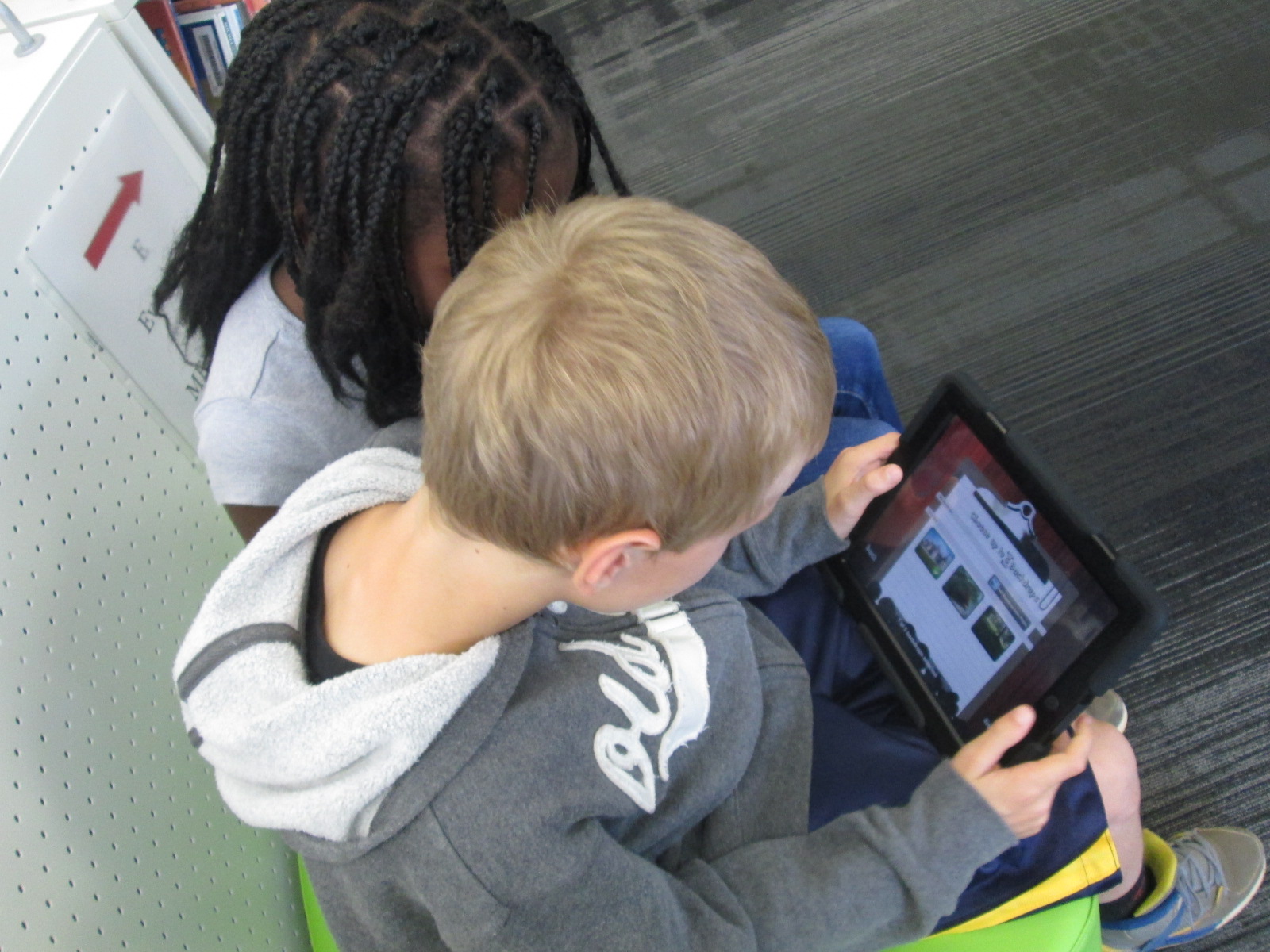
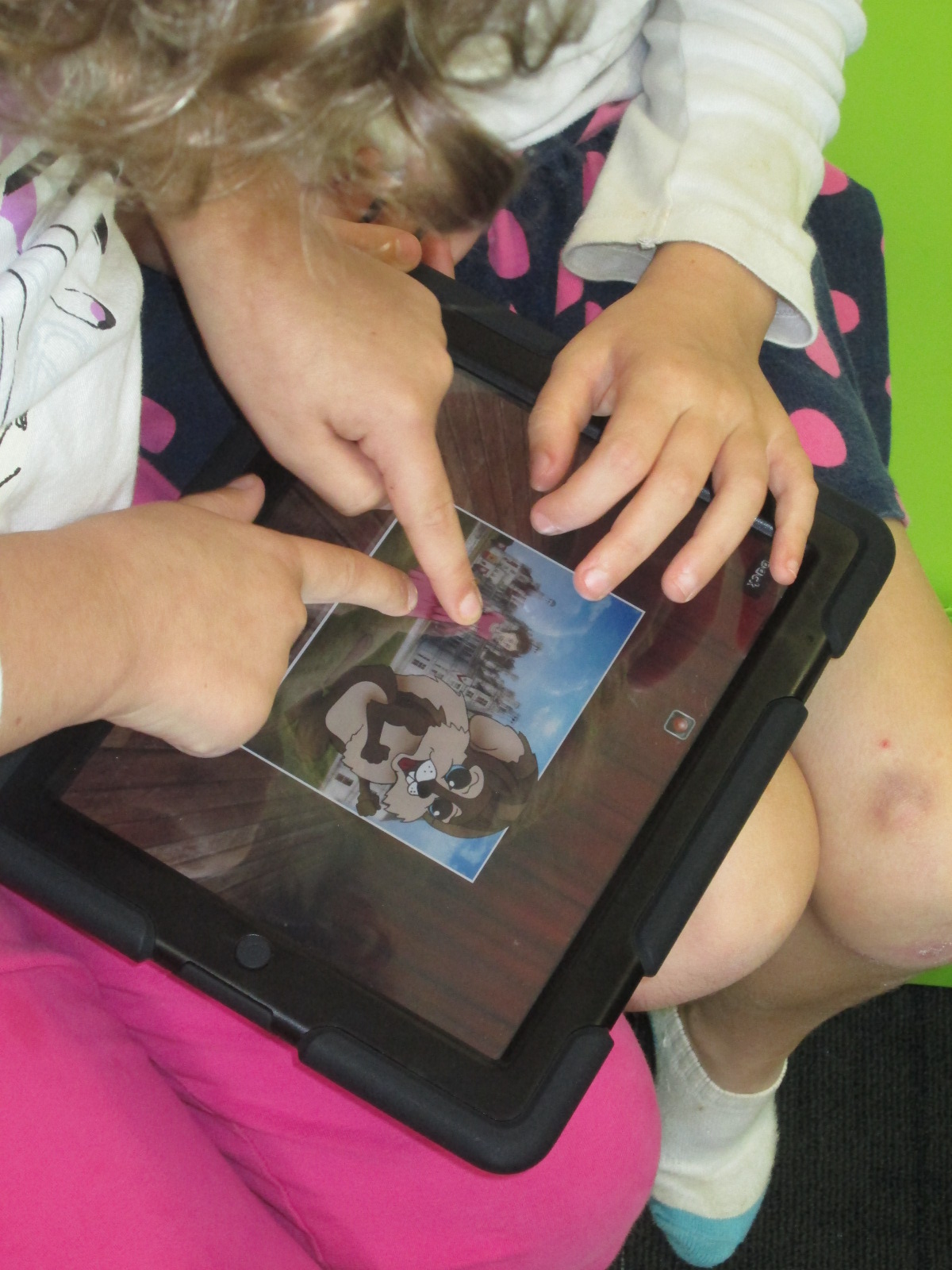
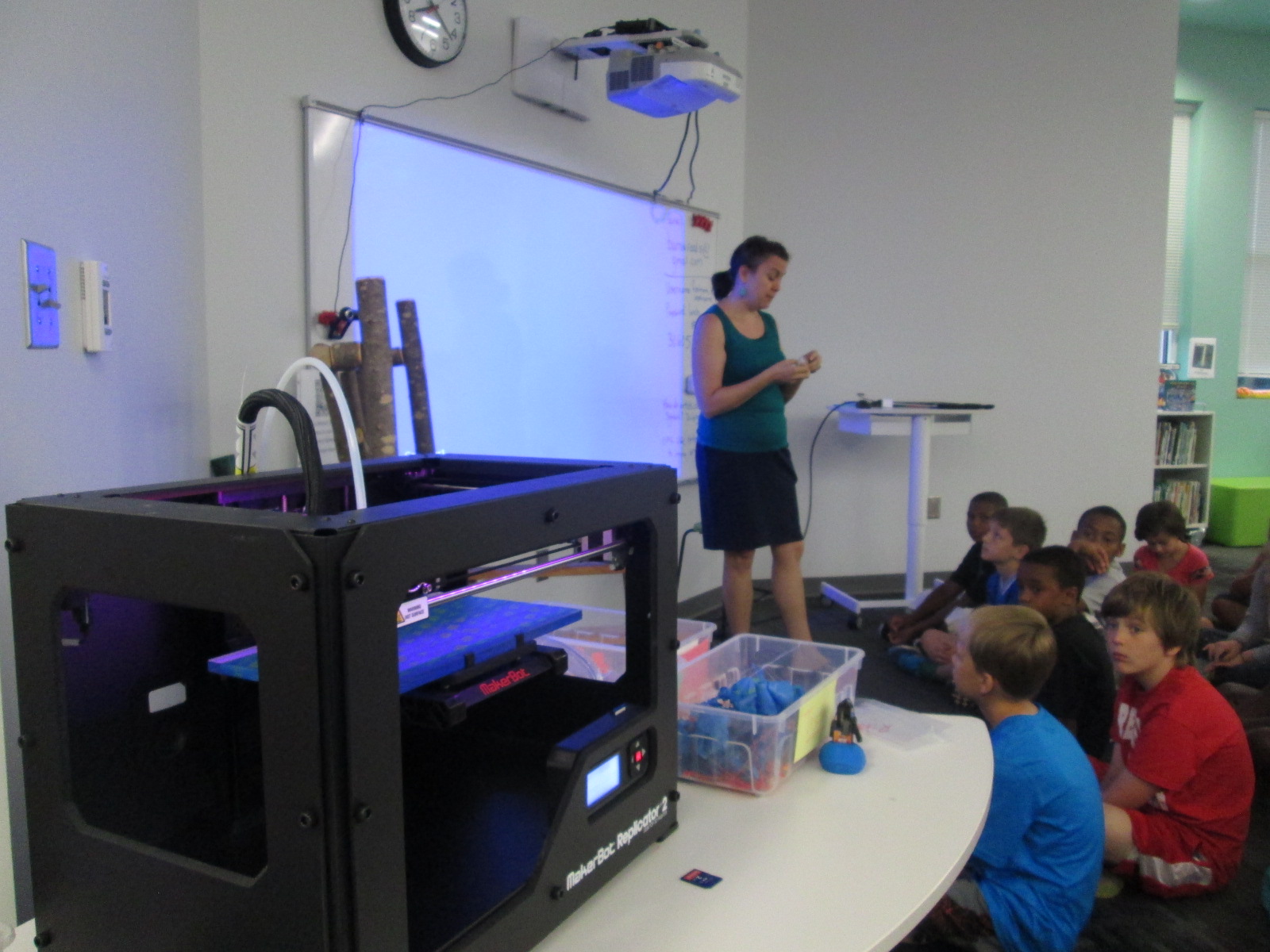
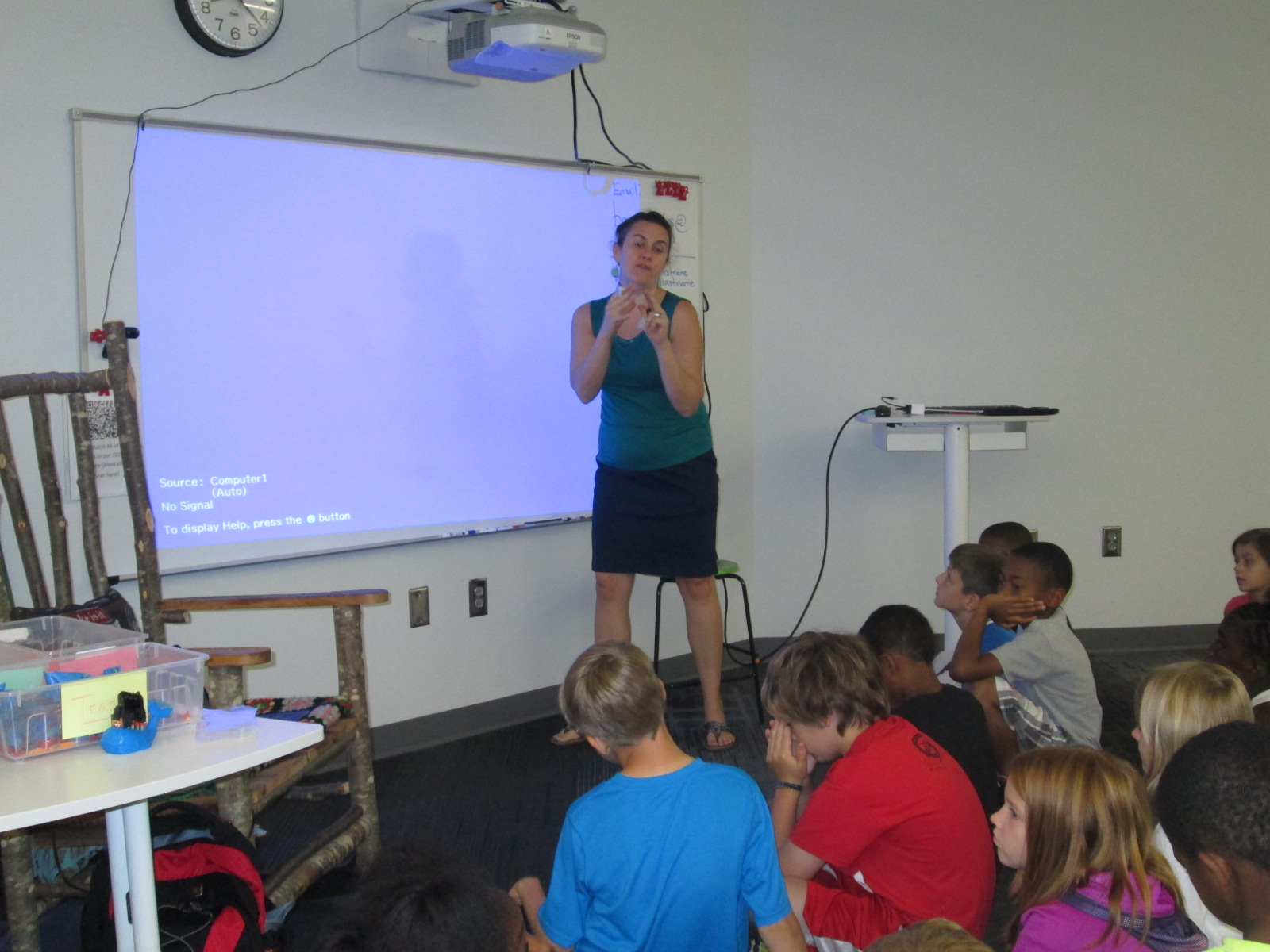
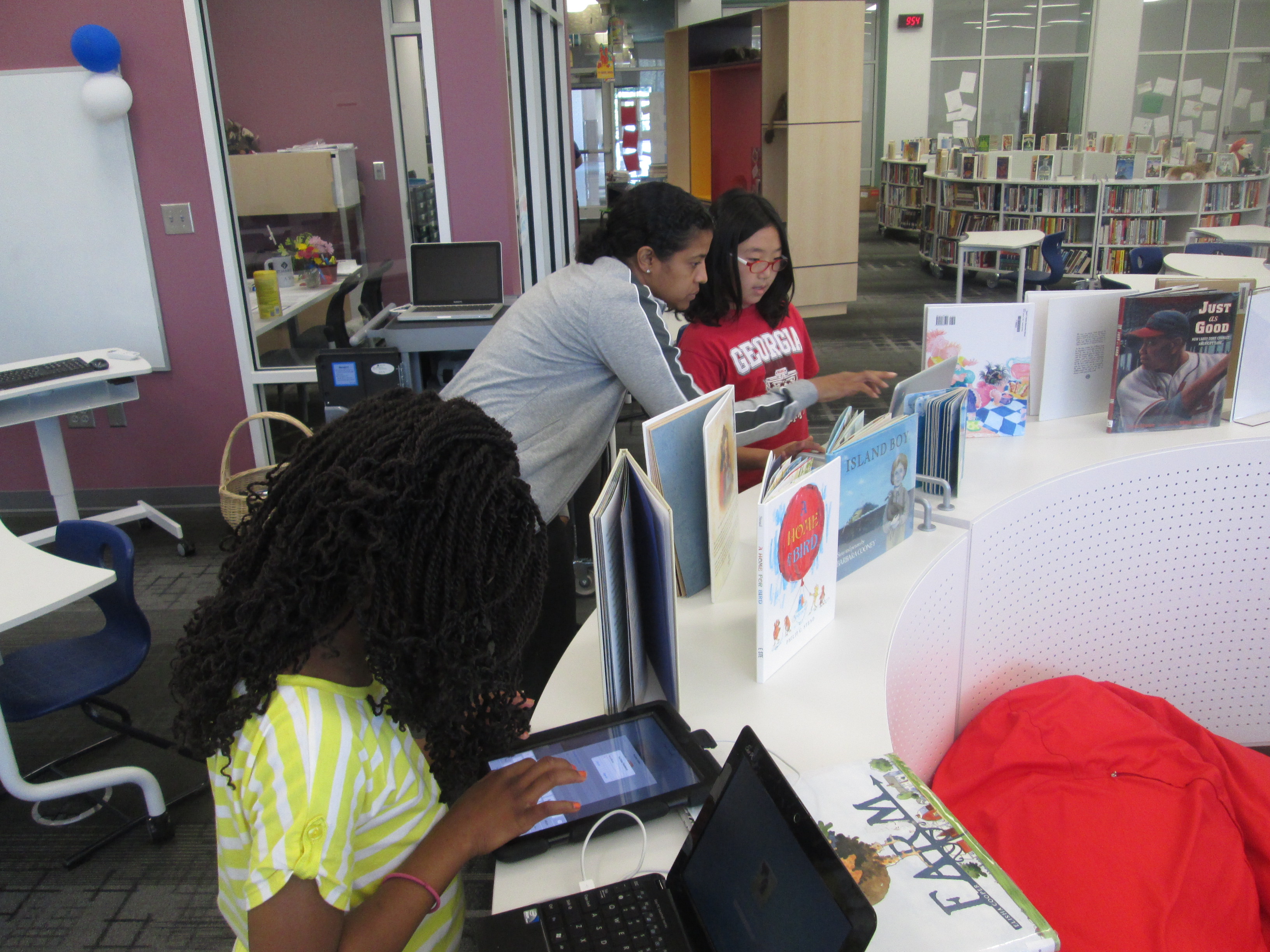
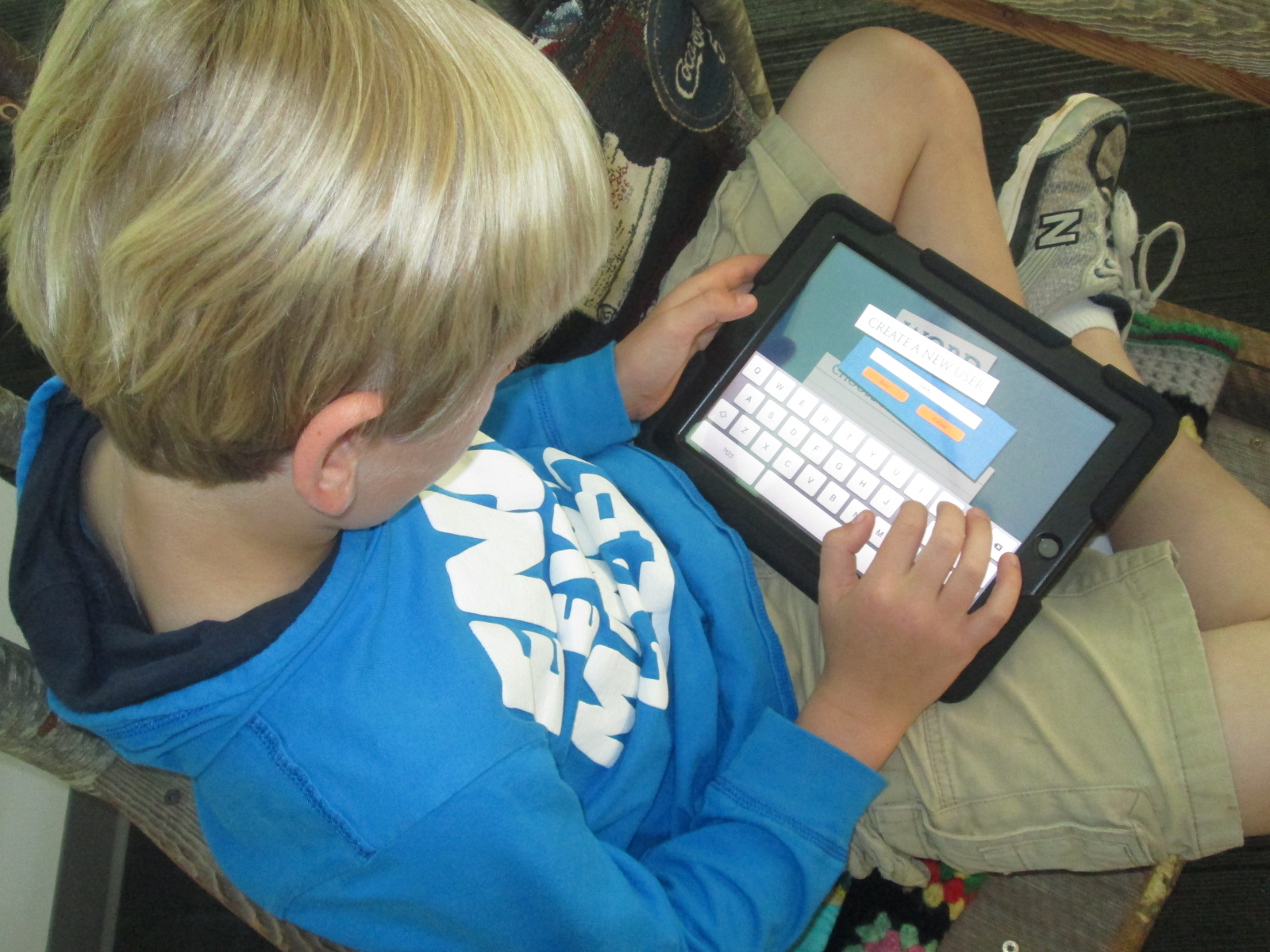
I love it when a small seed of an idea turns into something much more.  A few weeks ago, I approached PreK about using our Sphero to practice writing letters.  I knew that PreK was working on forming the letters of the alphabet and I thought that the Sphero Draw and Drive app would be a perfect way to merge letter practice with some programming.  I originally thought that small groups might come to the library and use the Sphero with me, but further brainstorming with Ms. Heather resulted in us deciding to do 5 centers that students would rotate through in order to experience many technology, math, and literacy experiences.

Ms. Heather’s class has been bubbling with excitement about coming to the library to try out all of these centers.  Ms. Heather split the class up into 5 groups which was 4-5 students per group.  Ms. Heather, Ms. Melissa (parapro), Ms. Callahan (parent), and I all led a center and one center was independent.  Each center lasted about 10 minutes and took up about an hour with transitions. Here’s what they did.

Center 1:  Hour of Code programming with Sphero

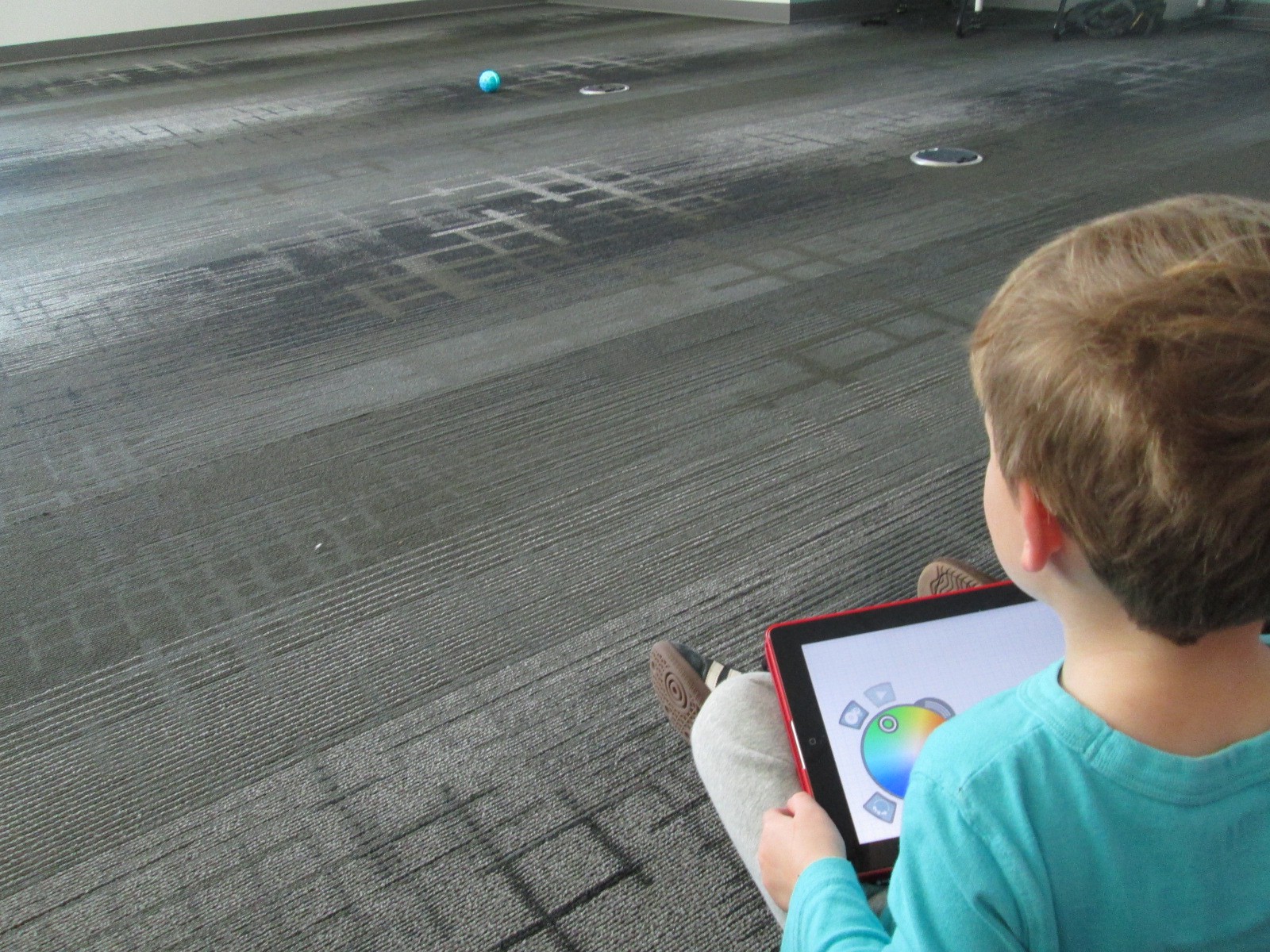
Since this week is our hour of code, I was so glad that PreK got to experience an aspect of coding.  While coding didn’t fill up our hour, it certainly sparked their interest in how to make a computer or robot do what you want it to.  Students sat in a row and each took a turn to think of a letter to practice drawing.  Using the Draw and Drive app on iPad, students drew a letter and pressed play.  The Sphero drove around the carpet in the shape of that letter.  With a shake of the iPad, the letter was erased and the next student had a turn.

We repeated this process over and over until we were out of time.  Each time the robot rolled around the floor there was a burst of excitement.  As the facilitator, I asked students about the letters that they were drawing to make sure that they understood what they were trying to draw.

Center 2:  Osmo Tangrams and Words

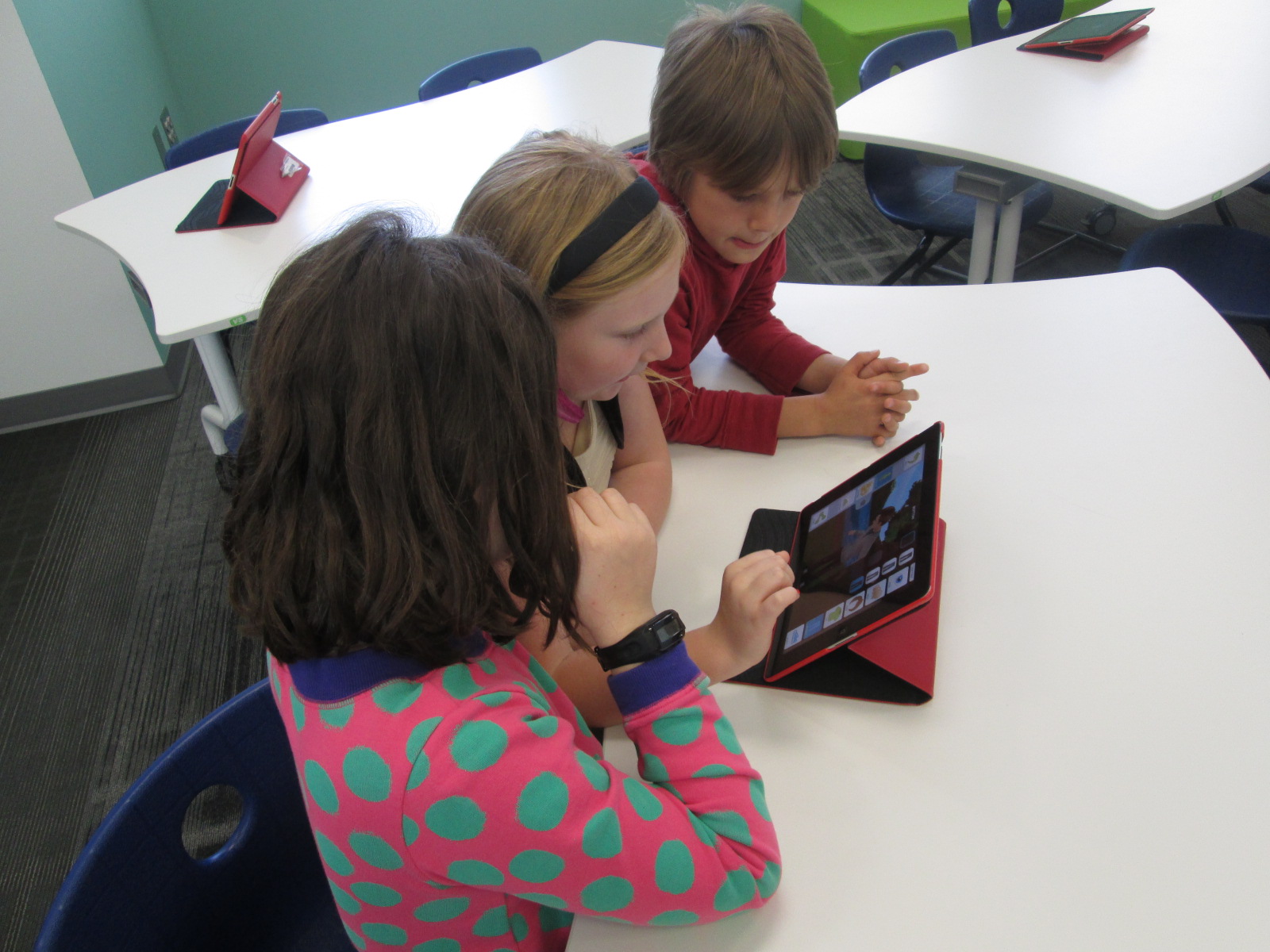
Our Osmo devices are one of our favorite tools in the library.  The Osmo is came out this summer.  It includes a base to put the iPad in and a red attachment to place over the camera.  Osmo comes with 2 sets of tools to use with the apps: a set of letter tiles and a set of tangrams.  The three apps are free to download but you must have the base and attachment for them to work.  For this center, students used the Junior version of the Words app.  This app gives students a picture with a matching word.  The beginning sound of the word is missing and students have to lay the correct letter tile in front of the iPad.  If it is correct, the red attachment “sees” the letter tile and magically adds it to the word on the screen.  If it is incorrect, students have to try again.

Students also used the Introduction to Tangrams in the tangrams app.  This app shows students 2-3 tangram pieces pushed together.  For this beginning phase, the colors of the tangrams on the screen match the colors of the actual tangrams.  As students correctly place the tangrams on the table in front of the iPad, the red attachment “sees” them and fills in with black on the screen.  When they are all correct, a new combination is shown.

This center was one that needed adjustment as we went along depending on student needs and strengths. Some needed to focus more on the shapes while others were ready to think about letter sounds in words.  All students had a blast watching the magic of the Osmo happen on the screen and table.

Center 3: Starfall on Computers

Ms. Heather facilitated the computer center.  I put out a computer, mouse, and headphones for each student in the group.  One part of this center was simply using fine motor skills to practice using a mouse.  The other part was to use Starfall to continue practicing letters and sounds.

Center 4: Reading

A parent volunteer read aloud stories that I pulled.  The selections were Peanut Butter and Jellyfish, Job Site, and Stars.  She had students engaged in discussion about the story and the pictures all along the way.

Center 5: iPads

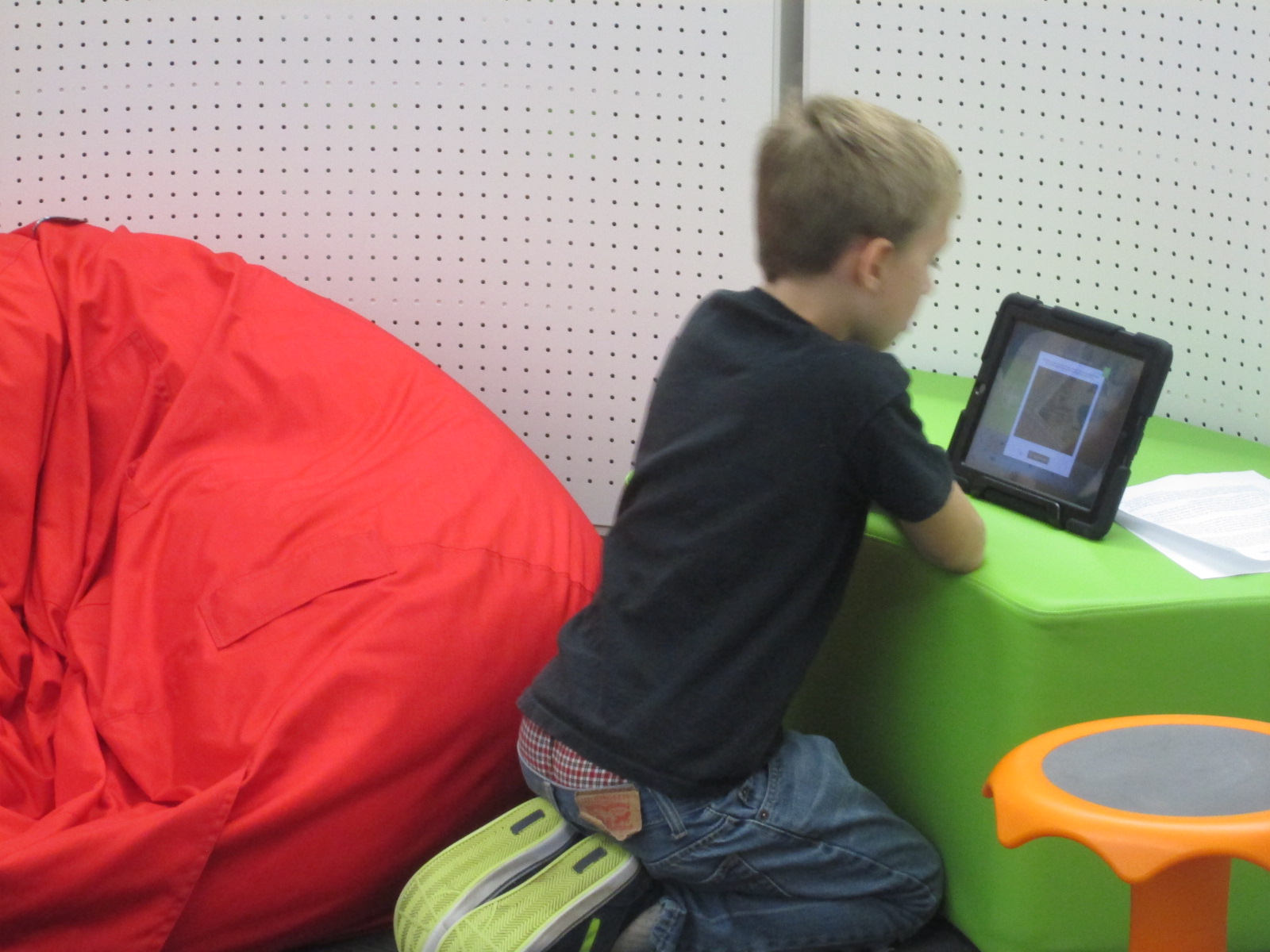
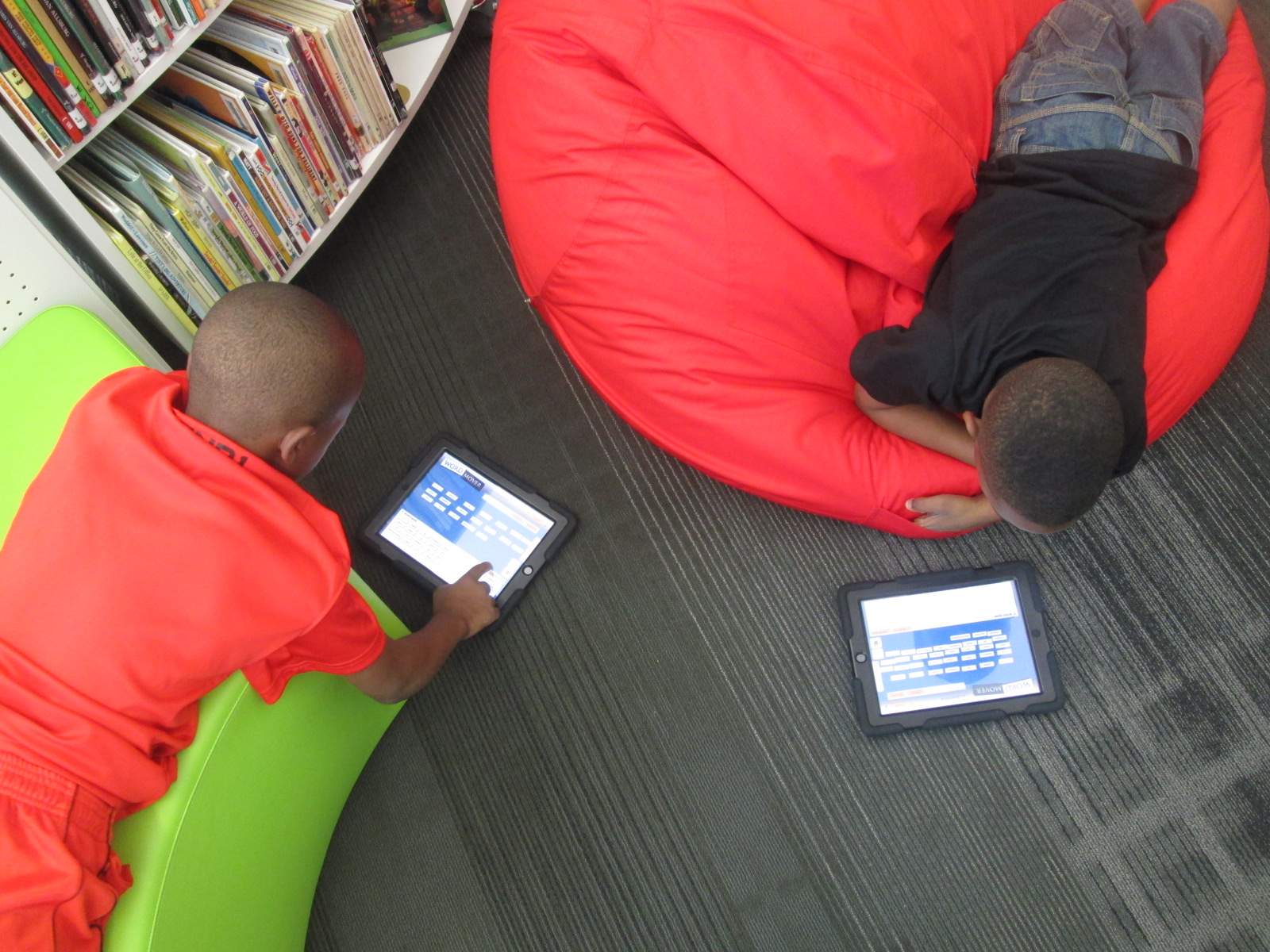
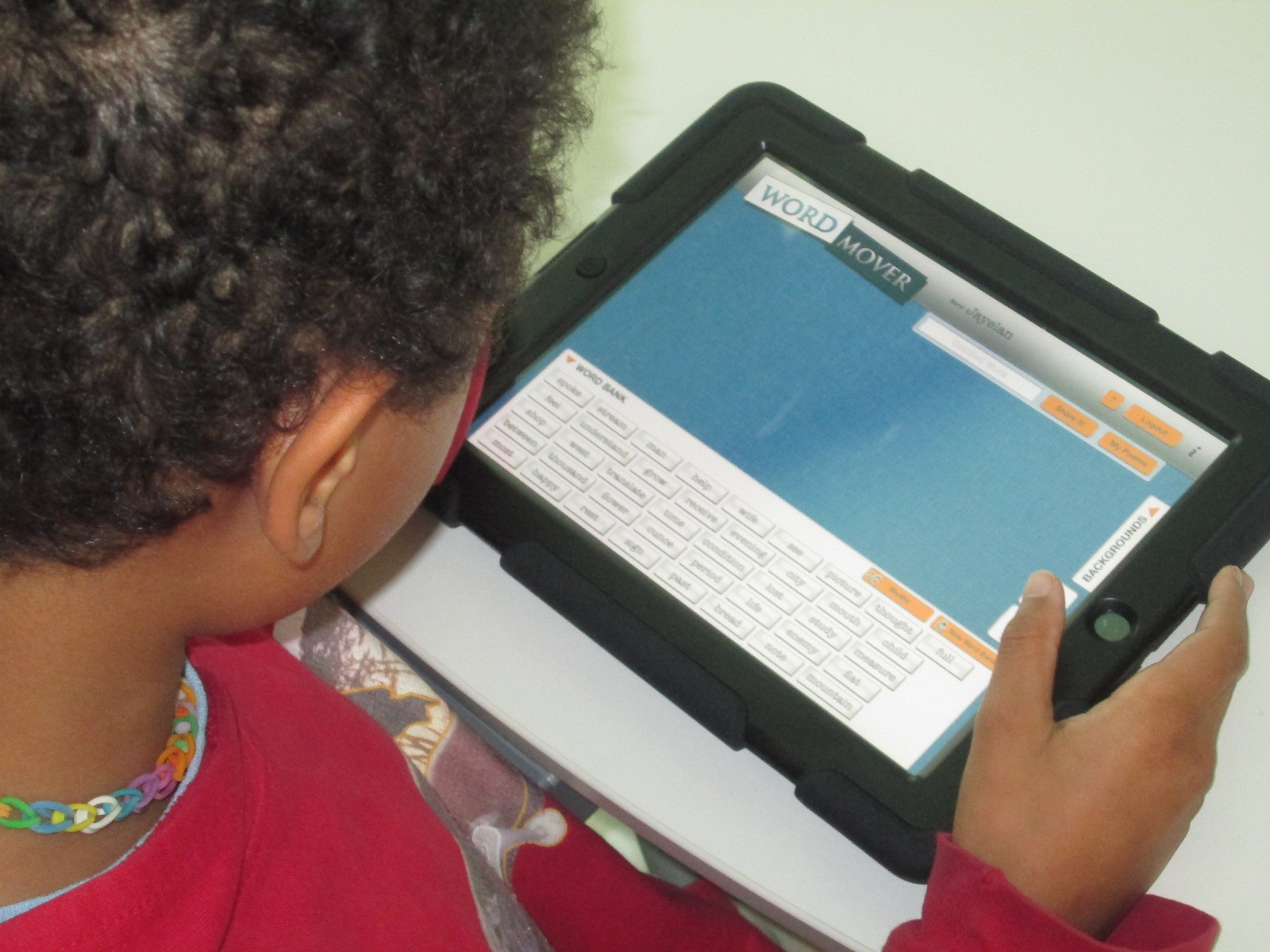
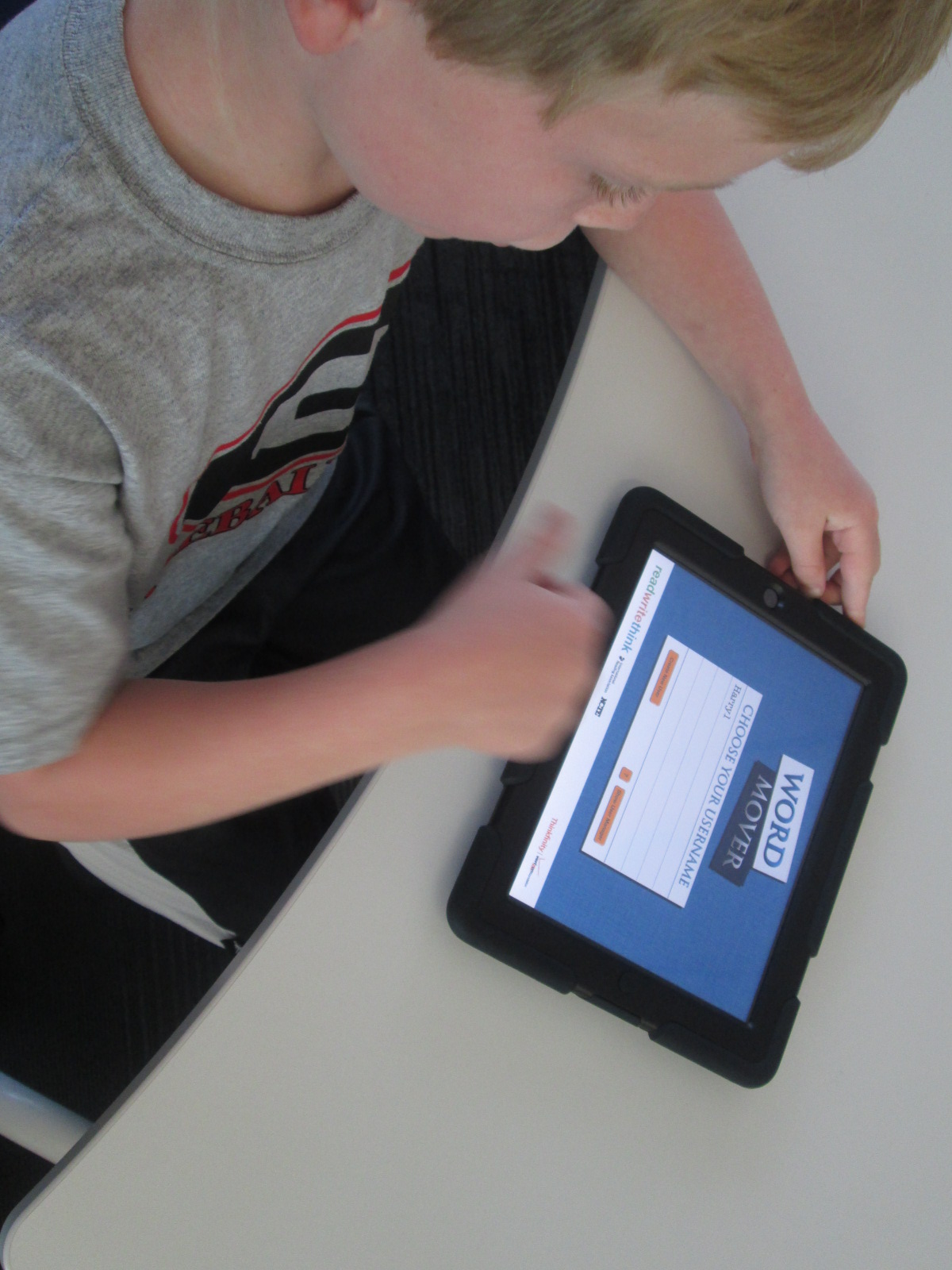
PreK has 5 iPads in each classroom.  Students have a variety of word apps that they can use at their own center time in class, so they are used to using these apps independently.  This made the perfect independent center since we didn’t have 5 adults.  Students sat on the bean bags by the windows and used the iPads by themselves for the 10 minutes of this center.

I think many times people think that our younger students can’t use technology or they are unsure of what to do with younger students.  I love giving things a go and seeing what happens.  We were amazed by students’ engagement and excitement today.  Some asked, “Can we do this every day?”  That was a sure sign of success.  When working with younger students, you have to think about what your barriers might be.  For us, we wanted smaller groups in order to have more adult support if needed.  We also wanted smaller groups so that students wouldn’t be waiting around since we only have 1 Sphero and 3 Osmos.  Using the teacher, parapro, parent volunteer, and me helped to make this possible.  You might have a different barrier, but I hope that you will consider what you might leap into with your youngest learners in your building.
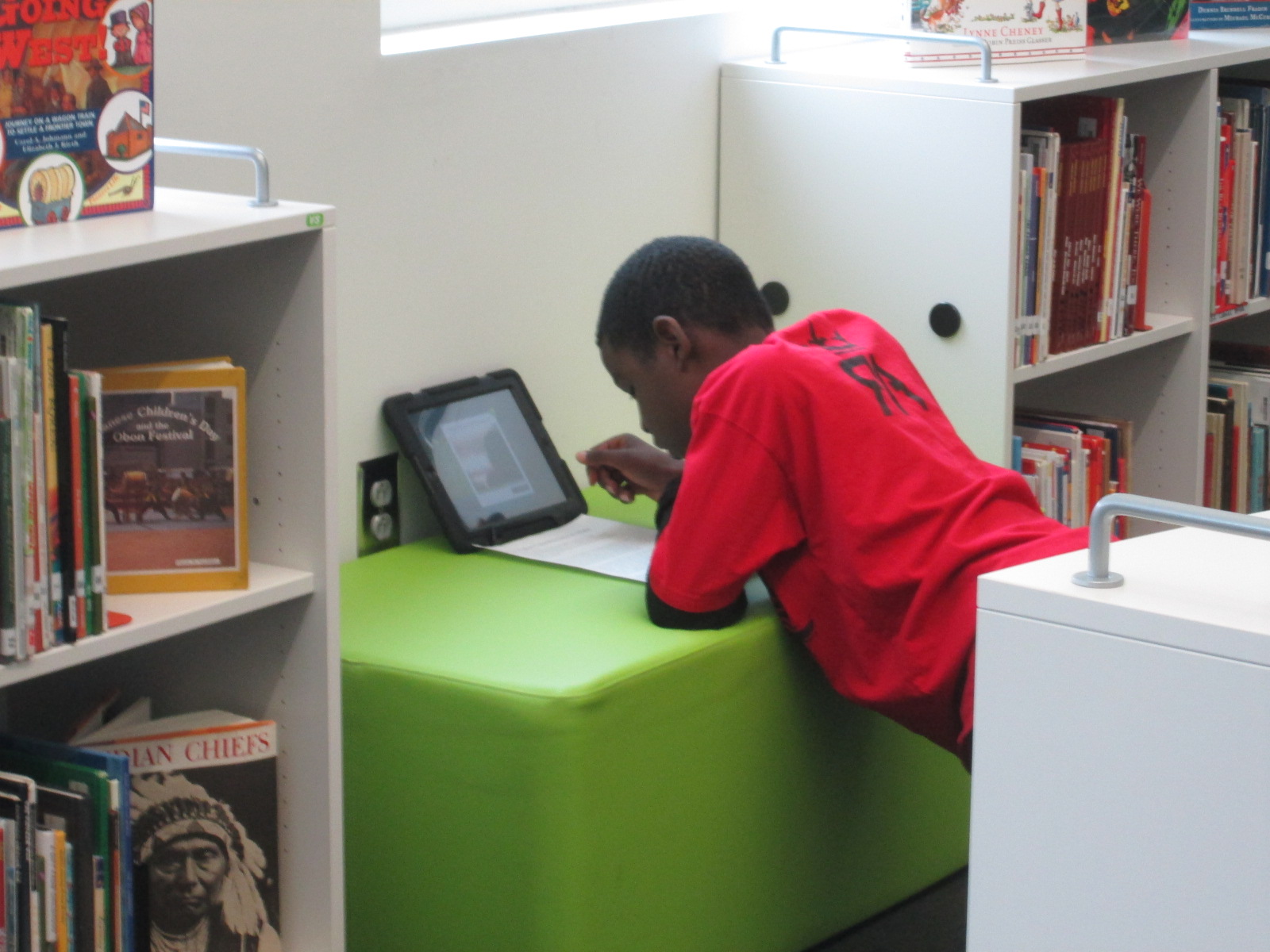
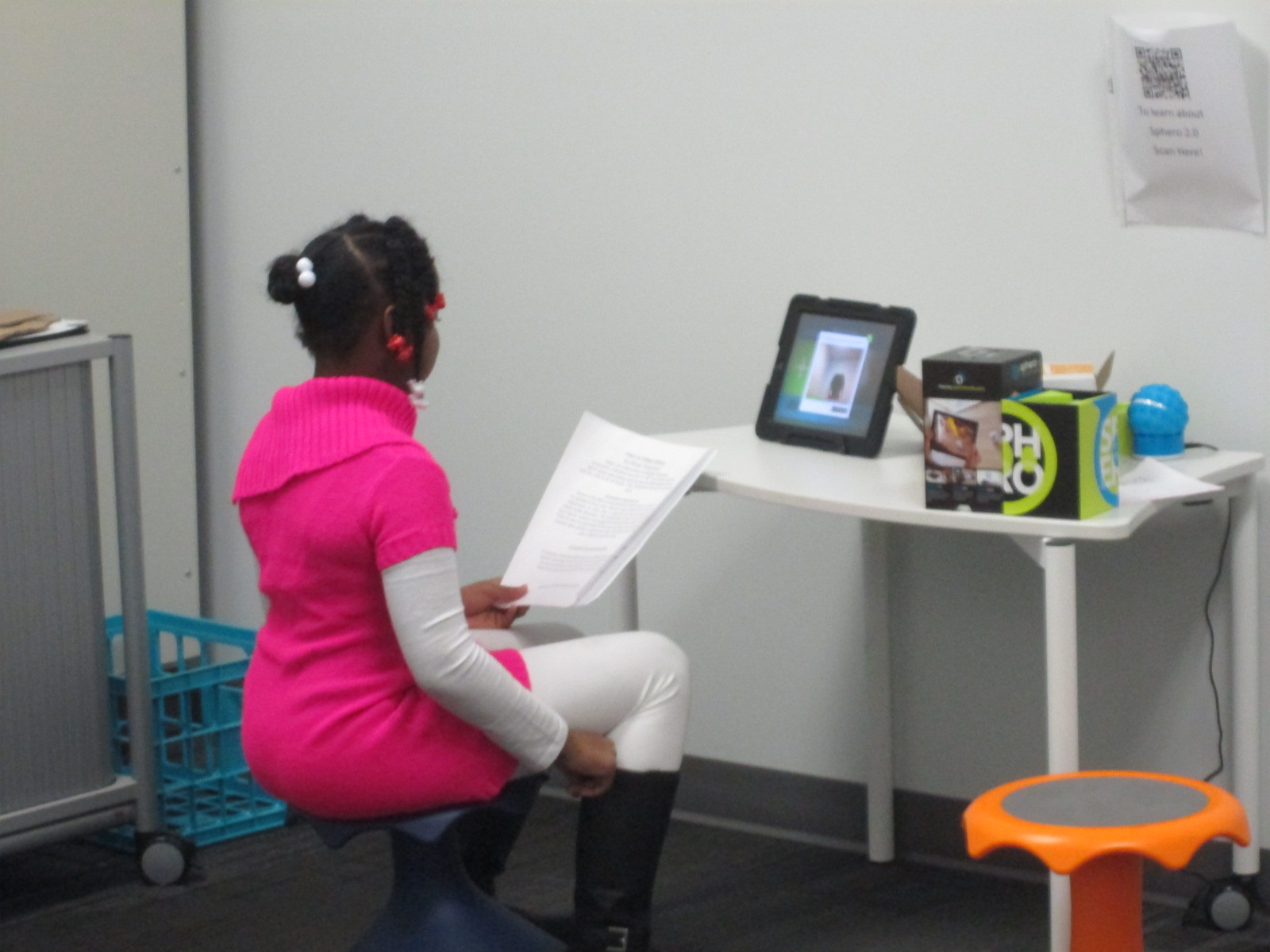
We Need You to Vote on Whether these Explorers are Heroes or Villains!

IMG_4397

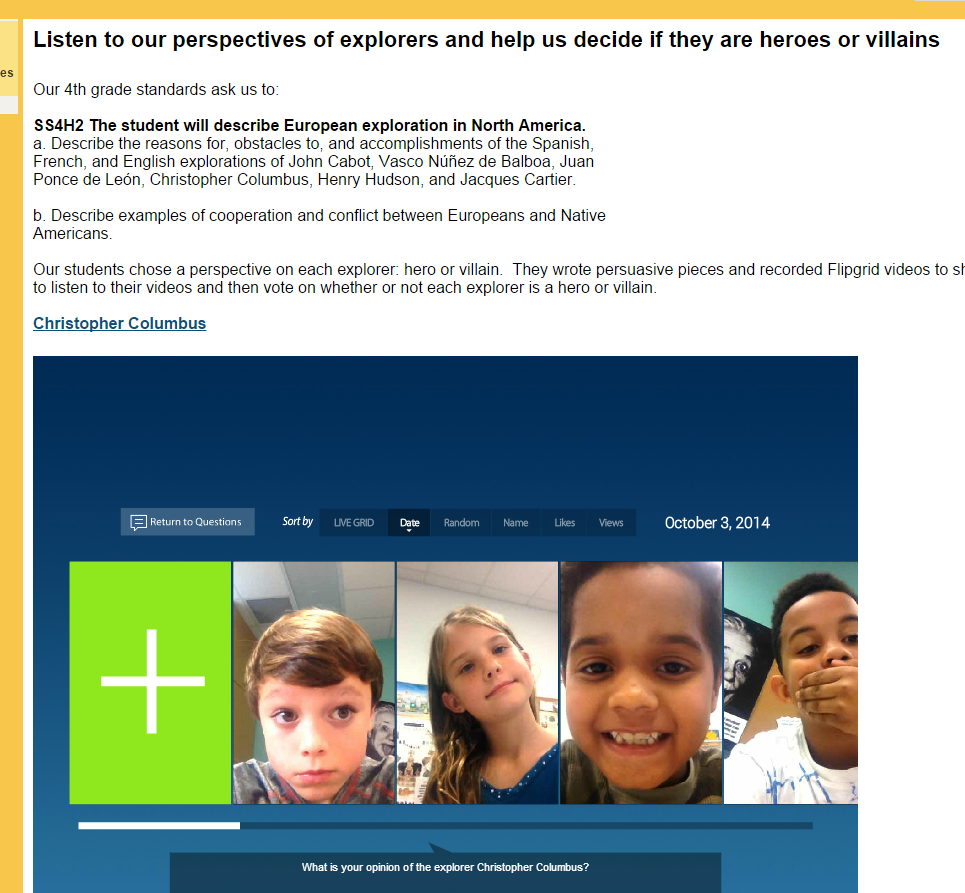
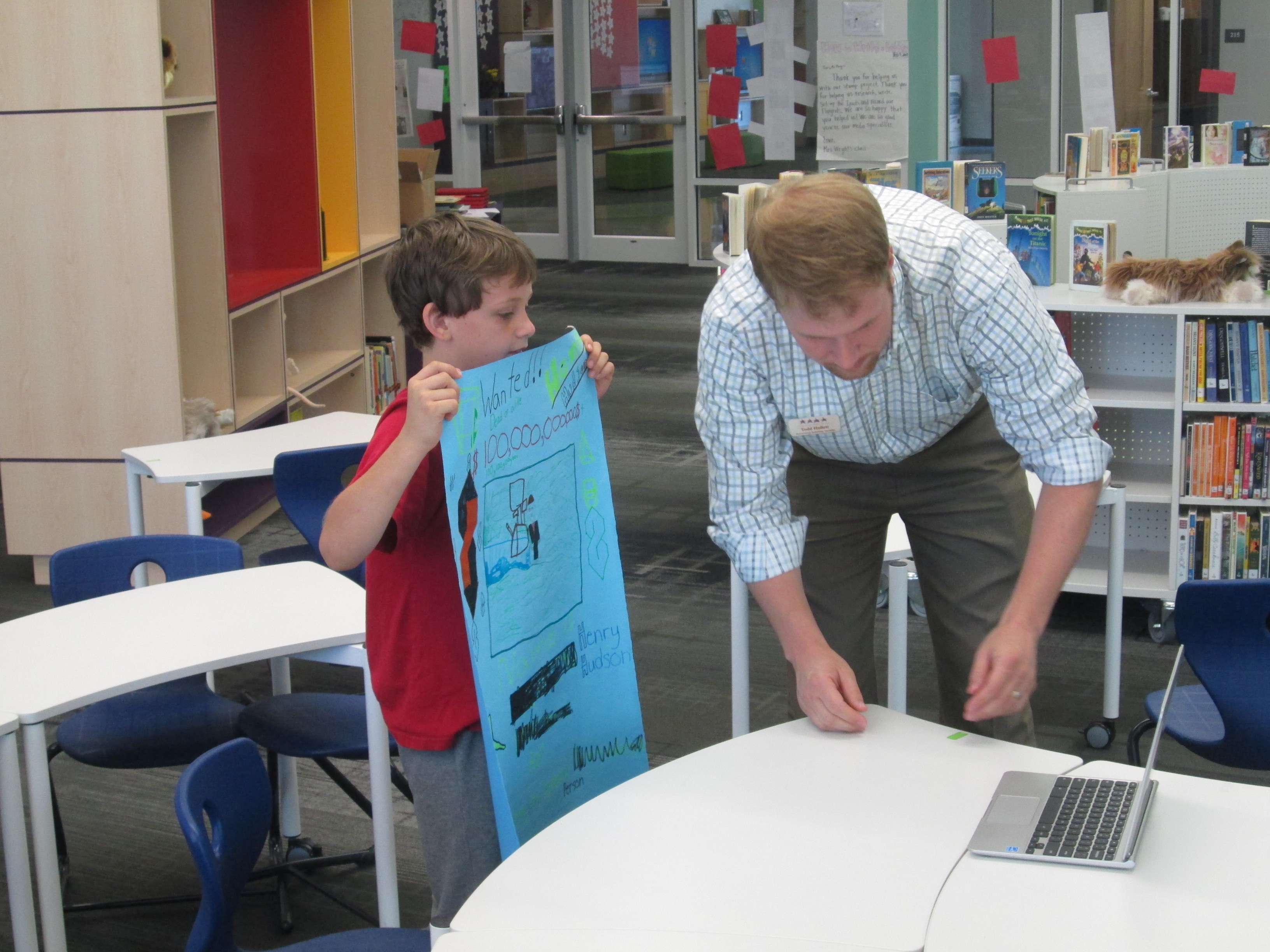
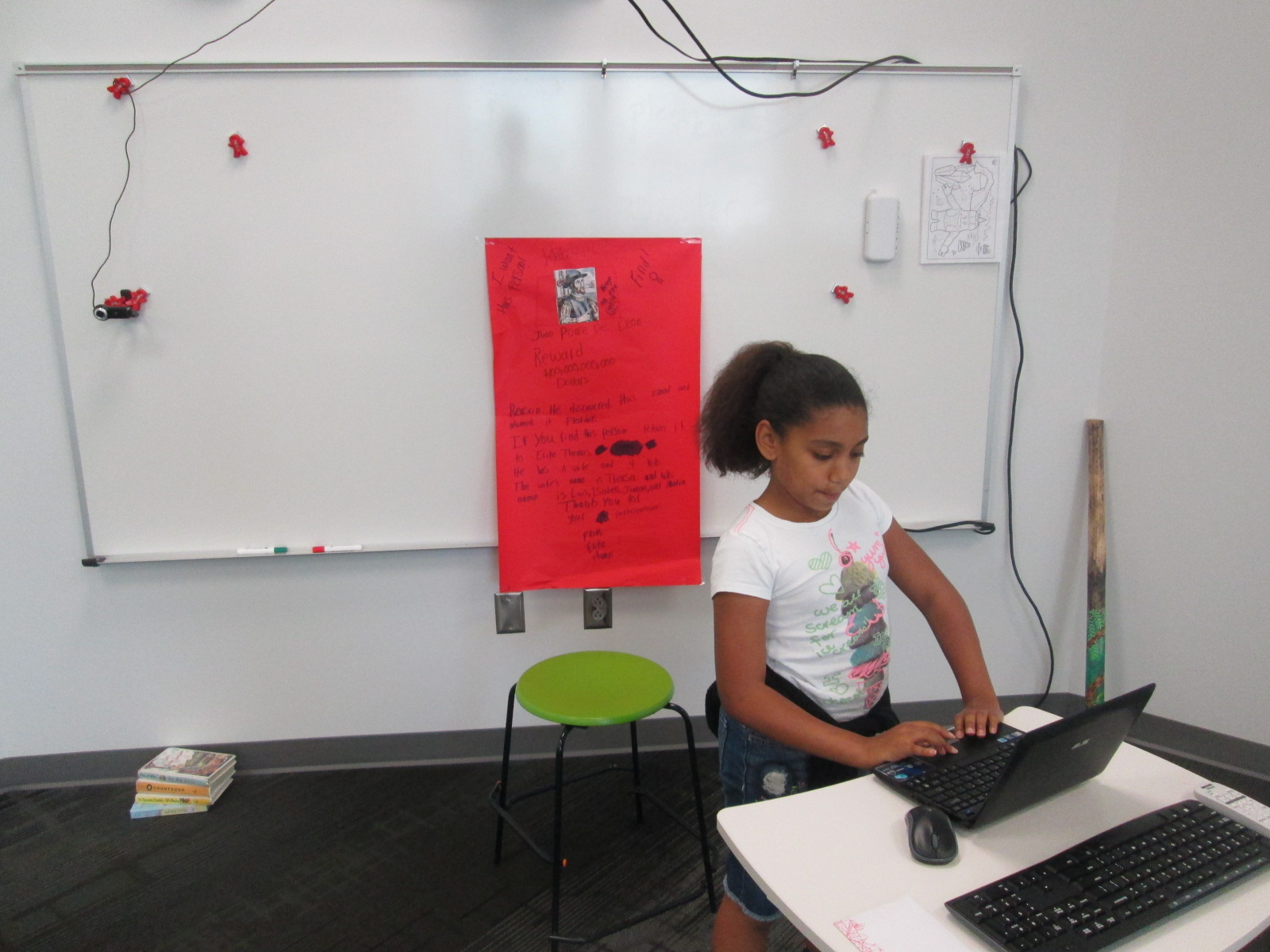
Fourth grade has been hard at work.  They have been researching multiple explorers in their social studies standards and considering whether those explorers are heroes or villains.  It all started with a lesson in the library using a video about Christopher Columbus, Encounter by Jane Yolen, and Tagxedo.

IMG_4399

After that, students selected an explorer and began their research.  They took their information and used that to write a persuasive piece convincing an audience that their explorer is a hero or villain.  They used Flipgrid to record themselves reading their persuasive piece.  All of the Flipgrid videos are housed on an Google Site for easy access and each explorer has a Google form voting tool to indicated whether that explorer is a hero or a villain.

IMG_4398

Now, this is where you come in!  We need you to watch our videos and vote on our heroes or villains.  You can choose an explorer and spend some time on that one explorer or you can watch them all!  You can share this project with other classrooms or educators and ask them to share.

If you choose to do this with a class, we would love to hear about it!  You can tweet pictures or comments to @plemmonsa  Most importantly we want you to vote and share.


Soon after our Thanksgiving break, we will take a look at the results and most likely connect with our friends at Flipgrid to talk about coding and our project’s reach.

We hope that our project makes you think about the many perspectives in our world’s history and that you enjoy hearing our voices.

Barrow Explorers

Click here to access our Explorer Google Site!  Tip:  If you are in Google Chrome, you will need to click on the shield in your address bar to load the “unsafe script”. This will show you the embedded grids.  Otherwise, just click on the link on each explorer’s name to access the Flipgrid on a separate page.  Feel free to “like” student videos by clicking the hearts, but don’t forget to vote on the Google forms on our site.

Writing Folktales with Puppet Pals

IMG_4418 IMG_4416

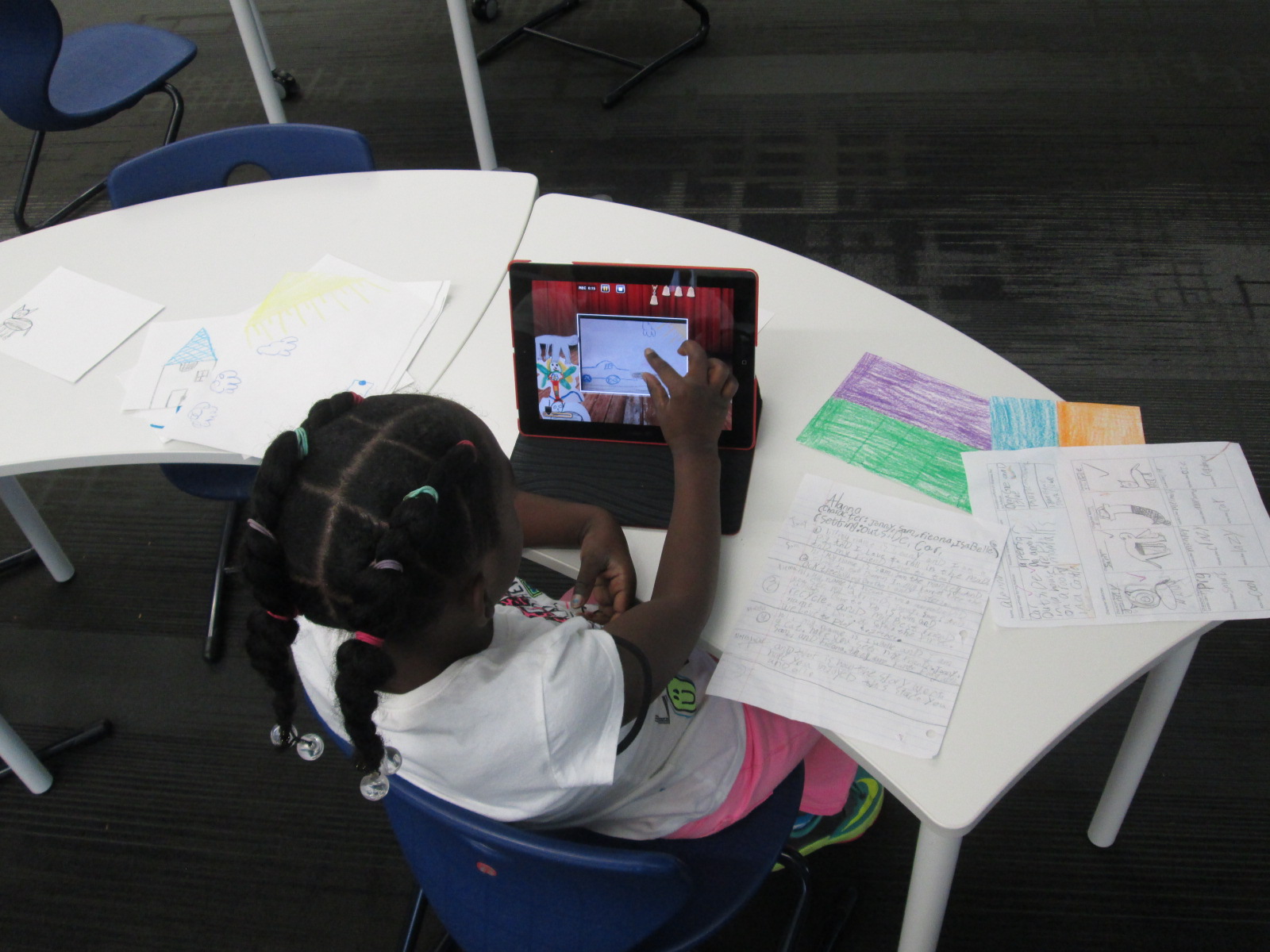
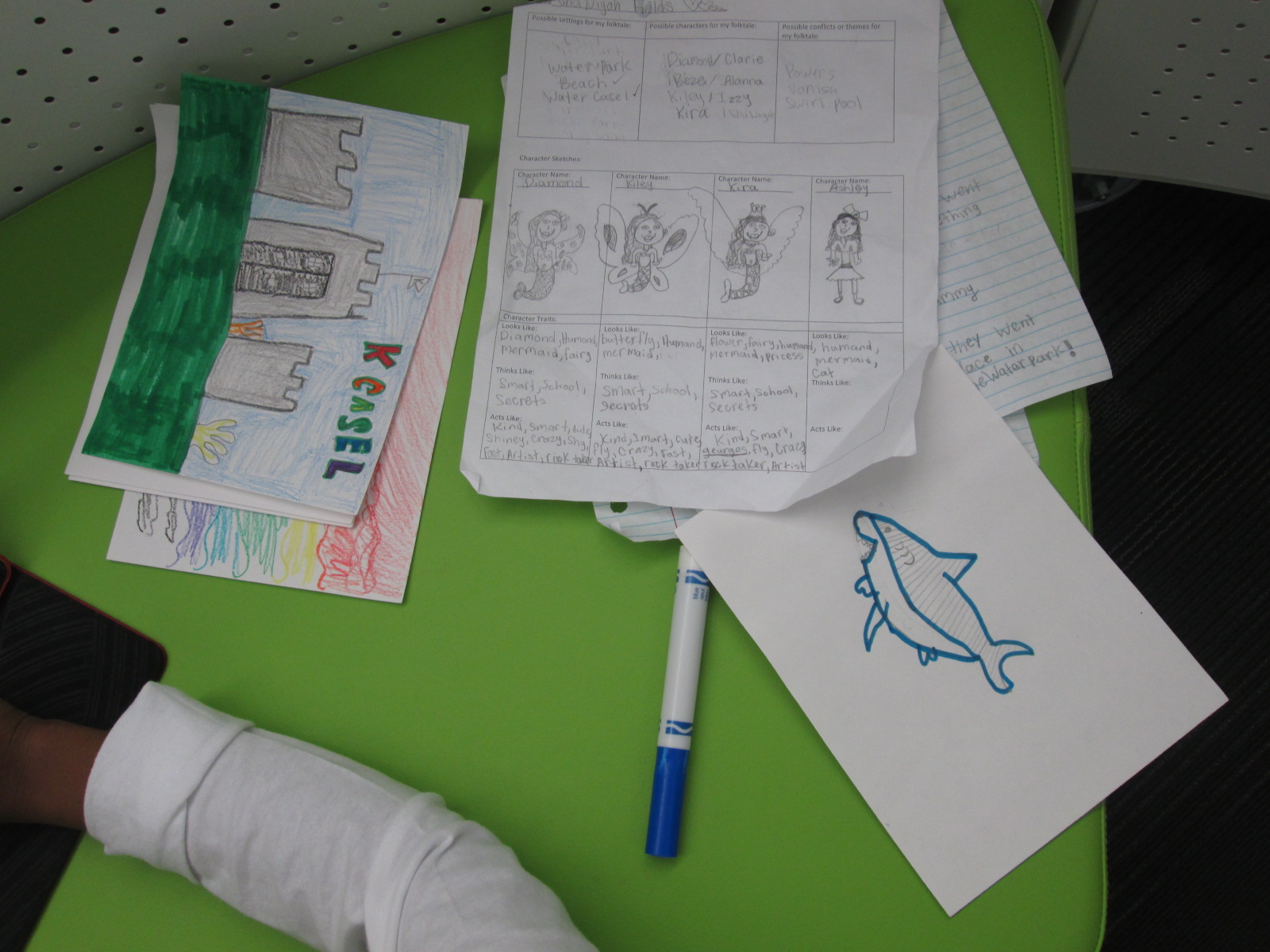
A few weeks ago, I introduced the iPad app, Puppet Pals, to 3rd grade through a tinkering lesson connected with an author study.  After that lesson, the teachers and I started planning an extension of their folktale unit using this app.  Each class chose a folktale to read multiple version of such as Cinderella, Goldilocks, Three Little Pigs, etc.  Then, students wrote their own story using some of the elements that they had noticed in their study of folktales.  In art, students designed characters and settings for the stories that they wrote in writing time.

IMG_4419

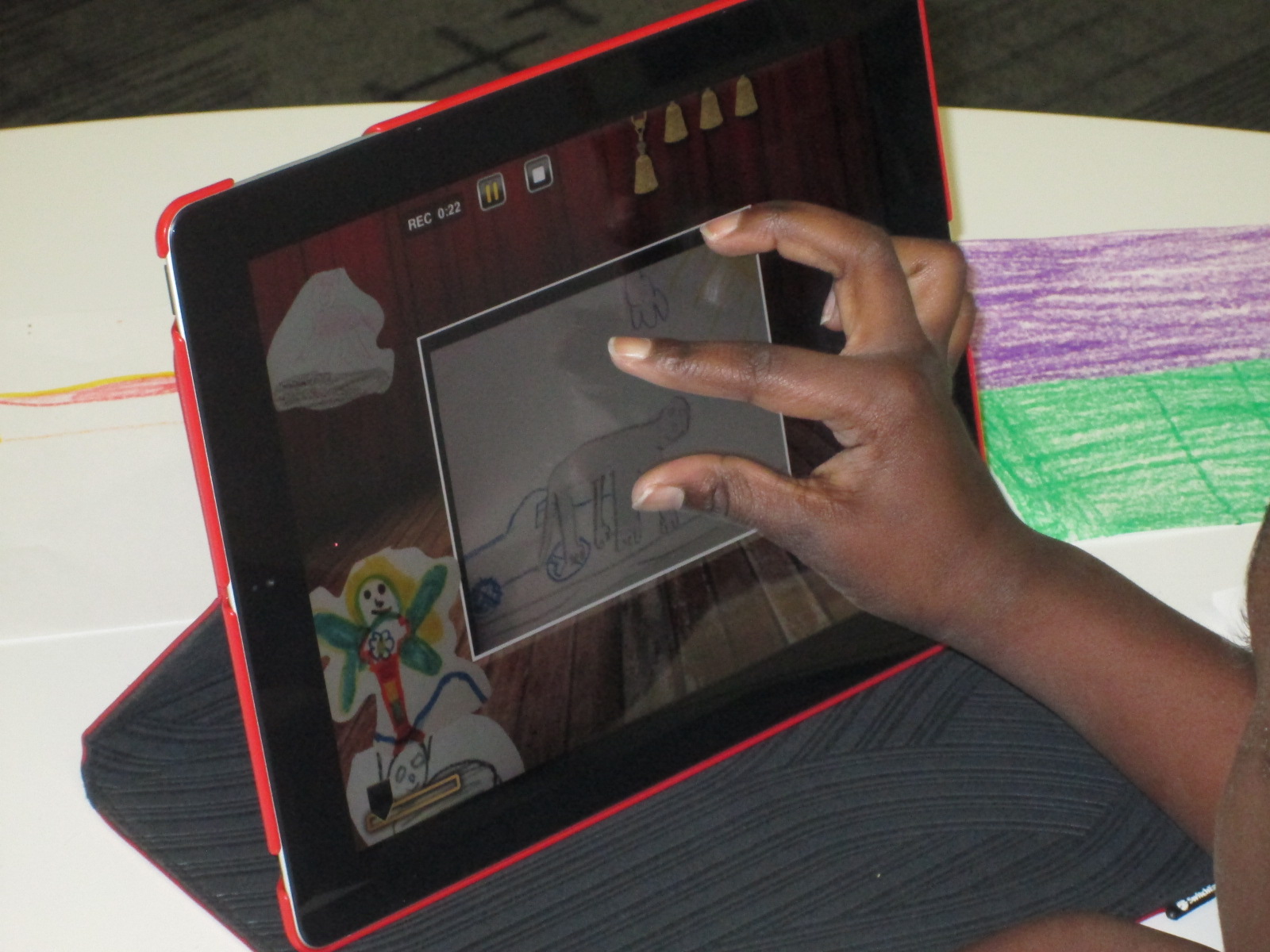
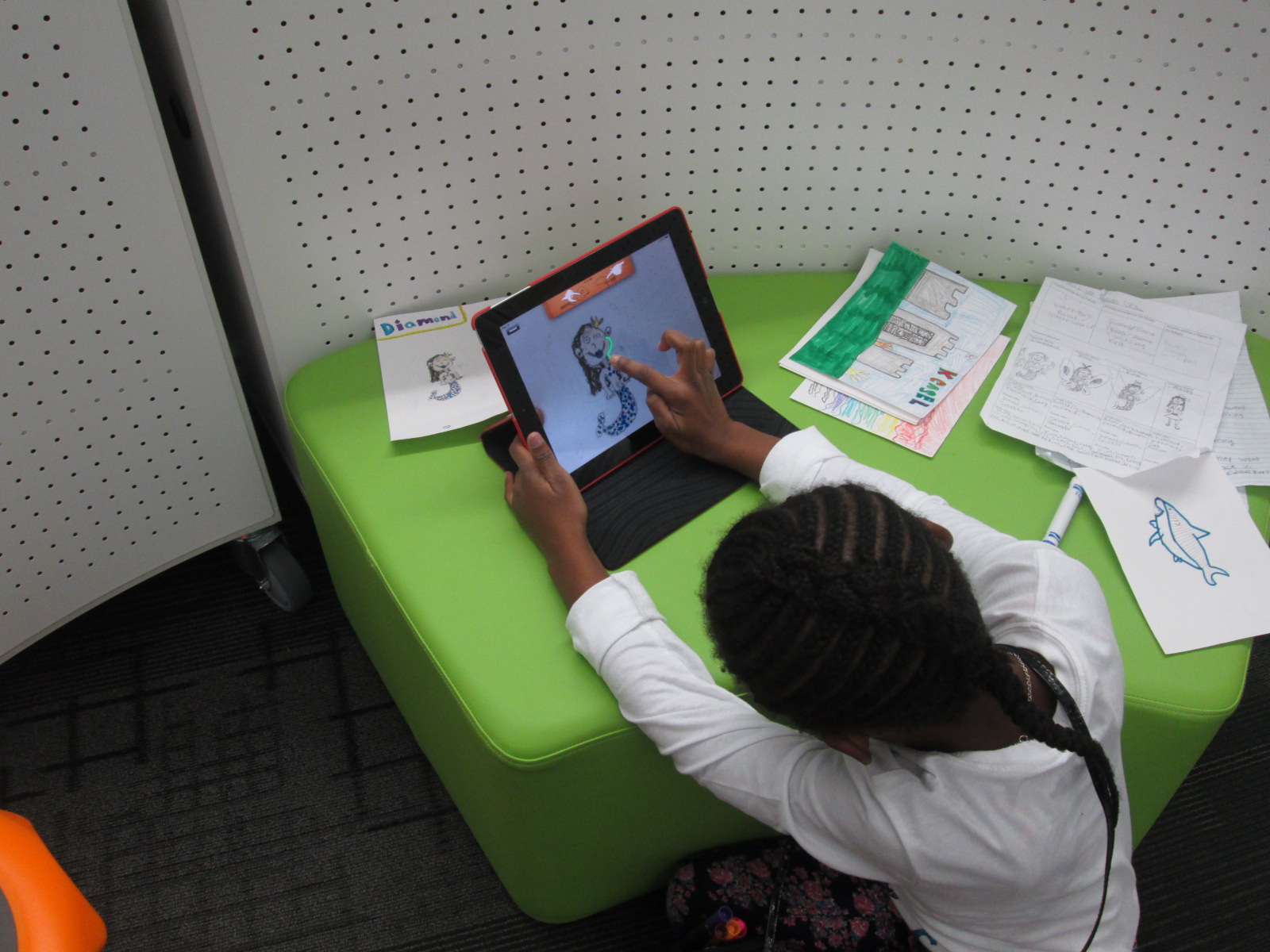
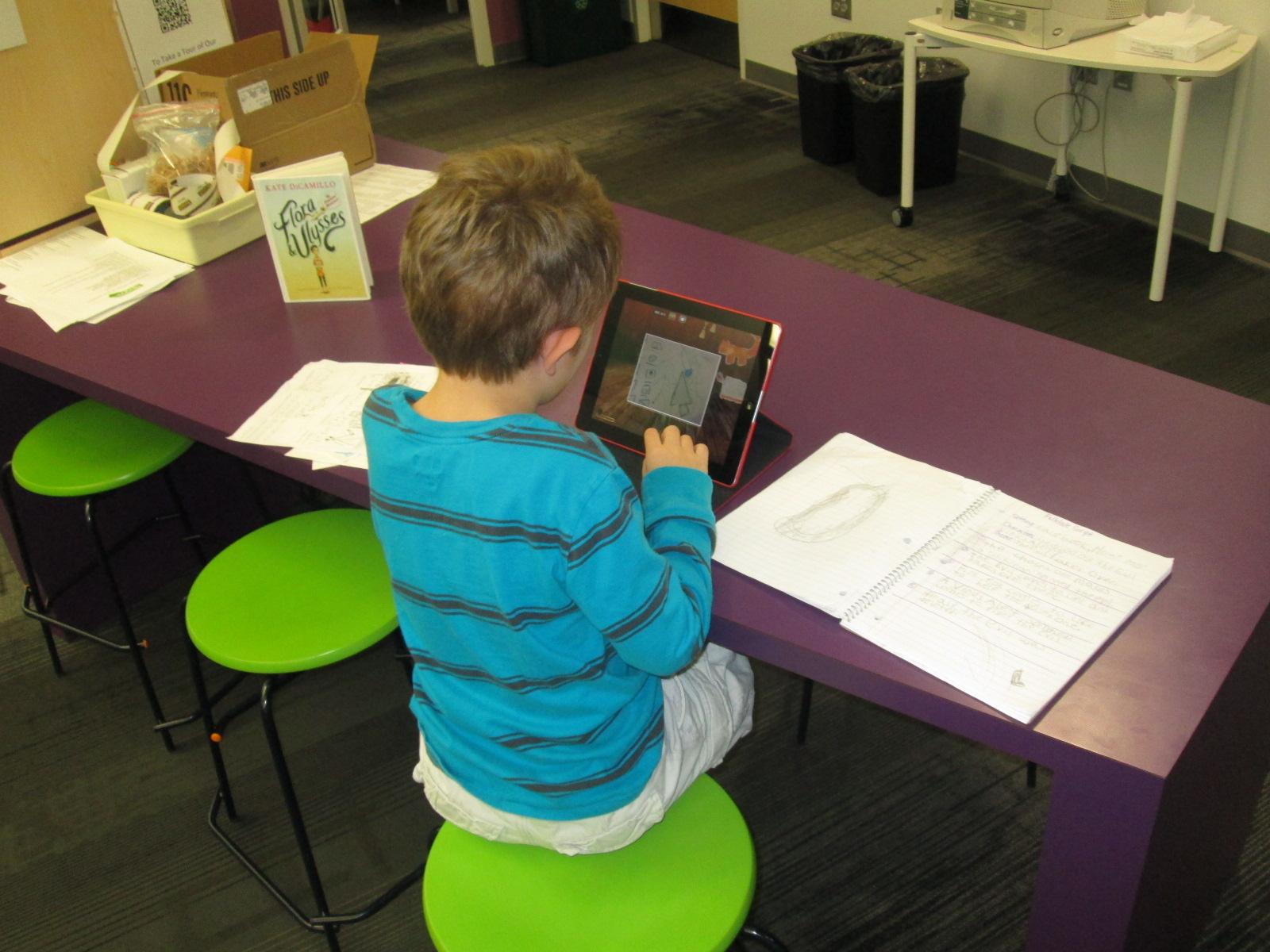
Puppet Pals HD is a free app, but if you upgrade the app for $4.99, you have access to so many more features.  My favorite feature is the ability to take photographs of anything and turn it into a character or a setting for your story.  Students used their artwork from art to create the characters and settings in the app.  From there, students took their script and recorded their folktales.  Some students had multiple characters and settings, so it was nice that they could pause the recording to switch out settings or characters.

IMG_4420

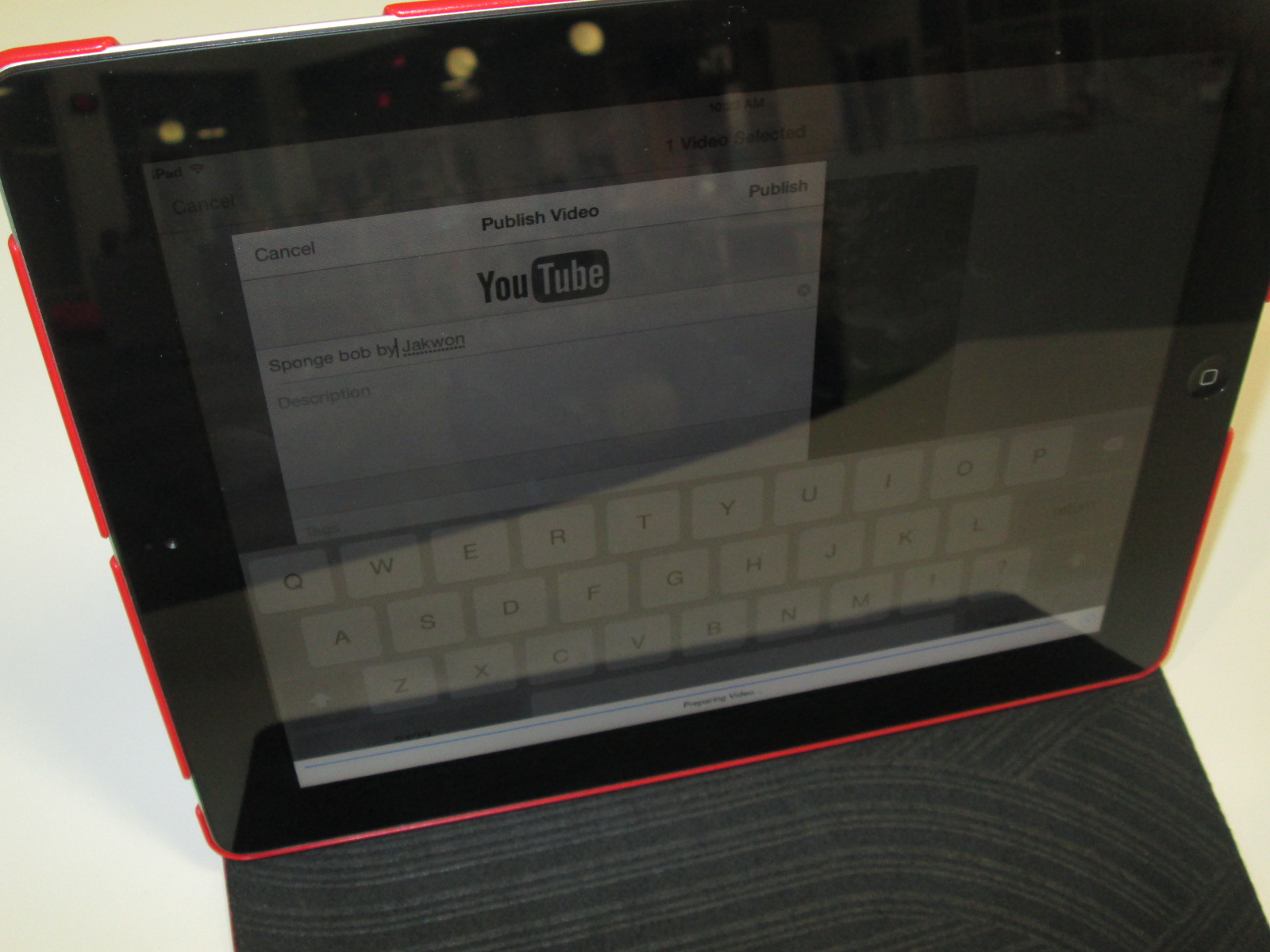
Once the recordings were done, we exported them to the camera roll and uploaded them to Youtube.  The app does allow you to name each story, but it doesn’t transfer the name into the camera roll.  I wish we had done the Youtube upload as part of recording because I couldn’t tell which story belonged to which student.  For now, all of the stories are just called “Puppet Pals” in Youtube. We’ll go back later and add the student titles and names.

IMG_4416 IMG_4415 IMG_4414

http://www.youtube.com/playlist?list=PL9ZzZbAo7l1xHvsFEm-O2SDcvdzIl08Ey

Allen Say’s Kamishibai Man and Tinkering with Puppet Pals

IMG_4164

Third grade has been working on an Allen Say author study.  In class, they have read multiple books, compared and contrasted, and started identifying what marks a book as Allen Say’s work.  In the library, we also read a book by Allen Say to fold into this class conversation, but we used the library lesson for another purpose, too:  tinkering.

Our read aloud was Kamishibai Man, which tells the story of an old man who has retired from his work of traveling into the city to sell candy and tell stories.  A kamishibai uses a wooden box mounted on a bicycle to display beautiful paintings which inspire oral stories.  The stories are told in a series so that audience members want to come again and again.  At each storytelling session, the kamishibai man would sell homemade candies which was how he made his living.  During the story, we had great discussions about how technology has impacted our lives in positive and negative ways because in the story the kamishibai man has to quit his job because people would rather watch tv.

IMG_4158 IMG_4163

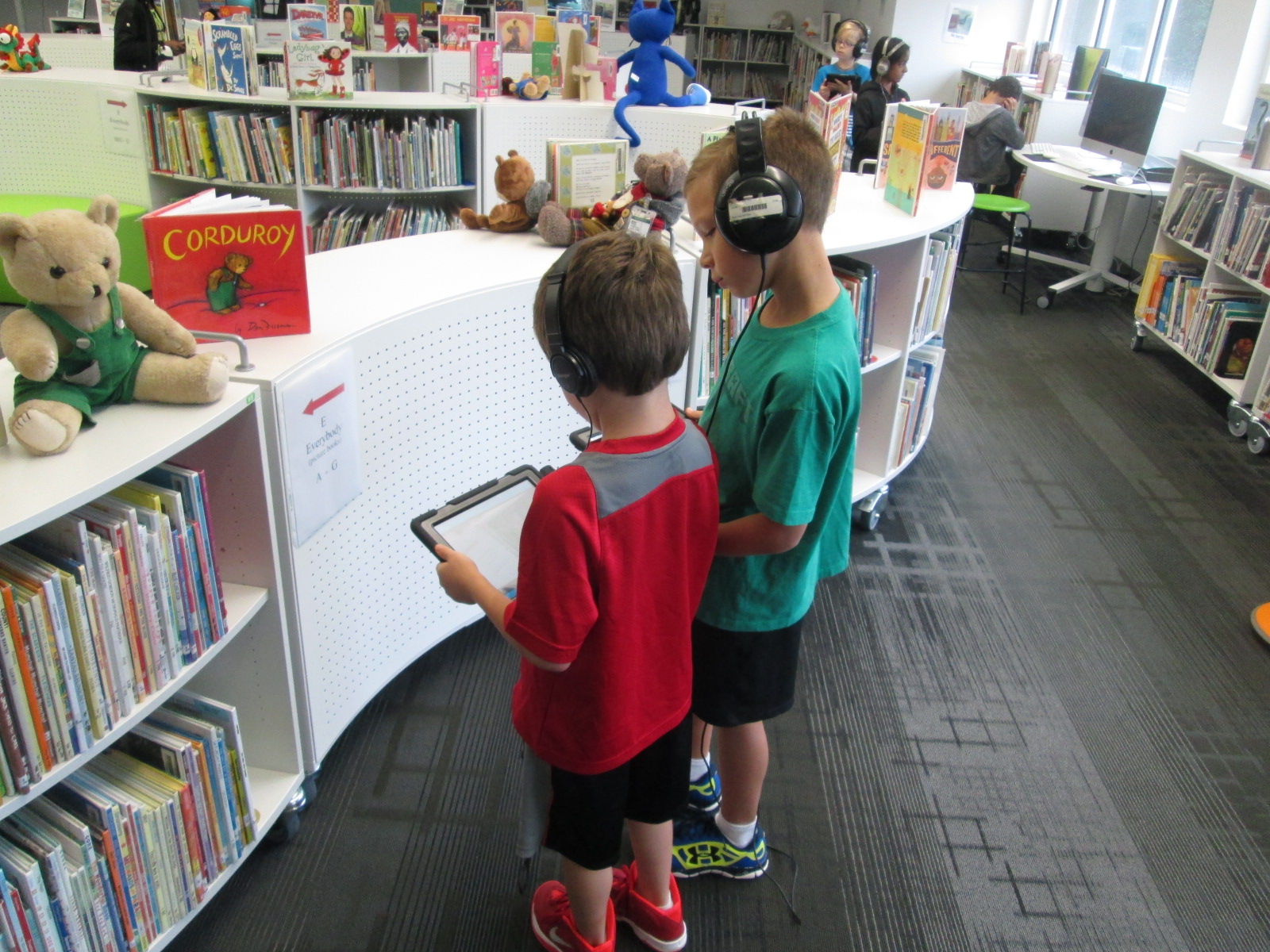
Following the story, we practiced our own way of oral storytelling using puppet stages, characters, and backdrops in an iPad app called Puppet Pals.  This app allows you to select up to 8 characters and 5 scenes.  You can upload your own images for the characters and scenes or choose from the library of options.  Users can move their scenes and characters off stage when they are not in use.  With a record button, every movement and voice is recorded as long as it takes place in front of the backdrop.  Puppet Pals lets you record up to 2 minutes of audio which sets it apart from some other apps that only let you record for 30 seconds.

We did a quick demo on the board by having 2 students come up and make a quick story in the moment.  Then, students split into groups of 2 or 3 with an iPad and spread out throughout the library.  They quickly got to work figuring out how puppet pals worked.  Most groups made multiple stories because they would think about something else they wanted to try once they finished one story.  It was fun to step back and listen to all of the voices that students were creating for characters as well as how they were moving characters in and out of the set and making them larger and smaller on the screen.  The students were trying this app without fear of failure, and they were learning so much about how the app functioned.  Some of them even created some pretty decent videos in the short time that they had to tinker.

Our closing time was once of my favorite times.  I asked students to think for a moment about what they might want to do if they made a longer video and had a longer time to work on it.  They listed out several things that probably would have come from a teacher checklist or instructions, but the difference was that they came to the realization of why these checklist items were needed because of their tinkering.  It wasn’t just something the teacher or I was asking them to do.  Instead, the checklist served to improve their work and organize their product.  They named things like:

  • Write a script for the characters.
  • Include instructions about when to change the backdrop
  • Write notes about when to shrink or enlarge a character.
  • Pause the recording in order to switch out characters or scenes. Put this in the script too.
  • Practice before recording.
  • and much more.

https://www.youtube.com/watch?v=y8TZV98db8M

https://www.youtube.com/watch?v=aN4CkP4ClCA

Third grade is about to launch into a study of folktales.  I think Puppet Pals has great potential to be a part of this project, so I intentionally used this tool as part of our Allen Say project to have a purpose for tinkering but also to make sure that tinkering happened before we asked students to create a more polished product.  Now, I feel like the stage is set for all 3rd grade classes to create a folktale Puppet Pal project if they want to.  I want to think more about how tinkering opportunities can be built naturally into lessons prior to larger projects beginning.  This type of model takes knowledge of the upcoming curriculum and early conversations about the kinds of collaborative projects that will be taking place each quarter.  I love this new thinking that has potential for future planning with teachers and students.


Our 1st #3dprinting Project of 2014-15: Native American Hopes and Dreams stamps

native american stamps (15)

Fourth grade has launched into an incredible project for the 1st quarter of the year.  I’m so excited to be a small part of the project in the library.  In social studies, they are studying Native Americans.  Their standards include:

SS4H1 The student will describe how early Native American cultures developed in
North America.
a. Locate where Native Americans settled with emphasis on the Arctic (Inuit),
Northwest (Kwakiutl), Plateau (Nez Perce), Southwest (Hopi), Plains (Pawnee),
and Southeast (Seminole).
b. Describe how Native Americans used their environment to obtain food, clothing,
and shelter.

During this study, they are exploring the folklore of Native Americans through several folktales.  The brought them to the idea of a grade level dream catcher.  The beginning of the school year is a time full of hope.  It’s a time where students, teachers, and families set goals for what they hope to accomplish throughout the year, and many spend time writing about hopes and dreams.  The teachers in collaboration with the art teacher decided to design a project to capture the hopes of dreams of students in the form of meaningful symbols on a dream catcher.

native american stamps (1)

Working together, students will creative a massive dream catcher.  In art, they are designing symbols that represent their hopes for the year.  They are designing shapes that can be drawn in one continuous line.

native american stamps (2)


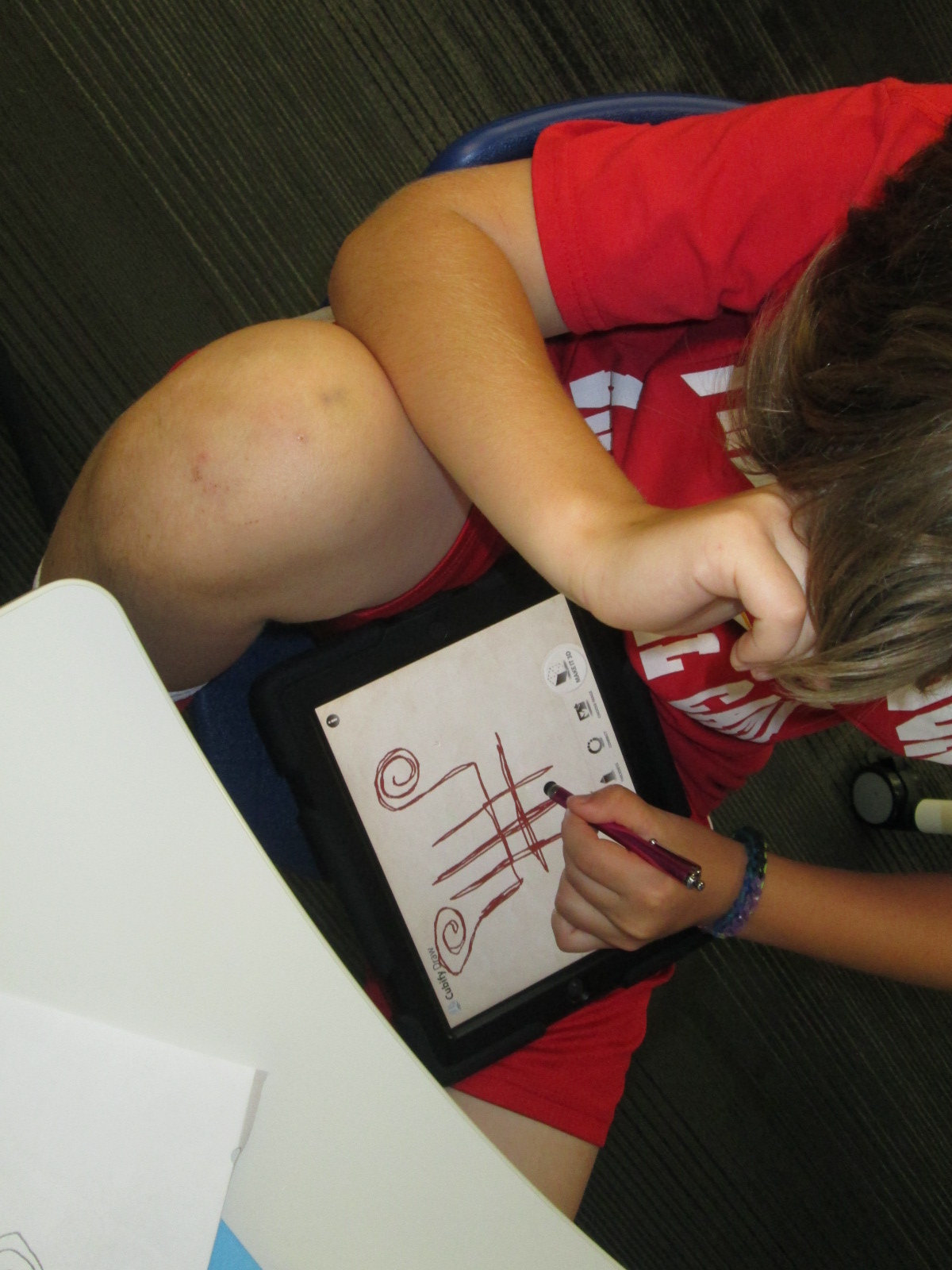
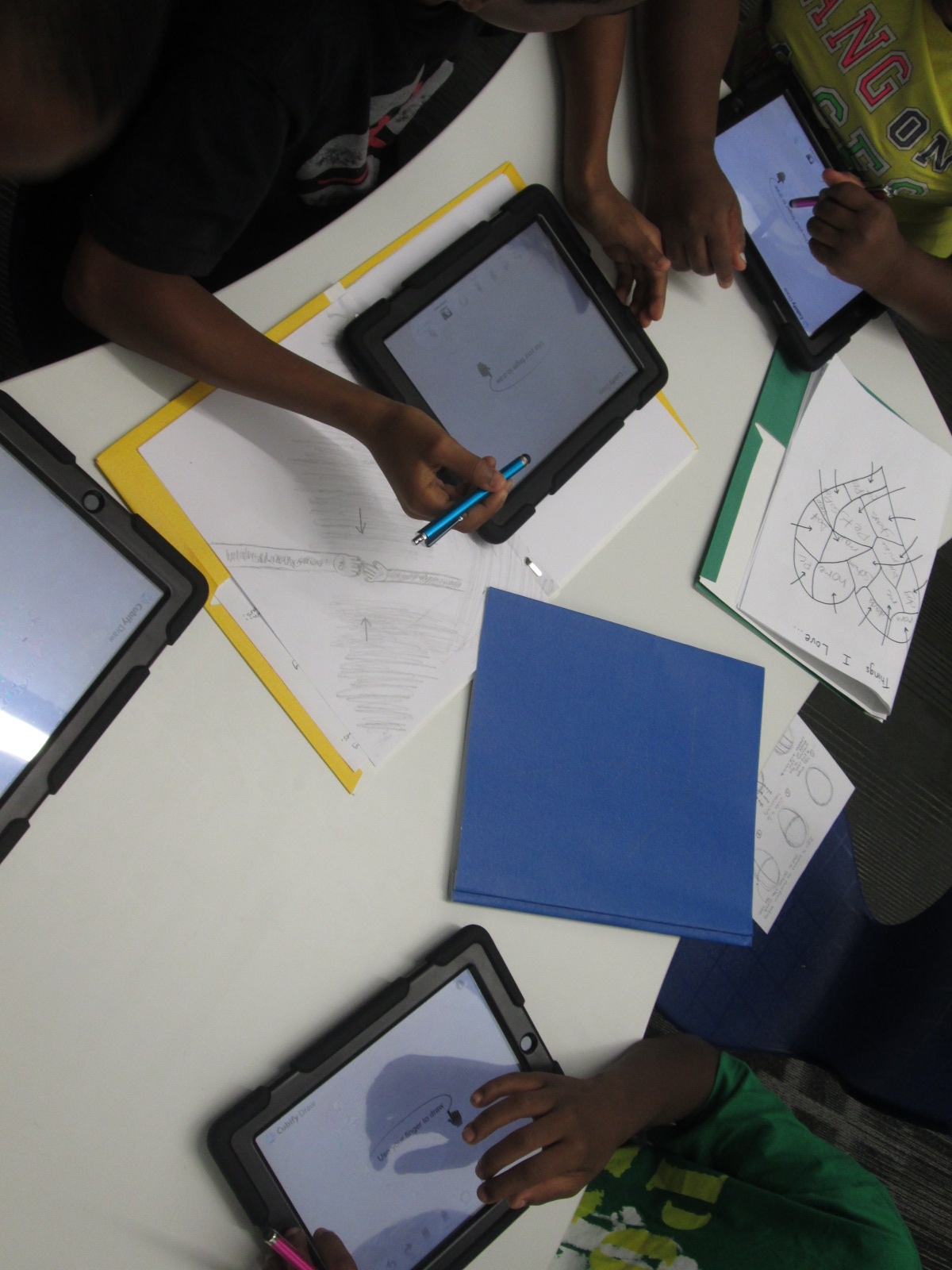
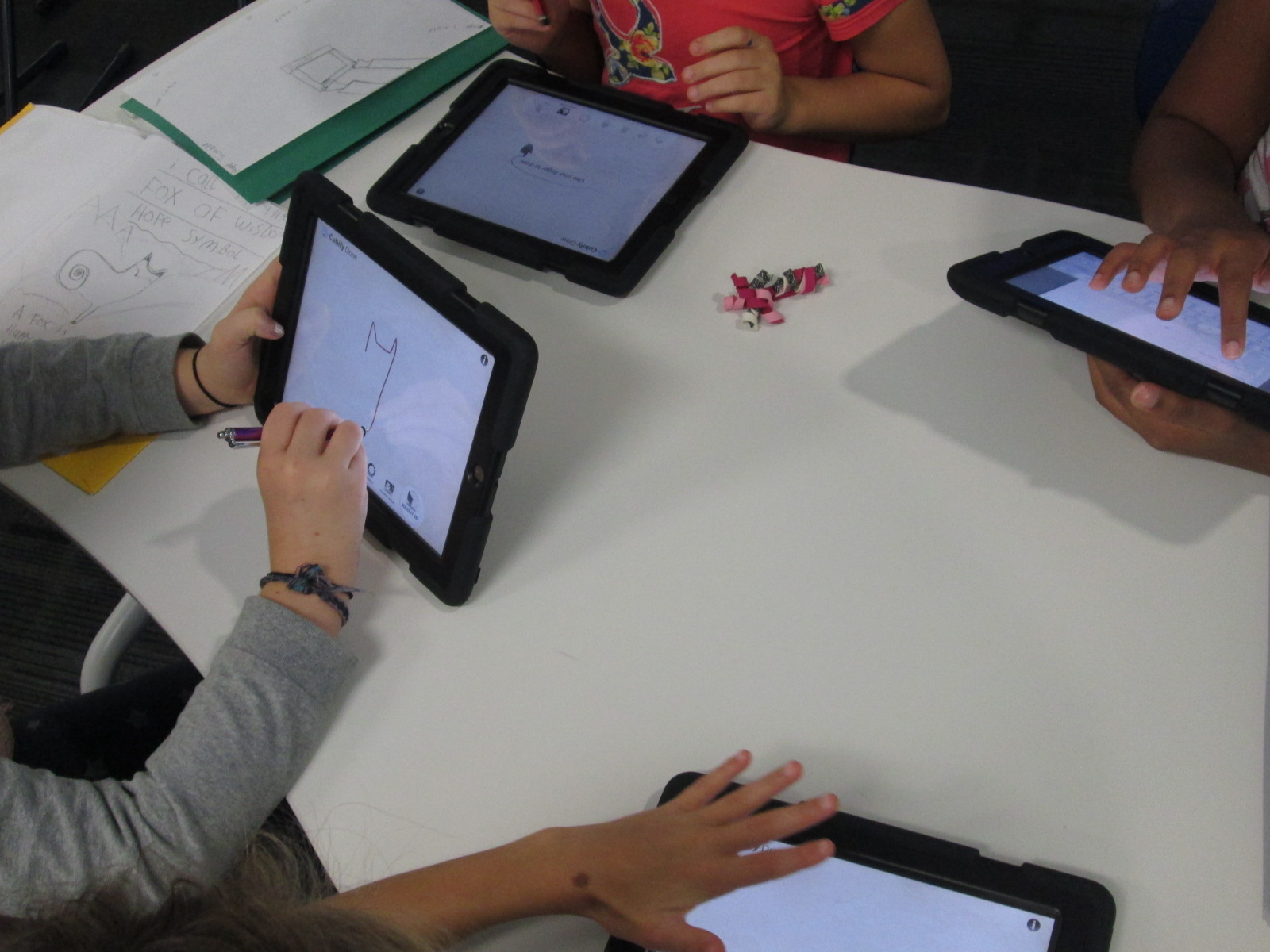
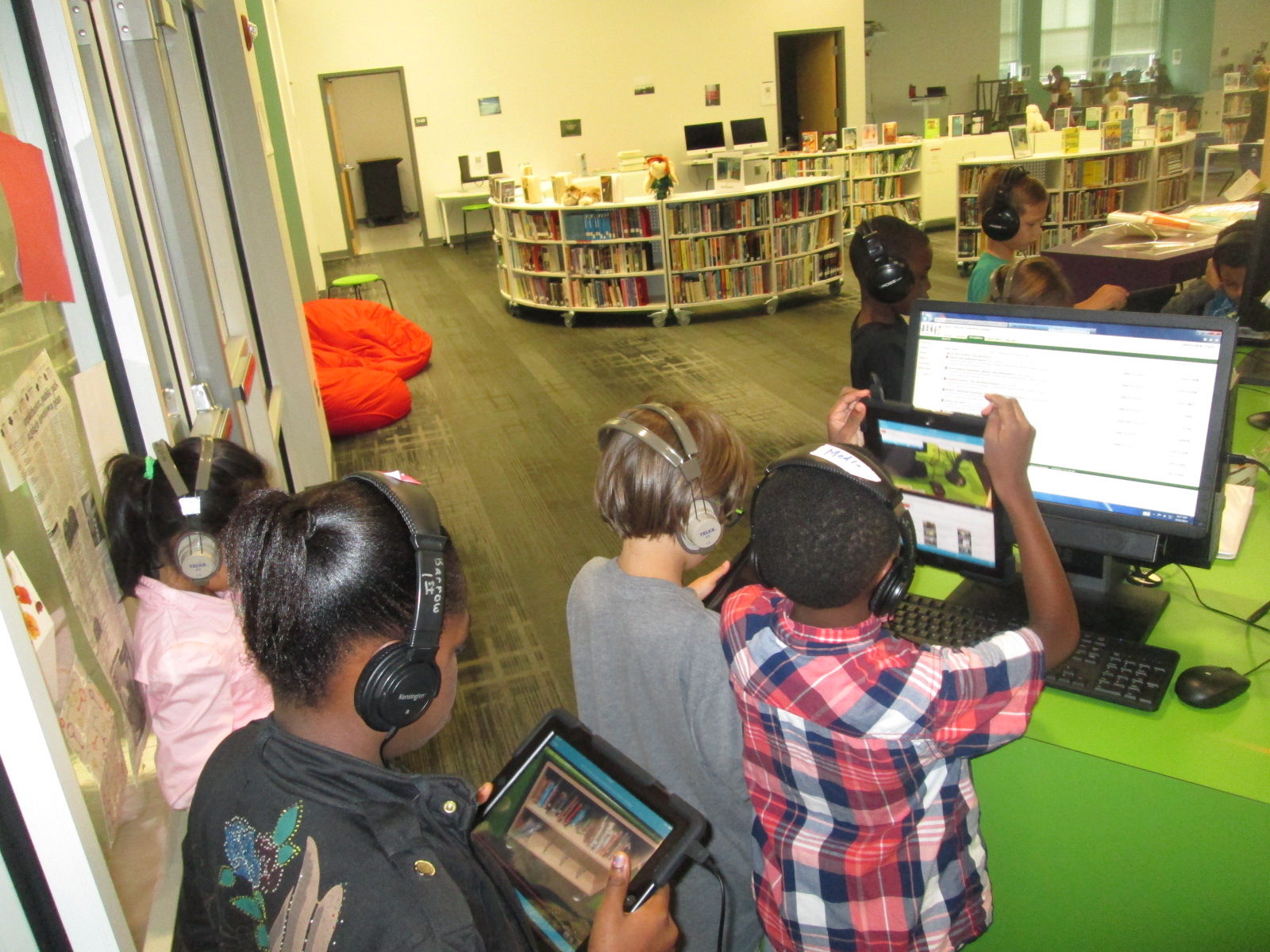
With me, students are using an iPad app called Cubify Draw which is designed by 3D Systems.  The app is very simple to use.  With your finger or a stylus, you draw one continuous line to create pretty much anything you can dream up.  You can adjust the thickness of the line and then touch “make 3d”.  The shape automatically turns 3D and you can adjust the height and thickness.  Once your design is ready, you can email the file to a central location to prep for 3D printing.
native american stamps (10)

For the lesson in the library, I gave a very brief intro to the app and shared some tips that I discovered through my own tinkering.  Big open swirls seem to print better than lines that are close together.  The shortest height and thickest line tends to print best.
native american stamps (4)

Mrs. Foretich, our art teacher, passed out the paper designs students made in art and gave students another opportunity to make adjustments to their designs and practice tracing the design with their finger.  I passed out iPads and the tinkering began.  Most students made several designs until they got the design just the way they wanted it.  Mrs. Foretich and I walked around and conferenced with students about adjustments they might need to make to their designs as well as helped troubleshoot problems.  Students emailed their designs to me with their teacher name and first name in the subject line.

native american stamps (5)

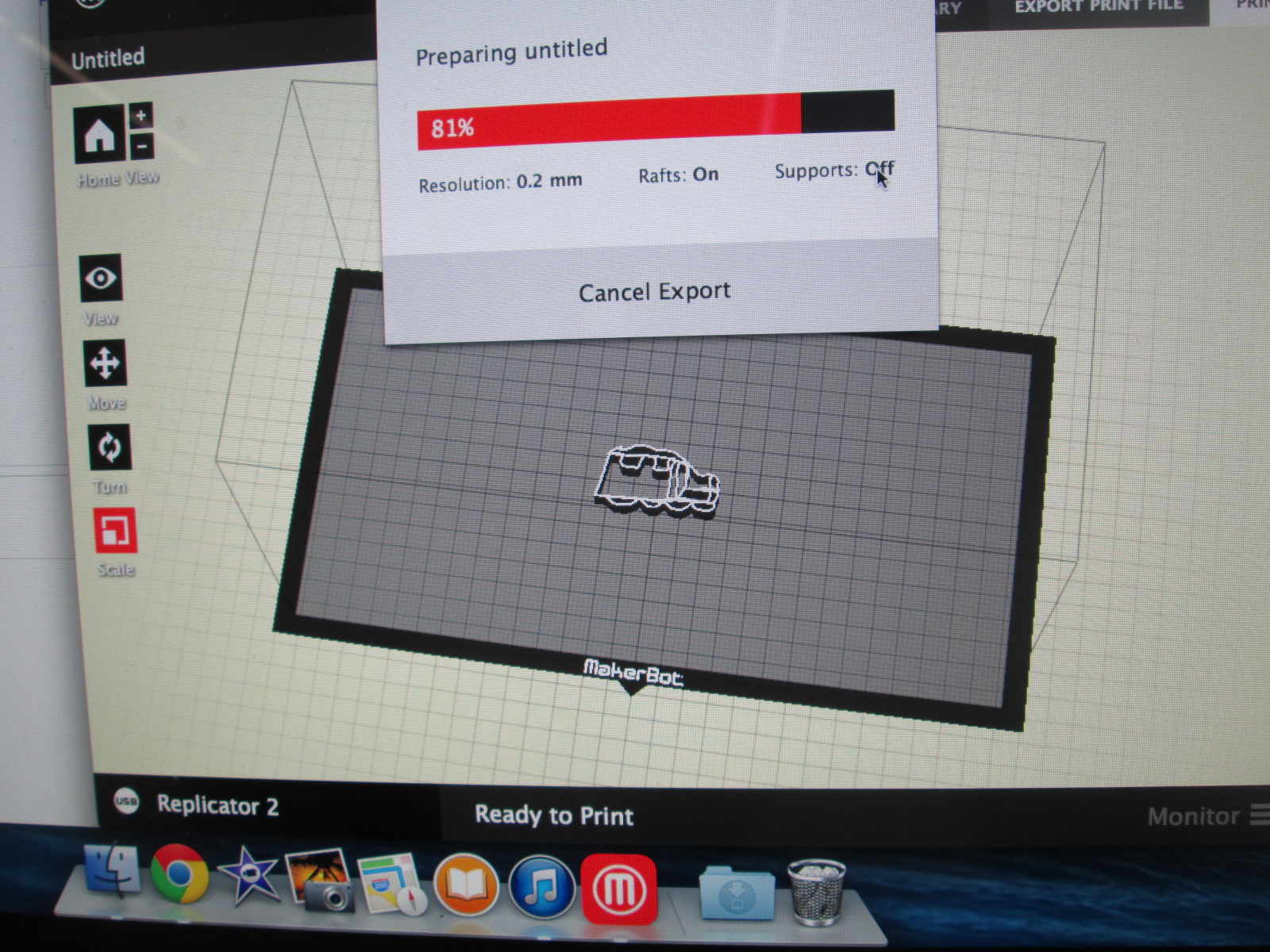
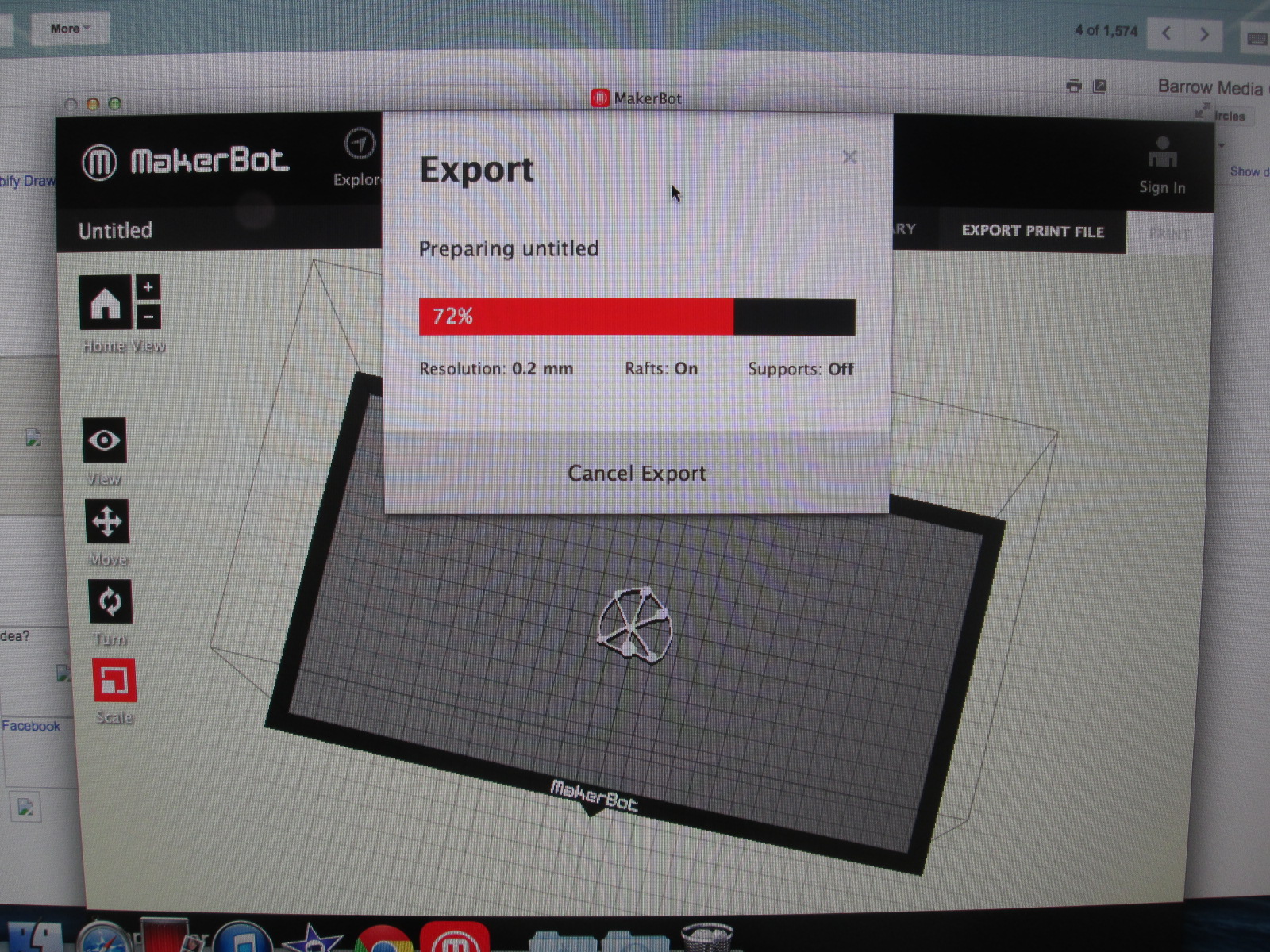
We are doing this lesson with the entire 4th grade, so that makes for roughly 60 designs.  Each design has to be imported into Makerware, reduced in size, and exported as a file for our Makerbot Replicator.  These files are being placed onto SD cards.  To speed up the file prep progress I used multiple computers and multiple SD cards.

native american stamps (12) native american stamps (11)

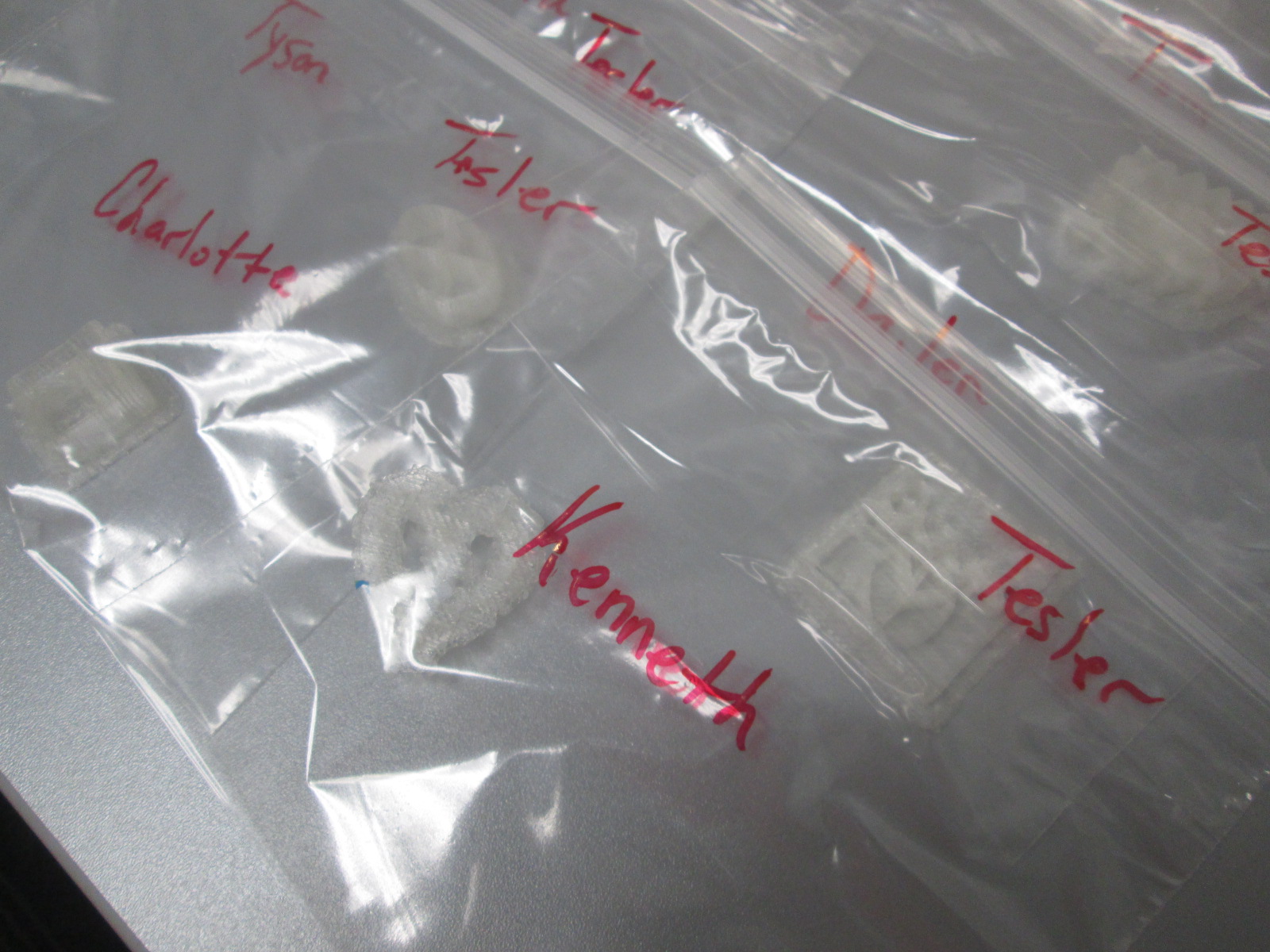
Then, the printing began.  Print after print is now running in the library.  It took about a day and half to print the first class batch.  Now I have 2 more to go.  Each student print is being placed in a ziploc bag with the student and teacher name on the bag for easy distribution.

native american stamps (14) native american stamps (13)

The next step will be for students to create a vessel out of clay in art.  They will use their 3d stamp to press designs into their vessel.  All of the vessels will hang from  the grade level dream catcher, including vessels designed by all of the teachers involved in the project.  This will serve as a symbol for the year to represent our connectedness and our common goal of working together to achieve many hopes and dreams this school year.  Our vessels and dream catcher will hold these safe throughout the year.

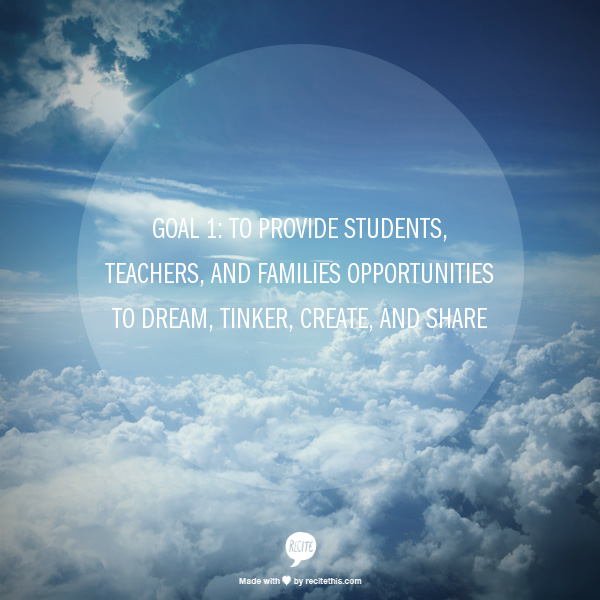
Thank you Mrs. Foretich and the 4th grade team for an incredible project for our students that allows them to dream, tinker, create, and share.


Library Orientation: Starting the Year with Failure

QR orientation (6)

Last year, I decided to try something new for my library orientation.  Rather than have students sit and listen to me go on and on about how the library works, I let them explore the library with QR codes.  I loved this change so much that I decided to try this again this year and add some new twists.

First, I thought about all of the main questions that pop up during the year about using the library and made a list.  Then, I took this list and tried to make videos that were concise and addressed one task rather than weaving in multiple topics into one video.  This included topics such as how to search in Destiny, how to check out with and without a student id, how to check in, how to use a shelf marker, how to place a hold, and where supplies are located.  I also had some pieces of the library that I wanted students to know about such as areas where participatory opportunities would be displayed and what was new in our makerspace.

I took each video, improved the sound quality in iMovie, and uploaded to Youtube.  Using Kaywa QR Code generator, I made a QR code to each video, labeled it, printed it, and put it in a sleeve to hang in the library.

When 2nd-5th grade came to the library, they entered to a rolling slideshow of our 4 library goals.

1dream

2global

3empower

4reading

I wanted our first focus to be what we hope our library is about this year.  The procedures are important because they affect the flow of the year, but the goals are what drive us every day.

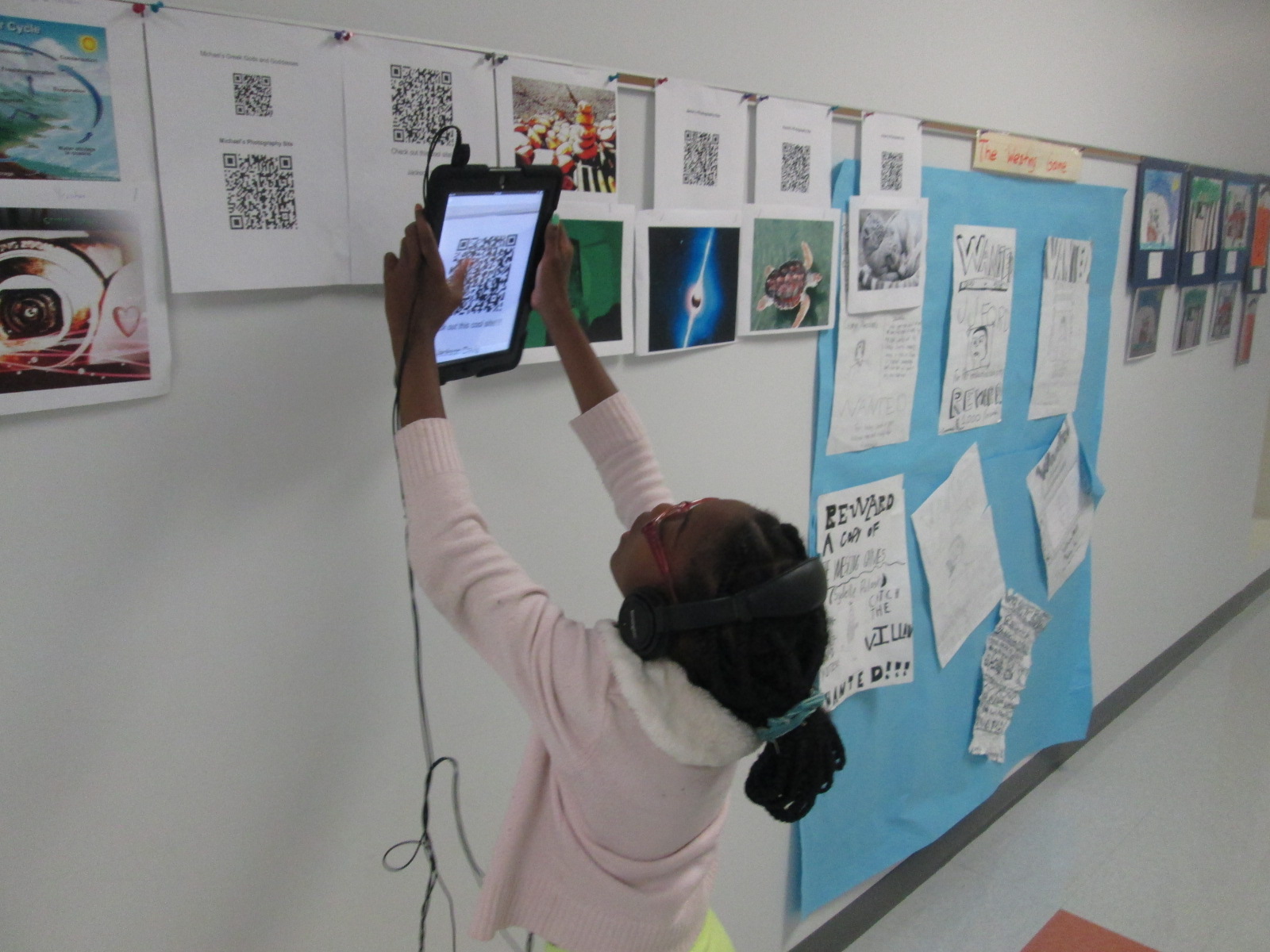
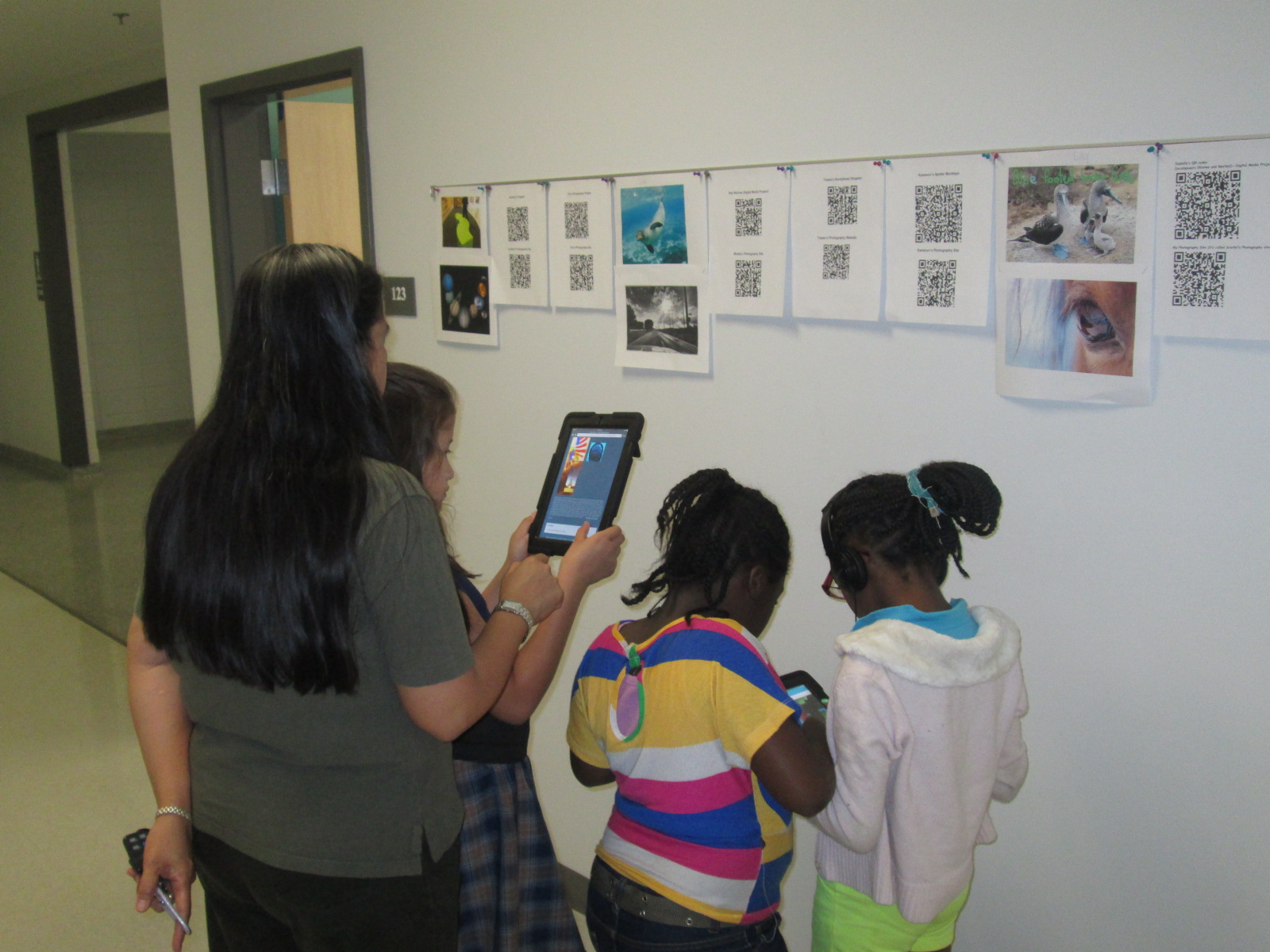
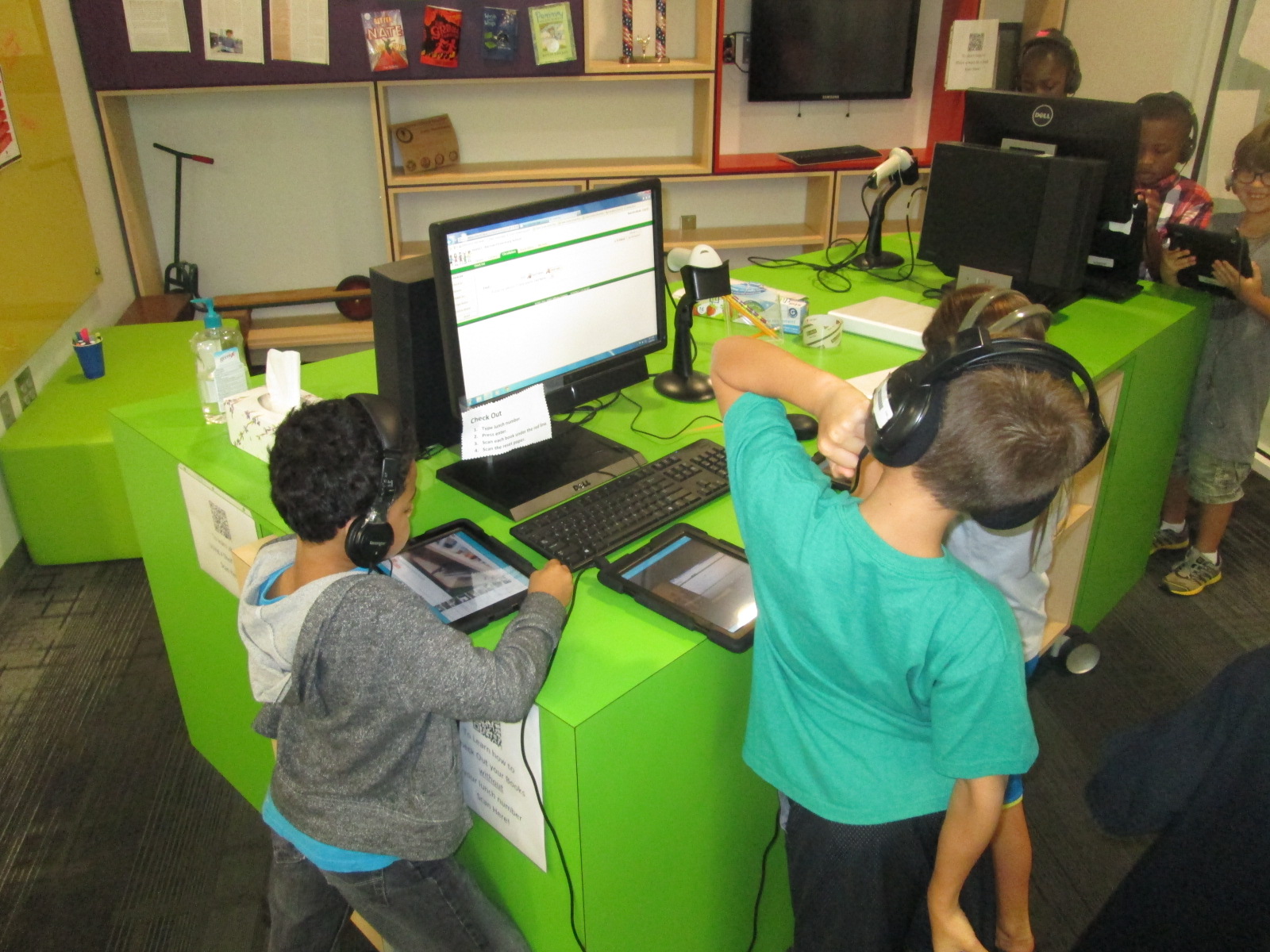
After talking about the 4 goals, I showed students how the orientation would work.  Each student would have an iPad with headphones.  Using the Layar app, students would scan each QR code and tap on the video to begin listening.  There were 4 videos that I wanted every student to review:  how to check out, how to check in, how to use Destiny, and a tour of the library sections.  I placed these 4 codes on 4 tables so that students could easily keep track of which videos they needed to watch first.  Following the 4 videos, students could scan a QR code on the project board that took them to a playlist so that they could choose any of the other videos to watch.

QR orientation (5)QR orientation (8)Once students scanned a video, I encouraged them to carry their iPad and go to that section of the library so that they could physically see the things that I was talking about in the video.  Once again, this was a wonderful experience because it allowed students to move, replay videos if needed, and actually see the library spaces rather than sit and listen.

QR orientation (4) QR orientation (2)

This worked beautifully some of the time, but here’s where the failure comes in.  On the 2nd week of school, our district implemented a new filter.  Filters can be wonderful things to protect our students, but anytime something new is implemented the bugs have to be worked out.  On day 1, every Youtube video was blocked on the iPads.  As soon as students started scanning, they got the no access screen.  Luckily, I could still access Youtube on my own computer so I decided we could just watch some of the videos on the projector.  Then, the internet speed became so slow that no videos would work.  Finally, we just got in a line and did an old-fashioned tour around the library.  The coolness of the QR codes was gone, but we still accomplished learning about the library.

While this experience was very frustrating, it allowed me to model what it means to not give up, to persevere through failures, and to expect that great things will happen even when things don’t work.  Rather than bottle all of my thinking in my head, I began to share it with the kids.  I said things like, “This was an epic failure, so let me back up and rethink this” and “Why don’t we try…”.  In future lessons, I built this conversation into our mini-lesson.  I prepped the kids by sharing the failures we had already encountered and how we worked through them together.  What I started to see was kids who were being more patient and were trying different strategies when the internet was slow or a code didn’t scan rather than kids who were giving up or kids who were yelling out about something not working and asking for an adult’s help.  I was reminded of the importance of sharing that it’s ok to fail as long as you use that failure to learn what you might do differently.

QR orientation (3)

In Kindergarten and 1st grade, we used the book Awesome Dawson by Chris Gall.  I chose this book because Dawson is a “maker”.  I felt like he embodied what I hoped that all of us would consider ourselves across the course of the year.  During our reading of this book, we paused to notice how Dawson never gave up.  We pointed out his epic failures along the way and how he took those failures, backed up, and tried something new.  He never lost his cool.  Instead, he took a different path or split a huge invention into 3 smaller ones.  As we made these noticings, we made connections to our own learning and the goals that we had for this year in the library.

QR orientation (1)

Following our read aloud and/or QR code tour, we used Kahoot to review a few of the library procedures.  I chose Kahoot for a few reasons.  One was to put it in front of teachers at the very beginning of the year as an engaging tool to use with students to check for understanding.  Several teachers were eager to try it in their classrooms.  Another reason was to make the really boring topic of library procedures fun and get us all on the same page.  It worked.  Even another reason was to throw a tool at students that was new to just about all of them and once again practice our acceptance of failure.  Several students couldn’t login.  Others had games that didn’t load as fast as other i Pads.  Still others got kicked out in the middle of the game and had to log back in.  Did any of these failures stop of us from learning? No.  We used each and every barrier, glitch, and student error as a learning tool for how we will work together this year.

Now that our orientations are over. We are ready for a year of miraculous projects.  The QR codes are now hanging all over the library for students to continue to reference throughout the year as they forget how to check out or place a hold.  The videos are also being sent to all of the library volunteers so that they can also review the different ways the library works before assisting students and shelving books.

I’m sure I will make even more changes to next year’s orientation, but I love how this one set the stage for our year.


4th Grade Created an Augmented Reality Wax Museum using Layar and Multiple Digital Tools

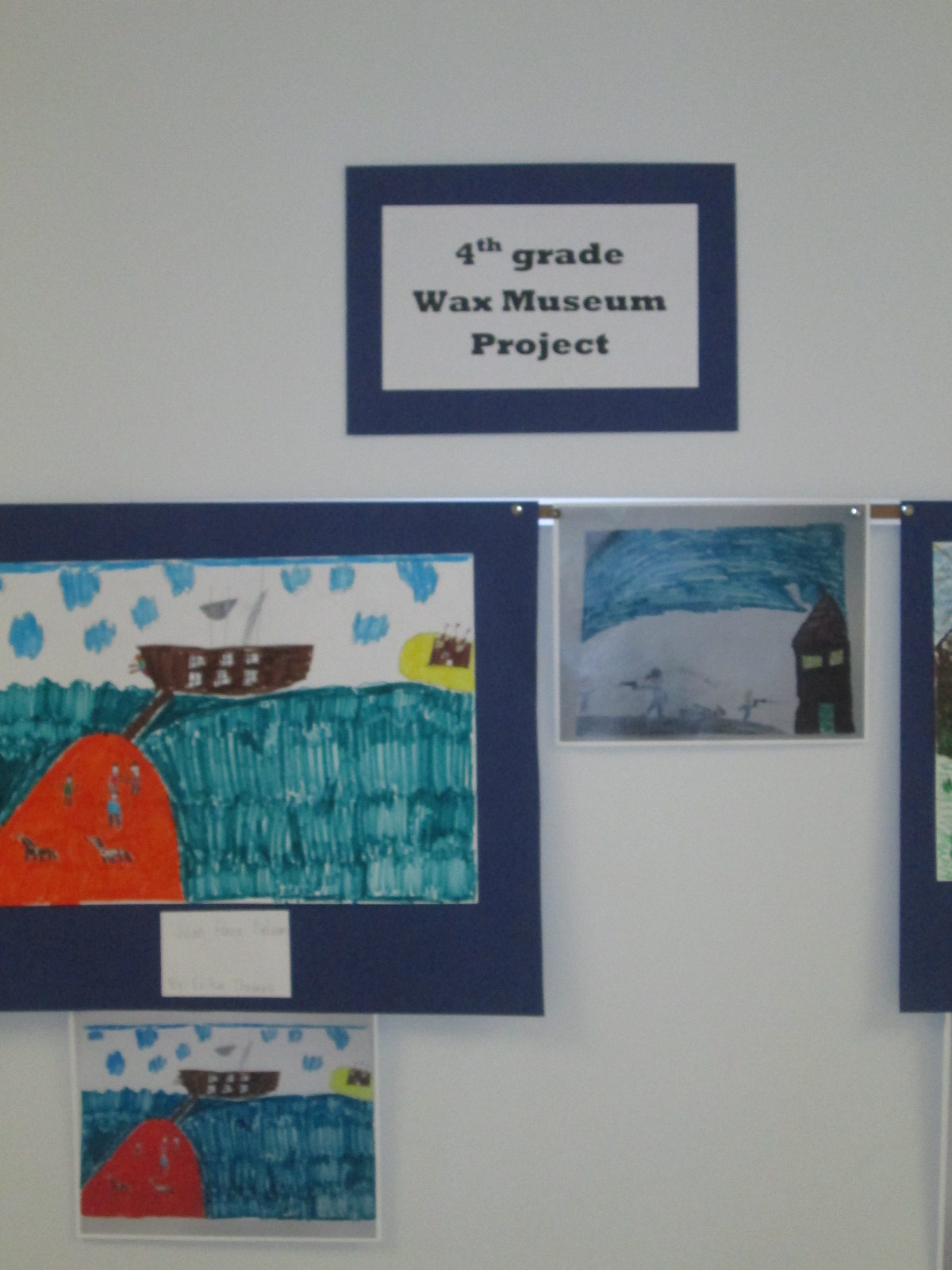
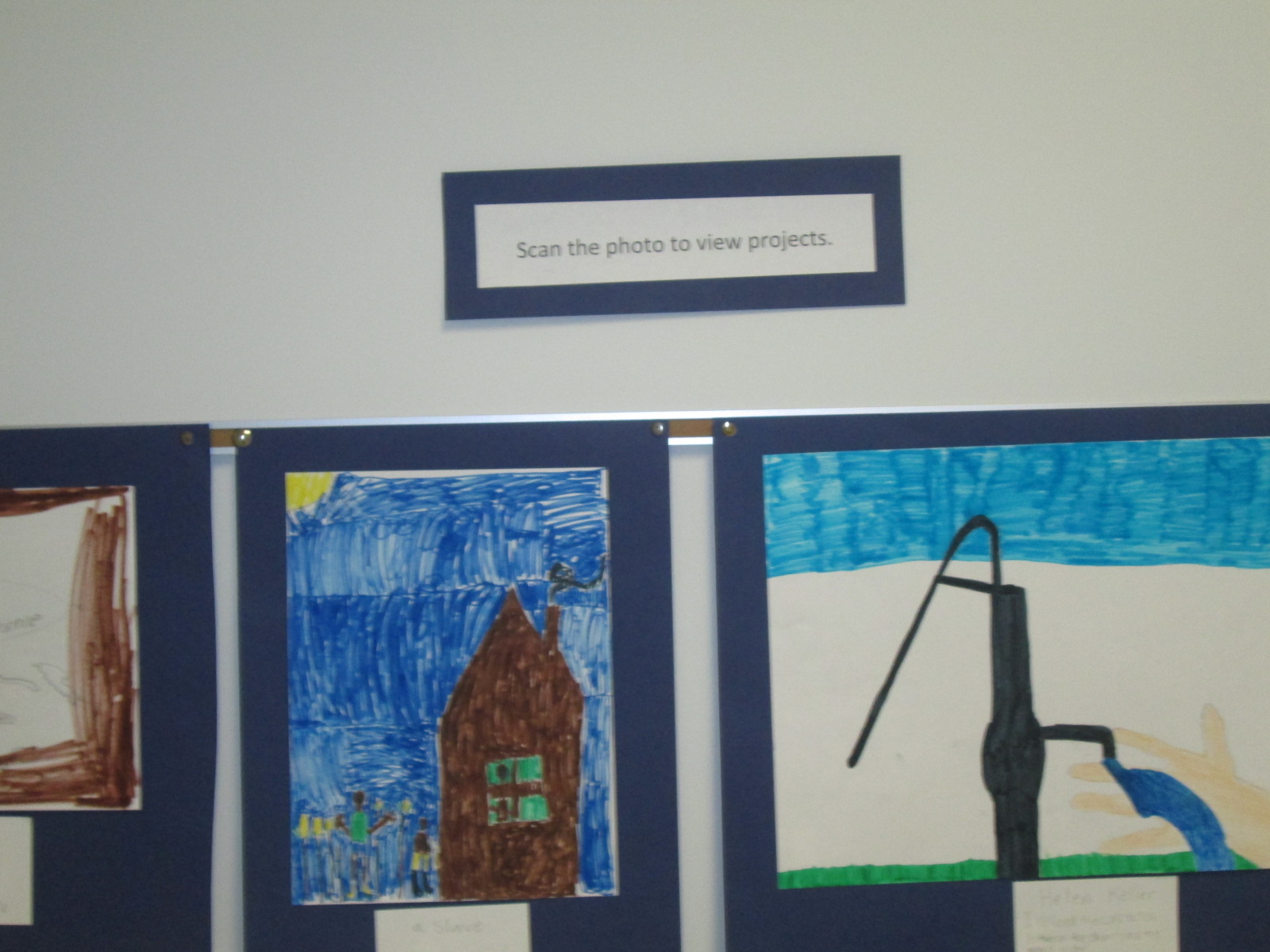
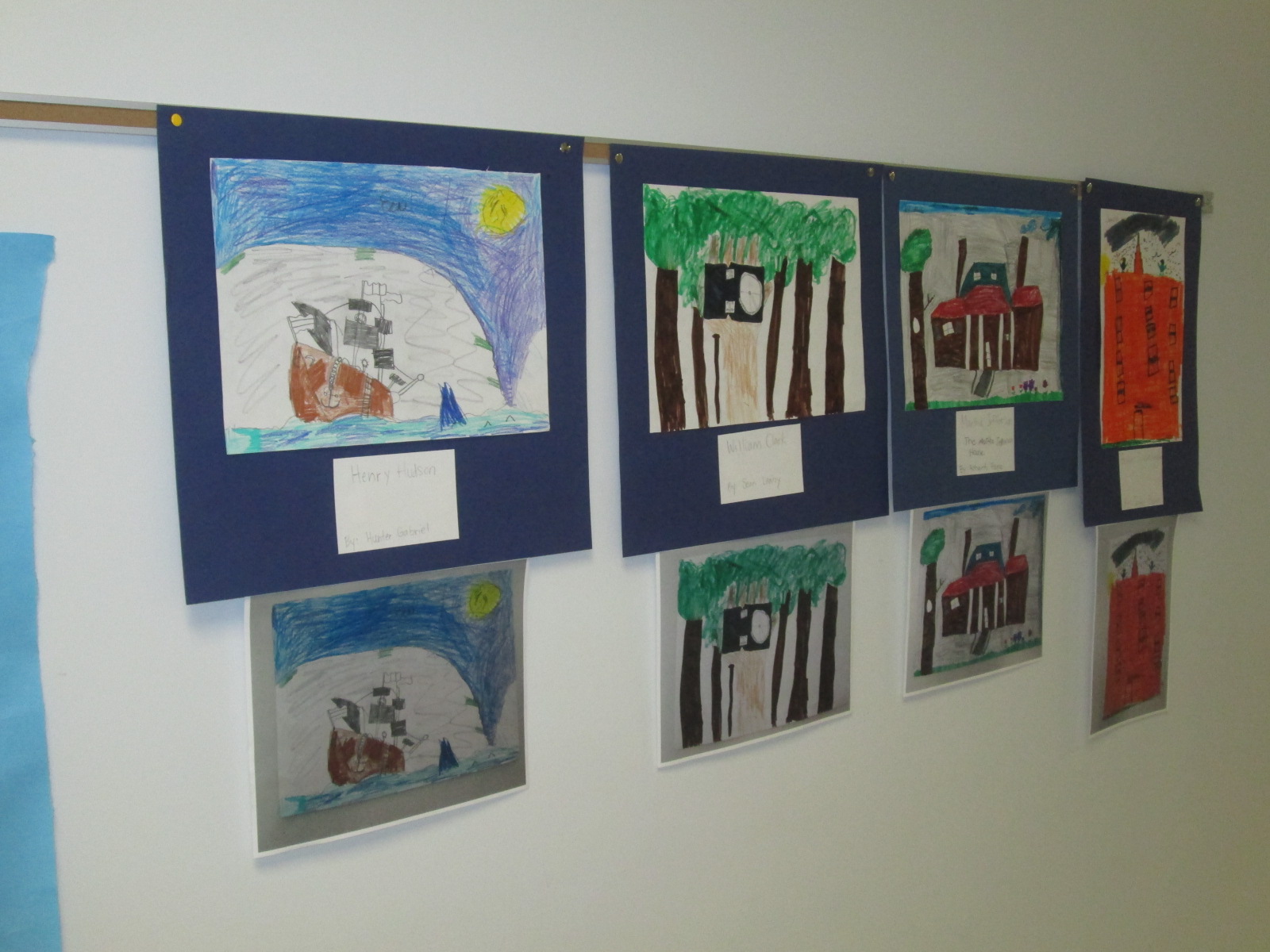
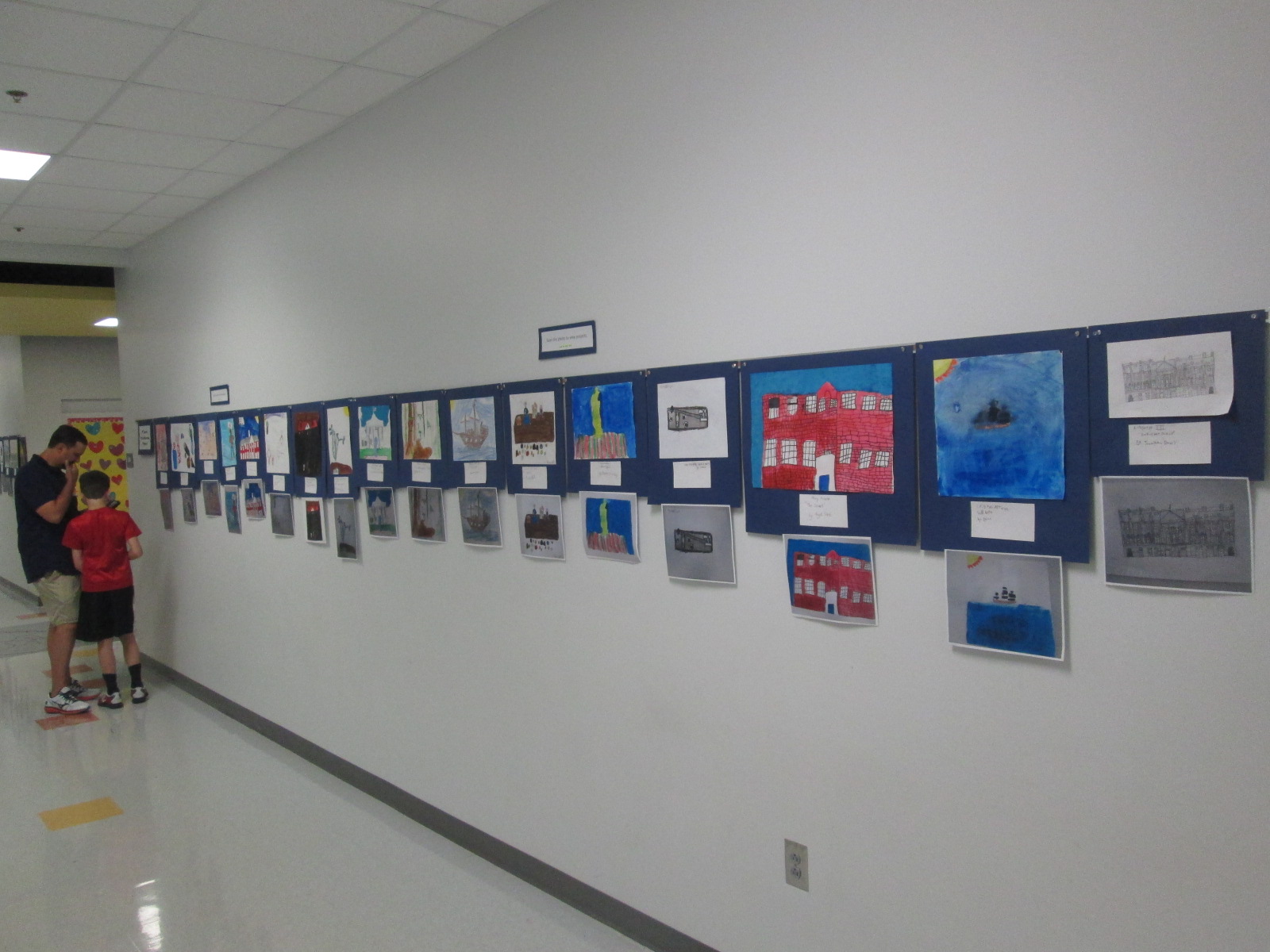
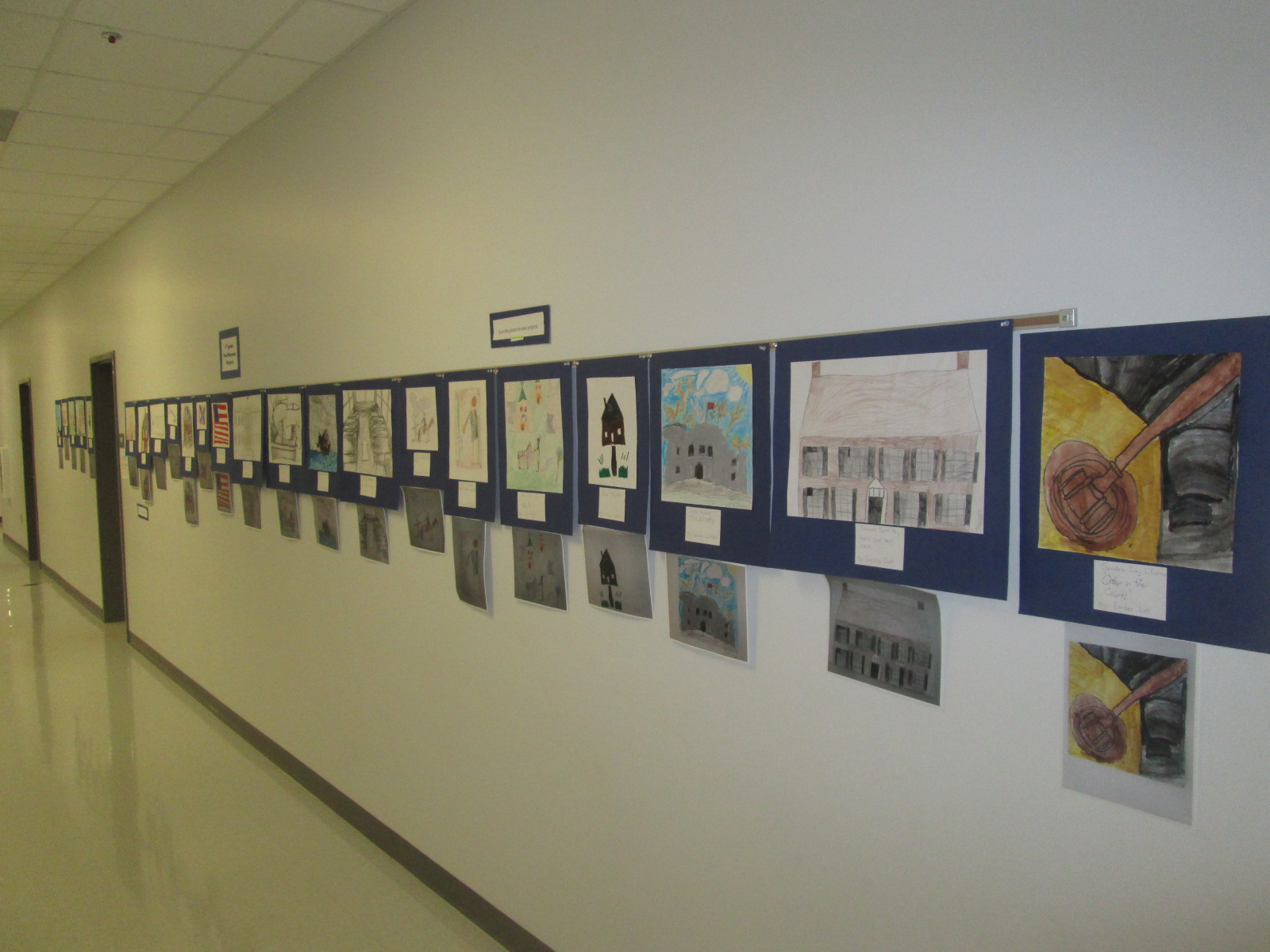
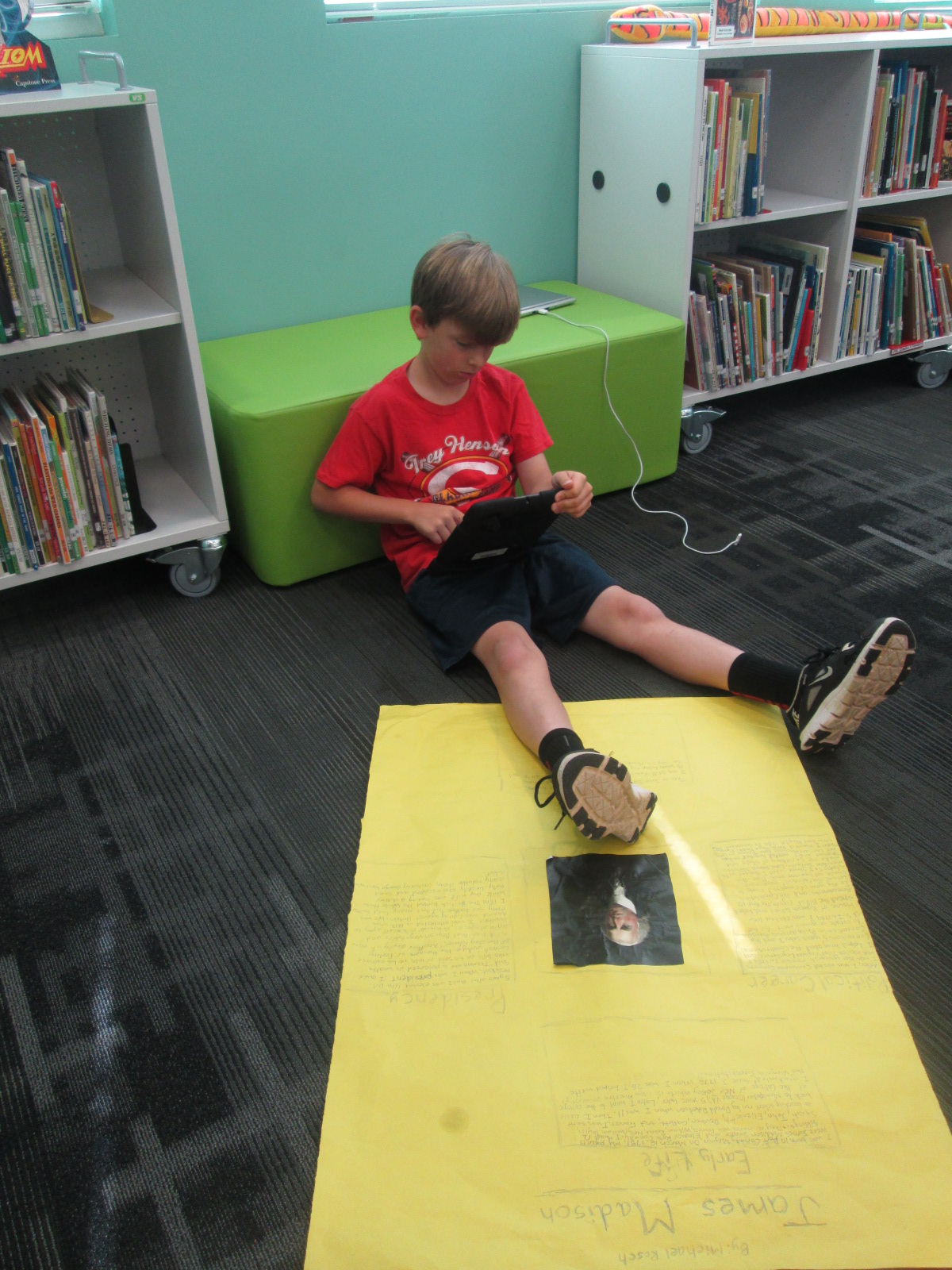
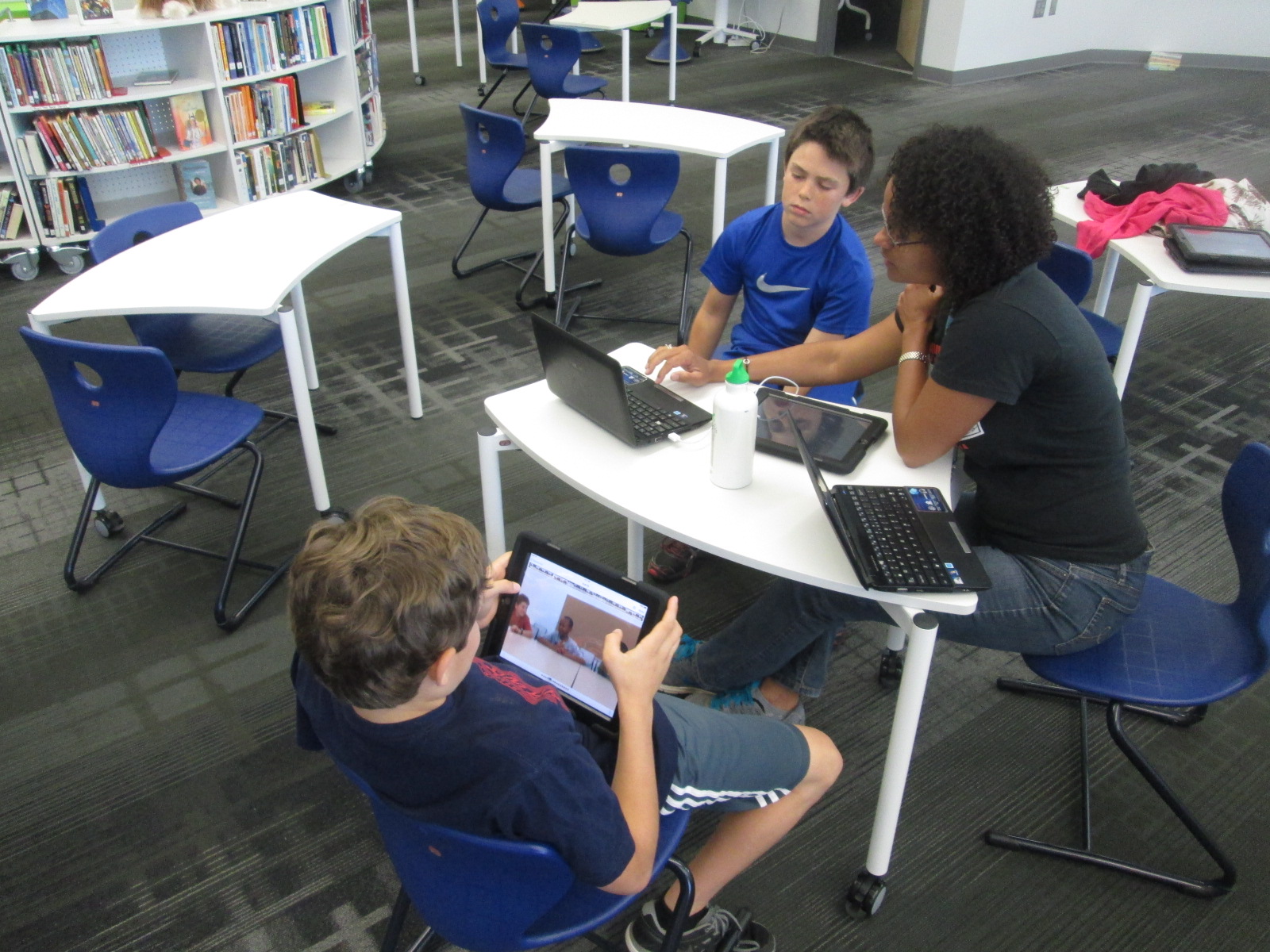
IMG_3325Each year, our 4th grade creates a wax museum for their colonial period social studies standards.  Students research a person from that time, write and memorize a script, dress as that character, stand throughout the school, and give their speech multiple times to visitors.  This year the 4th grade team and I decided to try something different.  We wanted to create a digital wax museum and expand the standards beyond the colonial period to the entire 4th grade social studies standards. This new project would use the augmented reality app, Layar, to unlock all of the digital projects that students created about their person from history.  It would also be a collaborative project between 4th grade, art, and the media center.

IMG_3320 IMG_3321 IMG_3322

Updating this project was a big undertaking, but we created a process that I think can grow and expand next year.

IMG_3323 IMG_3324

First, students came to the library and learned about the project.  I showed them various digital resources that they might use for their research including Pebble Go and our state Galileo database which includes Encyclopedia Britannica.  I showed them how they could search for websites within Destiny when they are logged in.

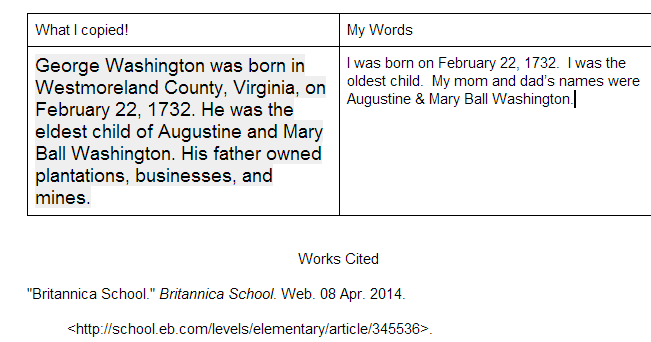
Wax Museum Research   Google Docs

Next, I showed them how they could create a double column table in a Google doc.  One side would be a space to copy and paste information from digital resources and the other side would be for putting the information into their own words.  I showed them how to use the Easybib add-on within Google docs to document where their information was coming from.  They loved this feature and so did the teachers.

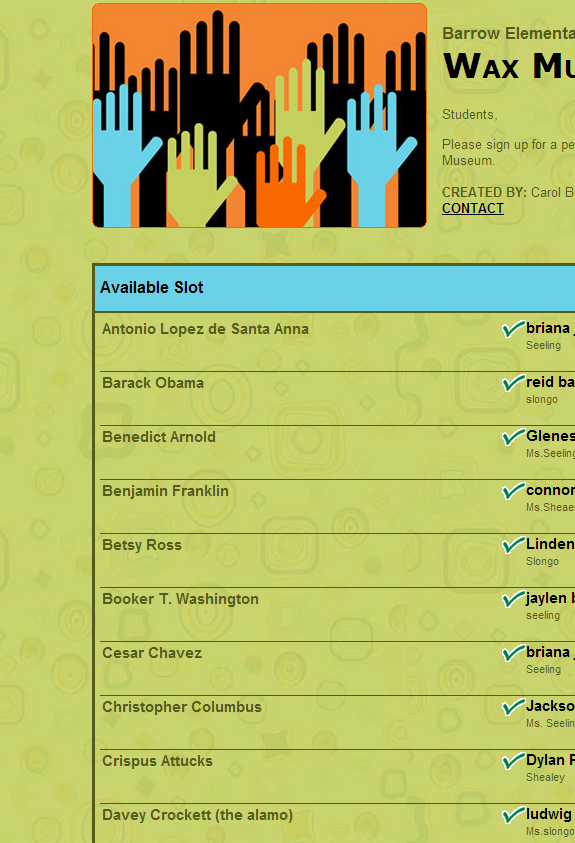
Barrow Elementary  Wax Museum   4th Grade

Finally, students used a Signup Genius to sign up for their topics.  This made topic selection fast and teachers were able to give a final approval to the person that students signed up for.

After that, students started their research.  Most used their gathered facts to write scripts for various projects.

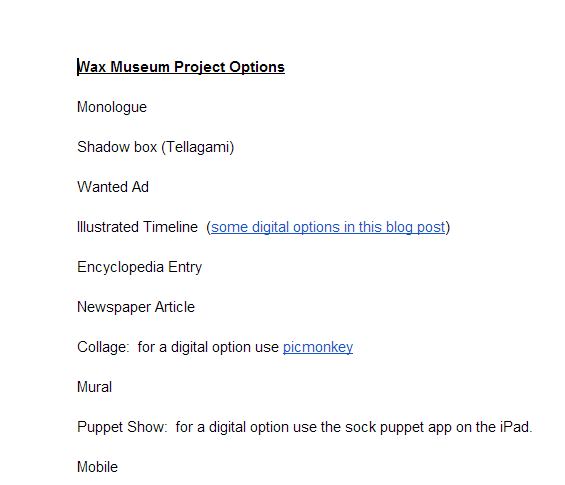
Wax Museum Project Options   Google Docs

Then, they all returned to the library to learn about their project options.  Students did not have to use technology to create their project, but they did have to use technology to document their project.  For example, if they made a physical poster, they had to use some type of technology tool to record some information about their poster using their script. Many digital tools were suggested to students, but students were welcome to find and try their own tools.  We suggested Chatterpix, Tellagami, and iMovie as main options. Students chose projects and continued working in class.

In art, students researched images of the historical events their person was involved in and created an image to serve as the trigger image for the Layar augmented reality app.  The images were created with water colors, pencils, crayons, markers, and various other tools.

IMG_3132 IMG_3133 IMG_3136 IMG_3137


As images were finished, they came to me in the library so that they could be photographed and uploaded to Layar.  I also printed each photograph so that we had a uniform size picture to scan in the hallway.  This wasn’t necessary, but it was nice to have a smaller image to scan since some were large.

IMG_3312 IMG_3306 IMG_3304 IMG_3298 IMG_3296 IMG_3295

Students made multiple kinds of projects to attach to their image in Layar.  Some chose to make gamis in Tellagami.  Because this app lets you make 30-second clips, some students chose to make multiple videos to upload to Youtube while others used iMovie to compile their videos.

https://www.youtube.com/watch?v=fQDJfBoSqdQ

Some students used Chatterpix to make a picture of their character talk.  Once again, they either created multiple files or compiled them.

https://www.youtube.com/watch?v=0VwlwdVob7w

Some students chose to do the traditional wax museum project of dressing up as your person, but this time, they filmed themselves and uploaded to Youtube.

https://www.youtube.com/watch?v=Txzcp2GTPi4


A few students created unique projects that no one else attempted.  One student used Powtoon to make a Common Craft-like video about indentured servants.

https://www.youtube.com/watch?v=LNV_qPUBGHk

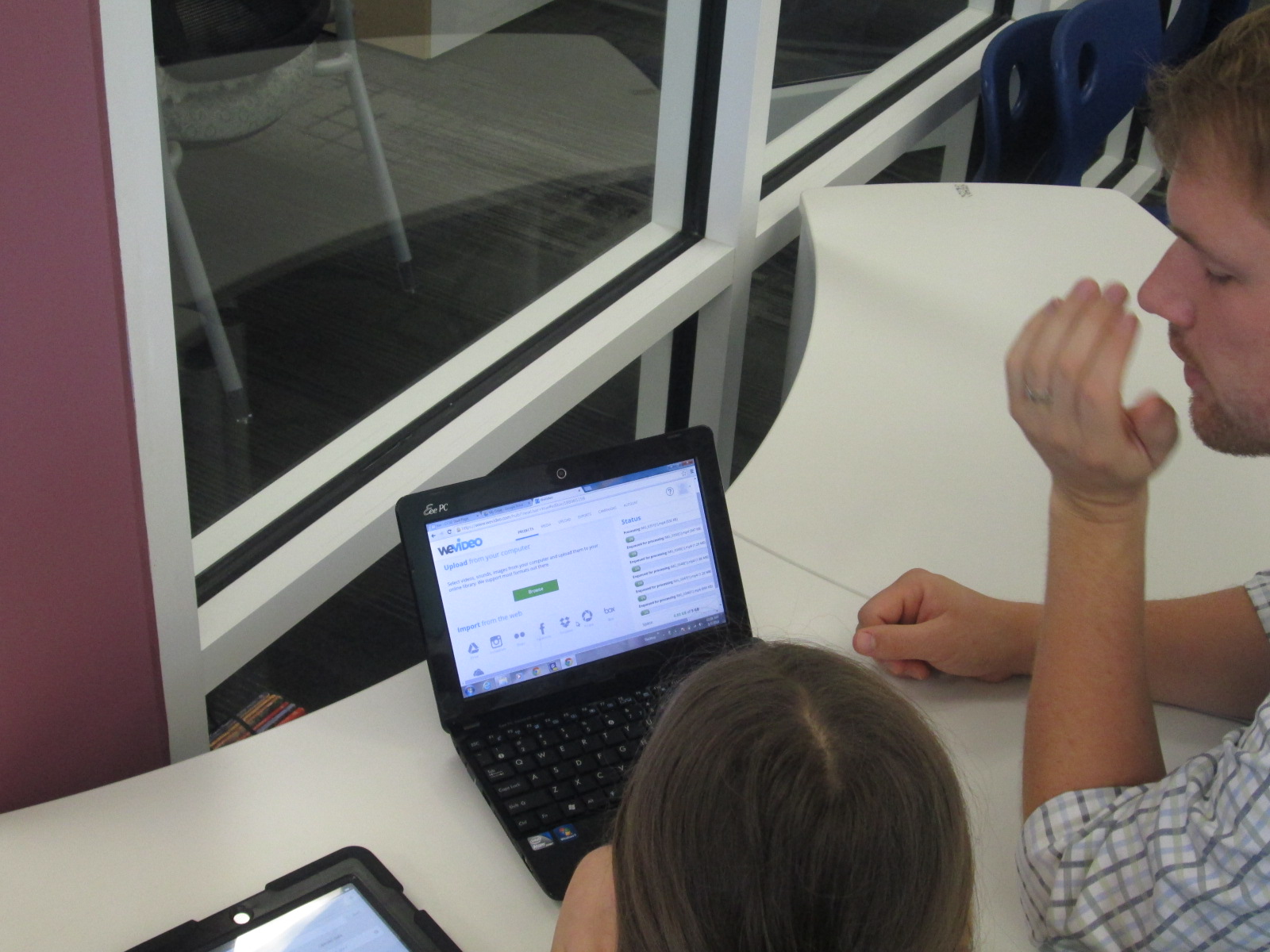
Another student wanted to do an interview, so she filmed clips of herself as a news reporter asking questions and made response videos using Chatterpix.  Then, she used WeVideo to put them together.  Because the free version of WeVideo doesn’t upload to Youtbe, we had to do a screencast of her project in order to view on the iPad.

https://www.youtube.com/watch?v=d8RNiZOJ1QY

Another student used Songify to record a rap song about Martin Luther King.  We converted his file in Any Video Converter and put it into iMovie so that it could be uploaded to Youtube.

https://www.youtube.com/watch?v=bKSLwheRgtI


Once students had a video or link to their project, they emailed it to me to upload to Layar.  They could have done the uploading to Layar themselves but we wanted to test most of the Layar pages before we put them in the hall.  Many people helped students with the creation and uploading of their projects.  Many thanks to the 4th grade teachers, our grad assistant Carol Buller-McGee, our instructional tech specialist Todd Hollett, gifted teacher Heather Carlson, special ed teacher Haley Beaver, an EIP teacher Lee Rogers for assisting me with getting students videos uploaded and emailed.

IMG_3307

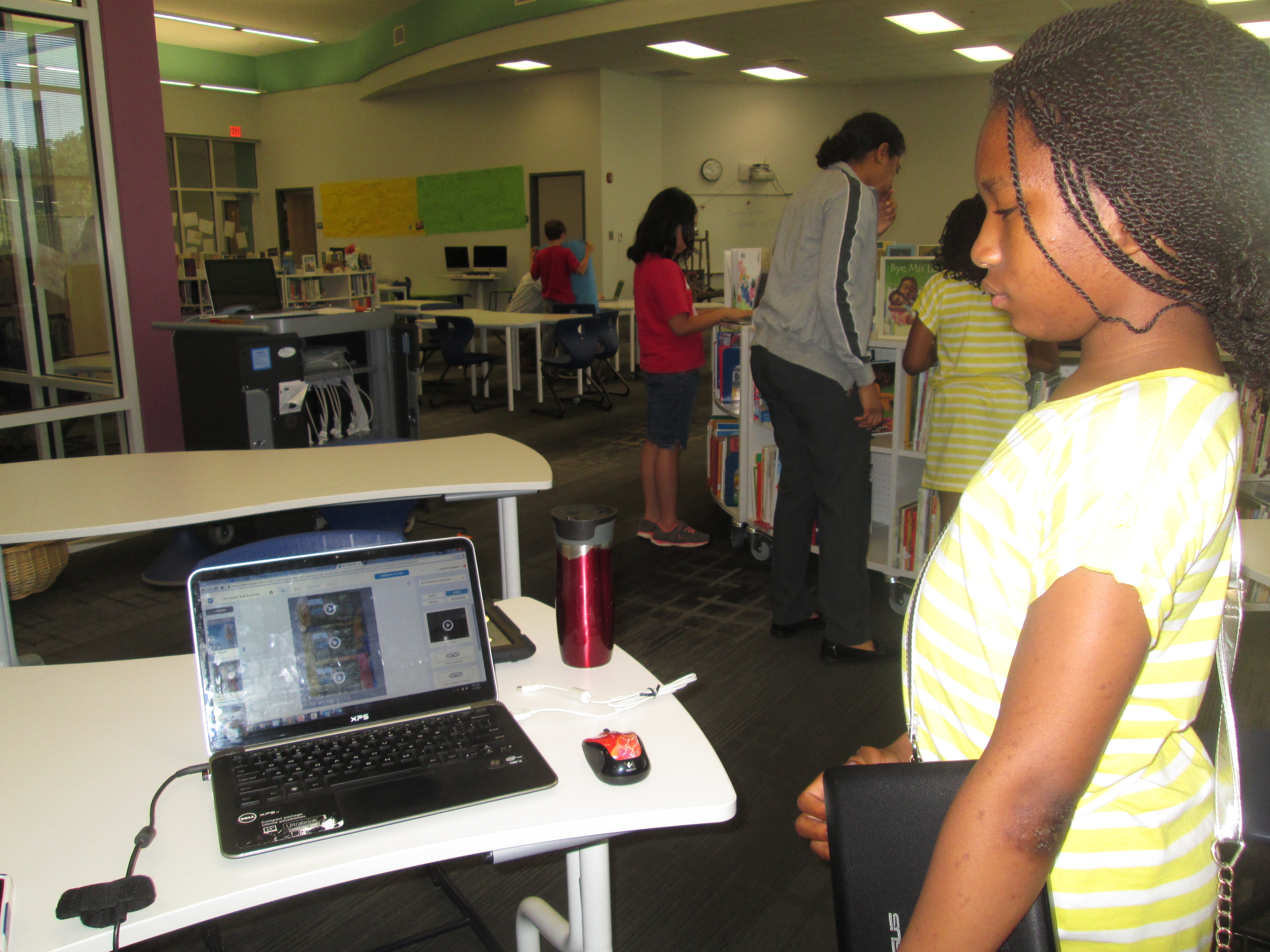
Students worked with me to connect their links in Layar, put them in right spots on the image, and test them out.  I went ahead and published our “campaign” in the Layer creator.  You have to “publish” before the images will work when they are scanned.  You can still add pages and links even after you have published.

Barrow 4th Grade Wax Museum 2014   Smore

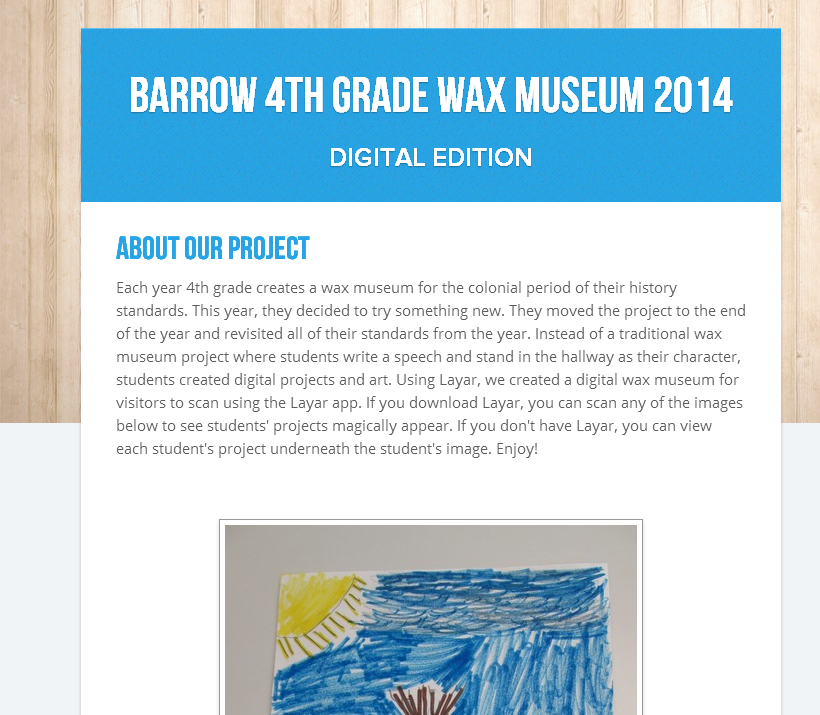
We also uploaded all of the content to a Smore page so that families (and the world) could view the projects from home without Layar.

IMG_3327 IMG_3328 IMG_3335

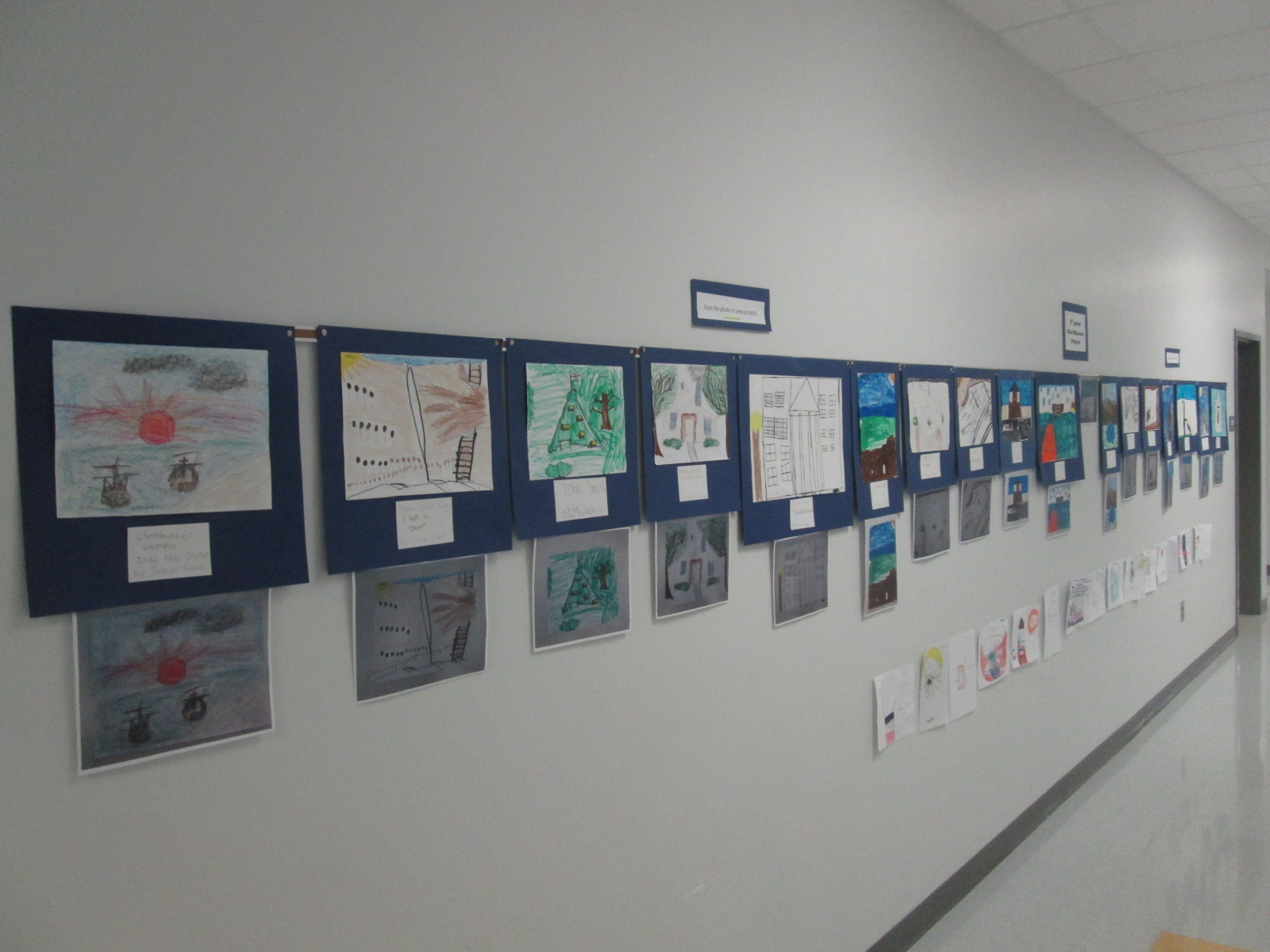
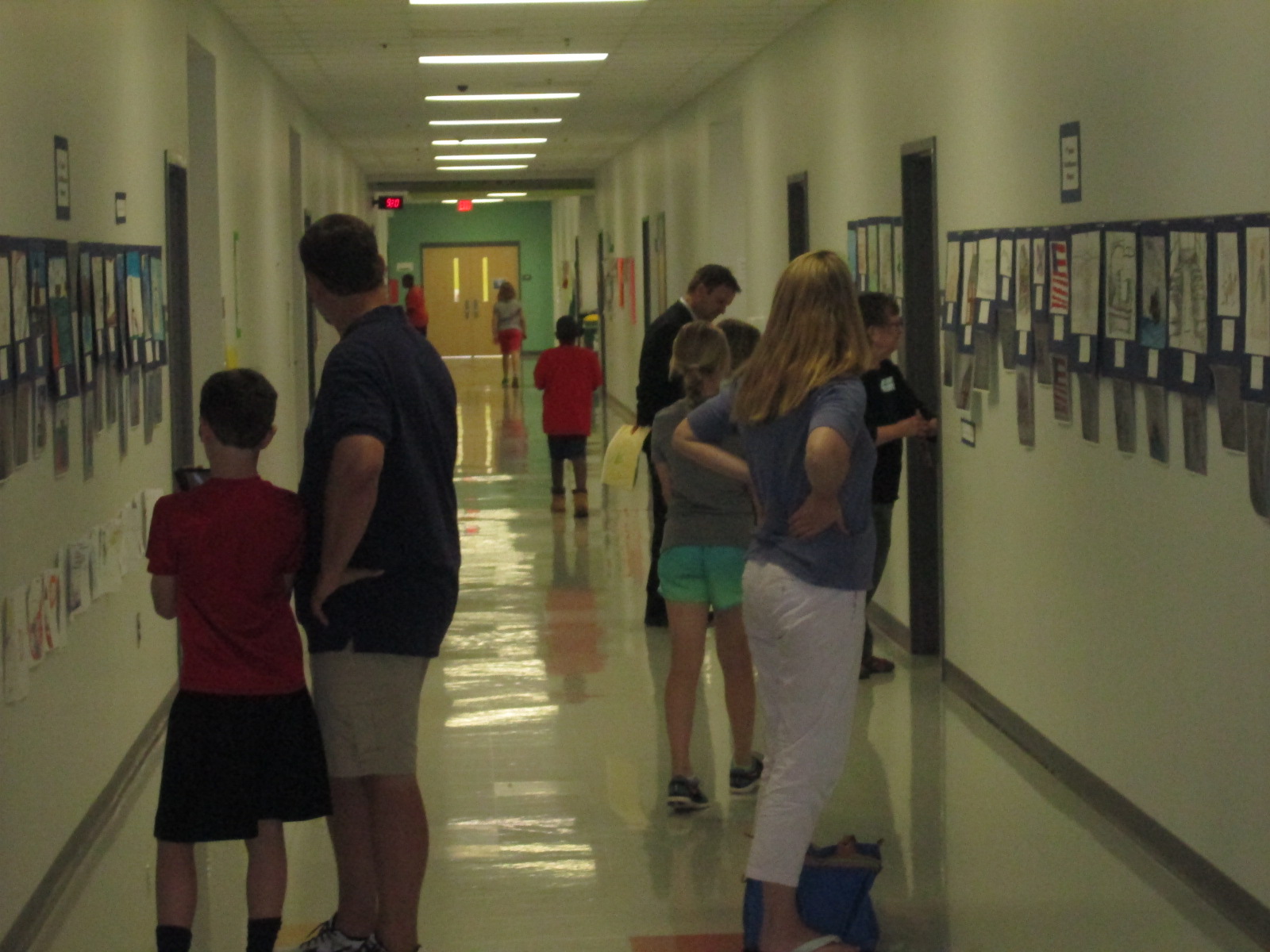
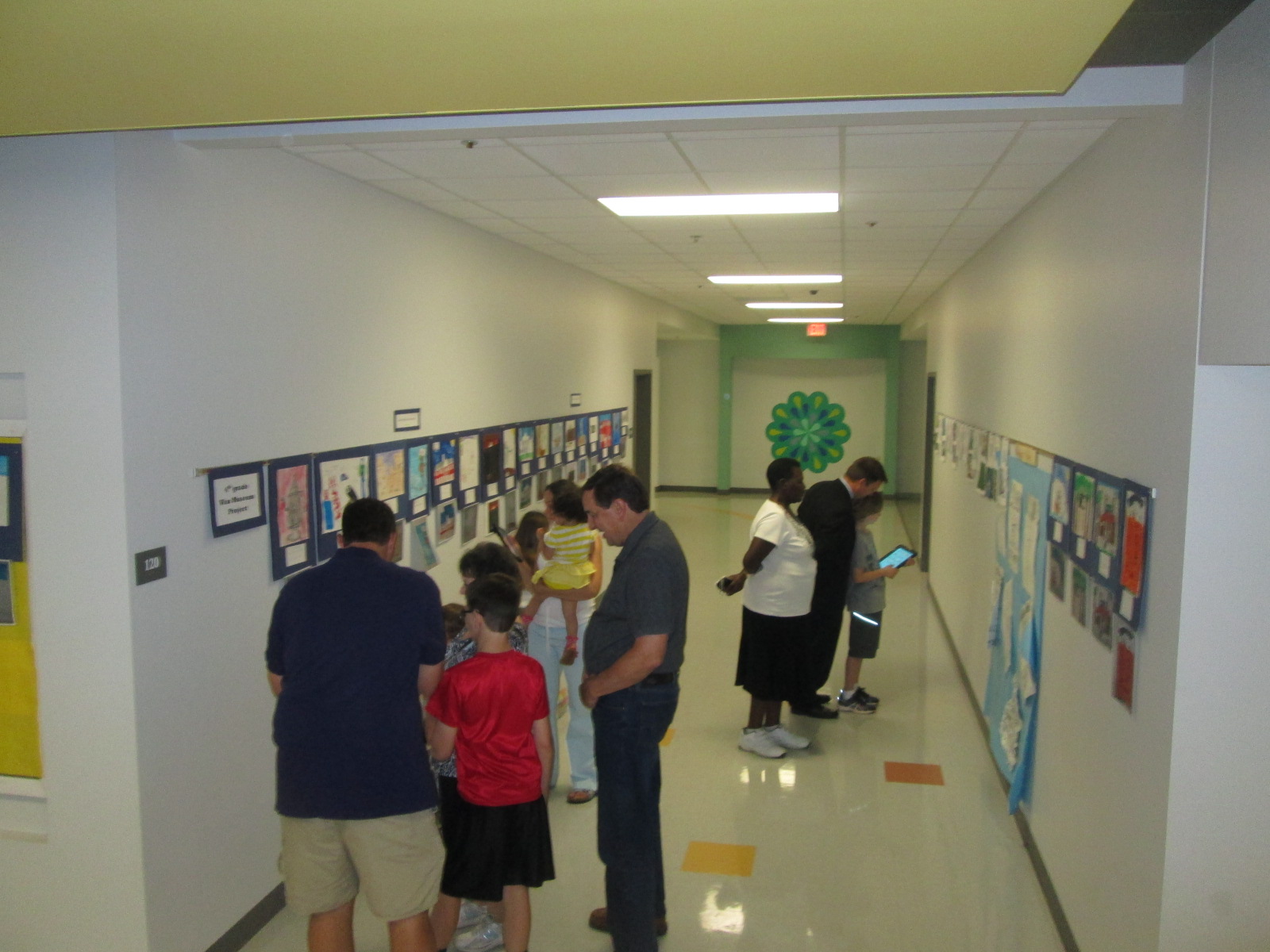
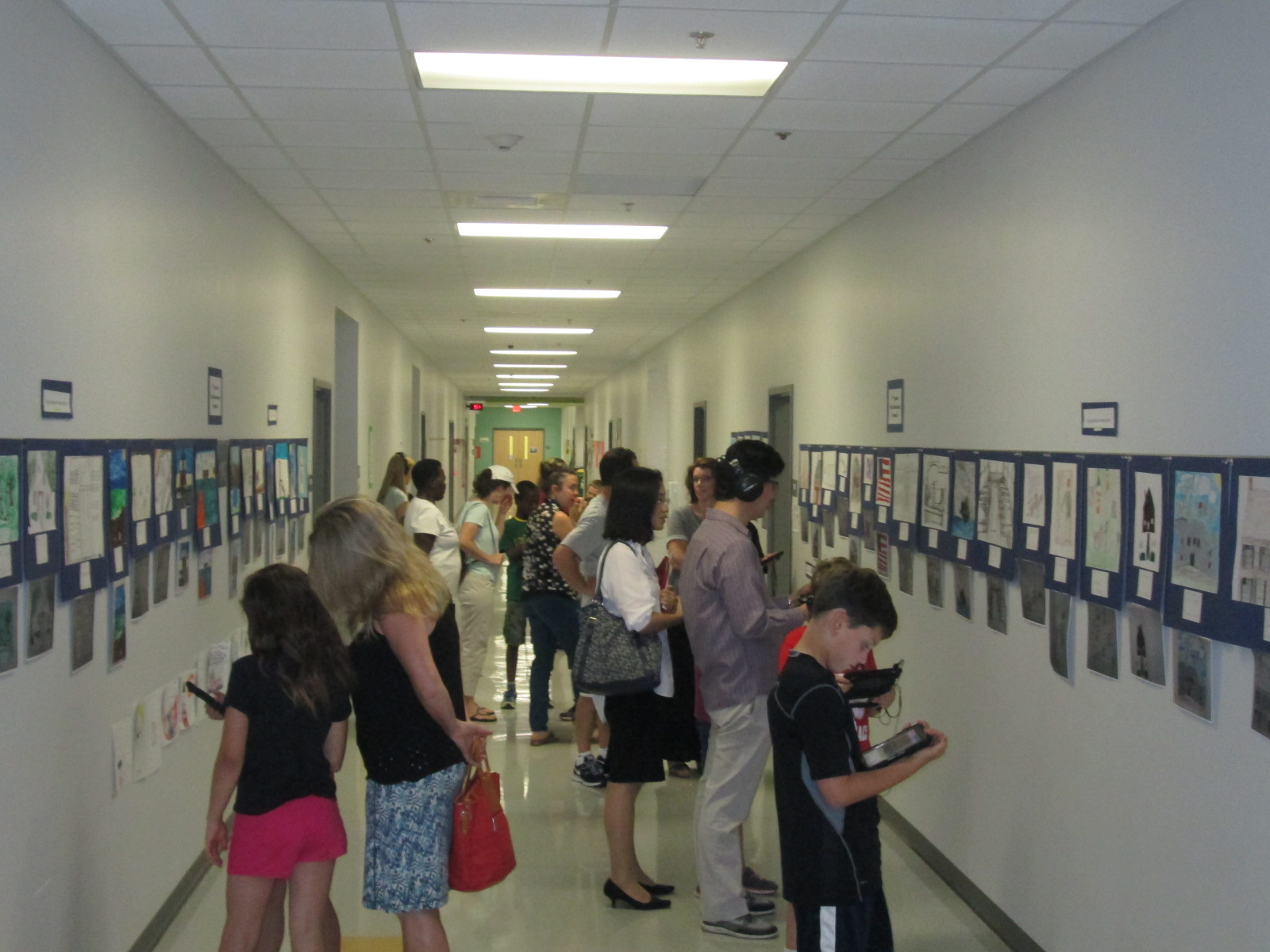
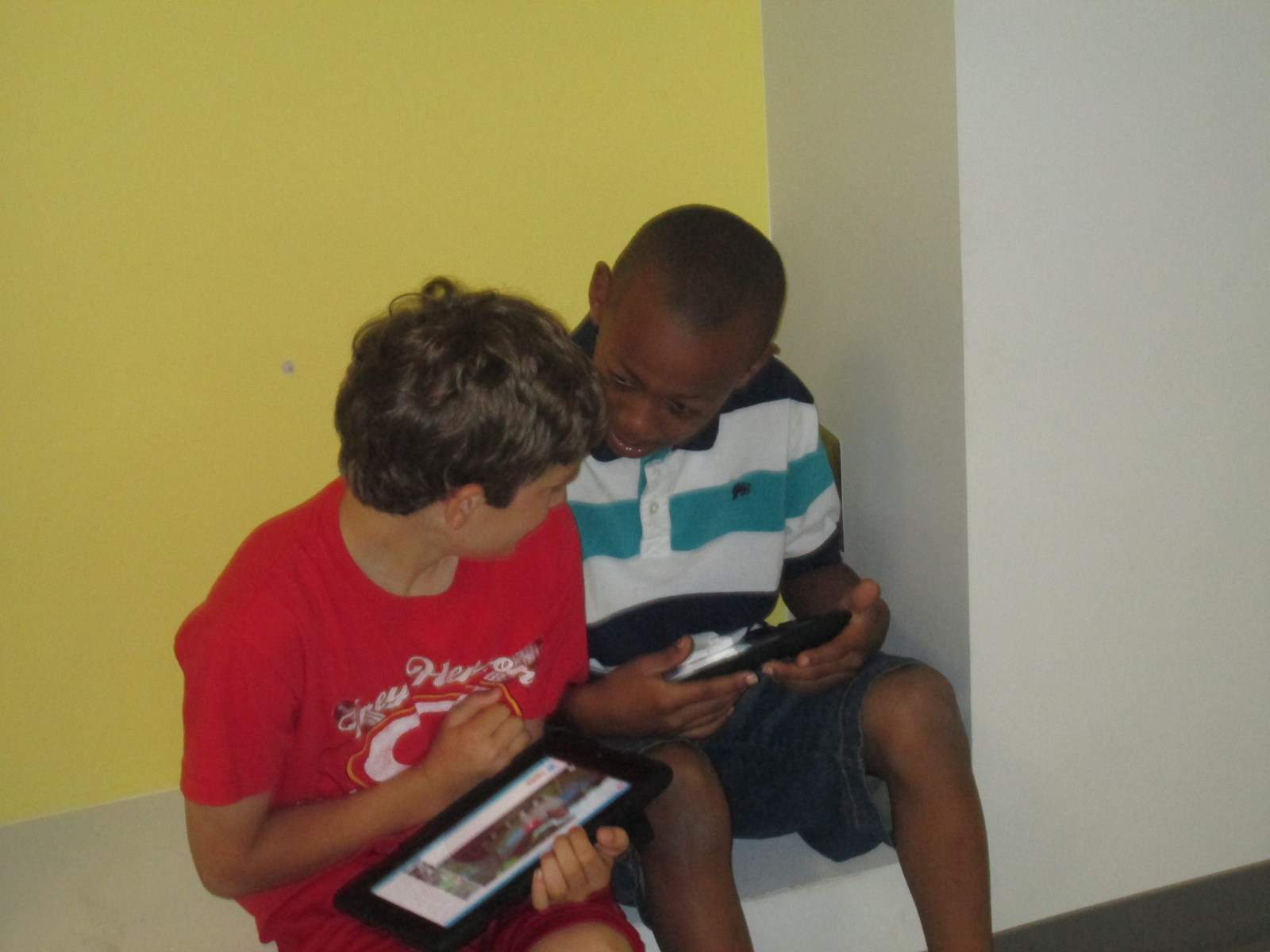
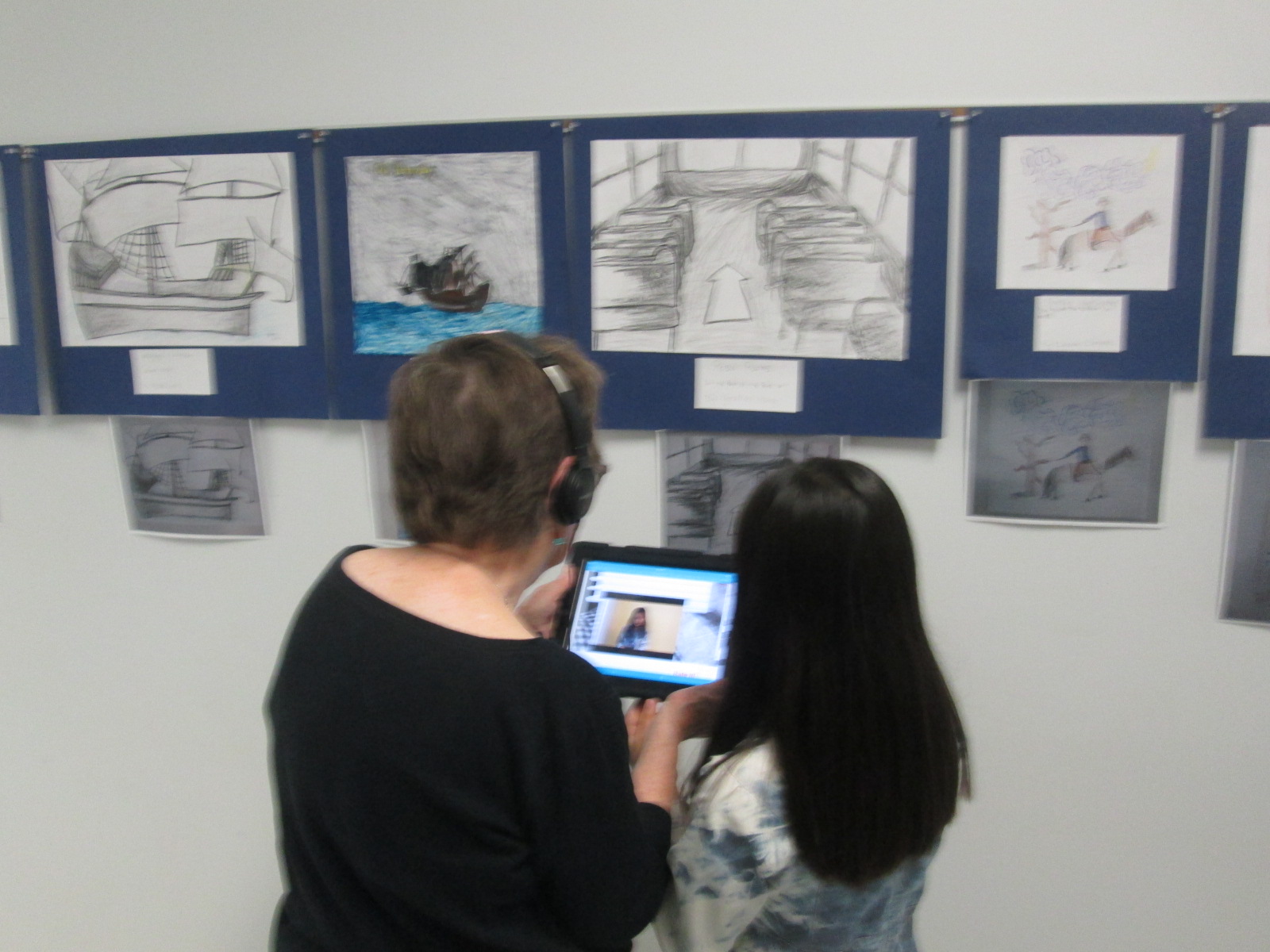
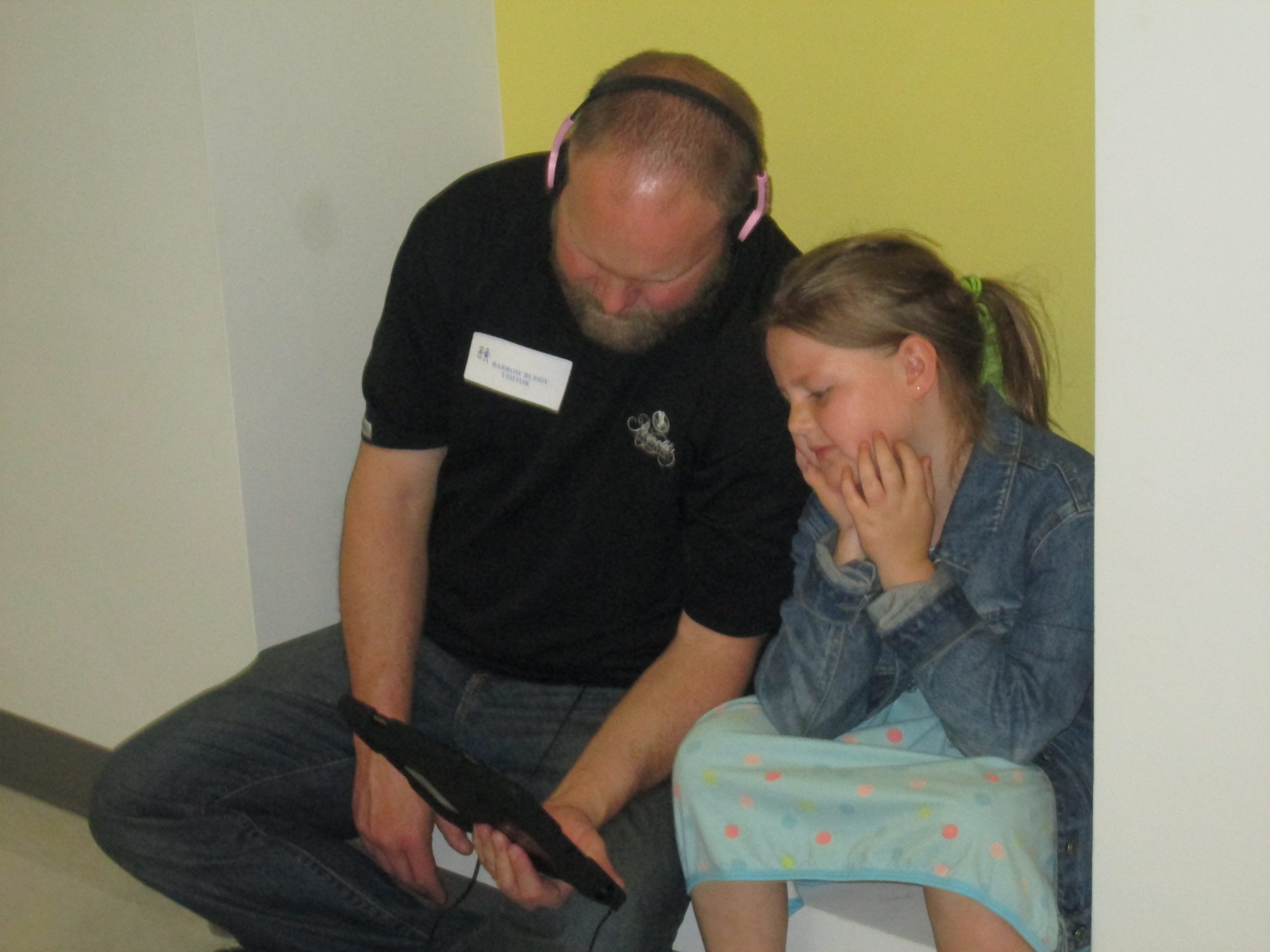
The 4th grade team and art teacher displayed all of the art in the hallway.  Today, families were invited to stop by and view the gallery.  I rolled the iPads to classrooms and took headphones too.  Students came out with their families and showed off their projects and the projects of their friends. They showed parents how to open the Layar app, point the iPad at the image, tap the screen to let Layar scan the image, and watch the content magically pop up on the iPad screen. Several parents had already downloaded Layar on their phones too.  There was excitement in the air as families experienced augmented reality for the first time.  I overheard some of them saying how they wanted to go home and try it themselves.  Others were amazed by the variety of projects that students made.  I overheard conversations about social studies content but also conversations on how to use all of the tool that were needed to make this project happen.  I loved seeing the students taking a leadership role in sharing with their families how to use the technology that they use at school.

IMG_3339 IMG_3336 IMG_3337 IMG_3330 IMG_3333

Next week, classrooms will be invited to tour the gallery.  I think we learned a lot from this project.  One of the things that I loved most was how differentiated it was.  Some students created multiple projects for their person while others focused really hard on one project.  Students were able to showcase their strengths and interests, and I felt that every single student was fully engaged in this project.  I hope that others found value in this project as well so that we can continue and expand upon this type of experience for projects next year.

You can see all of the projects without Layar by visiting our Smore.

Also, take a look at what our augmented reality wax museum looked like in action today.

https://www.youtube.com/watch?v=KVs0XFi8zUs

Exploring Civil Rights through Blackout and Magnetic Poetry

IMG_30815th grade has a massive social studies curriculum.  It spans from the civil war all the way up to the present.  One of the things that they have been doing for the past 2 years that I love is using Christopher Paul Curtis’s books to tie in to the curriculum.  They start with Elijah of Buxton, move to Bud Not Buddy, and finish with the Watsons Go to Birmingham 1963.

IMG_3067

The civil rights movement is where they have been spending a lot of time recently, so the teacher emailed me to see what we might do in the library to focus on this time period in her language arts class. The standards they are working on are:

SS5H8 The student will describe the importance of key people, events, and developments between 1950-1975.

b. Explain the key events and people of the Civil Rights movement; include Brown v. Board of Education (1954), the Montgomery Bus Boycott, the March on Washington, Civil Rights Act, Voting Rights Act, and civil rights activities of Thurgood Marshall, Rosa Parks, and Martin Luther King, Jr.

IMG_3065

Since it’s poetry month, I wanted to pull poetry into our time together, and I knew that 5th graders would be able to handle some complex text and concepts.

IMG_3064

Just like with 3rd grade, we read Freedom Summer by Deborah Wiles, but their background information was much deeper than what 3rd graders knew.  They had connections and stories to share about the riots and peaceful marches that took place during the civil rights movement.  It was the perfect opportunity for me to also pull in Revolution by Deborah Wiles.  This book doesn’t publish until May 27th, but I have an advance reader’s copy from the Texas Library Association Conference.  I was able to show them some of the speeches, music, advertisements, etc from the time period to accompany the picture book, Freedom Summer. 


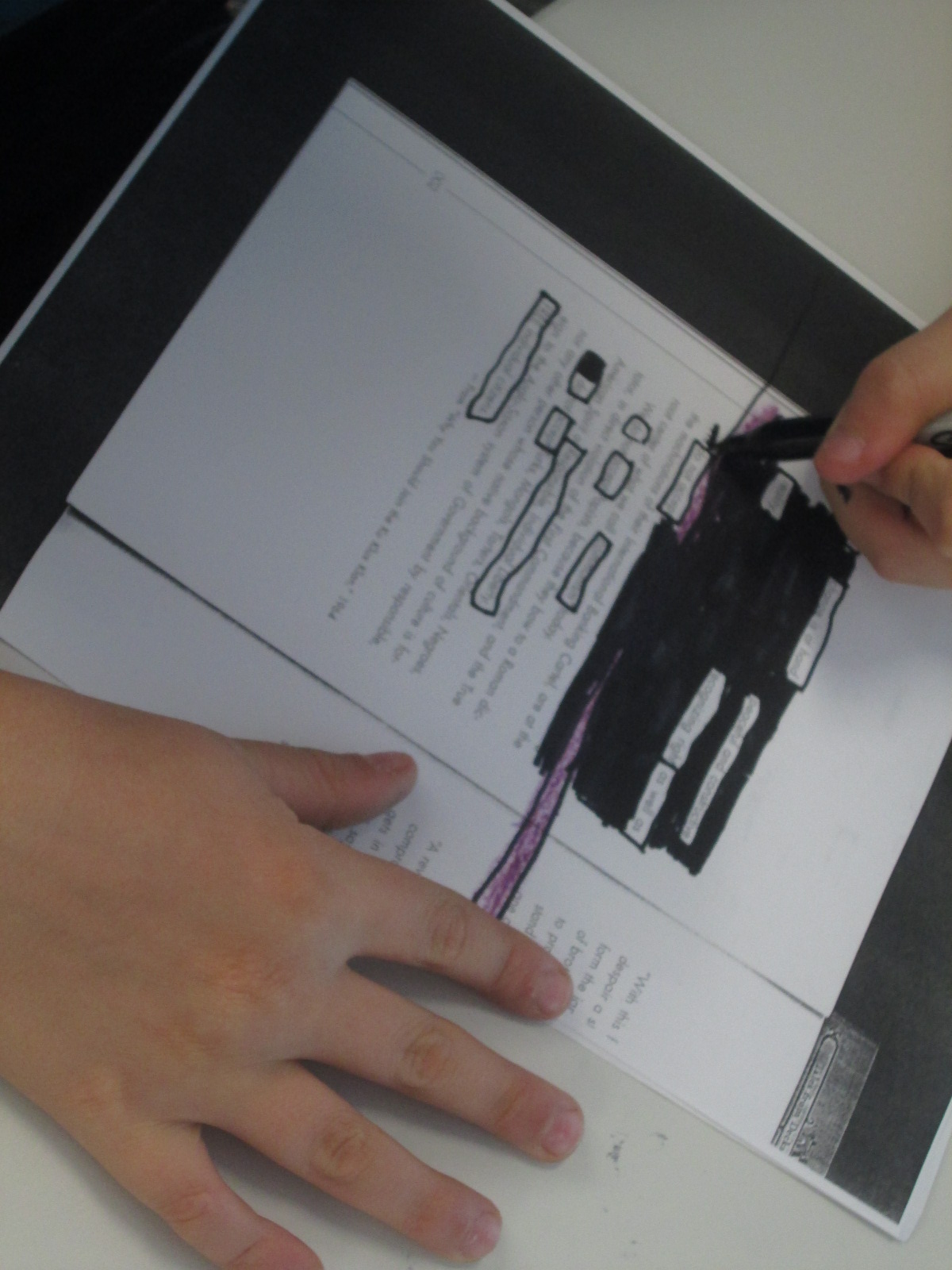
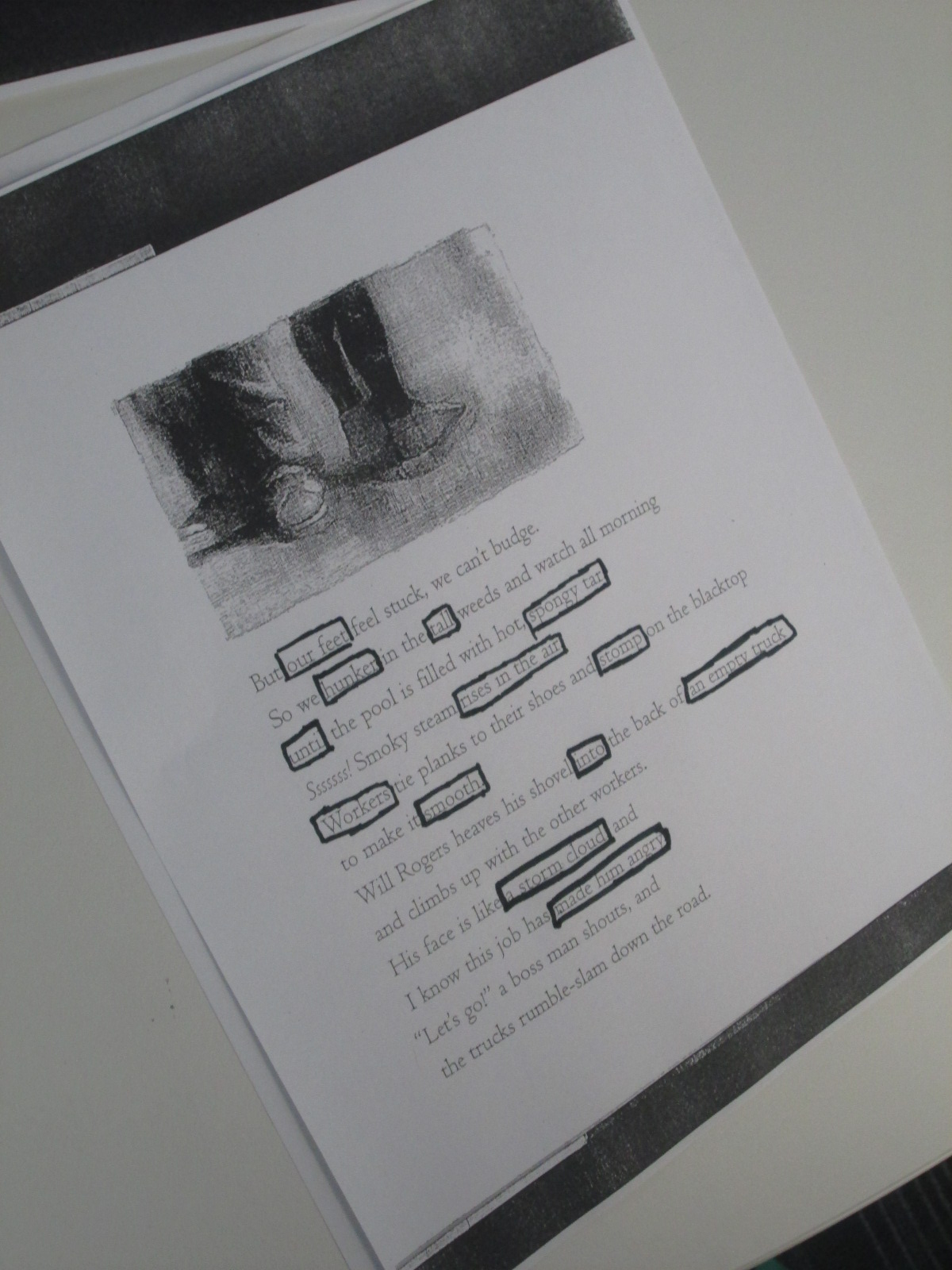
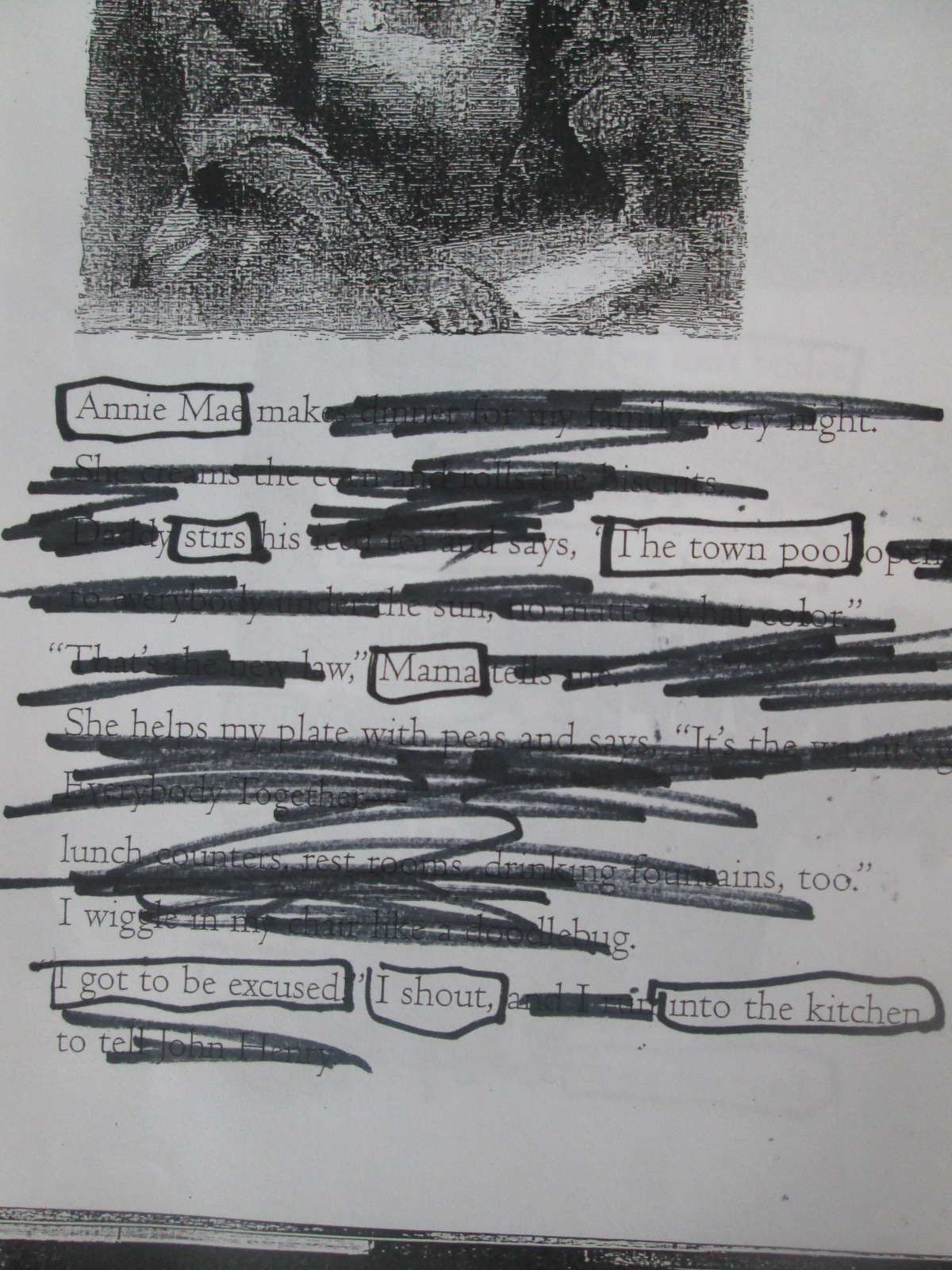
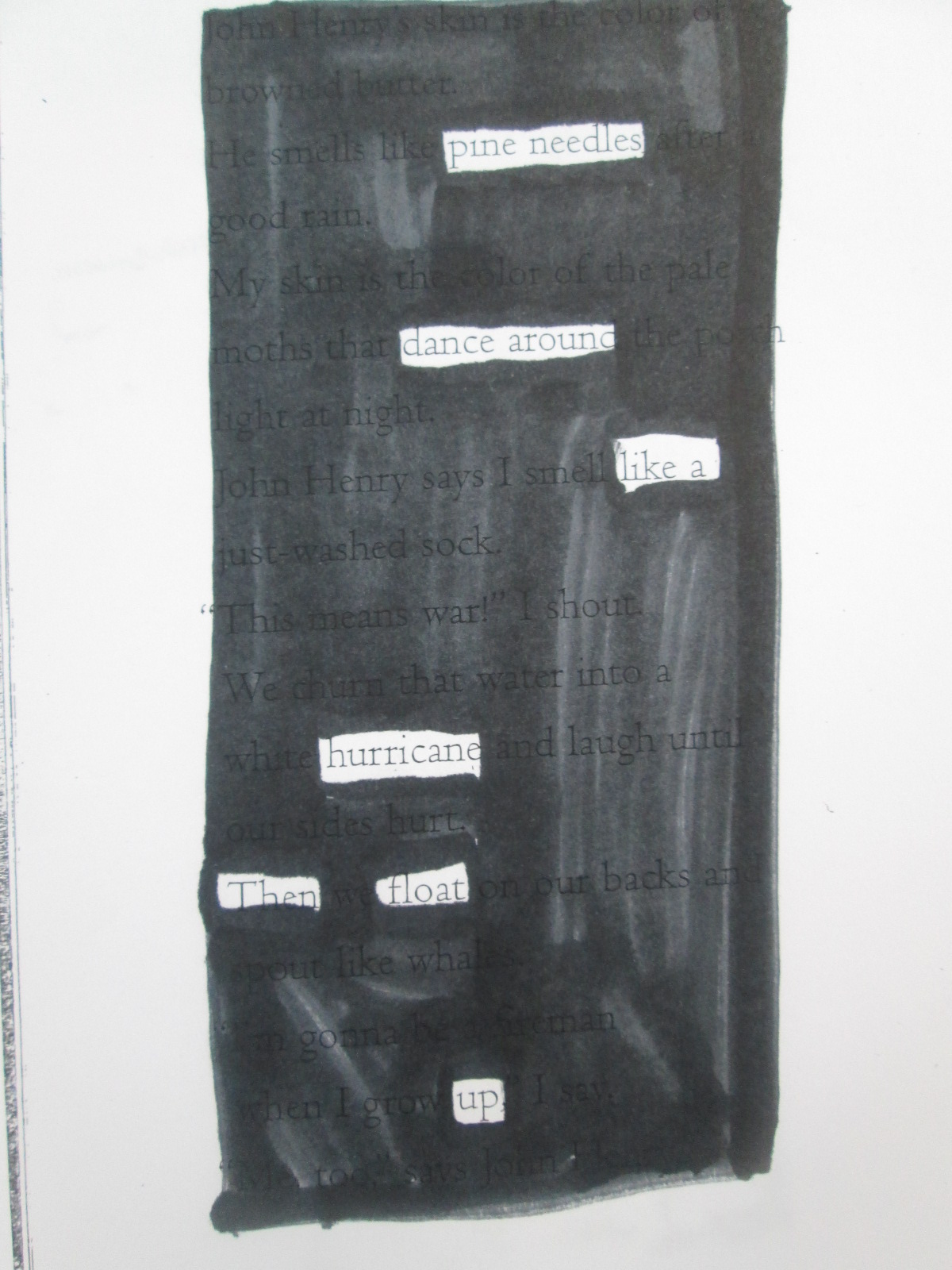
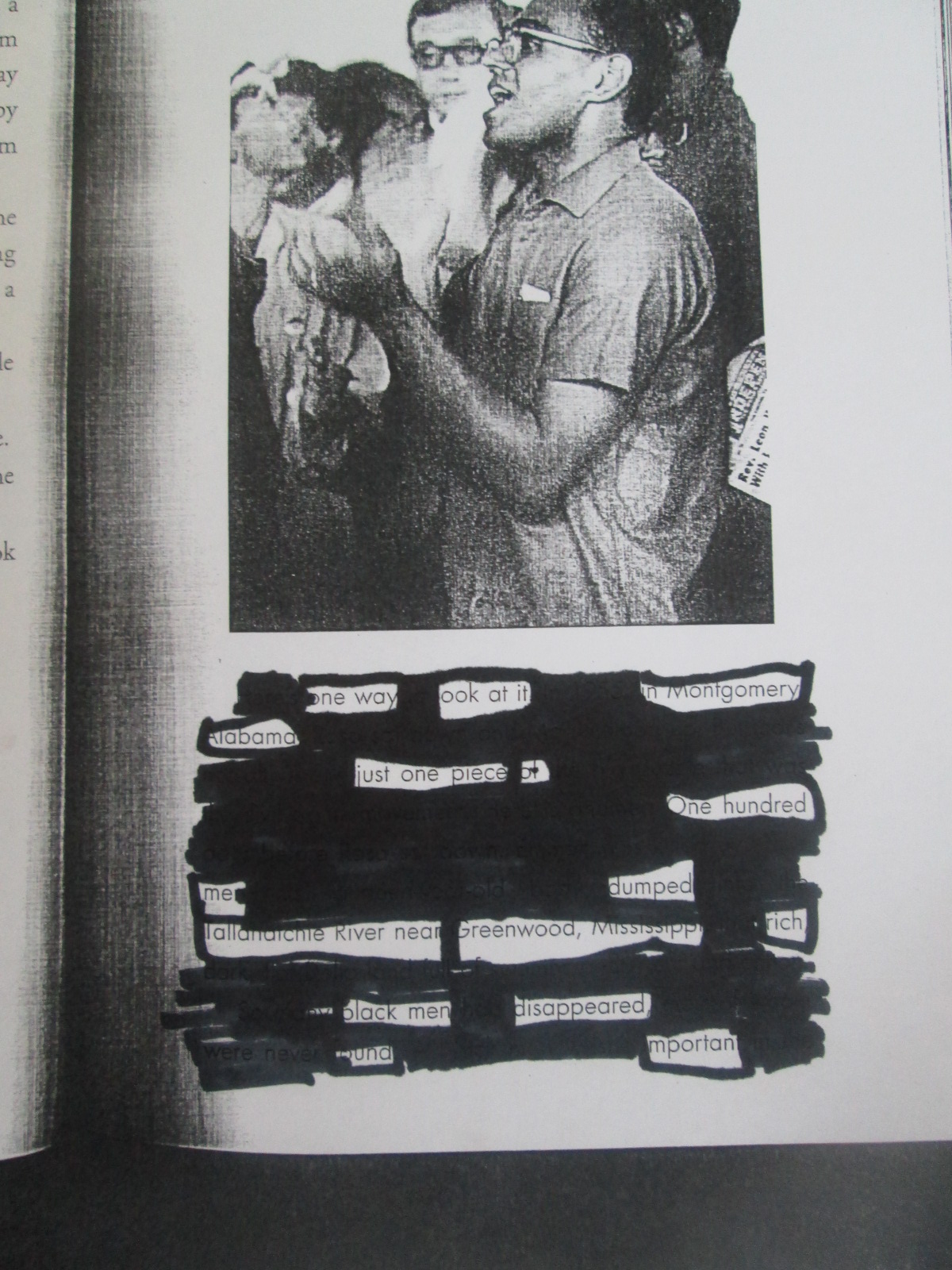
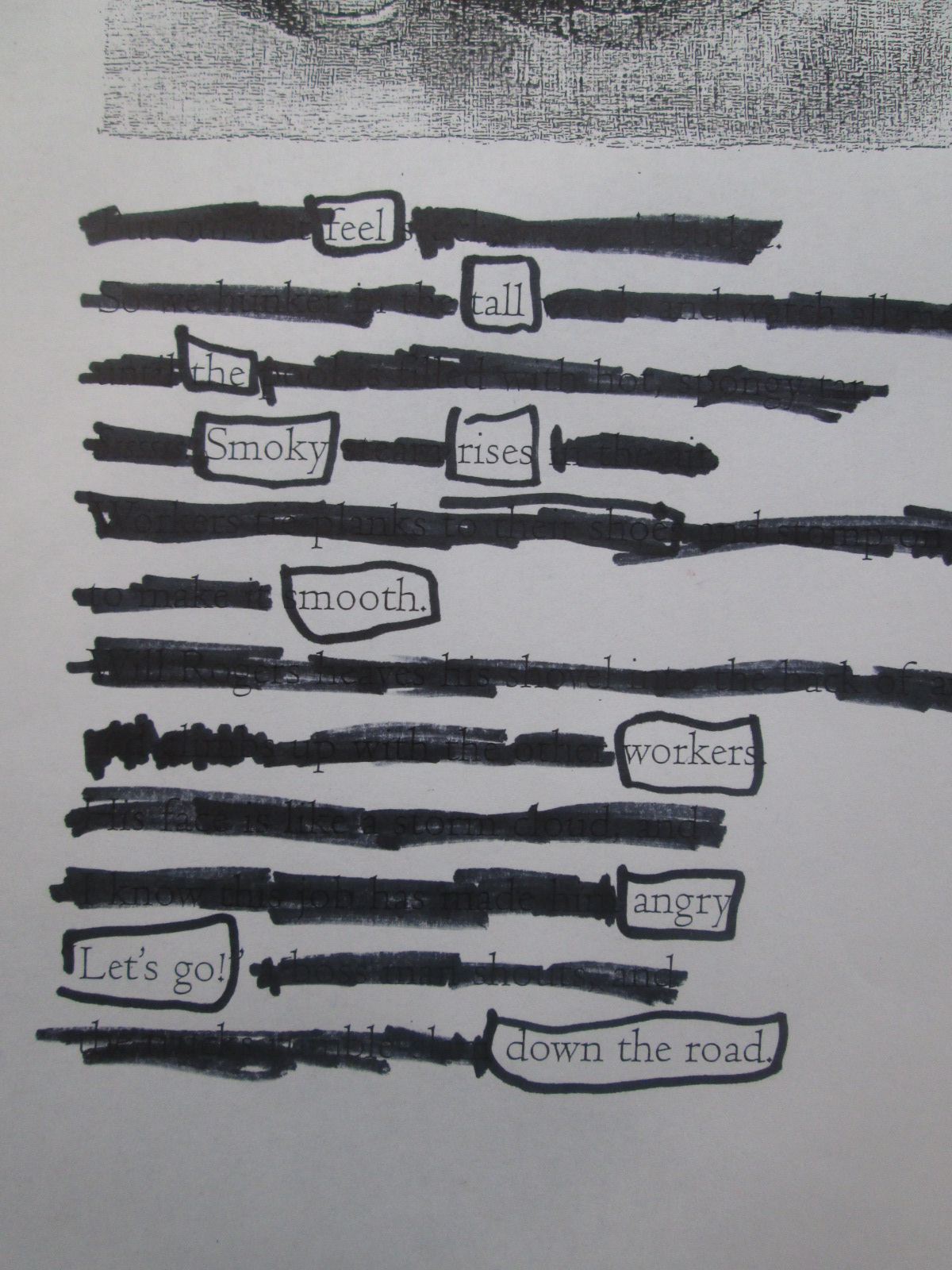
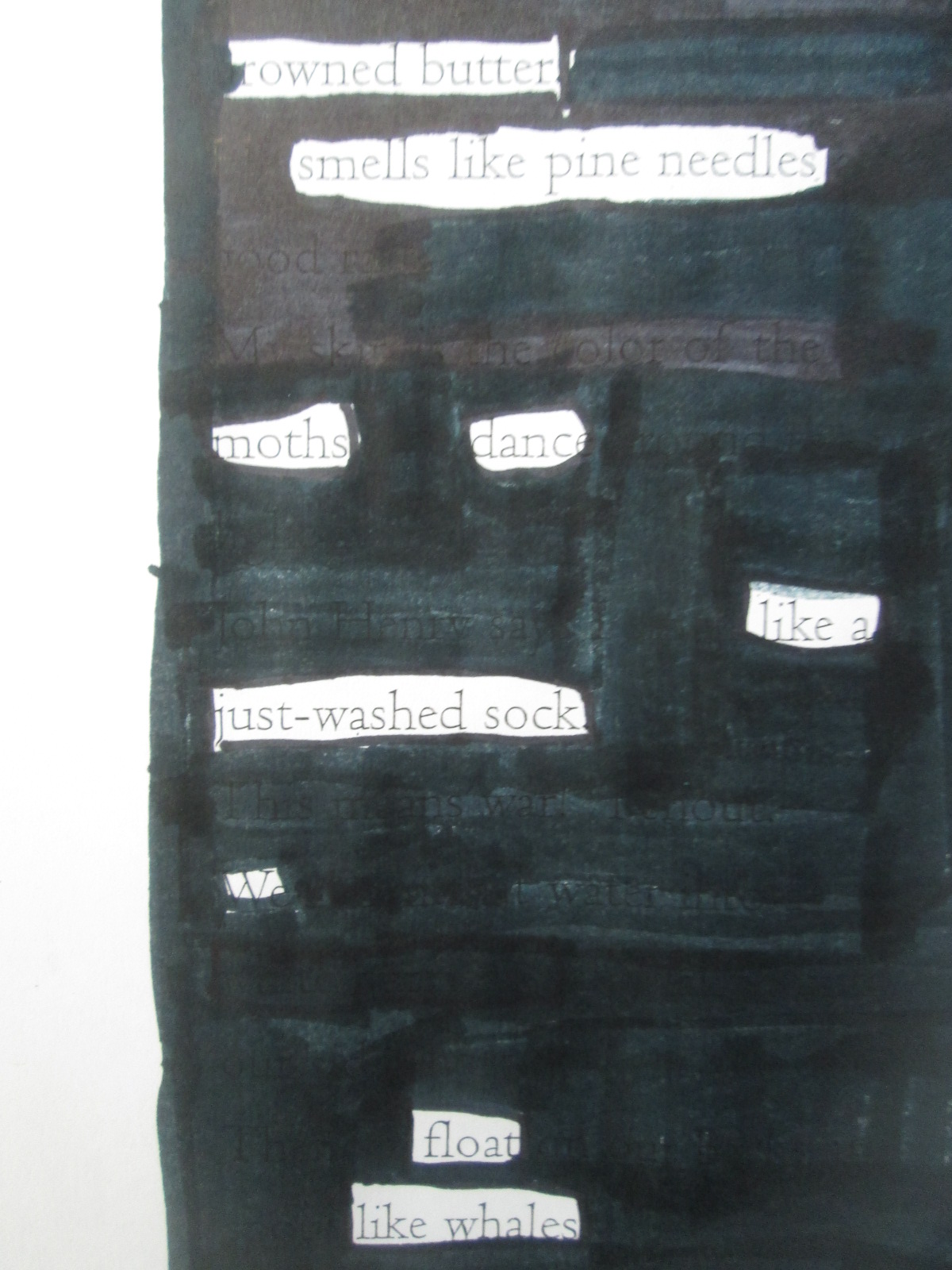
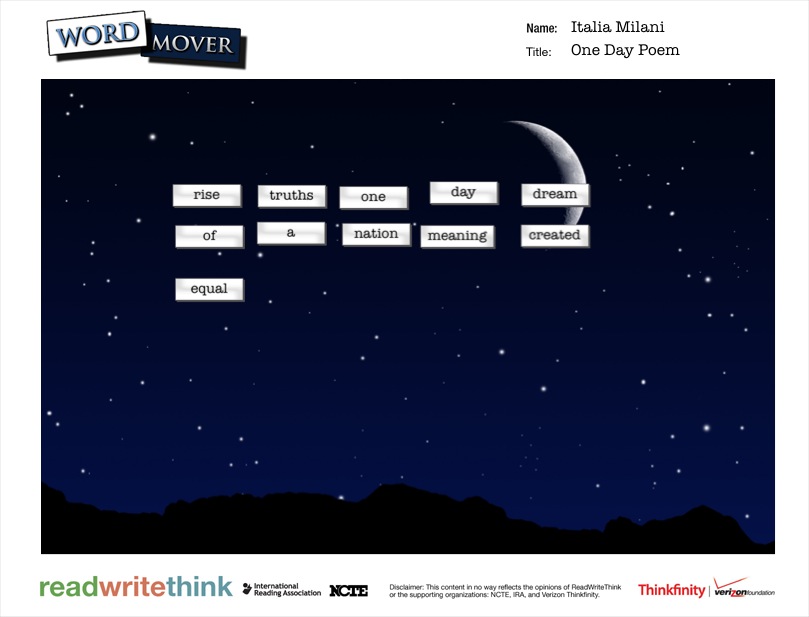
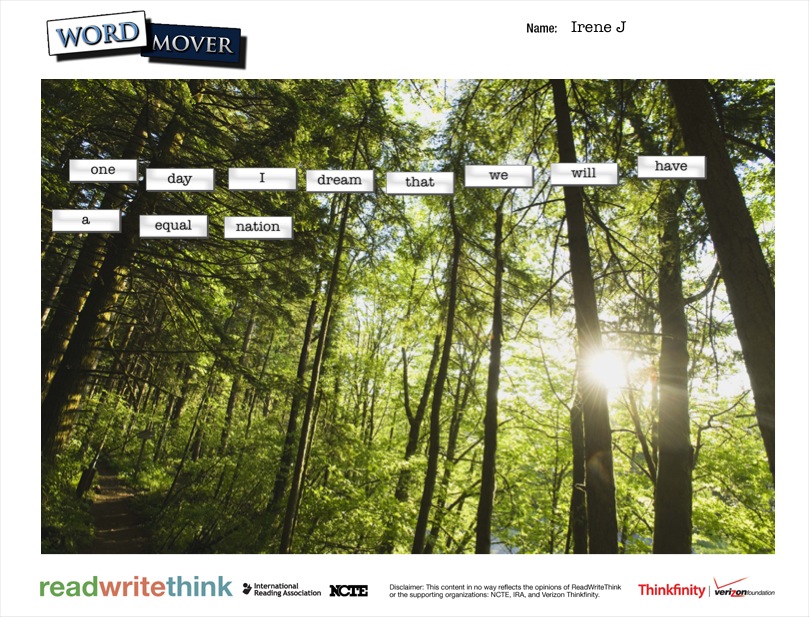
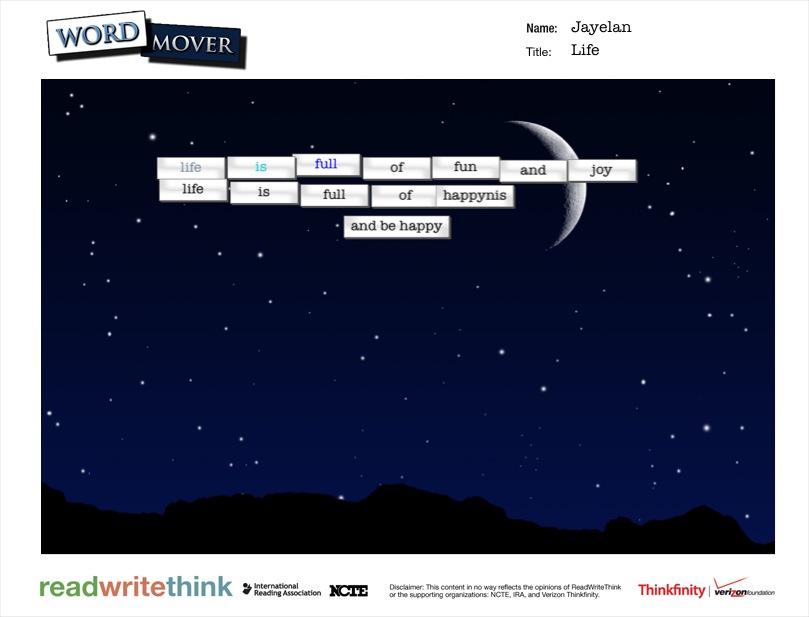
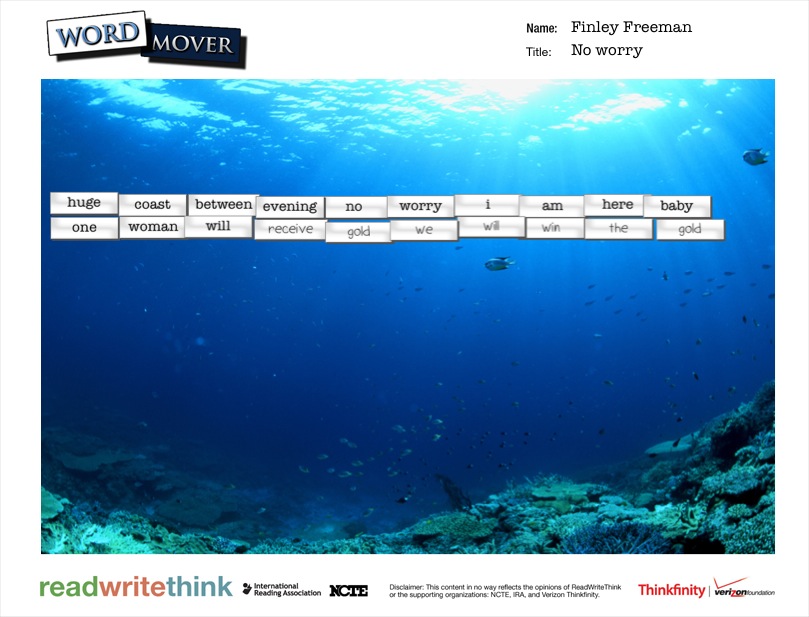
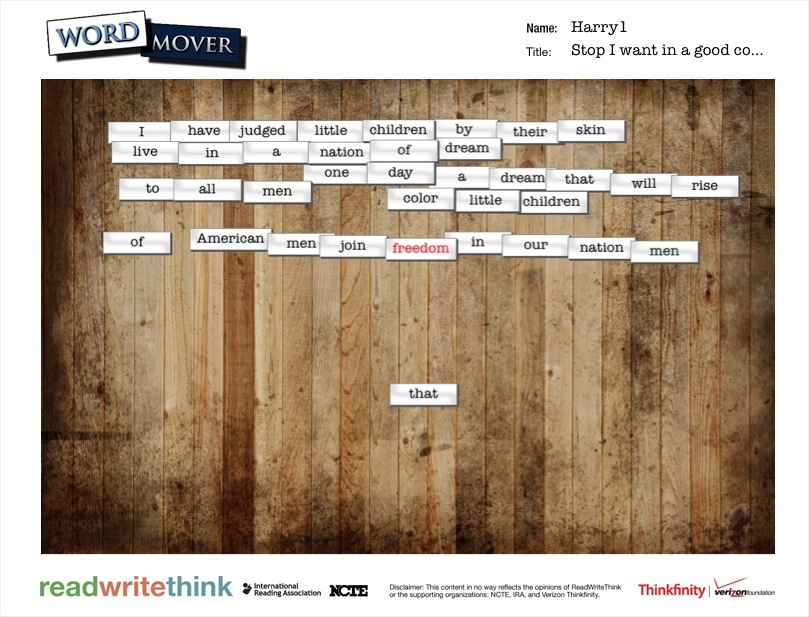
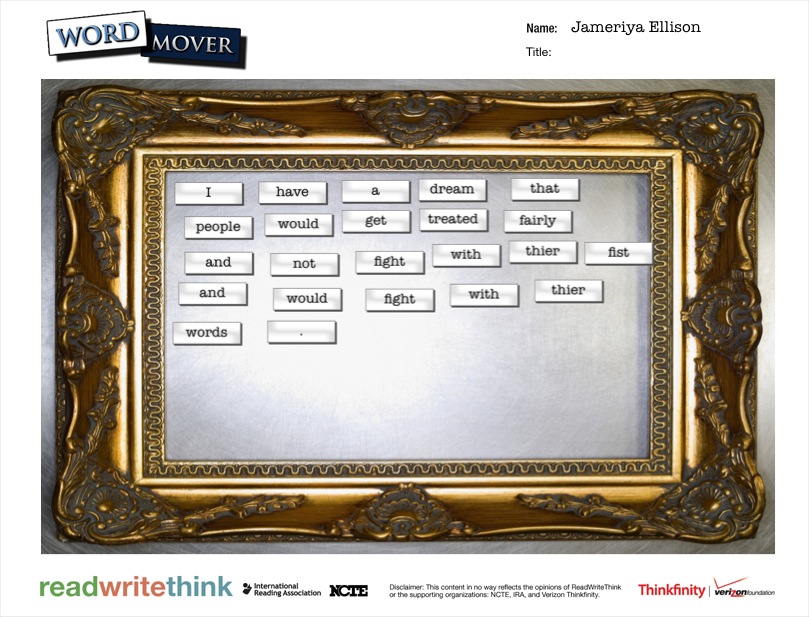
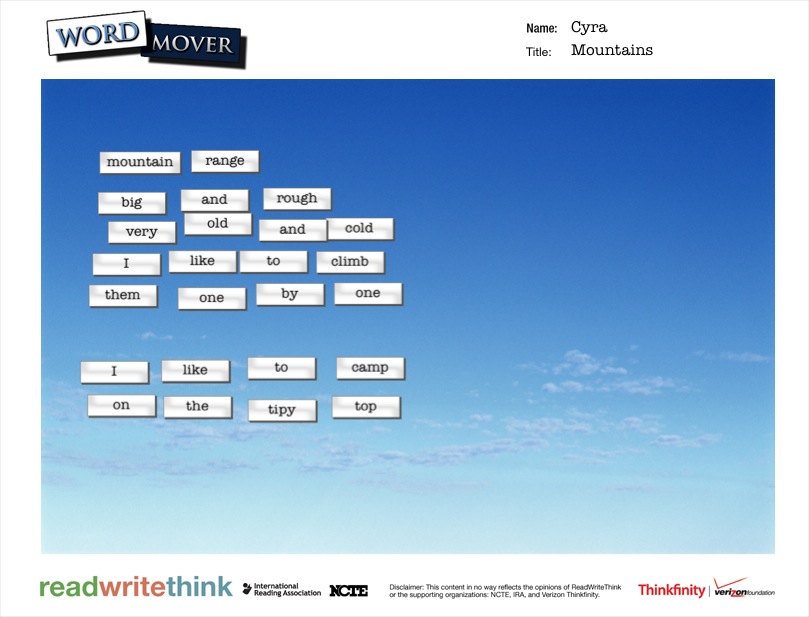
For poetry, the 5th graders created 2 kinds of found poetry.  They used the Word Mover app on the iPad to create magnetic poetry.  The app has a word bank that is words from Dr. Martin Luther King Jr.’s I Have a Dream speech.  They also used pages from Freedom Summer and a couple of pages from Revolution to create blackout poetry.

Searching for Poetry in Prose   NYTimes.com

This time for blackout poetry, we used the New York Times interactive site to create blackout poetry together.  The site makes it very easy to select & deselect words from articles to create 15-word blackout poems.  We did an example together on the board.  The teacher also helped demonstrate how to mark words on their own paper by putting boxes around words in the NY Times article on the board.

We found that a good first step for students in making blackout poetry is to read or skim the page and then put boxes around words or phrases that stand out.  Once you are sure of the words you want in your poem, then you blackout the rest of the page.  Modeling this on the board was important today.  We had very few students in 3 classes who needed to start over.

IMG_3066

I randomly gave students pages  from the books and they started the process.  For the most part, it was a very quiet process.  Students methodically chose their words and then quietly shared their work at their tables.  A few students paired up to help each other decide on words and phrases.

As students finished their blackout poems, they grabbed an iPad and created their Word Mover poems.  Just like with 2nd grade, most students arranged their words into solid sentences rather than shaping them up like a poem.  If time allowed, I conference with students and they went back into their poem to shape it into line breaks.

IMG_3079


Almost every poem was a reflective synthesis of student understanding about events of the civil rights movement and freedom summer.  Some students had some humorous twists to their poems, but most were solemn, serious, and reflective.

Take a look at their gallery.  Just like Revolution immerses us in the time period through story, music, advertisements, speeches, and other documentary pieces, the student poetry immersed us in the positive and negative feelings of the civil rights movement and freedom summer through multiple perspectives.

IMG_3096

IMG_3095

IMG_3094

IMG_3093

IMG_3091

IMG_3090

IMG_3089

IMG_3087

IMG_3082

IMG_3083

IMG_3084

IMG_3085

IMG_3086

IMG_3073

IMG_3071

IMG_3077

IMG_3075

IMG_3057

IMG_3055


IMG_0290


dream

dream (4)

dream (5)

dream (6)

dream (7)

dream (3)

dream (2)


Digital Magnetic Poetry with the Word Mover App

IMG_3022We’ve been having a lot of fun with found poetry during poetry month.  We started with book spine poems, and we will try some blackout poems very soon.  Today we explored magnetic poetry.  When students were making book spine poems, there were several times that they really wanted to move one or two words around or there was one word that was missing that they really wanted to add.  Magnetic poetry gave them so much more flexibility in that aspect.

Mrs. Ramseyer’s 2nd grade was the first class to try this poetry this year.  We started by using the nature poetry on the magnetic poetry website.  I liked doing this type of poetry after book spine because students quickly saw that they really had to think about how to put groups of words together that made sense.  Books already had the words put together and students just had to decide which books and what order.  Magnetic poetry requires students to start with a bank of words and somehow make sense out of them.  We played around on the board trying to put groups of words together.  We knew that we could throw words back into the bank if we didn’t need them.  Students had many ideas of what should go together, which meant many disagreements as well.  This was a great type of poetry to do alone.

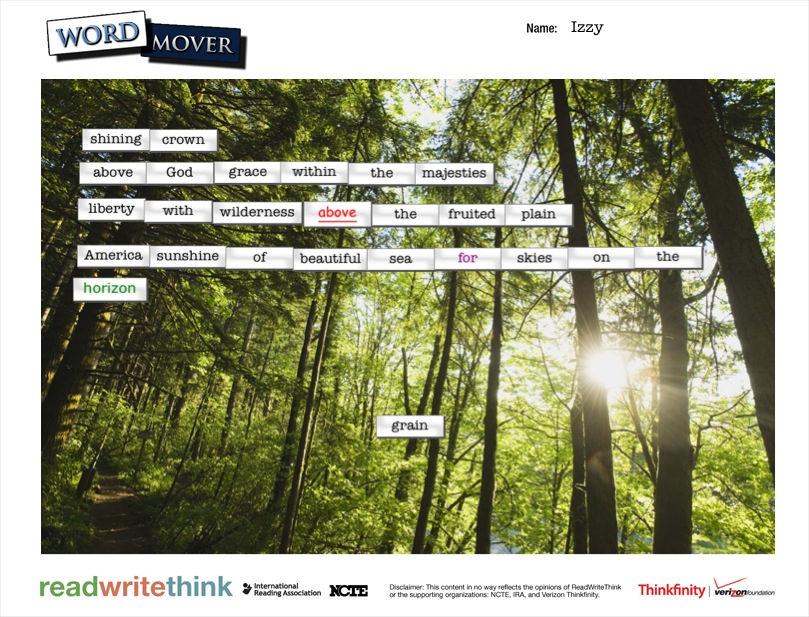
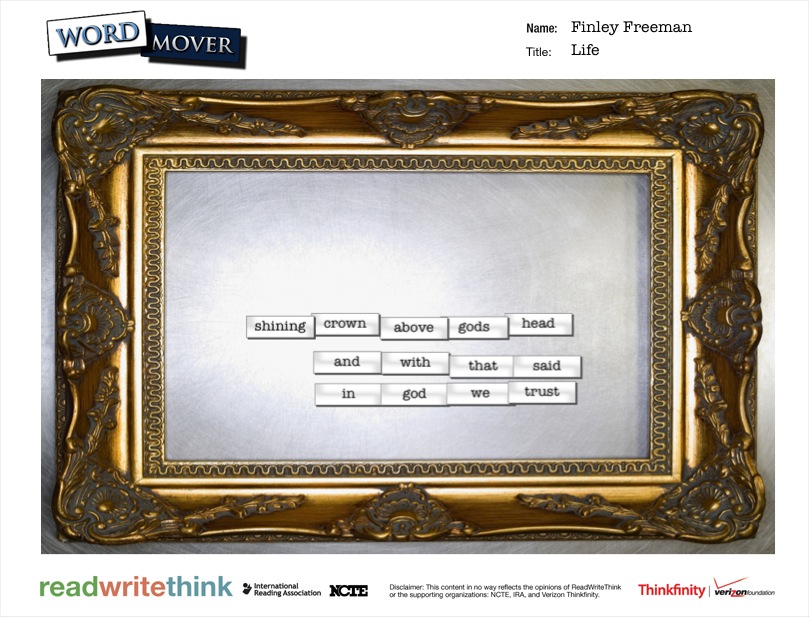
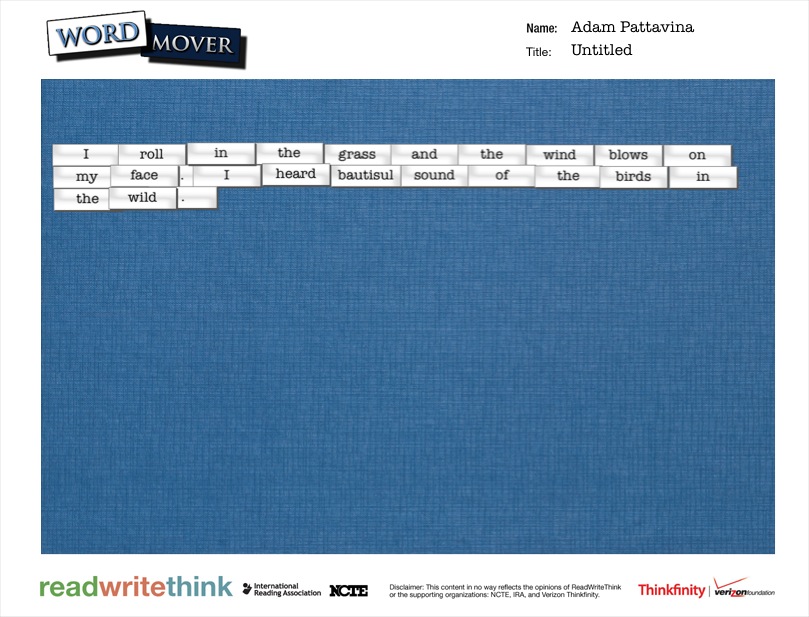
I showed students the Word Mover app on the iPad, which essentially is like magnetic poetry.  Word Mover has an iPad and android version and comes to us from Read Write Think.  There are a few options.  Students can choose a word bank or choose from several famous speeches and songs that can be remixed into a poem.  There is also an option to make your own words, but I discouraged students from starting with the “my own words” category since that would stray from the idea of found poetry.  What we all loved was that you could add any word no matter which word bank you chose.

IMG_3021 IMG_3018

Once students selected their word bank, they started dragging words onto the work space and arranging them.  Any words could go into the trash can to put them back in the bank.  Students could shuffle the words in the word bank or even get a bank of new words.

The teacher and I wandered around the media center chatting with students about what they were thinking.  As with any kind of writing, some students were naturals at this kind of poetry while others had to start over a few times.  Some of the students who chose speeches and songs like America the Beautiful and I Have a Dream had a hard time remixing rather than just copying the original.

IMG_3017 IMG_3016 IMG_3015

Mrs. Ramseyer and I both noticed that students were writing their poetry as if it was one long sentence or paragraph.  Once students told us “I’m done”, we asked them to read their poem aloud.  As we heard them pause in their reading, we suggested that those pauses might be where their line breaks should go.  Students spent a bit of time rearranging their poem so that it was in lines that naturally flowed for the reader.

If time allowed, students chose a background and added a title to their poem.  Some students even figured out that you could change the color and font of the words.

Once poems were done, students saved them to the camera roll on the iPads so that you could enjoy them here.

word mover (1) word mover (2) word mover (3) word mover (4) word mover (5) word mover (6) word mover (7) word mover (8) word mover (9) word mover (10) word mover (11) word mover (12) word mover (13) word mover (14) word mover (15) word mover (16) word mover (17) word mover (18) word mover (19) word mover (20) word mover (21) word mover (22) word mover (23) word mover (24) word mover (25) word mover

Book Spine Poetry with Tellagami (Day 4)

IMG_2914Today was my final day working with 2nd graders on Tellagami.  Mrs. Yawn’s class went through the same process as the other classes.  I’m really glad that I decided to do this in groups.  My original plan was to do individual book spine poems, but I think it would have been very hard to manage on the technology side of things.  Getting 7 poems created and recorded in one class period was an ideal number.

IMG_2913 IMG_2912 IMG_2911 IMG_2910 IMG_2908 IMG_2907

Here’s a look at Mrs. Yawn’s poems.

https://www.youtube.com/watch?v=YWkdycPNVuk

https://www.youtube.com/watch?v=_bXE9kL20t0

https://www.youtube.com/watch?v=ewryVa5BSaU

https://www.youtube.com/watch?v=JBSlE8OPVRo

https://www.youtube.com/watch?v=8iICmjS2agw

https://www.youtube.com/watch?v=hm2_gQQhF6o

https://www.youtube.com/watch?v=JB5quyuNTSk


Don’t forget to view the poems from:

Mrs. Brink’s Class

Mrs. Wright’s Class

Mrs. Ramseyer’s Class