Remembering September 11th and Moving Forward

September 11 (56)

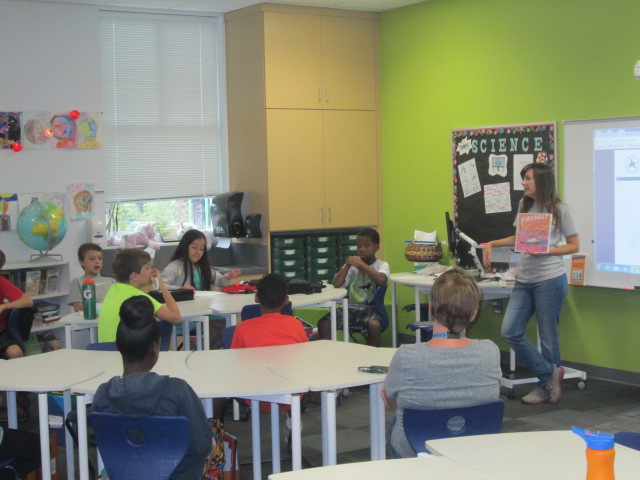
Each year, our 5th graders learn about September 11th as a part of their social studies standards.  They have to know about the events of the day as well as how that act of terrorism has impacted our lives today.  It’s a scary topic for an elementary student who has no memories of this event.  For them, it’s really just a part of history that doesn’t resonate in the same way as it does for adults.  That doesn’t mean that we can’t explore this tough subject.

We look at the day from multiple angles and see what we can discover about terrorism but also the heroism of the day.  We’ve used this tragedy to think about how we respond to sadness, how we memorialize those who mean so much to us, and how we create good in the world.

We spread our learning across an entire day.  Each teacher leads a different part of the day and students rotate through several experiences.

With me, students use a Symbaloo to explore online content.  I love Symbaloo because I can group the links together in a meaningful way.  I split the links into 4 areas: looking back & reflecting, the events of the day, rebuilding, and remembering.  When students came in, I used our Flipgrid responses from last year to talk about how we have to rely on people’s memories and what has been left behind in order to learn about and learn from history.

Last year’s Flipgrid

We also talked about how different the documentation of 9/11 would be if it happened today.  It happened at a time when smart phones, instagram, Twitter, and Facebook didn’t exist.  We also talked about our comfort level with tragedy.  I labeled several of the links “graphic” so that students could decide if they really wanted to click on that area.  Students could stop at any point and take a break in the hallway or with the counselor.

Our 9/11 pathfinder

At the close of my session, students had a chance to talk about what they heard and saw.

With Ms. Mullins, students looked at the first responders of 9/11, including the rescue dogs.  They used the information they learned to write haikus in response to the heroism.

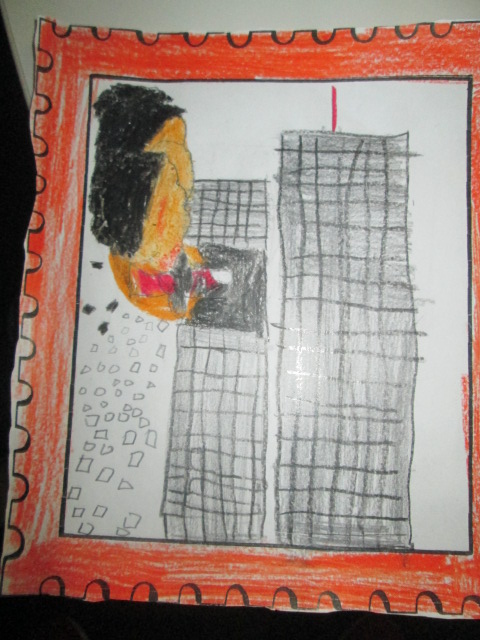
With Ms. Selleck, students read 14 Cows for America and talked about how other countries responded to our tragedy.  We saw September 11 as a time when other countries felt our pain and reached out to help us.  Students responded by creating artwork to symbolize a response to tragedy.

With Ms. Olin, students read Fireboat and talked about how everyone pulled together on September 11 to help one another regardless of jobs or beliefs.  We were all Americans.
September 11 (4)

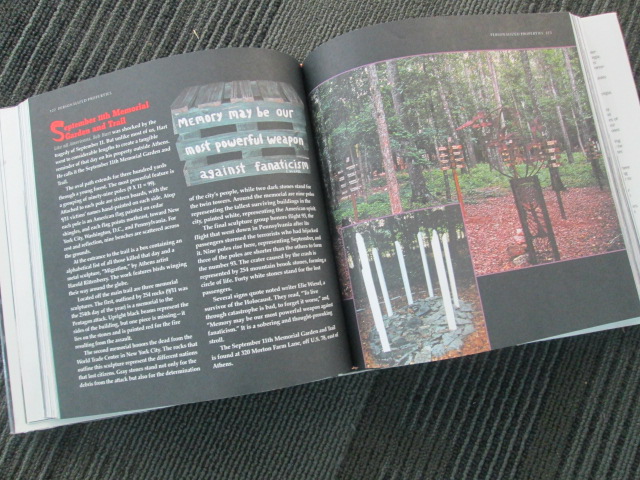
After lunch, we had a guest speaker.  Bob Hart has created a 9/11 memorial trail right here in Athens, and he came to tell the students about how he got the idea, what each part of the trail represents, and answer questions from the students

Bob Hart’s 9/11 Memorial Trail in Athens, GA

This was a new piece to our 9/11 remembrance day and it was powerful.  Bob had so many touching tributes to the victims, and each part of  his memorial was thoughtful and created with love and respect.  His trail is open to the public, so I’m sure many students will want to visit.

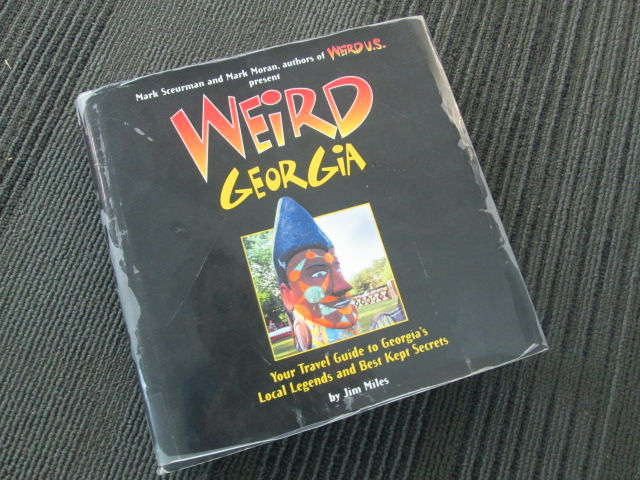
We even found out that his trail is featured in a Weird Georgia book which we have in the library!
September 11 (61) September 11 (60)

At the close of our day, students used Flipgrid to record their haikus, artwork, and reflections.  Three volunteers came in to help me facilitate the recording so that students had a quiet space.  You simply have to listen to their voices!

Students shared art, poetry, and reflections about 9/11 on a Flipgrid

While this day is tragic, it is a day that I cherish each year because our kids take so much away from the day about heroism, response to tragedy, and the pride of being an American.

Fostering Digital Leadership: A Next Step

chromville1I recently rolled out our 1 to 1 devices to grades 3-5.  During this orientation, I talked with students about digital leadership.  Since then, our oldest grades have started taking their computers home, but our 3rd graders are still waiting.  It’s their first year with their own computer and we are trying to do a better job of helping them understand what kinds of things they can do with their computer when they take it home.

The third grade teachers chatted with me about digital leadership and digital citizenship and we thought about what would be the most important thing to explore next.  We looked at Common Sense Media and their scope and sequence.  We also talked about ideas that I planted during the orientation.

Based on our discussions, I decided to focus on our digital snapshots.  What are we currently doing with technology?  What do we want to strive to do with technology?  What is ok to share?  What do we keep private?

I created a short set of slides to guide our conversation, and I’m fascinated by some of the things that came up.  I started with a small piece of my own digital snapshot.

It contained my blog as well as a screenshot of my home screen on my iPhone.  I asked students to look at this one piece of my digital life and see what they could learn about how I use technology.  They had conversations with partners and I eavesdropped.  I heard things like:

  • He misses a lot of calls and doesn’t answer his text messages
  • He likes to share things
  • He takes a lot of pictures
  • He likes to travel
  • He is very organized with his apps
  • He uses his phone to look up books in the library
  • He has 2 kids

The list continued to grow with each class, and each class inferred something more than the last class.  I was actually amazed about how much they could learn from me just by focusing on my phone.  In fact, that’s all they focused on.  Not a single student talked about the picture of my blog.  There focus was completely on the apps on my phone, which was also interesting to me.

I used their noticings to connect to some of the decisions I make as a user of technology.  I talked about how I know when I share a picture or a blog post that it is going to be seen around the world.  I once again shared our blog map to remind students where people are looking at our work.

Next, I had students talk with partners about what their digital snapshots look like.  How are they using technology in their everyday lives?  We started adding some of these ideas to a doc.  We didn’t capture everything, but I at least wanted a list we could refer to.

All of this was leading up to us spending more time talking about using our devices in school and at home for educational purposes.  I loved having this list because most students thought it was bad for them to go onto Youtube.  Many were surprised when I talked about all of the great things Youtube is for.  In most classes, we spent a bit of time brainstorming why we might use Youtube.  This list also gave me some insight into what students are doing at home that I haven’t even heard of.

After students reflected on their own digital snapshot, I showed students what other students have already done at our school with technology.  I couldn’t show everything, but I gave them a quick look at pictures to show some of the awesome ways we’ve used technology to connect, collaborate, create, and share.

Finally, I asked students to spend time brainstorming how they might use their 1:1 technology.  This was only a starting place.  Many students focused on videos, games, or websites they might visit, so we have some work to do in regards to thinking about our devices as creation tools and tools that connect us to opportunities.  Students added their ideas for how to use technology at home and keep it connected with learning and appropriate use for an elementary student to a padlet.

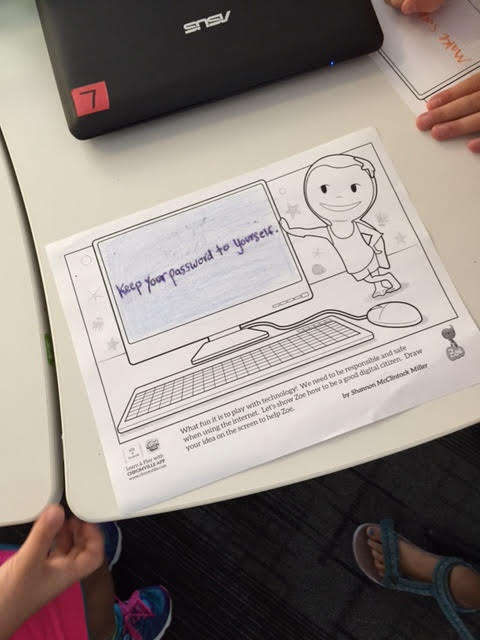
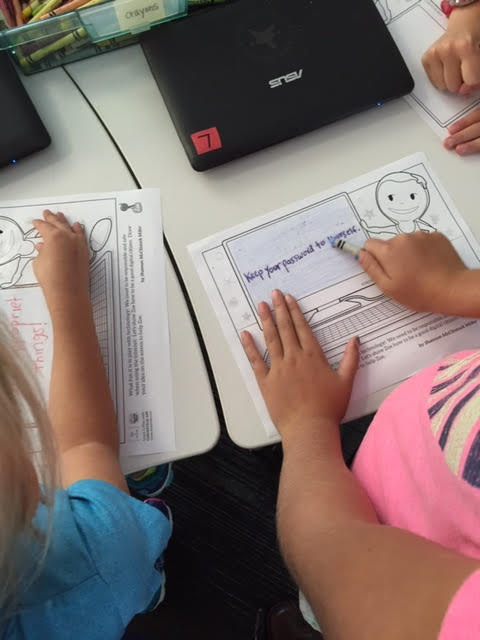
Some students were also able to move on to a wonderful coloring page from the augmented reality app, Chromville.  This coloring page features Zoe and a computer screen.

Students can draw or write about a digital citizenship message on the screen.

chromville 6 chromville 5

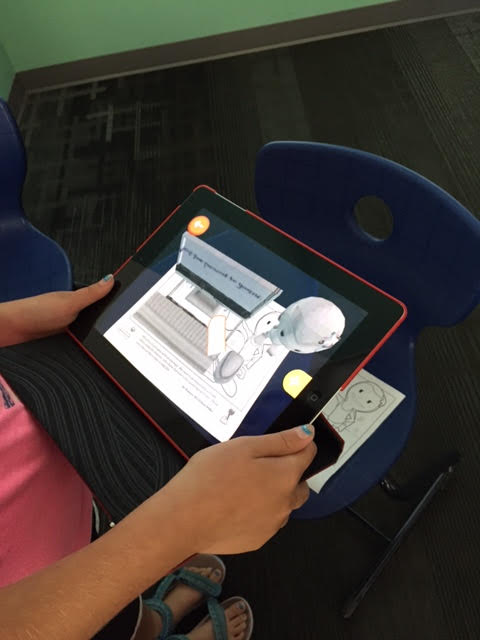
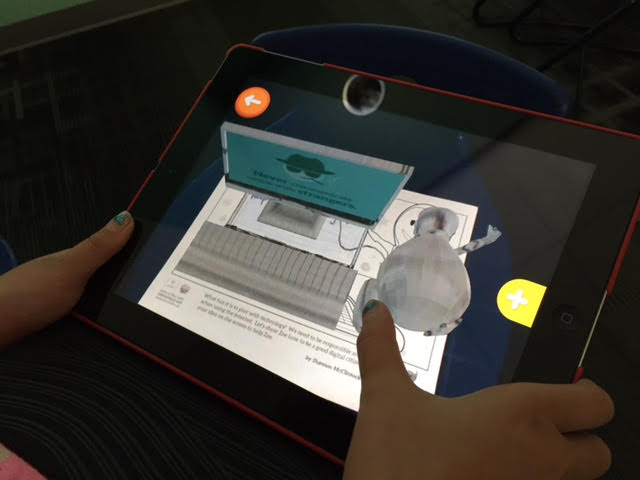
Using the Chromville app, Zoe comes to life on the screen displaying the students’ digital citizenship message and you can even click the mouse to display additional messages about staying safe online.  I want to make sure all of the students get to try this out, but only a few made it this far during our hour together.

chromville4 chromville 5 chromville 6

We will continue to revisit these topics in classrooms and during library projects and lessons throughout the year.  If you have an innovative way to have these conversations with your students, I would love to hear them.

chromville


Congratulations to the Flipgrid 2015 Graduation Voices Winners, Top Voices, and More

I was honored to be one of the judges in Flipgrid’s inaugural Graduation Voices contest.  Graduates of high school and college contributed their voices to two grids to complete the sentence, “To me, graduation means…”  Almost 200 graduates added their voices between the two grids, and I enjoyed watching all of them along with fellow judges Shannon Miller and Alec Couros. Congratulations to the two winners, Eliot and Jay.  They will each receive a new Apple watch.  You can read the full post on Flipgrid’s blog. I also send a huge congratulations to the other top voices on the grids.
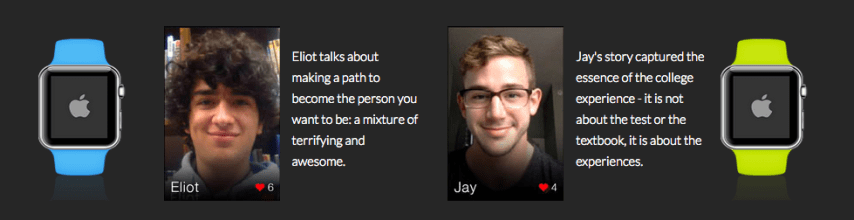
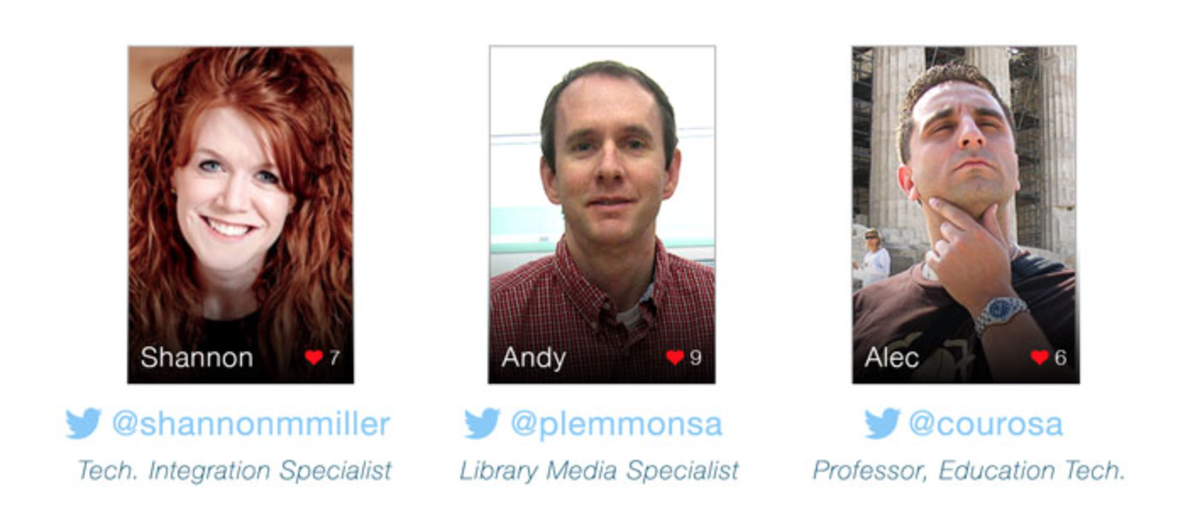
Judges’ top choices for Graduation Voices 2015

High School

Watch Ami’s video here. Watch Anthony’s video here. Watch Ben’s video here. Watch Guillermo’s video here.  Watch Kyle’s video here.

College

Watch Abbie’s video here. Watch Alyson’s video here. Watch Jamie’s video here. Watch Liz’s video here.  To view all entries to the #grad15 grid, click here. Since I had the pleasure of watching every single video, I heard many standout voices.  Every video was special in some way, and some had me laughing out loud.  Graduation means so many things to so many people.  We all might think of it as closing one chapter and starting another, but most of us have other reasons we love graduation.  High school and college are a time to find yourself and further develop yourself as an individual.  Bravo to these students for letting their personalities shine through.  I want to recognize a few of the voices that made me smile in their own way.

Neil’s: I’m done with school!

You know you all want to binge watch Netflix and eat some junk food at 3AM.

How about the freedom to buy baked goods?

The end to regulated lunches?

Here’s to sleeping in!

Spread your wings and prepare to fly from sea to shining sea

Time to do whatever you want

The end to pointless homework

Getting to go home!

Get on board that train

I wish all of these graduates the best as they continue on in what life has in store for them next.  Go out and change the world!

The Natural Side of Student Voice with Flipgrid

Flipgrid Celebration (5)

Empowering student voice has become one of the goals in the library that I am most passionate about.  I love it when a student’s voice reaches out into the world, finds an authentic audience, and gets a response.  One of the tools that has been the most helpful in getting student voices out into the world has been Flipgrid.  In fact, we use Flipgrid so much that students ask why we aren’t using Flipgrid if we choose to use something else.  It is user-friendly for both the educator and the student.

Flipgrid Celebration (8) Flipgrid Barrow Peace Prize (7)

With your yearly Flipgrid subscription, you get 10 grids.  Think of your grids like your classes or your big topics.  I have a reading grid, math grid, science grid, etc.  Within those grids, you can ask unlimited questions with unlimited video responses from students up to 90 seconds each.  As soon as students press the submit button, there video is uploaded and live for an audience to view which means no extra work on the part of the educator to prep videos for viewing.

You can find multiple uses of Flipgrid within the posts on this blog.  It seems like we are always coming up with new ways to use the tool in our library.

Recently, some of the Flipgrid team visited my school to see what a day in our library is like.  Along the way, they saw ways that our students have a voice as well as ways that we are using Flipgrid.

The first of two videos has been released based on that visit.  I invite you to watch this short video about the natural side of student voice.  Share it with your network and consider how you can give students a voice within your library.


Collaborating Within Walls Using Google Hangouts: A List Poetry Lesson

IMG_5399

Last year, I tried something new with the 2nd grade.  My library schedule was packed and it was hard to get all 4 classes on the calendar, so I used Google Hangouts to teach all 4 classes at one time.  It was an experiment, but it proved to be a lot of fun and also showed the students and teachers how to use a Google Hangout and collaborate on a Google doc.

This year, we planned it again and added on a few layers.  One of our favorite kinds of poems to write is list poetry.  You take a list and add descriptive words to each item on the list so that the reader can experience the items on the list.  Our goal in our Google Hangout this time was to learn about list poetry, hear a mentor poem, practice list poetry together, and then create one collaborative list poem.

In advance, I setup a Google Hangout on Air.


I sent the link to the hangout to all of the teachers participating in the hangout.  I also created a blank Google Doc for our collaborative poem and shared editing rights with all 4 teachers.


I gave the blank doc a title and wrote each teacher’s name inside the doc to create a space for each class to add to the collaborative poem without writing on top of one another.

On the morning of the hangout, I emailed teachers a reminder that included the link to the doc as well as the direct link for  joining as a participant in the hangout.

At hangout time, I went in my office and awaited the classes.  As they entered, I did a sound check to make sure microphones were working.  Then I used the control panel in Hangouts to mute all of their microphones to eliminate feedback.

I opened our lesson by reading from Falling Down the Page, list poems collected by Georgia Heard.  We focused on “In my Desk” by Jane Yolen.  I pointed out how she gave describing words for each item found in her desk so that we would be able to picture it or experience it.  I built on the reactions of students to the line about a “great big hunk of rotting cheese” found in a lunch box.  These kinds of words cause us to react which is exactly what we want in a poem.

Next, I opened up a blank doc and started writing a grocery list:  bread, milk, eggs, cereal.  Then I assigned each word to one of the 4 classes and had them brainstorm describing words to add to each item on my list.  Each class had a chance to speak in the hangout as I added our words to the poem.

Finally, I invited all of the classes to work on a collaborative poem about things under our beds.  Each teacher facilitated the work in their own classrooms.  I checked in from time to time to give an update on when we would stop working.  Then, each class read their stanza of the poem to close out our time.

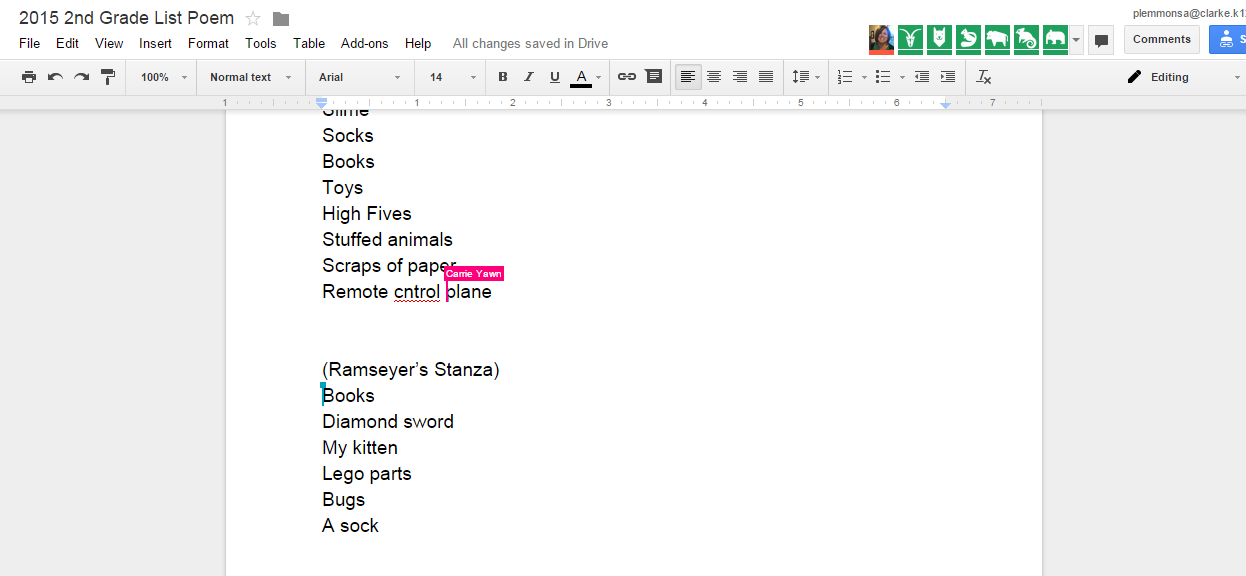
While we were writing, I invited people on Twitter to watch the doc in construction.  We had lots of viewers engaged in our work in progress, and students loved being published authors with one tweet.

Viewers

You can watch the whole thing here:

This lesson certainly saved me time in the library to give to other classes who needed a lesson, but it was much more than that.  Rather than having each class in the grade level feel isolated, this lesson allowed them to unite together to create a piece of writing that immediately reached an audience outside of our school.  It allowed us to collaborate within the walls of our school without the disruption of shuffling kids from class to class.  It gave each class a space to think and work with one another and also a space for all classes to work together.  I don’t think that every lesson would work in this type of setup, but it does make me curious to think about when this type of learning is the better choice than scheduling each class individually.

Under My Bed

By Barrow 2nd graders

Under my bed you will find…


(Yawn’s Stanza)

Slimey Socks

Lost High Fives

Stuffed animals, toys, and books

Scraps of paper

Remote control plane

Hairy, mad Tarantula

Dusty Boogers

Junky Legos

Clothes and shoes and jackets

Hairy Monkey Eyes with a big chin

Tv, coke can, and baseball cards

Football cards and a zipline

Dirty underwear, rotten bread, and an old sandwich


(Ramseyer’s Stanza)

Two fat picture books

A fake diamond sword

My playful black kitten

Giant Lego parts

Huge dead bugs in the corner

A stinky, rainbow sock

A blue crate filled with Adidas shoes

A chewed up puppy stuffed animal


(Brink’s Stanza)

Hiding under my bed with my big, hairy monster

you will find

smelly dead cockroaches and dust bunnies

old paper candy wrappers

a big purple three horned monster

basketball shoes

an empty shoebox and an old toy

a skeleton reaching for water

a stinking mummy, rotten eggs, and a stinky sock

cuddly stuffed animals

a golden chair, medals, trophies

smooth rocks I found in the street

lost, overdue library books

a racing track

paper plates


(Wright’s Stanza)

Under my bed, I look and see

Flattened books

moldy food

cute and sleepy puppies

old broken legos I used to play with

misplaced and forgotten toys

and ripped, dirty money


So many things under my bed.


Following this lesson, I did a very similar lesson with one Kindergarten class in person.  We didn’t do the hangout, but we did share our work with the Internet so that students’ voices were already reaching an audience even in their beginning steps of writing.  It was so much fun to get a comment from one of the viewers of the doc.


Kindergarten Authors, Illustrators, and Storytellers using the StoryKit App

ICDL   International Children s Digital Library

Ms. Hocking is a Kindergarten teacher at our school who is always discovering new tools that she wants to try with her students.  She recently showed me the StoryKit app for iPhone.  This app uses some of the texts from the International Digital Children’s Library .  Readers can read the books as they are, but they can also edit them.

Ms. Hocking’s class has been reading multiple versions of the same folktales and stories this year, so this type of app was a great fit to extend their curiosities and noticings in reading into something that they could create.

storykit (1) storykit (4)

In class, she continued to have students read multiple versions of the same type of story such as The Gingerbread Boy and The Three Little Pigs.  In the library, students came for a whole hour of tinkering with the app.  Students started on the carpet, and I projected an iPad onto the screen.  I showed them the app and we started exploring the tools and menus together.  Then, students used an iPad to explore on their own.

storykit (3)

Through our modeling and tinkering, students discovered:

  • how to take a picture and add it to the story
  • how to draw on illustrations
  • how to delete text
  • how to add their own text
  • how to resize images inserted into the story
  • how to delete pages
  • how to find and add images already on the iPad camera roll

This tinkering was very important because it allowed students to figure out the workings of the app before they had to produce something.  In class, Ms. Hocking had them select one of the stories from the app and work in a collaborative group to brainstorm changes to the story.  These changes were written by Ms. Hocking or Ms. Rockholt, the parapro, onto a notecard.  Students also went in and deleted all of the text from the story in their classroom.

In the library, the groups came back for a work session.  Each adult worked with 2 groups.  Students took turns modifying the images in the story to match their plans for the story.  Then, some students wrote out new text for the story while other groups told their text to the adult in the group.  We tried to put as much control and creation into the hands of the students.

Back in class, Ms. Hocking is looking over their stories and they will continue to work before finalizing and sharing their work.

I loved seeing what Kindergartners could create.  I also loved the tinkering and creativity built into this project.


Hour of Code 2014: Scenes from Day 5

2014 Day 5 (22)

Today has been filled with 3rd grade coding.  Ms. Hicks brought her Spectrum class to start the day off, and then those same students returned with their own class later in the day.  This gave these particular students 2 hours of code, so they were able to do both the Made with Code site and then launch into making Scratch projects by following the tutorials and then branching off on their own.  I love the structure of the Made with Code site and how it builds up to the openness of a tool like Scratch.  Students seem to better understand the concept of block coding after using the structure of Made with Code.

I know that the Made with Code site was made with girls in mind, but my own wish is that the site didn’t specifically talk about girls.  So many of our boys loved the site as well, but they were a little turned off when they saw the text on the site that specifically labeled the site for girls.  As long as they didn’t read the text, they were happily coding together.

Something else happened during today’s coding sessions.  Some of the teachers gave themselves permission to sit down and code with students.  All week, teachers have walked around and had great conversations with students about perseverance, coding, failure, and innovation.  However, very few have allowed themselves to code.

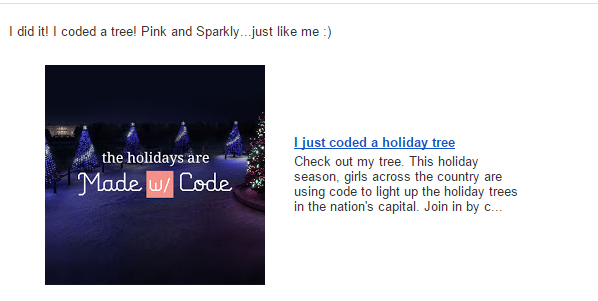
Sparkly Tree

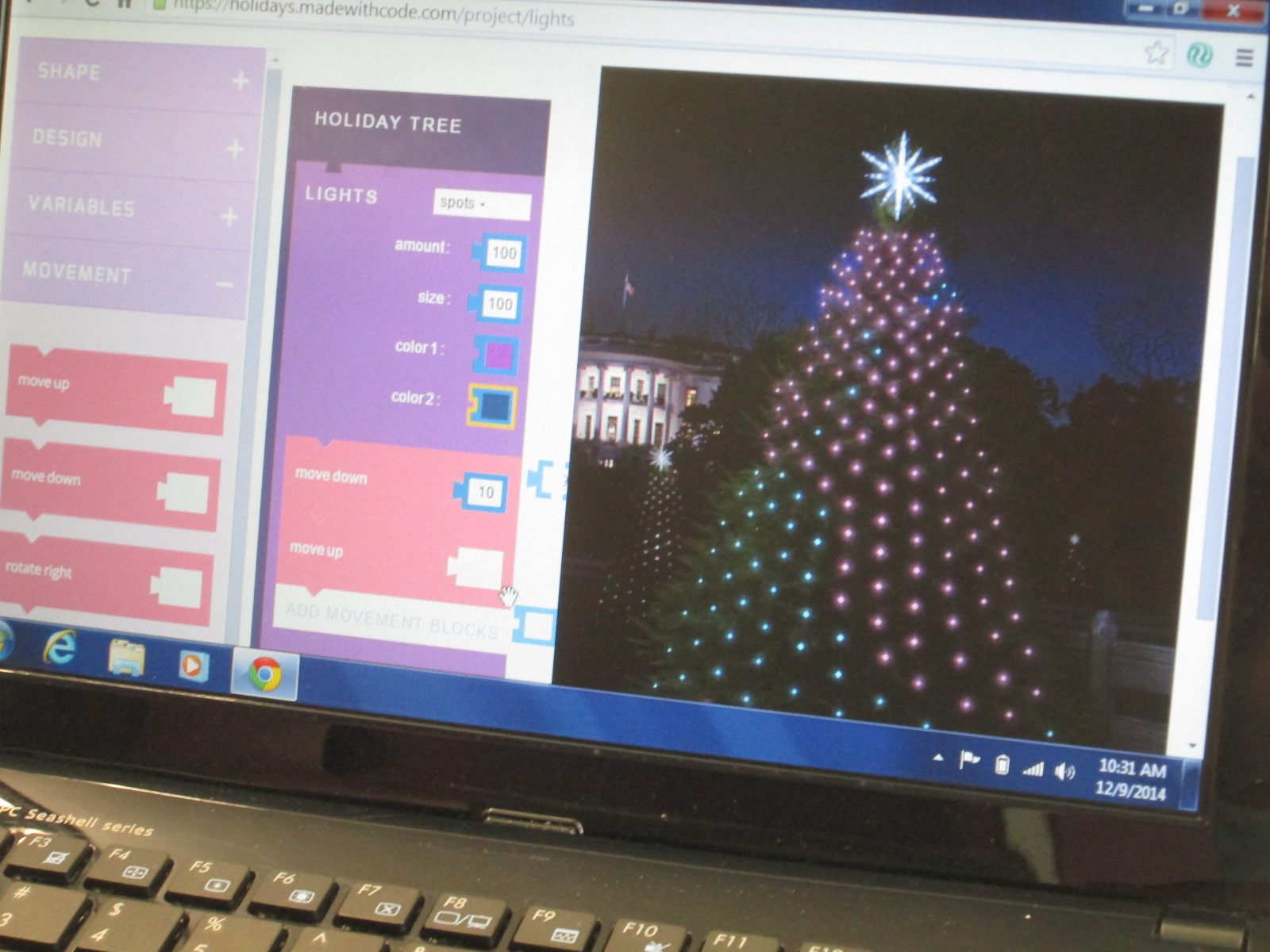
Ms. Spurgeon was bubbling with excitement today as she coded the White House Christmas tree in her favorite color of pink.  Her excitement spilled over into the students at her table as they tried some of the things she was trying and watched her try different pieces of code.

It reminded me of the importance of learning along with our students and really showed me that I probably need to explicitly invite teachers to sit and code with their classes.  I can do all of the running around, talking, and nudging, but teachers should learn along with their students and consider how coding comes into their own curriculum.

Another new thing that happened today was that some students really stuck to the Scratch tutorials without trying to branch off on their own too early.  The ones that stuck with the tutorials really got some functioning projects off the ground during their hour of work.

Several of the 3rd graders branched off from the 3 holiday projects on Made with Code and tried some of the other projects.  They loved the beat creator.

As students made beats, they were naturally starting to think about lyrics or dances to go with their beats.  Their teacher happened to be standing nearby when I observed this so I suggested that they might write a rap that connected with some of their classwork.  Then, the teacher got excited and suggested a rap about habitats in science.  It will be interesting to see if this takes off in class or not, but students were certainly interested in creating beats and putting in some work to write a song.

4th grade closed out our day with all kinds of coding.  The experience with coding was the most varied in this grade because several students had used coding in projects last year.  I showed several resources and turned them loose to see what they could do.

This year’s hour of code has been so much fun and was a big improvement over last year.  Next year, I hope to do even more.  I would love to involve families at some point.  I’ve seen several schools hosting parent coding nights, so perhaps we will look at that for next year.


Hour of Code 2014: Scenes from Day 3 & 4

2014 Day 4 (7)

Days 3 and 4 have been filled with lots of young learners for hour of code.

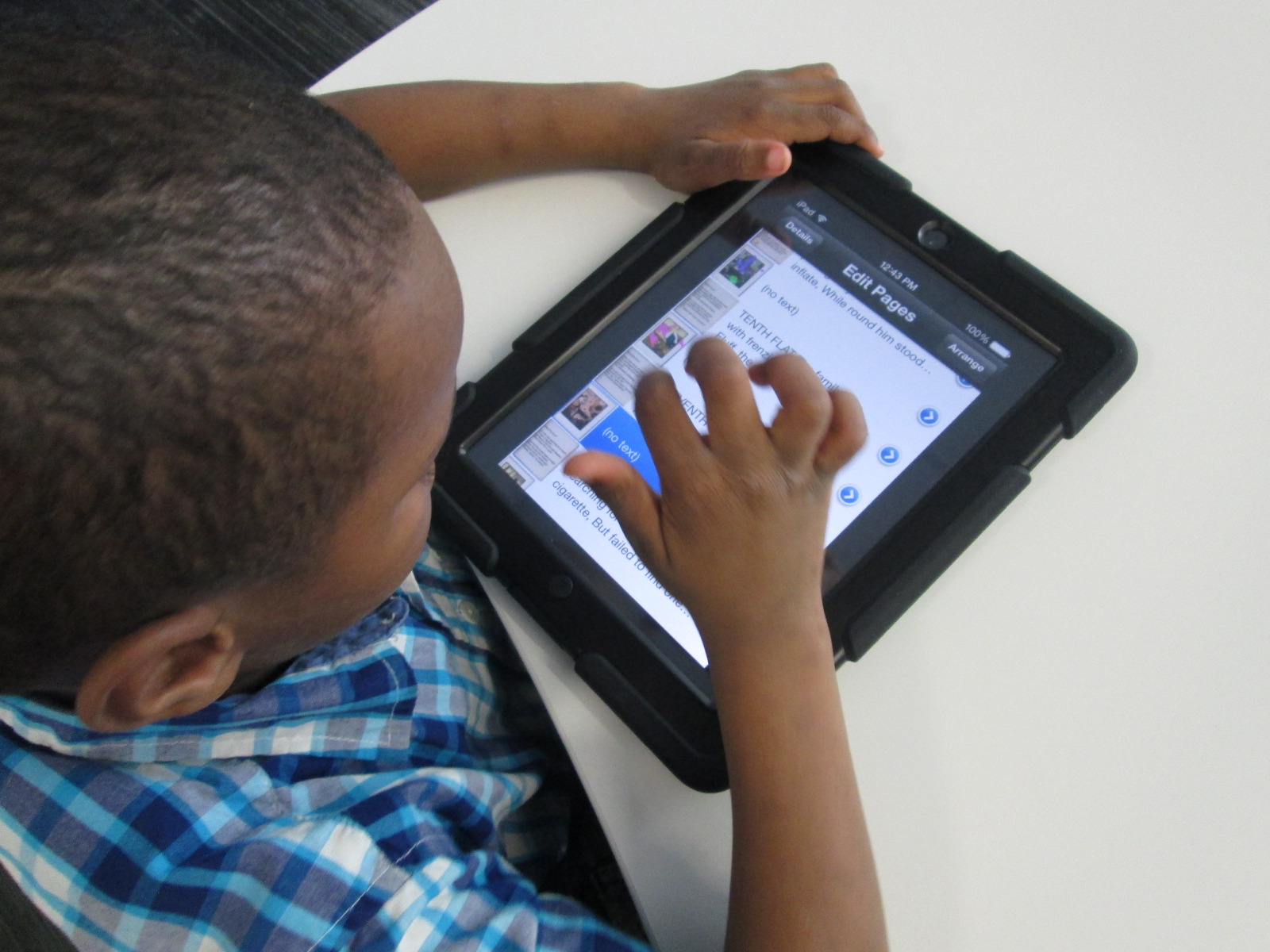
Kindergarten class have continued to come to use the iPad app The Foos.  In each session, we start by talking about the word “code”.  Lots of them mention passcodes on iPhones and codes to get into gates or buildings.  We link this to the idea of giving a computer a code.  Then, we watch the video from President Obama.

Before we start the app, we talk a lot about how coders don’t give up, they try small pieces and test, and they collaborate when needed.  The teachers and I have made some interesting observations about students while they are coding with The Foos and other coding tools.

1.  Students who might easily give up or struggle with other subject areas in school are fully engaged and putting forth tremendous effort when coding, while others who like to get things right the first time are easily frustrated.

2.  We talk a lot about stamina at our school and how long you can spend working at a task whether it’s math, reading, or something else.  The stamina of students in coding is very high.  Working for almost an hour was easily obtainable by most students regardless of age.

3.  Students who might not normally share their thinking with other students in order to help or collaborate were very willing to share their coding strategies.

4.  Some students still needed some direct instruction or nudges.  With the Foos in particular, I noticed students repeatedly pressing the run button in order to get a character to move rather than write enough code to make it happen with one click.  I observed students repeating the same code over and over that wasn’t working and never trying something new.  There is a lot to learn from tinkering, but it is still essential and necessary for a teacher facilitator to step in with some instruction, tips, or nudges.

In addition to the Foos, we had 2nd graders who continued to enjoy using the Made with Code site.  They loved programming a yeti to dance, but they thought it was super cool to be able to program the lights on the White House Christmas tree and actually schedule their code to light up in Washington.

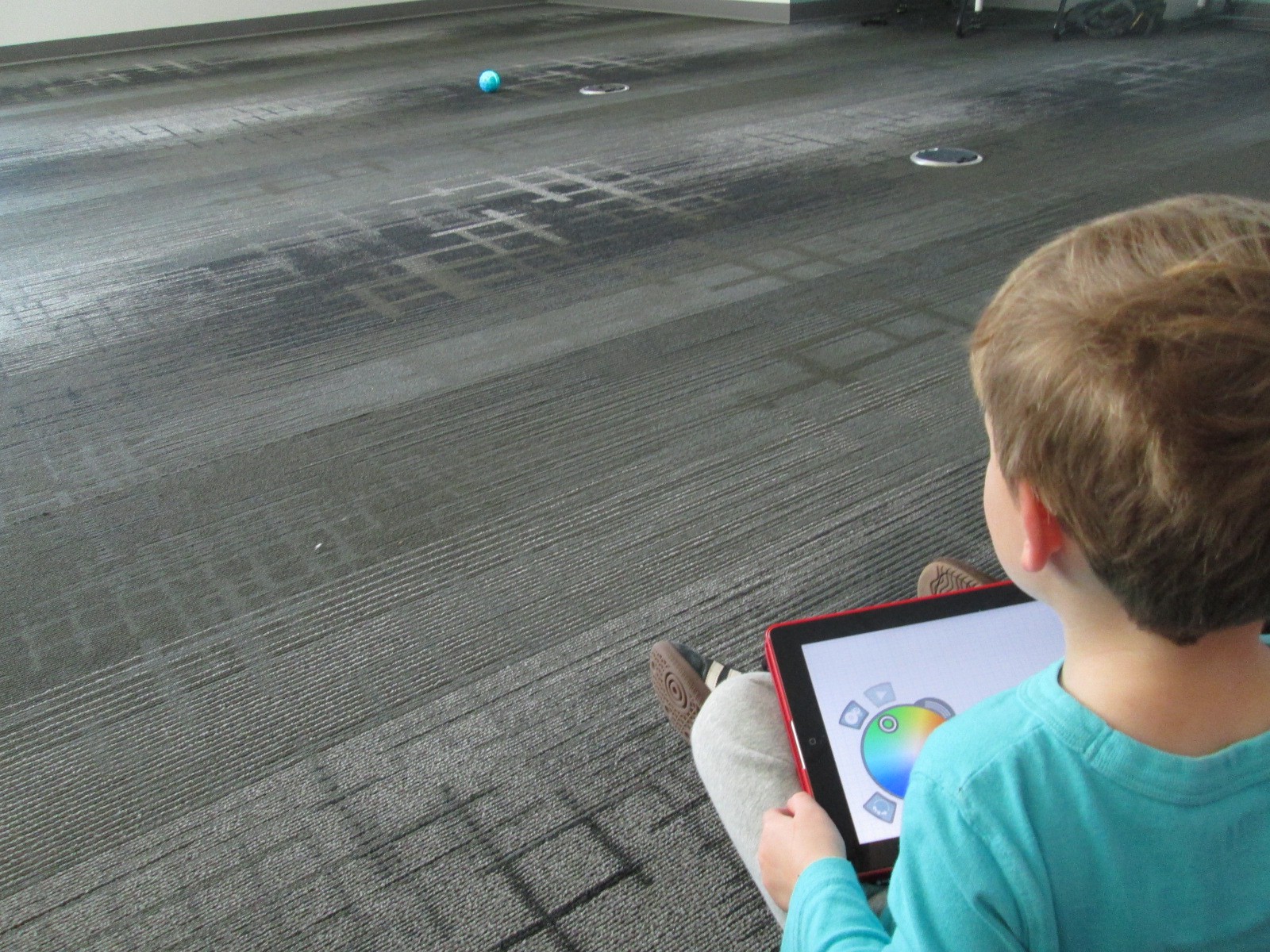
Our preK students had a blast using the Sphero draw app to practice drawing shapes and programming Sphero to drive around the carpet in their shape.  You can read more about that here. 

Finally, we’ve been having an interesting occurrence in our makerspace.  It started with a couple of students asking if they could come in during their recess to build and program a robot.  Then, another student asked.  Before I knew it, the word was spreading and more students who were new to making were showing up during recess.  It’s sort of like an underground movement.  It’s exciting, but I’m trying to figure out how to manage it.  Just today, a student came in on her own, designed an object in Tinkercad, exported it to Makerware, uploaded it to an SD card, and began printing it on the 3D printer.  Another student uploaded a file to Thingiverse that he made at home and prepped his own file for printing.  Two students started assembling a robot and pooling their knowledge to create the code that lived up to their vision for what the robot can do.  Another new student appeared, and started tinkering with how to program Sphero.

Students want to dream, tinker, create, and share.  I’m thankful that our library is a place that they can do that.  Hour of code once again opens my eyes and teachers’ eyes to what students can do.

Coding and Beyond with PreK Using Sphero, Osmo, iPads, Computers, and Books

PreK Coding (27)

I love it when a small seed of an idea turns into something much more.  A few weeks ago, I approached PreK about using our Sphero to practice writing letters.  I knew that PreK was working on forming the letters of the alphabet and I thought that the Sphero Draw and Drive app would be a perfect way to merge letter practice with some programming.  I originally thought that small groups might come to the library and use the Sphero with me, but further brainstorming with Ms. Heather resulted in us deciding to do 5 centers that students would rotate through in order to experience many technology, math, and literacy experiences.

Ms. Heather’s class has been bubbling with excitement about coming to the library to try out all of these centers.  Ms. Heather split the class up into 5 groups which was 4-5 students per group.  Ms. Heather, Ms. Melissa (parapro), Ms. Callahan (parent), and I all led a center and one center was independent.  Each center lasted about 10 minutes and took up about an hour with transitions. Here’s what they did.

Center 1:  Hour of Code programming with Sphero

Since this week is our hour of code, I was so glad that PreK got to experience an aspect of coding.  While coding didn’t fill up our hour, it certainly sparked their interest in how to make a computer or robot do what you want it to.  Students sat in a row and each took a turn to think of a letter to practice drawing.  Using the Draw and Drive app on iPad, students drew a letter and pressed play.  The Sphero drove around the carpet in the shape of that letter.  With a shake of the iPad, the letter was erased and the next student had a turn.

We repeated this process over and over until we were out of time.  Each time the robot rolled around the floor there was a burst of excitement.  As the facilitator, I asked students about the letters that they were drawing to make sure that they understood what they were trying to draw.

Center 2:  Osmo Tangrams and Words

Our Osmo devices are one of our favorite tools in the library.  The Osmo is came out this summer.  It includes a base to put the iPad in and a red attachment to place over the camera.  Osmo comes with 2 sets of tools to use with the apps: a set of letter tiles and a set of tangrams.  The three apps are free to download but you must have the base and attachment for them to work.  For this center, students used the Junior version of the Words app.  This app gives students a picture with a matching word.  The beginning sound of the word is missing and students have to lay the correct letter tile in front of the iPad.  If it is correct, the red attachment “sees” the letter tile and magically adds it to the word on the screen.  If it is incorrect, students have to try again.

Students also used the Introduction to Tangrams in the tangrams app.  This app shows students 2-3 tangram pieces pushed together.  For this beginning phase, the colors of the tangrams on the screen match the colors of the actual tangrams.  As students correctly place the tangrams on the table in front of the iPad, the red attachment “sees” them and fills in with black on the screen.  When they are all correct, a new combination is shown.

This center was one that needed adjustment as we went along depending on student needs and strengths. Some needed to focus more on the shapes while others were ready to think about letter sounds in words.  All students had a blast watching the magic of the Osmo happen on the screen and table.

Center 3: Starfall on Computers

Ms. Heather facilitated the computer center.  I put out a computer, mouse, and headphones for each student in the group.  One part of this center was simply using fine motor skills to practice using a mouse.  The other part was to use Starfall to continue practicing letters and sounds.

Center 4: Reading

A parent volunteer read aloud stories that I pulled.  The selections were Peanut Butter and Jellyfish, Job Site, and Stars.  She had students engaged in discussion about the story and the pictures all along the way.

Center 5: iPads

PreK has 5 iPads in each classroom.  Students have a variety of word apps that they can use at their own center time in class, so they are used to using these apps independently.  This made the perfect independent center since we didn’t have 5 adults.  Students sat on the bean bags by the windows and used the iPads by themselves for the 10 minutes of this center.

I think many times people think that our younger students can’t use technology or they are unsure of what to do with younger students.  I love giving things a go and seeing what happens.  We were amazed by students’ engagement and excitement today.  Some asked, “Can we do this every day?”  That was a sure sign of success.  When working with younger students, you have to think about what your barriers might be.  For us, we wanted smaller groups in order to have more adult support if needed.  We also wanted smaller groups so that students wouldn’t be waiting around since we only have 1 Sphero and 3 Osmos.  Using the teacher, parapro, parent volunteer, and me helped to make this possible.  You might have a different barrier, but I hope that you will consider what you might leap into with your youngest learners in your building.

Hour of Code 2014: Scenes from Day 2

2014 Day 2 (29)

Day 2 was a whirlwind with back to back class all day from 8AM until 2:30PM.  Once again, it was a day filled with perseverance, collaboration, and celebration as students figured out how to create pieces of code in apps and websites and run them.

Kindergarten and 1st grade continued to use the app “The Foos” by CodeSpark.  Today, I gave better instruction encouraging them to write the shortest code they could think of in order to get their character to capture the star.  We also did a few examples together by displaying the iPad on the screen.  This helped us to think about problem solving, trying something different, and visualizing the actions we wanted our character to take before we wrote code.

Our 2nd grade classes tried out block coding by using the Anna and Elsa snowflake game on Code.org as well as the Angry Bird and Flappy Bird game.  Once again today, the Code.org site was slow.  It didn’t crash, but it was still so slow that students were discouraged.  We visited it when we could, but we focused more of our time on Google’s Made with Code site.  This site was created to encourage girls to code, but we’ve found that it’s really a site for everyone.

Made with Code_Google

Students chose from 3 block coding activities:  making a yeti dance, creating a White House light show, and designing an animated snowflake.

Made with Code_Google choices

This was such a great tool for 2nd grade because it walked them through each step of adding blocks and then they could make adjustments to create various effects.  It was a great stepping stone to move on to something like Scratch or Scratch Jr.  In fact, we looked at Scratch at the end of each session and students better understood all of the menus in Scratch because of what they learned on this coding site.


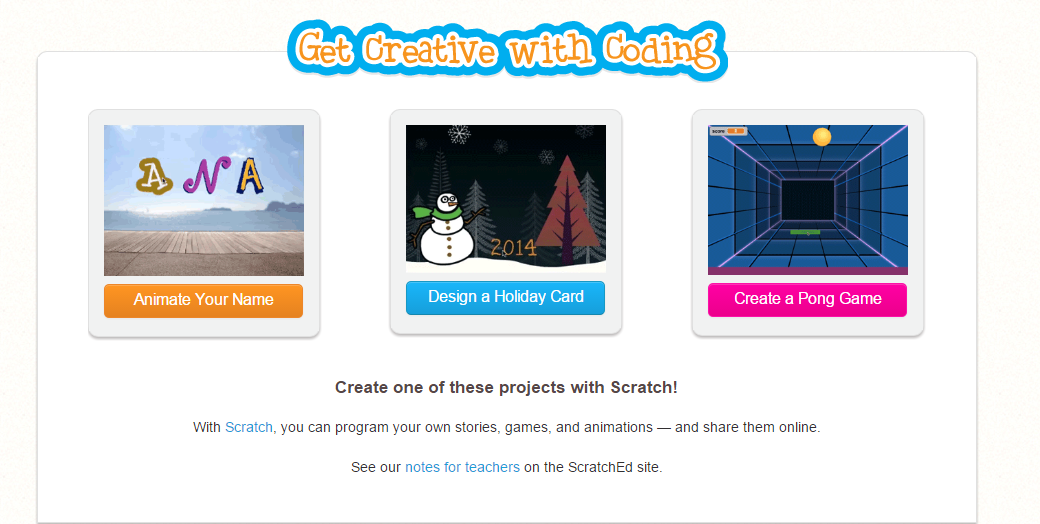
Finally, the entire 5th grade came in for a coding extravaganza.  It was loud and productive.  They tried the three Scratch tutorials on Code.org

Get Creative with Coding   Imagine  Program  Share

Several students also used Made with Code to create more dancing yetis and lights.  I have a feeling that many of these students will be coding on their own tonight, in class, and over the winter break.