Ms. Kelly Hocking’s Kindergarten class has done it again. They have once again ventured out to try something that no other class has tried and inspired other classes and projects with their work. In small groups, they each chose a planet to research. We used PebbleGo, TrueFlix, and books to search for facts in the library and in class. Then, in the library and in class, students worked on sequencing their facts.
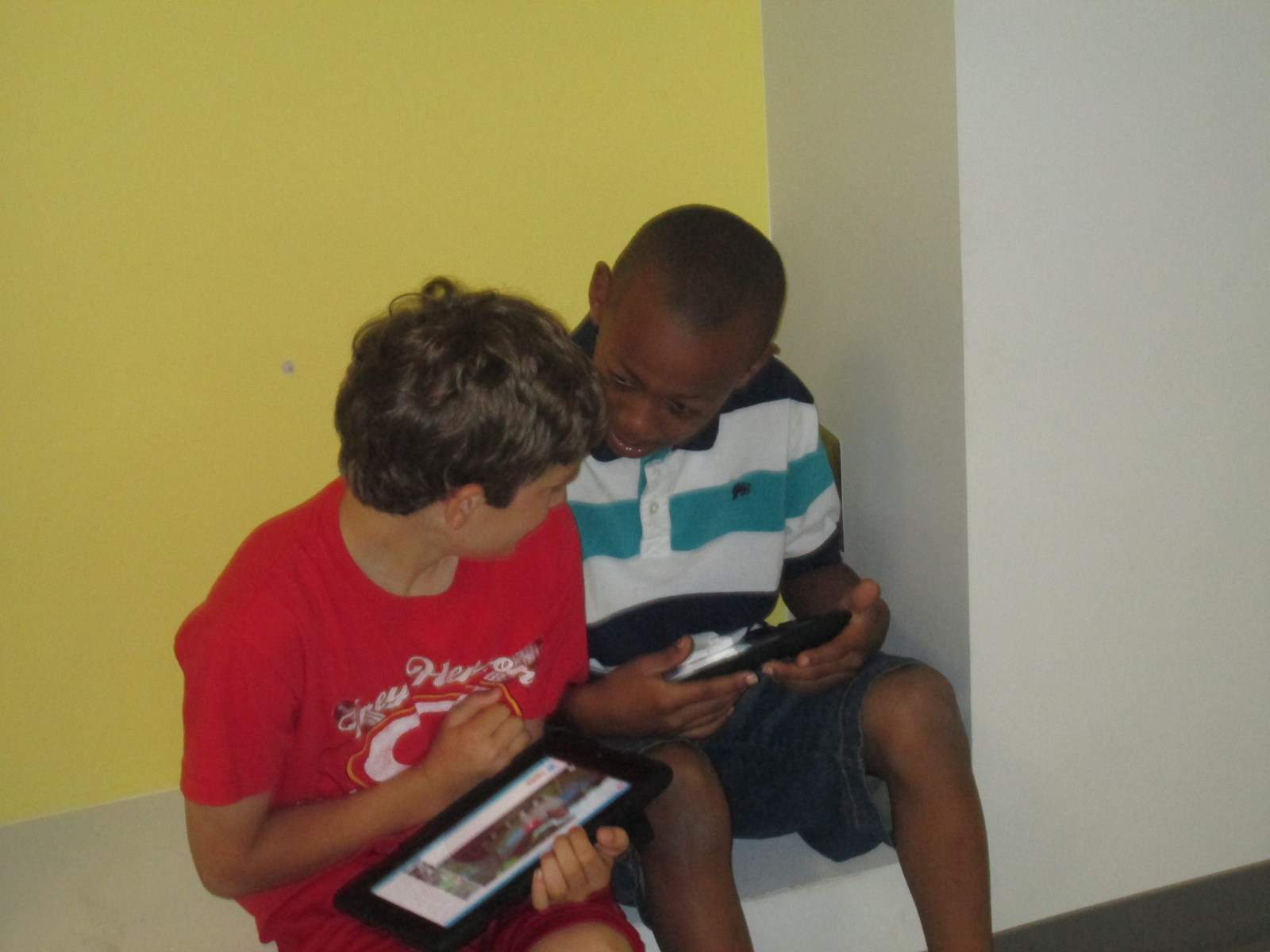
Over the past week, Ms. Kelly checked out iPads each day for students to use to publish their work using Storykit. I love how she encouraged them to take pictures of objects in the school and then use the drawing feature in Storykit to enhance those pictures.
Take a look at their finished products below. If you click on each picture, it will take you to the student book. If you have comments for our students, please leave them here on the blog and I will be sure to pass them along to our authors. If you would like to learn more about Storykit, I’m sure these Kindergarten experts would be willing to Skype or Google Hangout with your students to share their expertise.
My library uses a flexible schedule. This means that I don’t see classes at a set time every week. Instead, I collaborate with teachers and schedule lessons and projects as they fit into the curriculum each week. This flexibility allows me to work with more than just homeroom classes to include classes like art and music, gifted, special education, and extended learning time groups. It also allows me to work with small groups of students or even individuals.
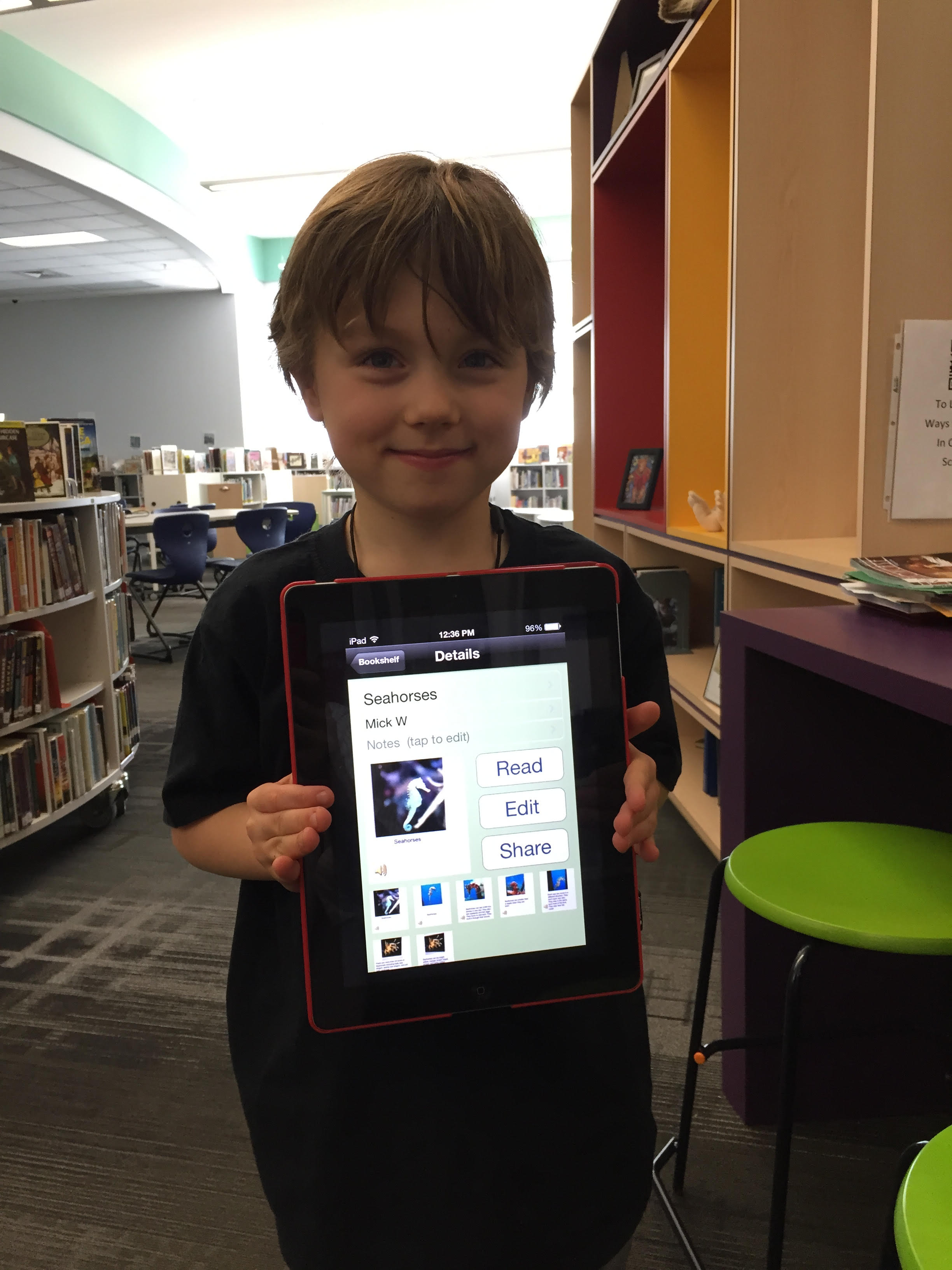
Over the past couple of weeks, I have been working with Mick, a Kindergarten student. He is an avid reader and is very curious about so many things. Mick discovers a topic and wants to know all there is to know about it. Our recent exploration has been around seahorses, which was sparked by a book that he read in his class.
Over several sessions, Mick came to the library for research. We developed questions together on a Google doc. He did all of the talking, and I did the typing.
Once we had a good list of questions, we started exploring PebbleGo, a Capstone Interactive ebook on seahorses, and Encyclopedia Britannica in our Galileo database. We listened to the read aloud feature or I read the text aloud if it was too difficult for him to read on his own. We paused often to see if any facts had answered our questions. If Mick pulled out a fact, we put it into his own words and I added it to the doc.
After each session, I printed our notes for him to take back to class in case he did more research on his own or at home. Once Mick felt like he had enough facts, I asked him what he wanted to do with his information.
He really wanted to “make a book using the computer”. There are several tools we could use to do this, but we decided to use an iPad and the Storykit app. This app lets you create multiple pages, type text, record audio, draw, take pictures, and import pictures. I’ve seen other Kindergarten students use it, so I felt like it was the right tool for the job.
Mick’s first steps were to find some creative commons pictures of seahorses. He used the camera on the iPad to take pictures of the pictures and put one picture on each page.
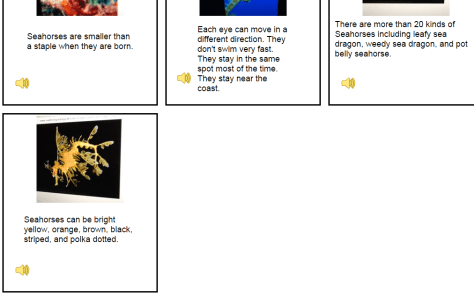
During another session, we went through Mick’s facts and selected an order for the information. He read the facts he wanted, and I typed them onto the iPad. I originally had him typing, but it was taking longer than we had time for.
In our final session, Mick recorded his voice reading each page.
Our Barrow 2nd graders have been hard at work creating this year’s Black History research project. We built upon our momentum from last year, but added many new layers.
Explored Alfred Nobel and the Nobel Peace Prize in a Google Hangout and crafted a list of criteria for our own Barrow Peace Prize
Crafted a persuasive informational piece of writing which could be read in less than 90 seconds
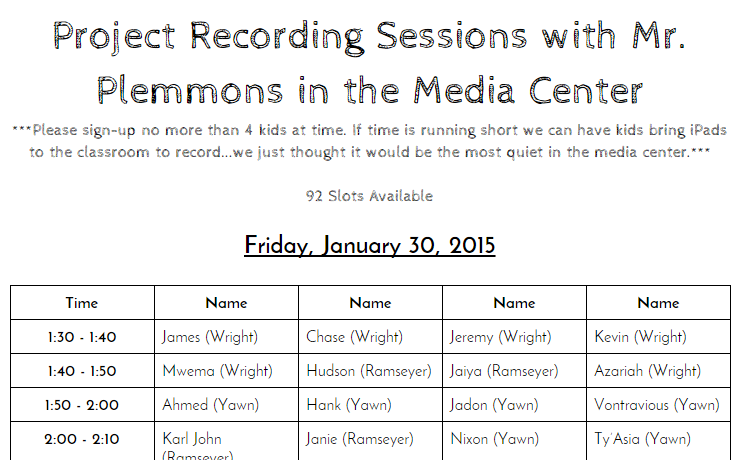
Over the past 2 weeks, students have been coming to the library in groups of 4 during blocks of 10-minute segments. During each session, I put a sign on the library door to encourage people to enter quietly.
The teachers scheduled their students on a shared Google doc, so I knew who was coming at each 10-minute interval. This was really helpful for me to know if students really had some extra time or if they needed to finish and hurry back to class.
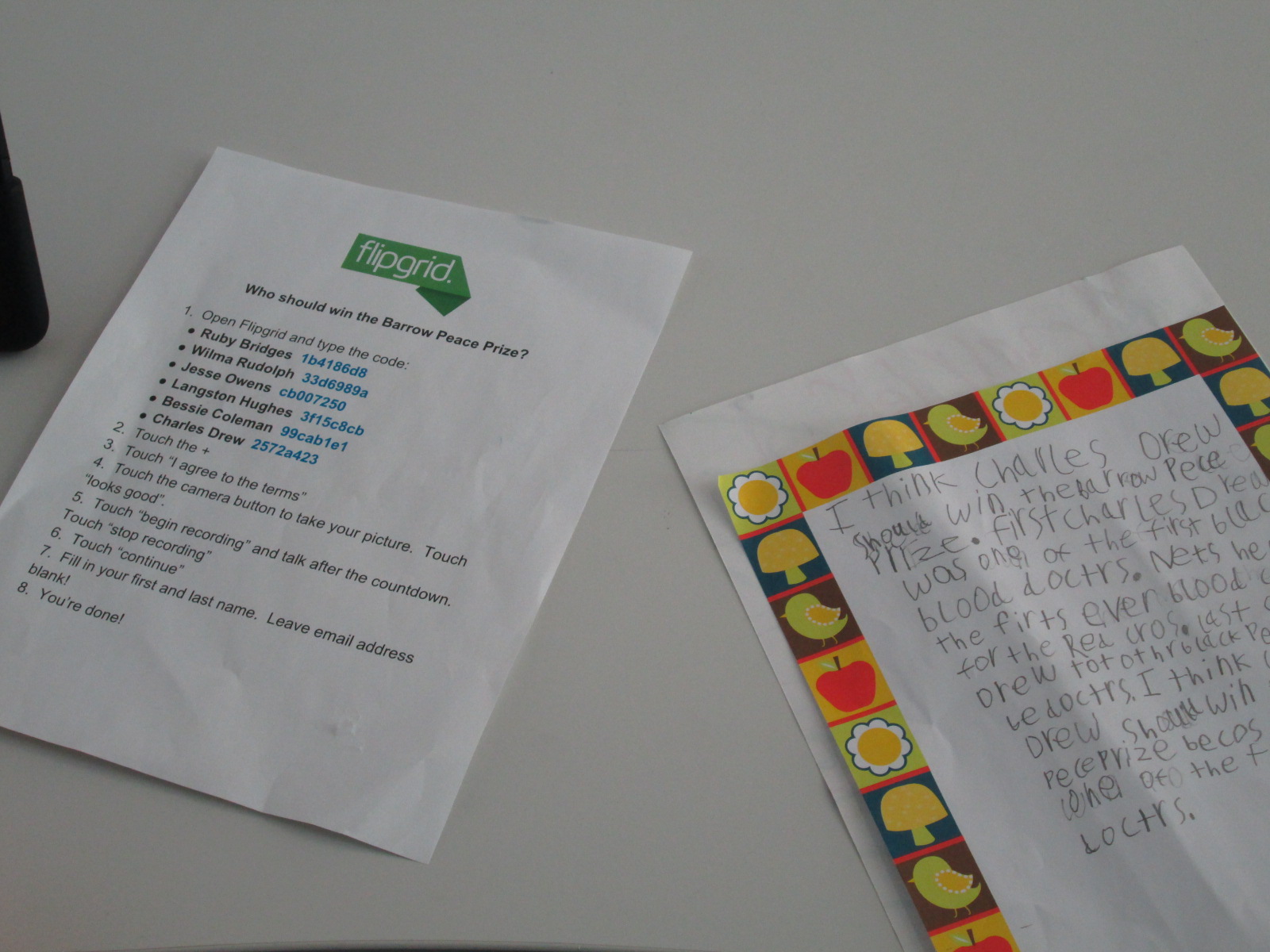
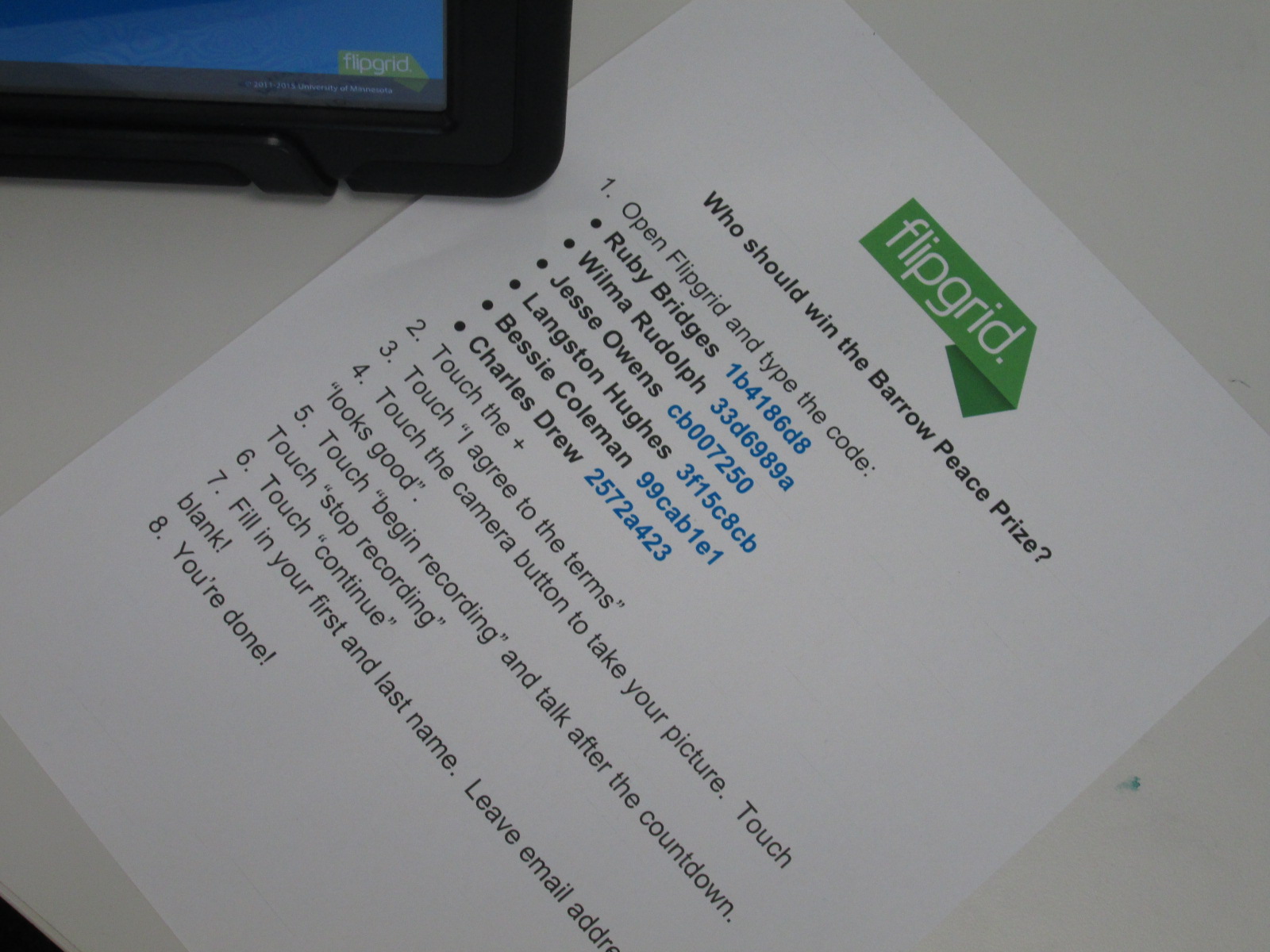
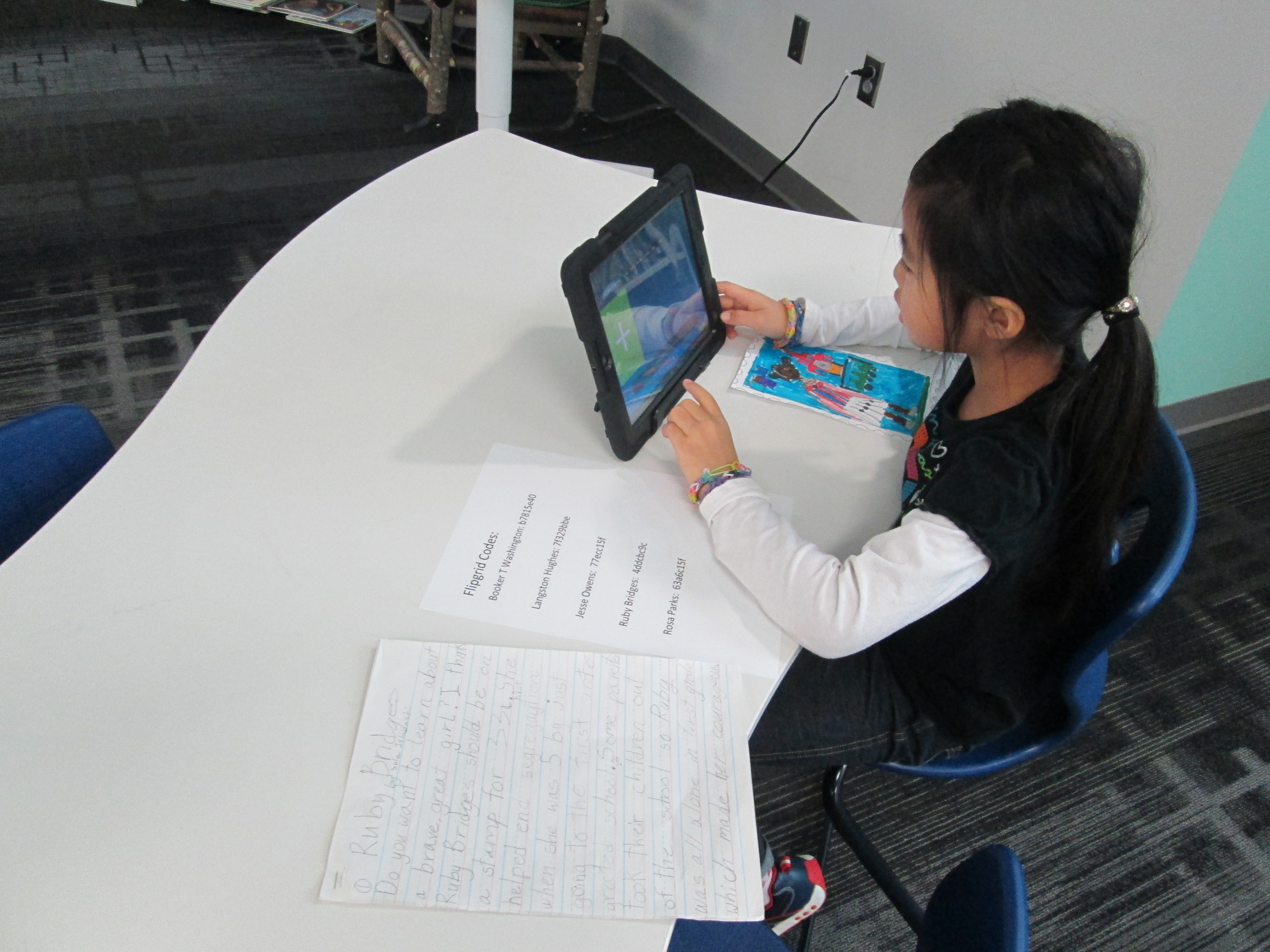
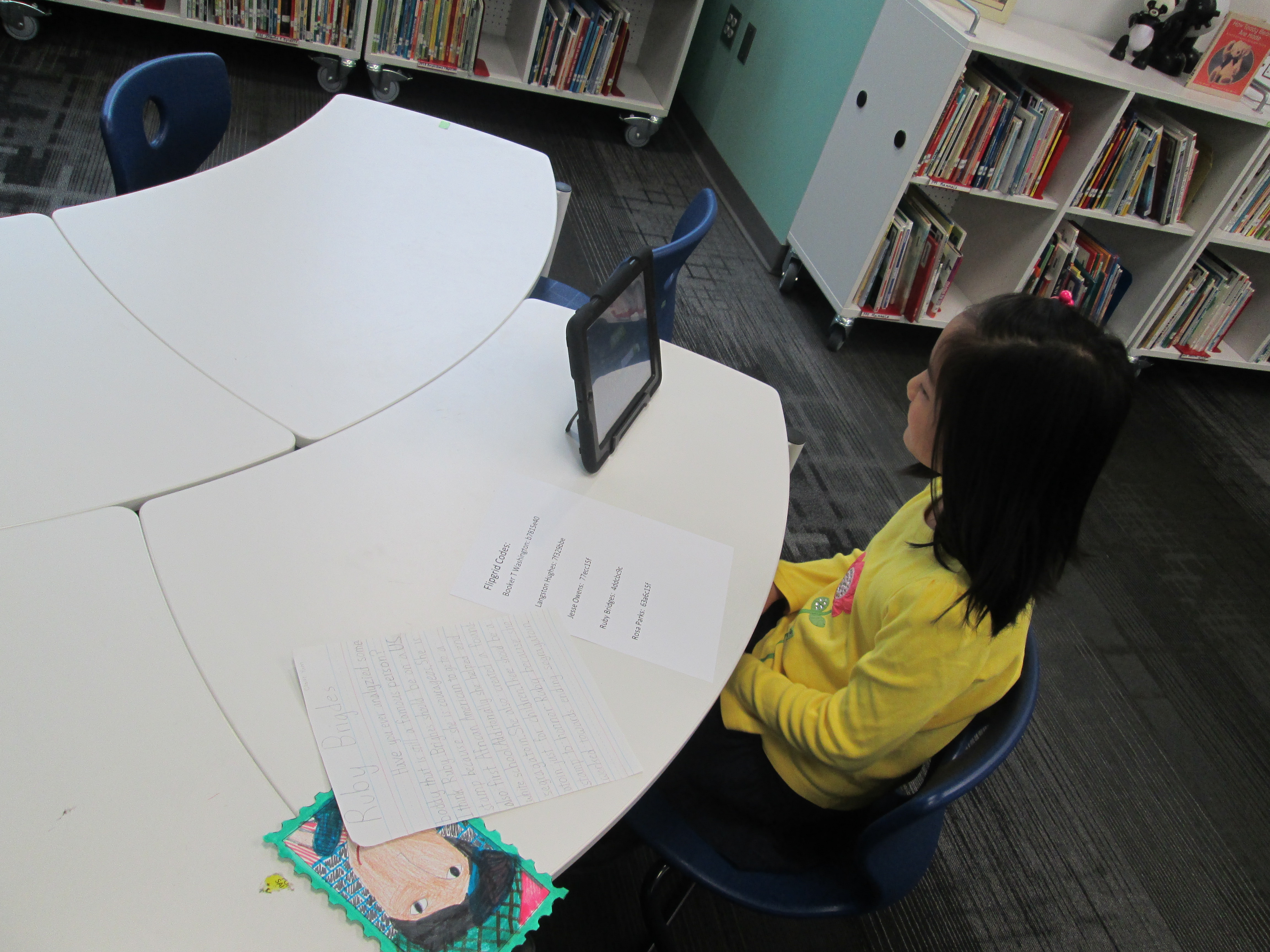
I put out a helpful list of instructions by 4 iPad stations in the library with all of the codes that students would need to get to their questions.
Students were focused and productive as they got their work ready for the world.
Now, the students are finished with their recording and they need your help.
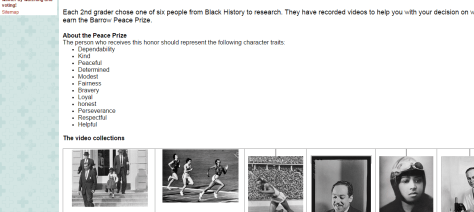
They would like for you to visit their Google site and view videos about each of the 6 people. Then, help us decide who should win the first Barrow Peace Prize. Students decided that the person who wins should be someone who represents the following character traits:
Dependability
Kindness
Peaceful
Determined
Modest
Fairness
Bravery
Loyal
Honest
Perseverance
Respectful
Helpful
In a couple of weeks, voting will close and we will announce the winner of this year’s Barrow Peace Prize. Thank you for taking time to view the students’ work. If you have any comments about specific videos feel free to leave a comment or a Tweet for me to share with the students. Also, you are welcome to share this project with other educators you know and encourage them to view and vote, too!
Visit our Google site to view our videos and vote on the Barrow Peace Prize.
Ms. Kelly Hocking’s Kindergarten class is hard at work again. They were so excited by what they discovered using the Storykit app, that they decided to continue their work by making their own nonfiction book. Their last adventure was about creating their own versions of folktales.
You can read and listen to their folktales online:
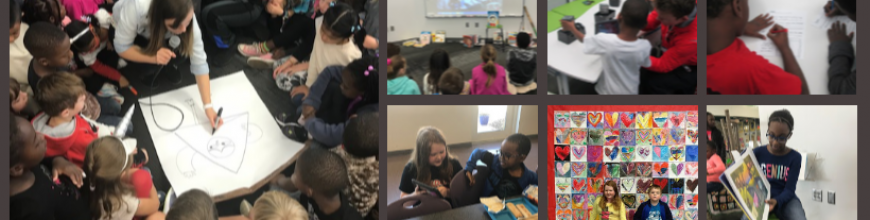
Ms. Kelly’s class has been very curious about space, so they decided as a class that they would work on creating informational books about the planets and solar system. Ms. Kelly put the students into groups of 2-3 and each group chose a planet or part of the solar system to research.
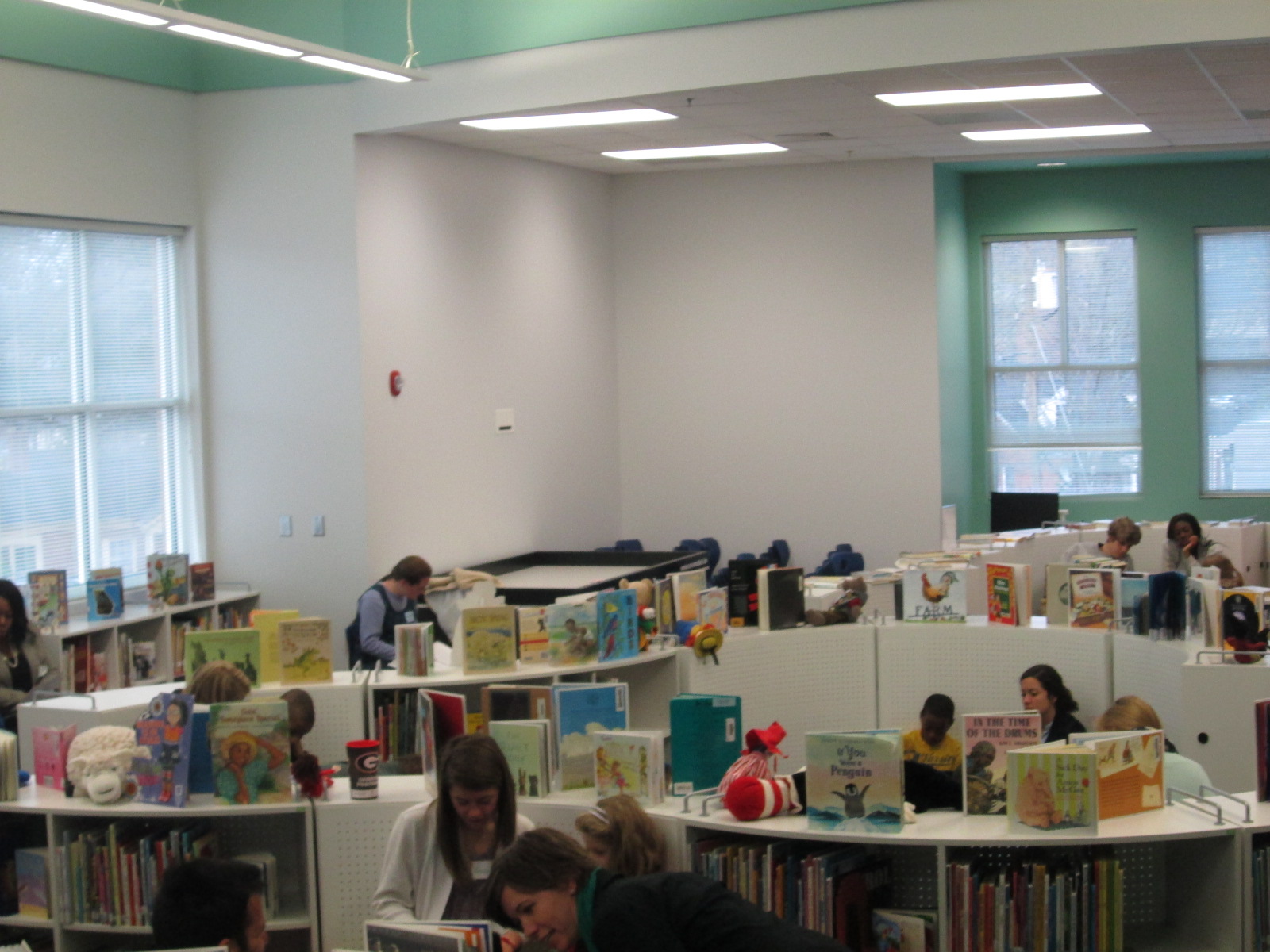
In the library, I pulled our books about space as well as checked out some books from the public library. I also setup 2 computer areas. One area was focused on PebbleGo and the other area focused on TrueFlix. Even though the content of TrueFlix is written for older students, I felt like the read aloud function would support Kindergarten researchers.
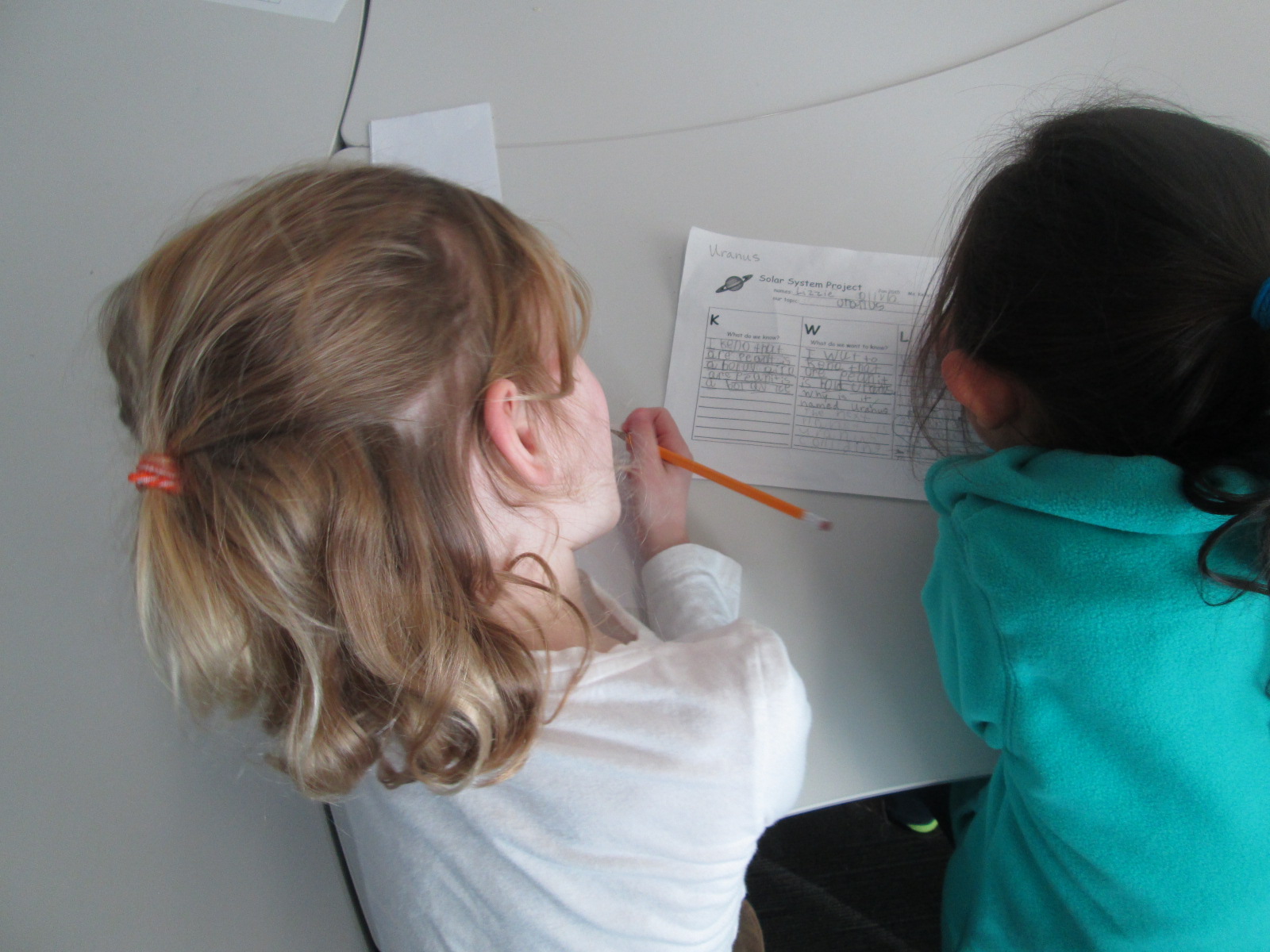
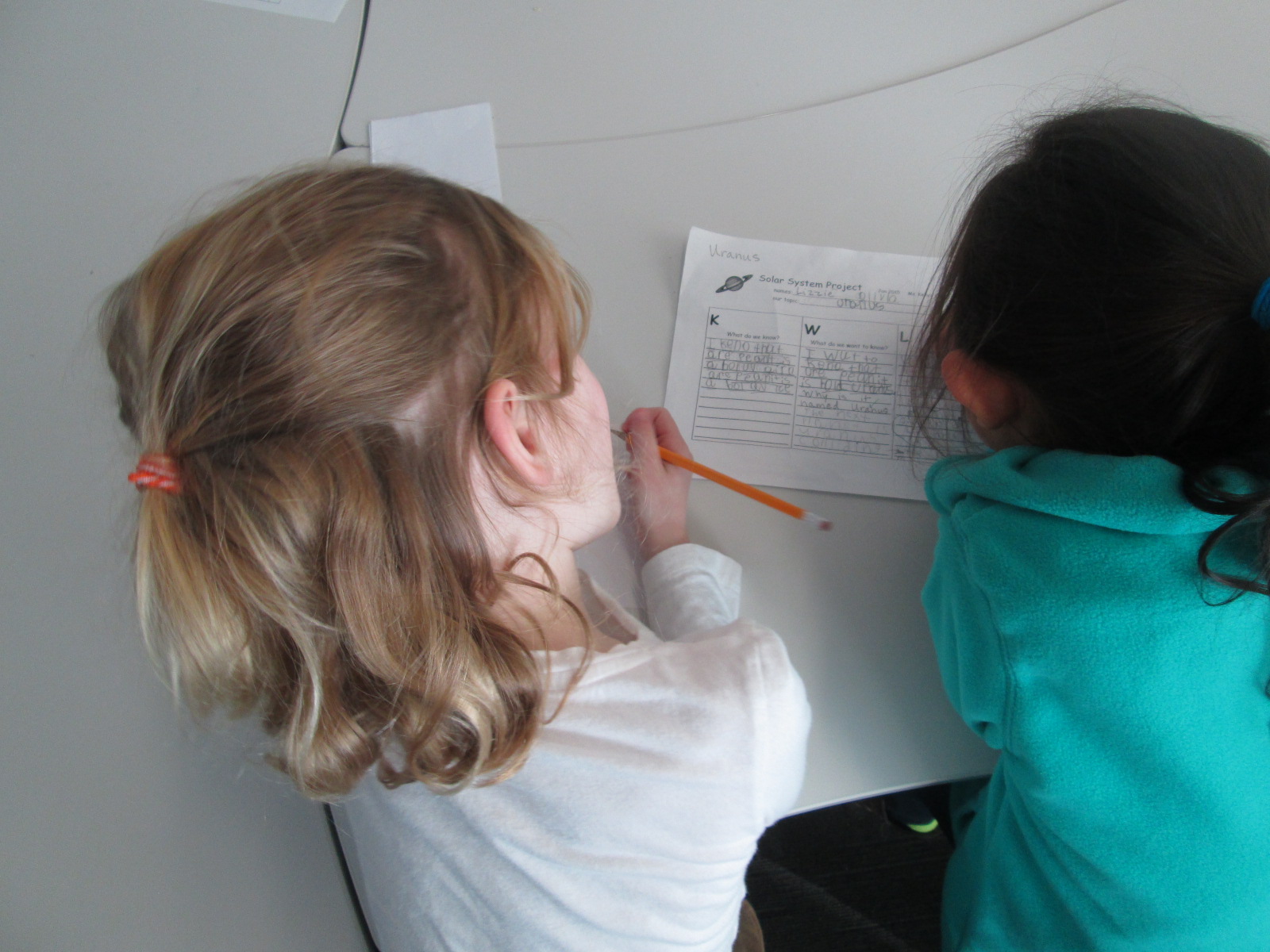
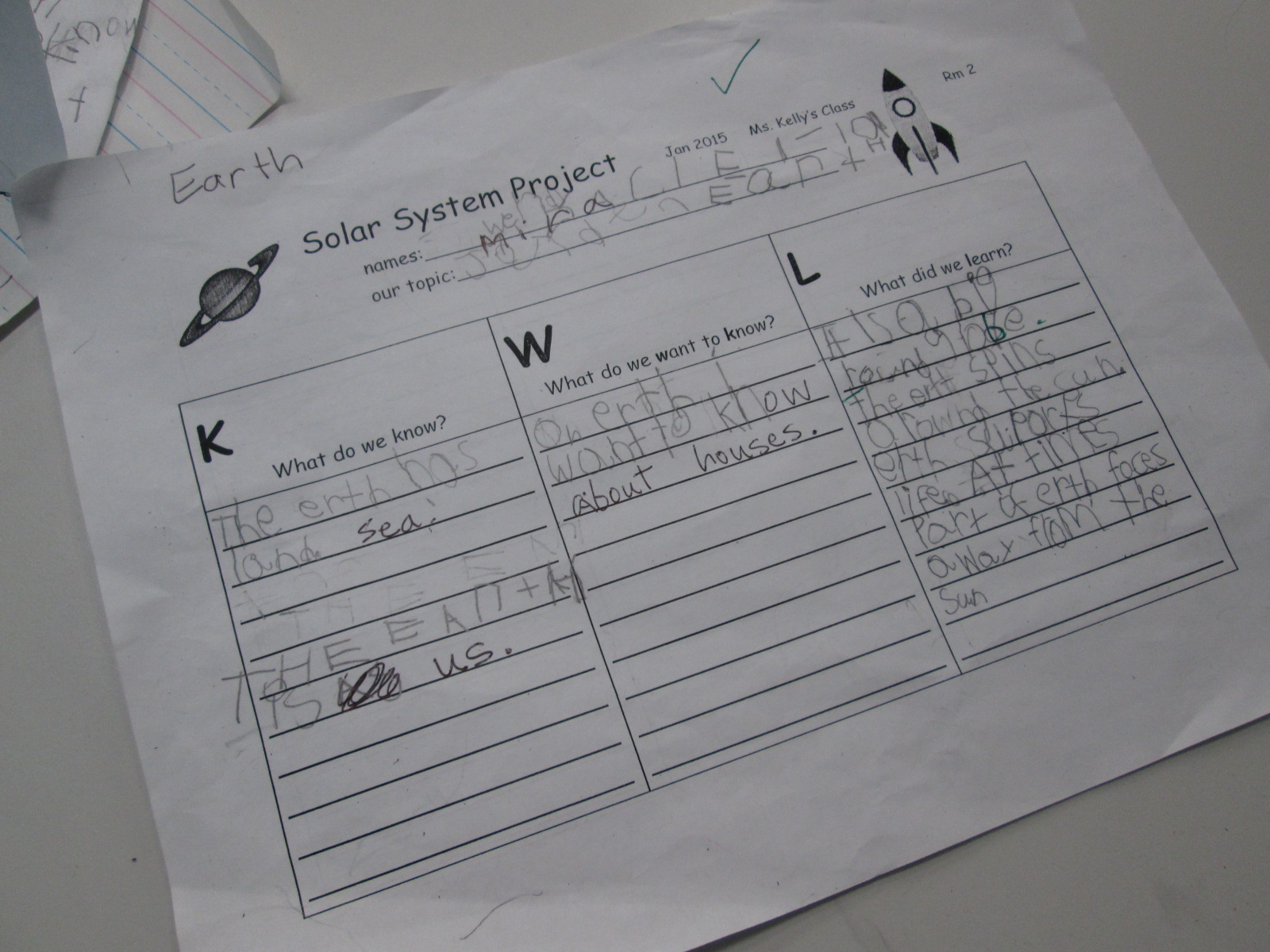
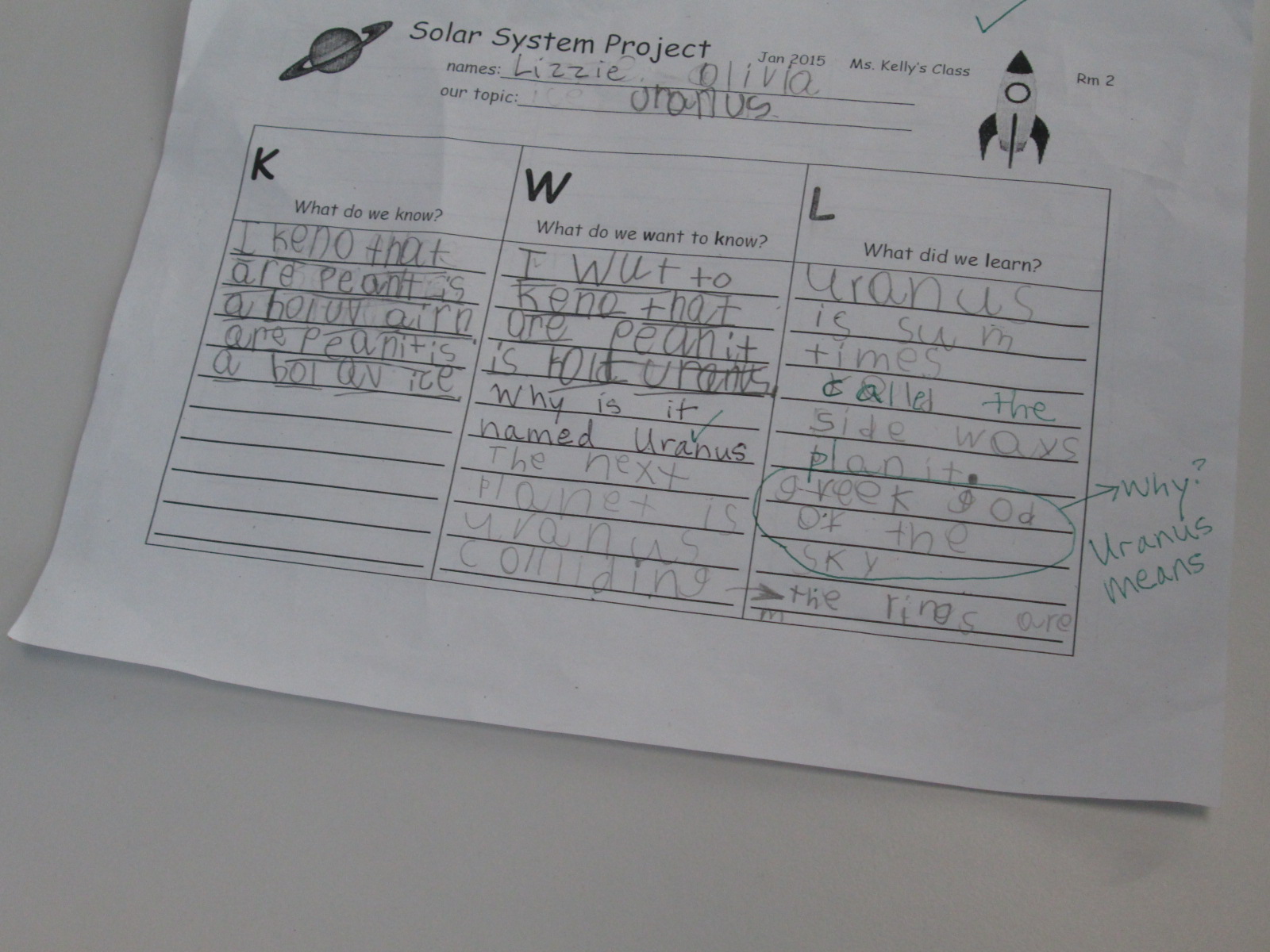
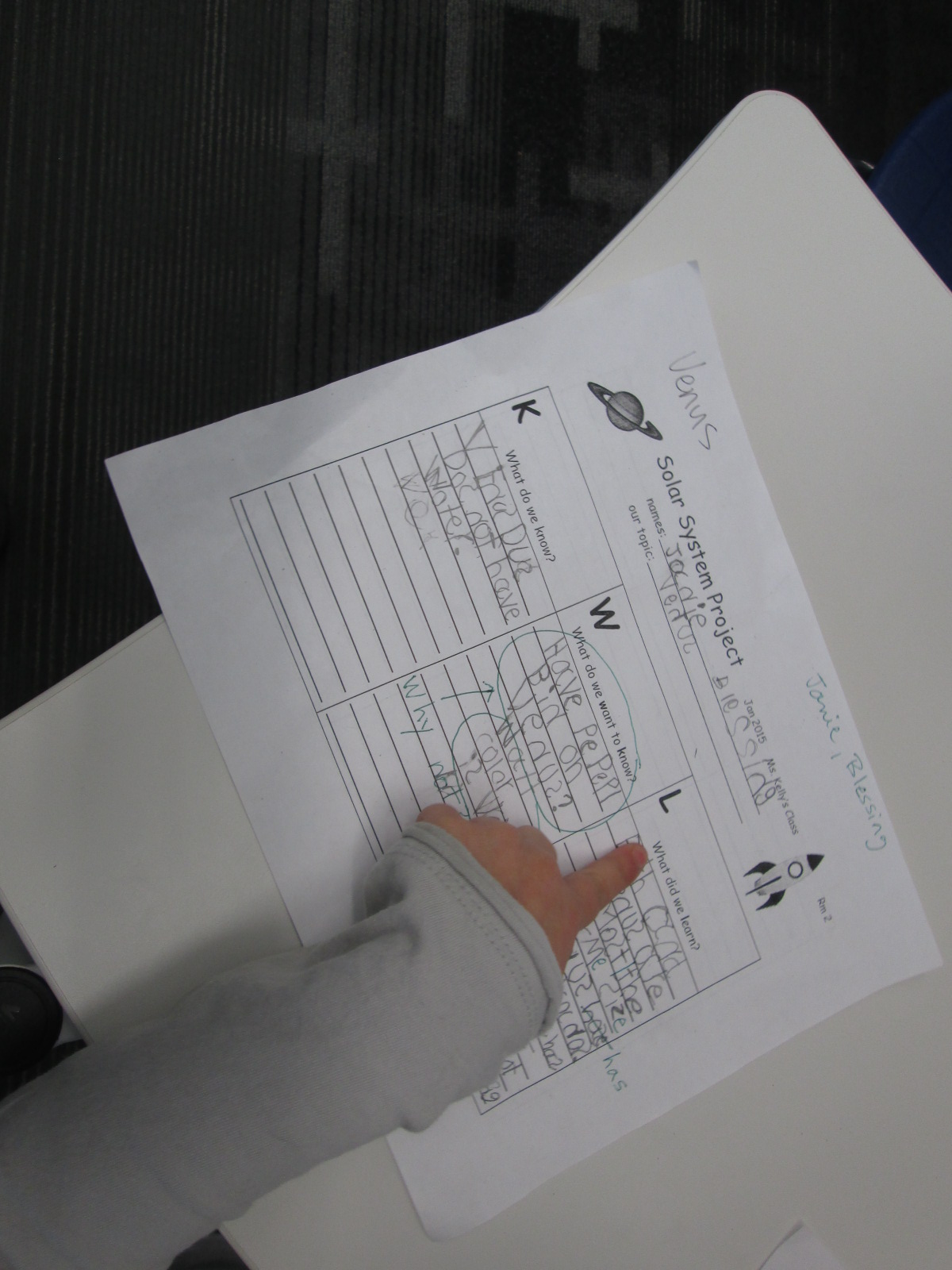
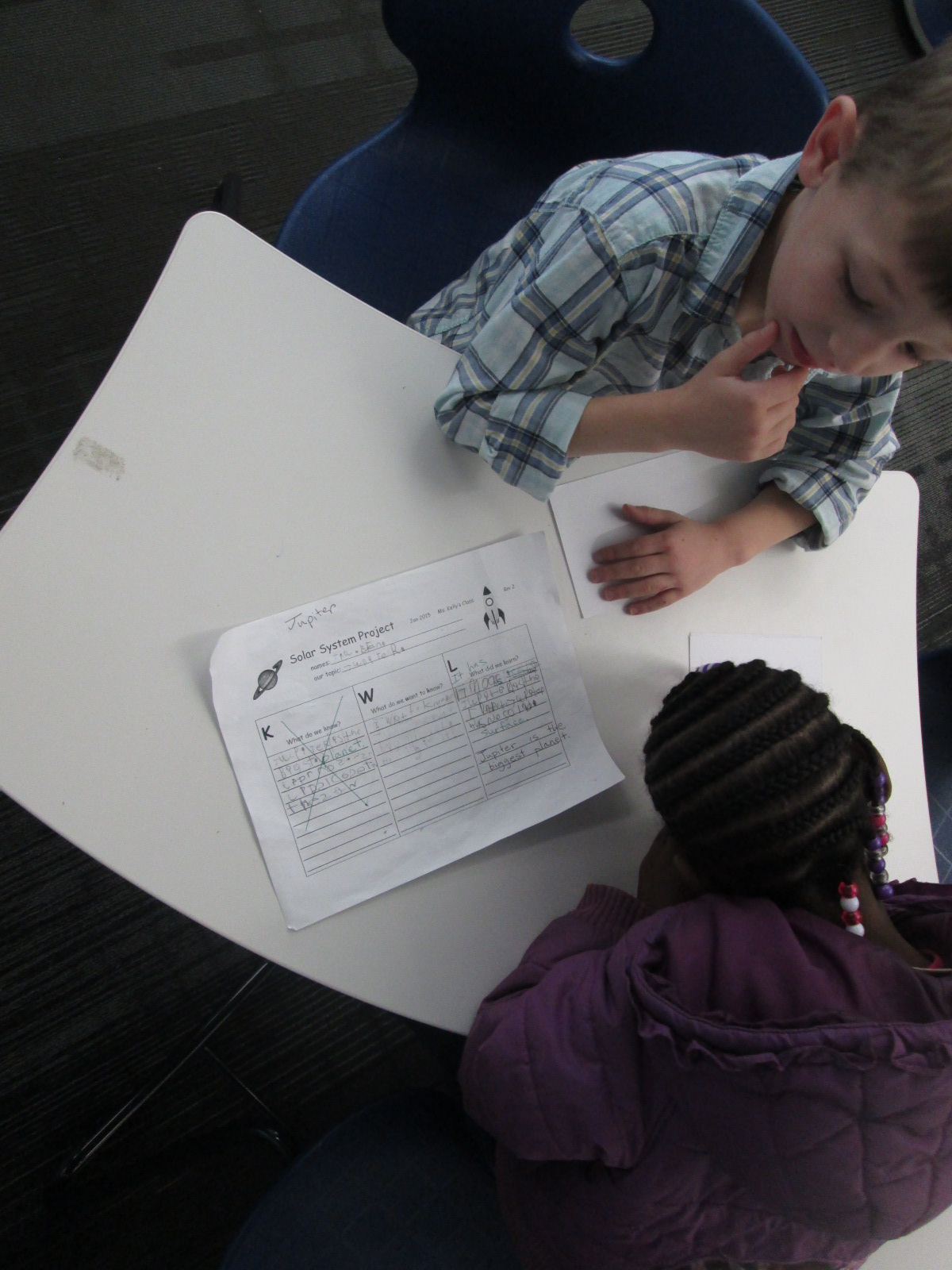
In class, students filled out a KWL chart to bring to the library. When they came to the library with their questions, Ms. Kelly and I did a quick intro to the 3 areas available to them. I loved how Ms. Kelly set a realistic goal for students in this big venture. She said, “I want you to have at least one fact written down before you leave today”. Of course, most groups wrote more than 1 fact, but every group left the library with a successful experience of meeting their expected goal. To support students in their research, Ms. Kelly, a parent volunteer, and I rotated among the groups to help students with navigating the information in front of them. Students continued this research for the next week in class.
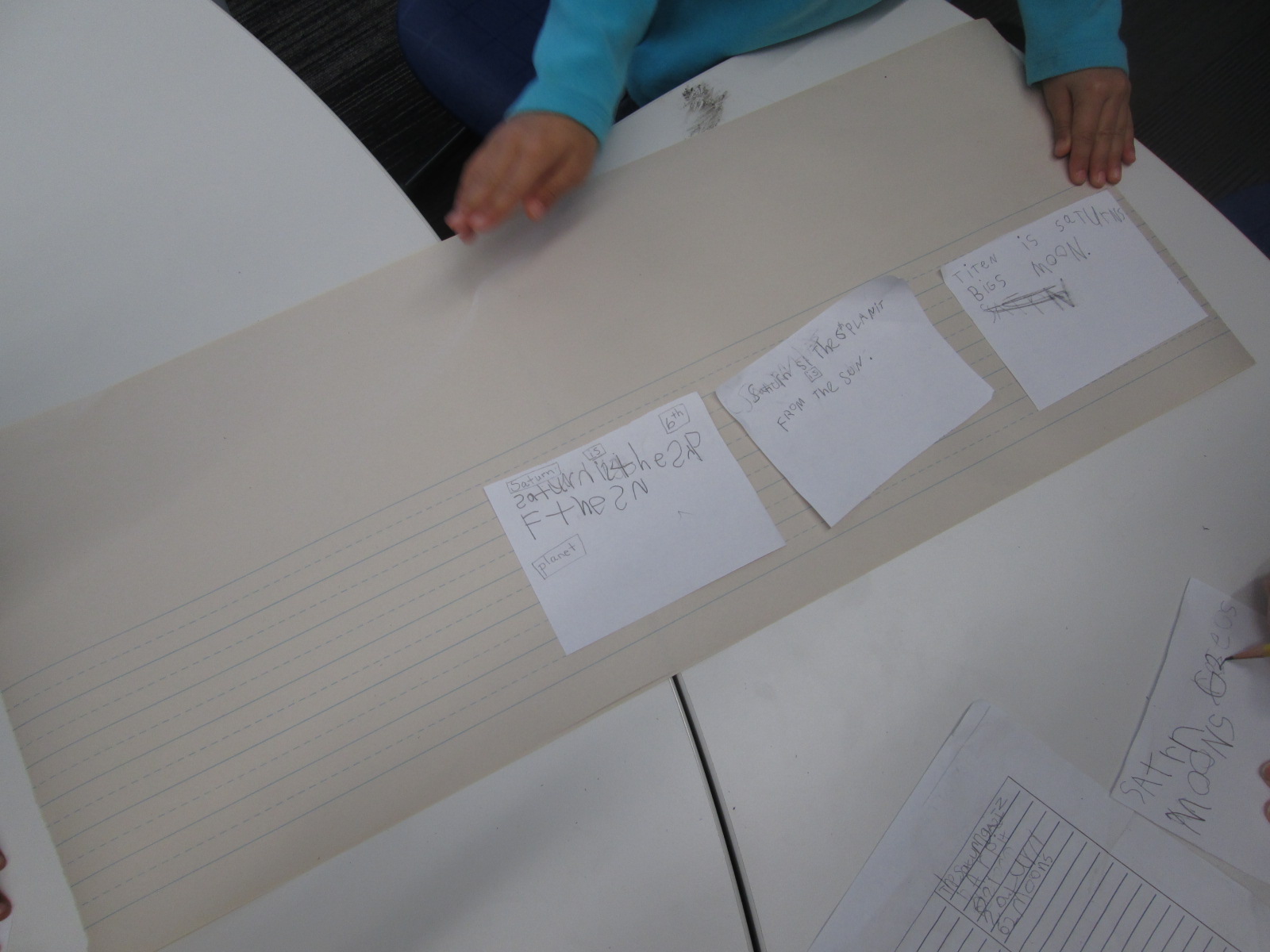
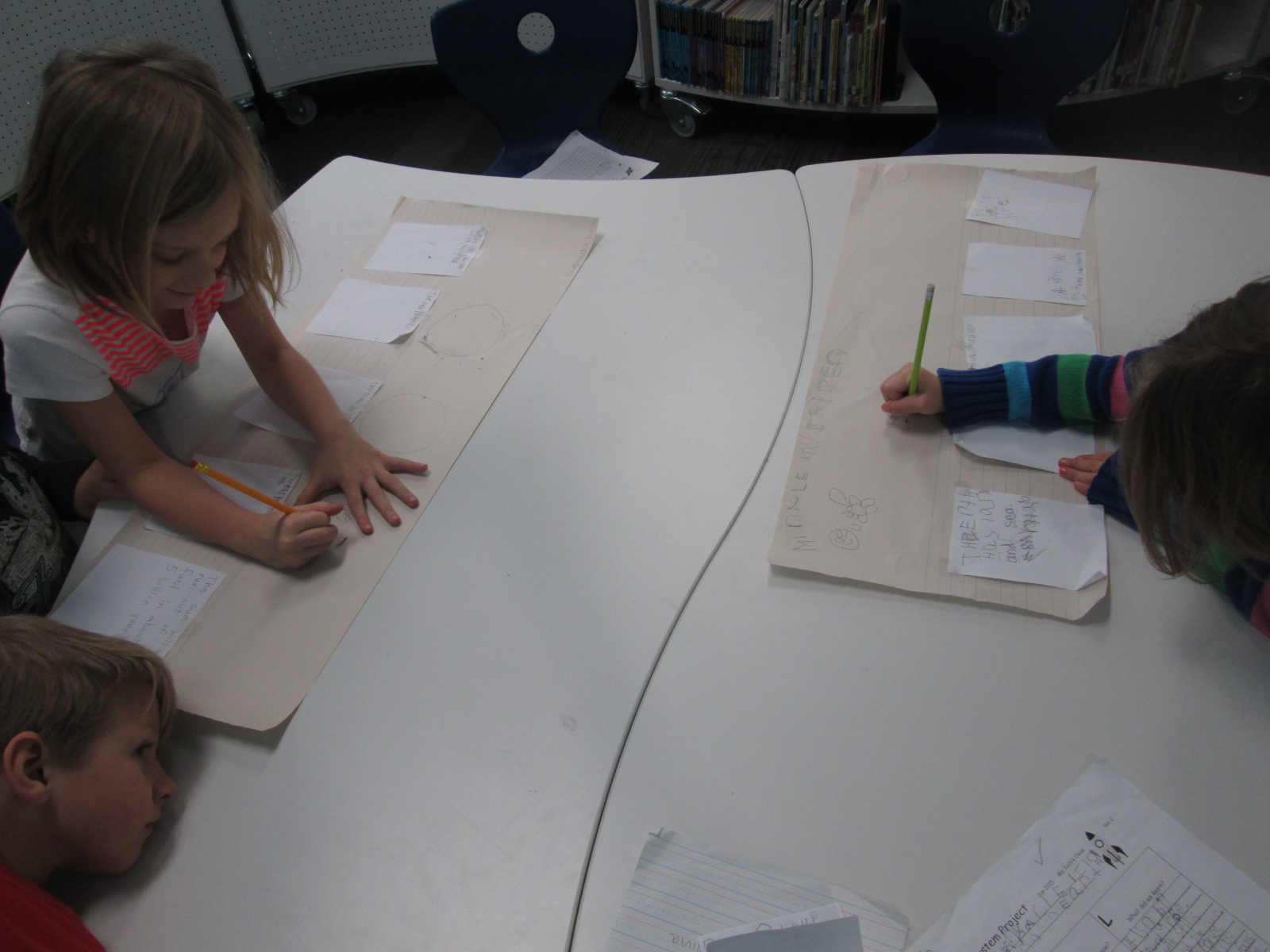
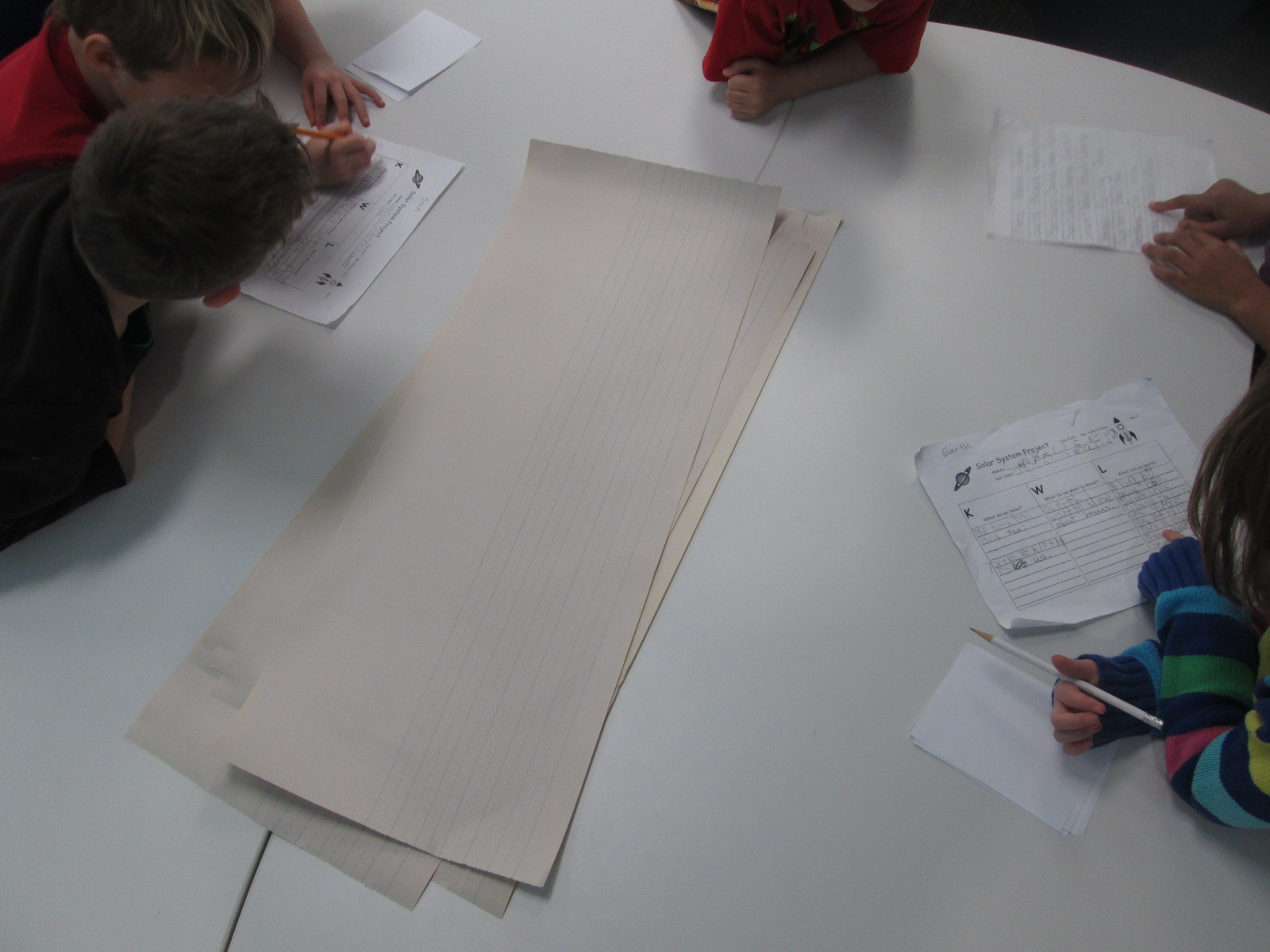
Next, the students came back to the library to work on prep for their book production. Their KWL charts were filled with facts that they had discovered. Ms. Kelly even shared that some groups had conflicting information about the order of the planets, so they had done some fact checking as a class before they came. During this 2nd library session, we started in the floor again to establish our expectations for the day. Every group had small squares of white paper, a long sheet of lined paper with room for illustrations, and a pencil.
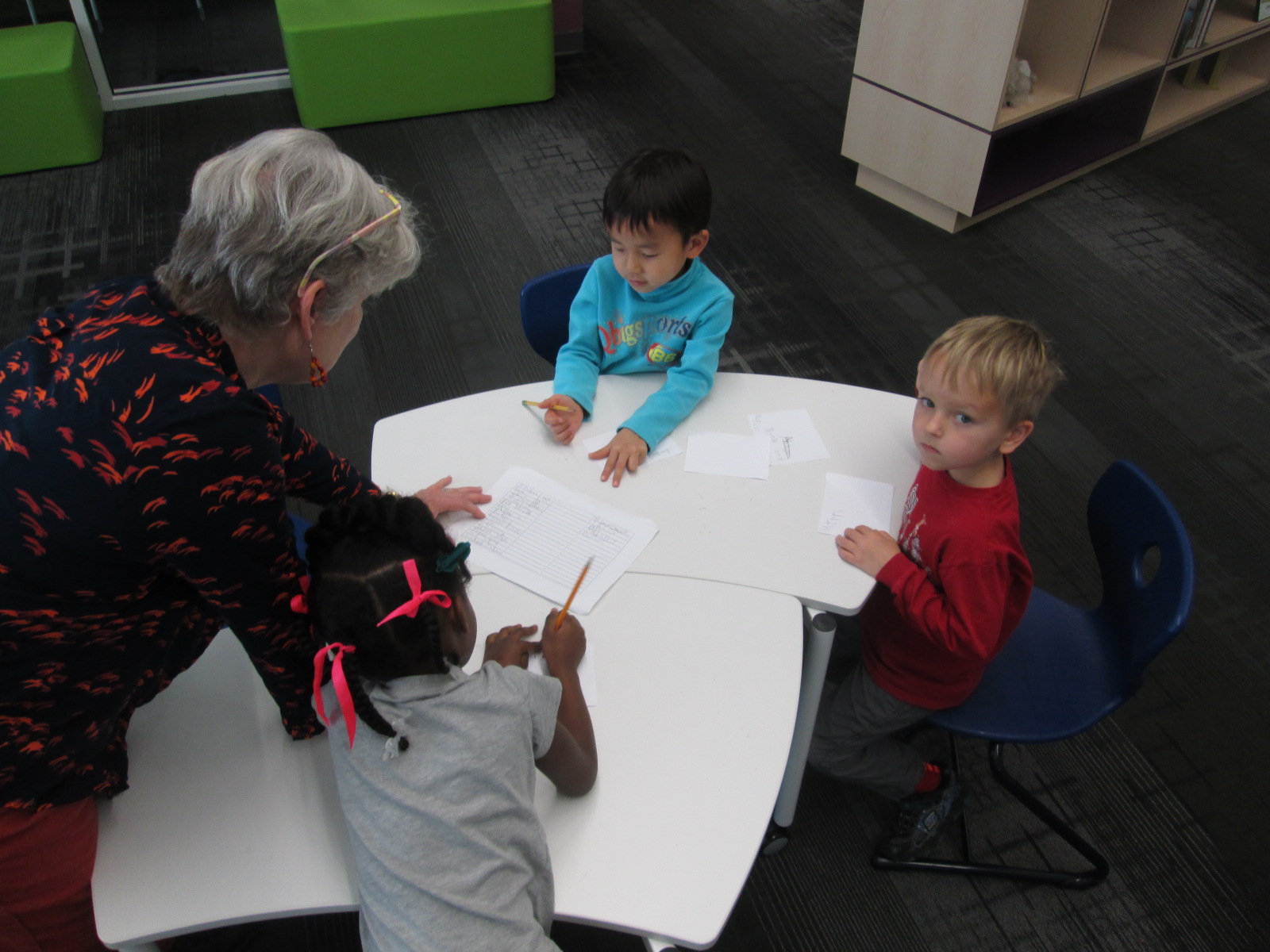
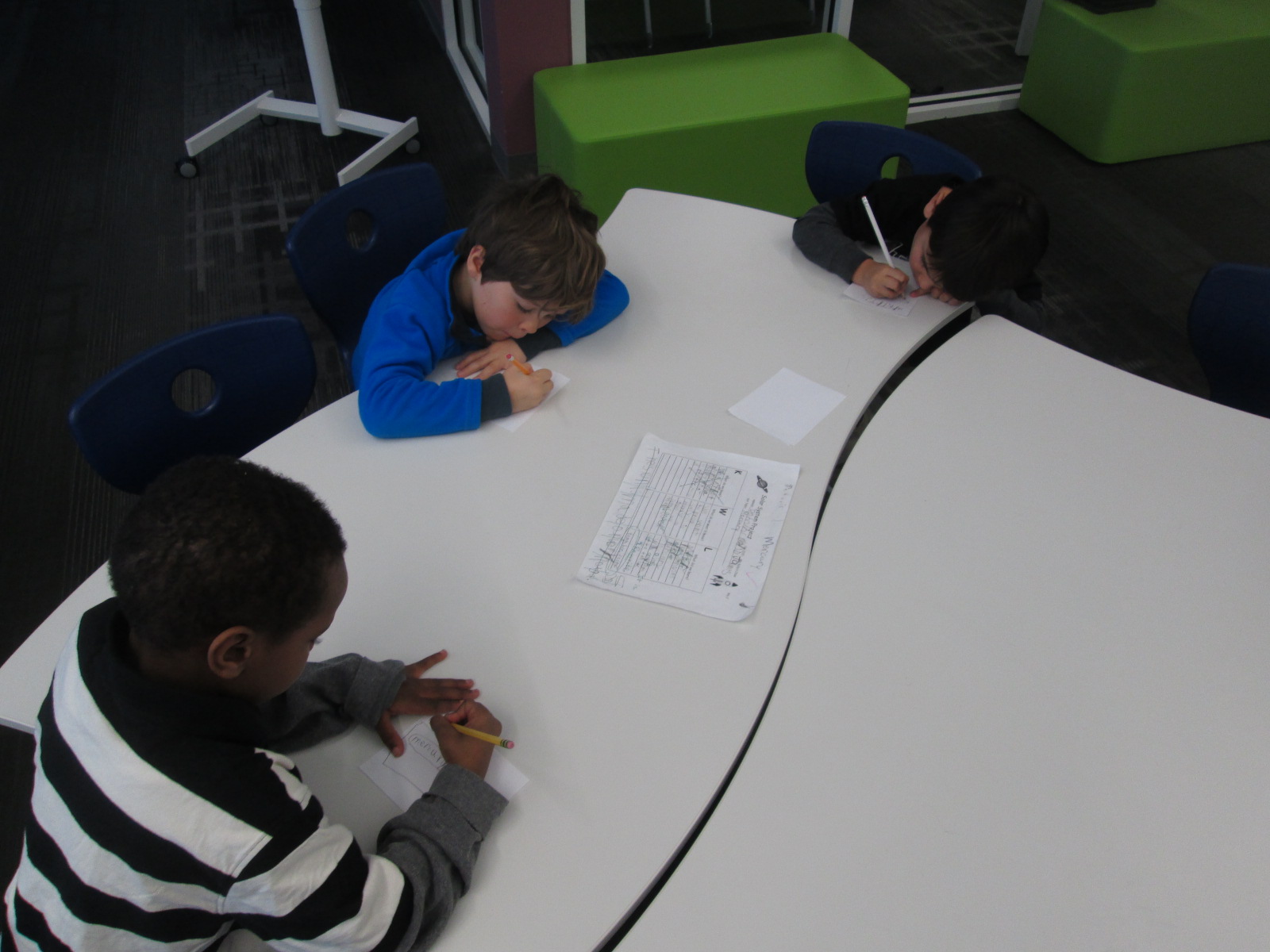
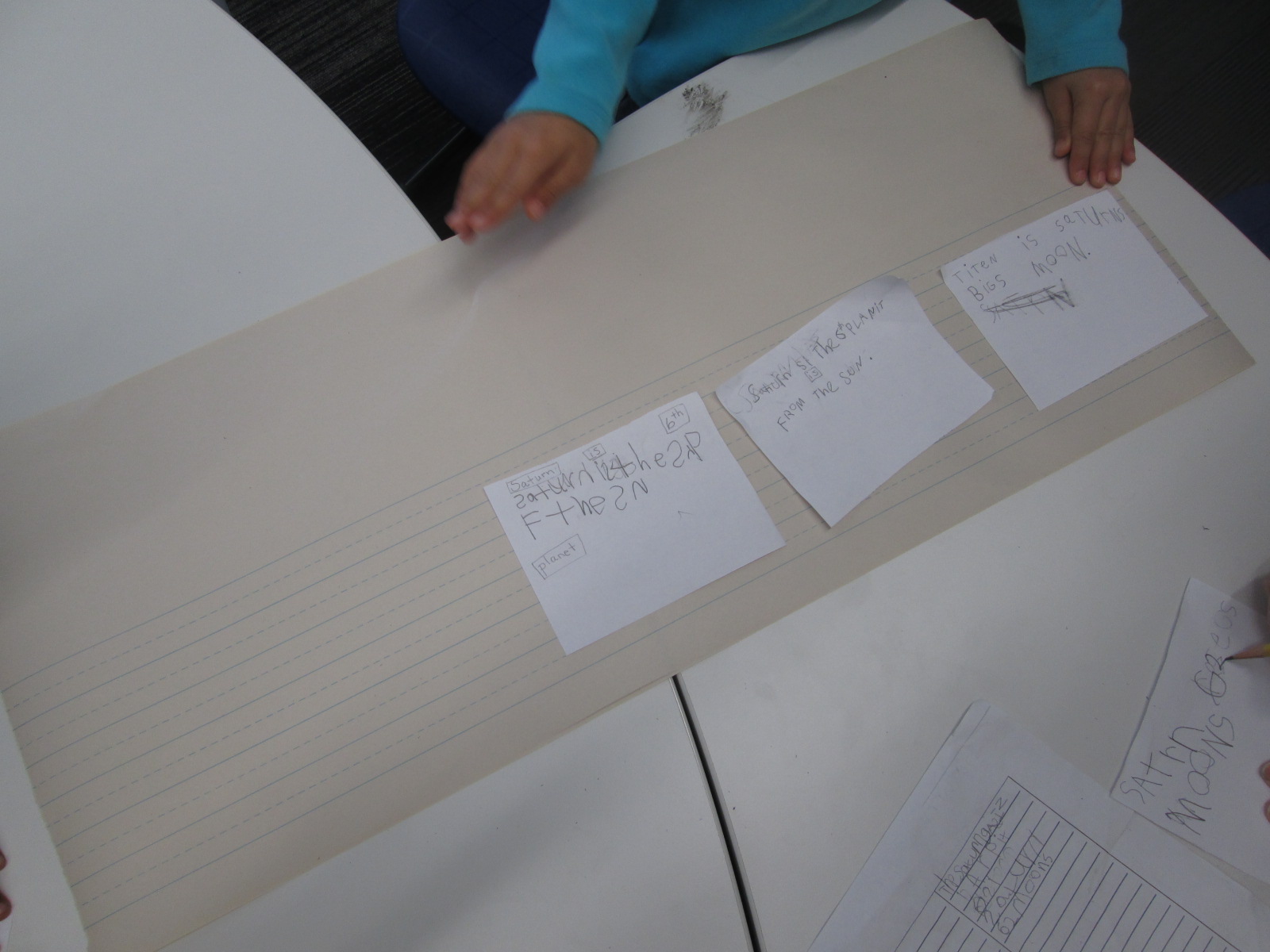
The task was to sort through the KWL chart and identify the facts that would go into the finished book. One fact was written onto each piece of white paper. The whole group worked on this part. Ms. Kelly, the paraprofessional, and I circulated among the groups to assist with reading the KWL charts, correcting spelling, and searching for additional facts if needed.
Once 4-5 facts were identified, students sequenced the facts into an order that made sense. Again, the adults helped students read aloud the facts that they identified and facilitated sorting the facts into different orders until a final order was chosen. Then, the adults taped the papers to the larger lined paper.
If students had time, they thought about what they could use in the school to photograph for each fact on the sheet. They made notes or drew a picture to remind themselves what they talked about. Ms. Kelly ad I encouraged students to stretch their brains to think about what they could creatively use to take a picture. One group had a fact about the crust of their planet. They decided they would take a picture of a piece of pizza in the cafeteria and draw an arrow to the crust.
Students will continue this process in class throughout this week. Next week, they are checking out iPads to photograph things around the school as well as type their text into Storykit and publish their own ebooks. I can’t wait to see how their work turns out. I will most likely push into their class at some point next week to help, or they may schedule a time to come work with me again in the library as they finish their books.
Projects like this show me that it is completely possible for our youngest students to create amazing work that is based in real facts. They can explore technology that no other class has attempted. Some of the key factors in a successful project are plenty of time, realistic expectations, adult and peer support, and lots of encouragement. I love how Ms. Kelly doesn’t rush a project of this size. She understands that for quality work to be produced, we must give students the space, the support, and the time to make the work happen.
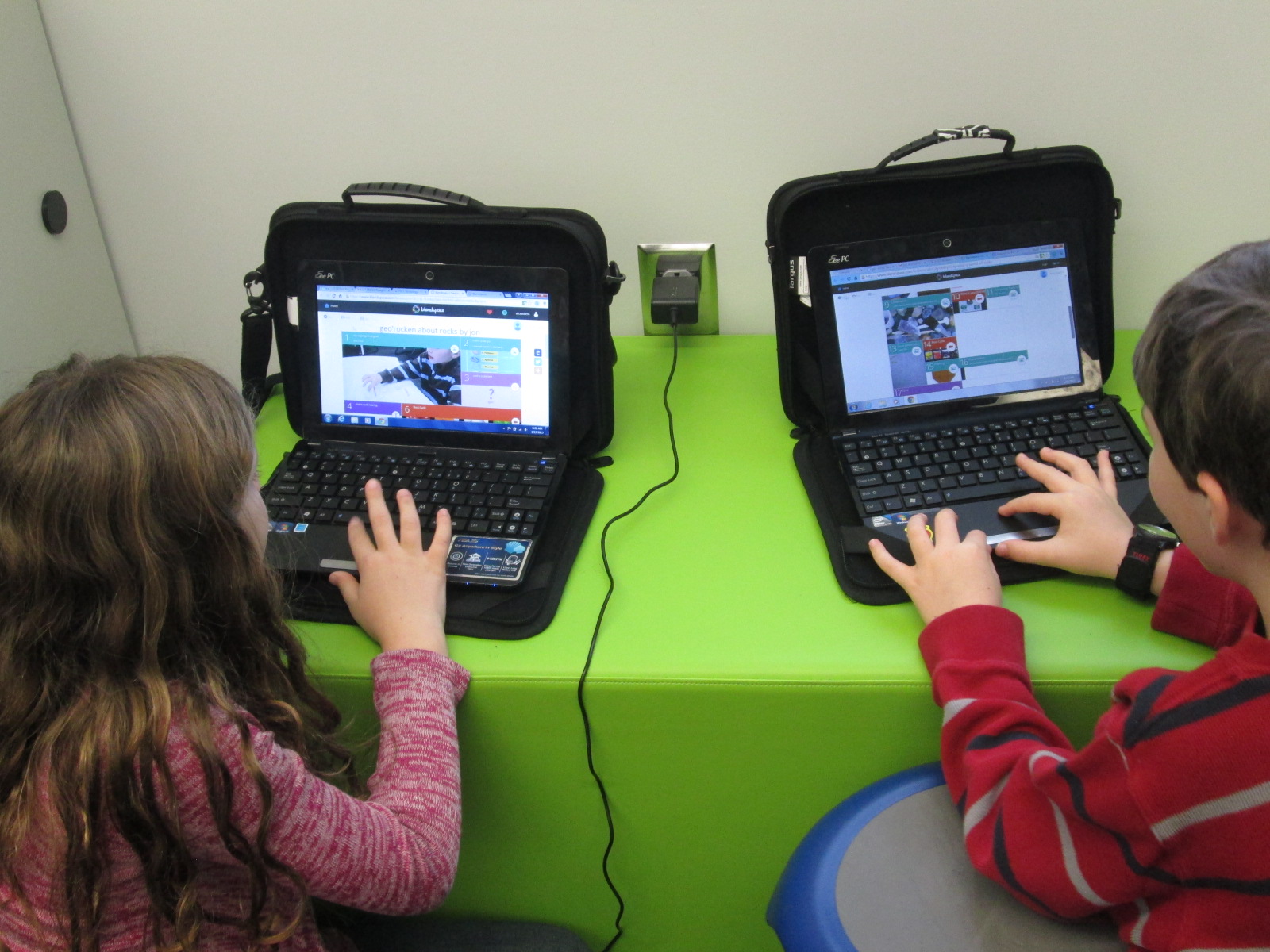
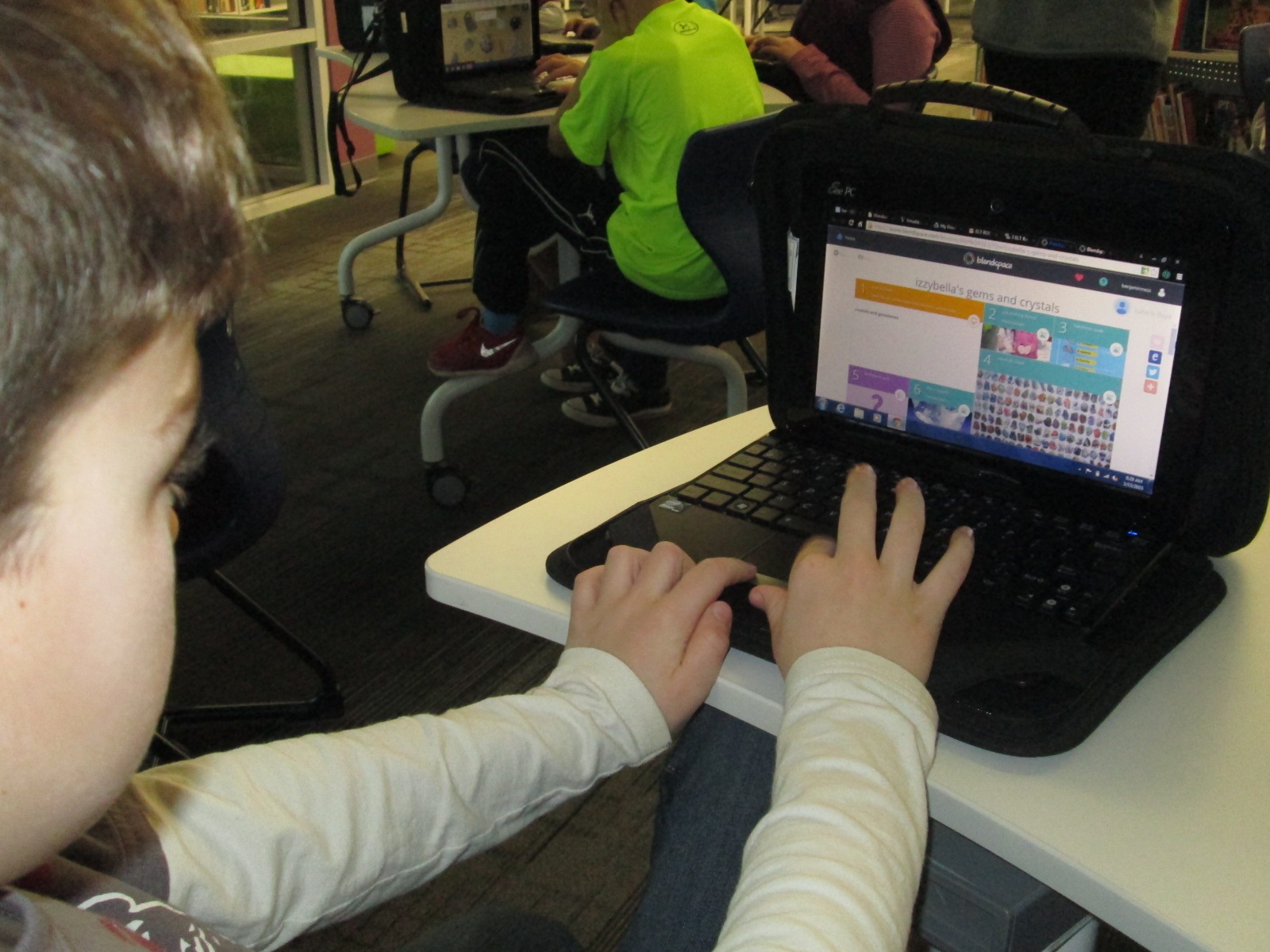
A group 3rd graders have been working for several weeks on a project in Blendspace. They are using this tool to combine their notes and photographs from class along with research and instructional videos they are finding online. They are also creating their own pretests and post tests within the Blendspace lessons as well.
Ms. Hicks, the Spectrum teacher, and I wanted their projects to be crowdsourced into one location so that an audience could easily access all of their lessons on rocks and minerals. Crowdsourcing the Blendspace lessons would also make it efficient when sharing their work with one another for peer review as well as sharing with families. There’s even potential to share this work with other schools who might use their content or offer feedback to improve the work even more.
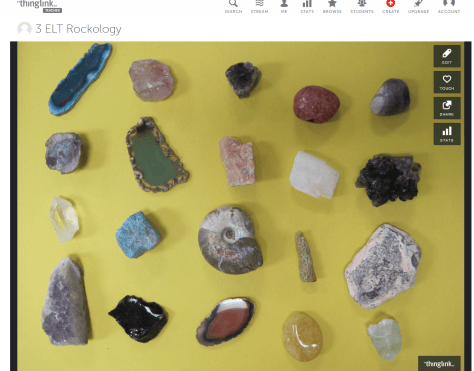
To crowdsource, we used Thinglink. Ms. Hicks selected an image of rocks and minerals positioned in rows. Then, she assigned students to the various rocks or minerals. I uploaded the image to Thinkglink and made it unlisted. Then, I allowed anyone to be able to edit it.
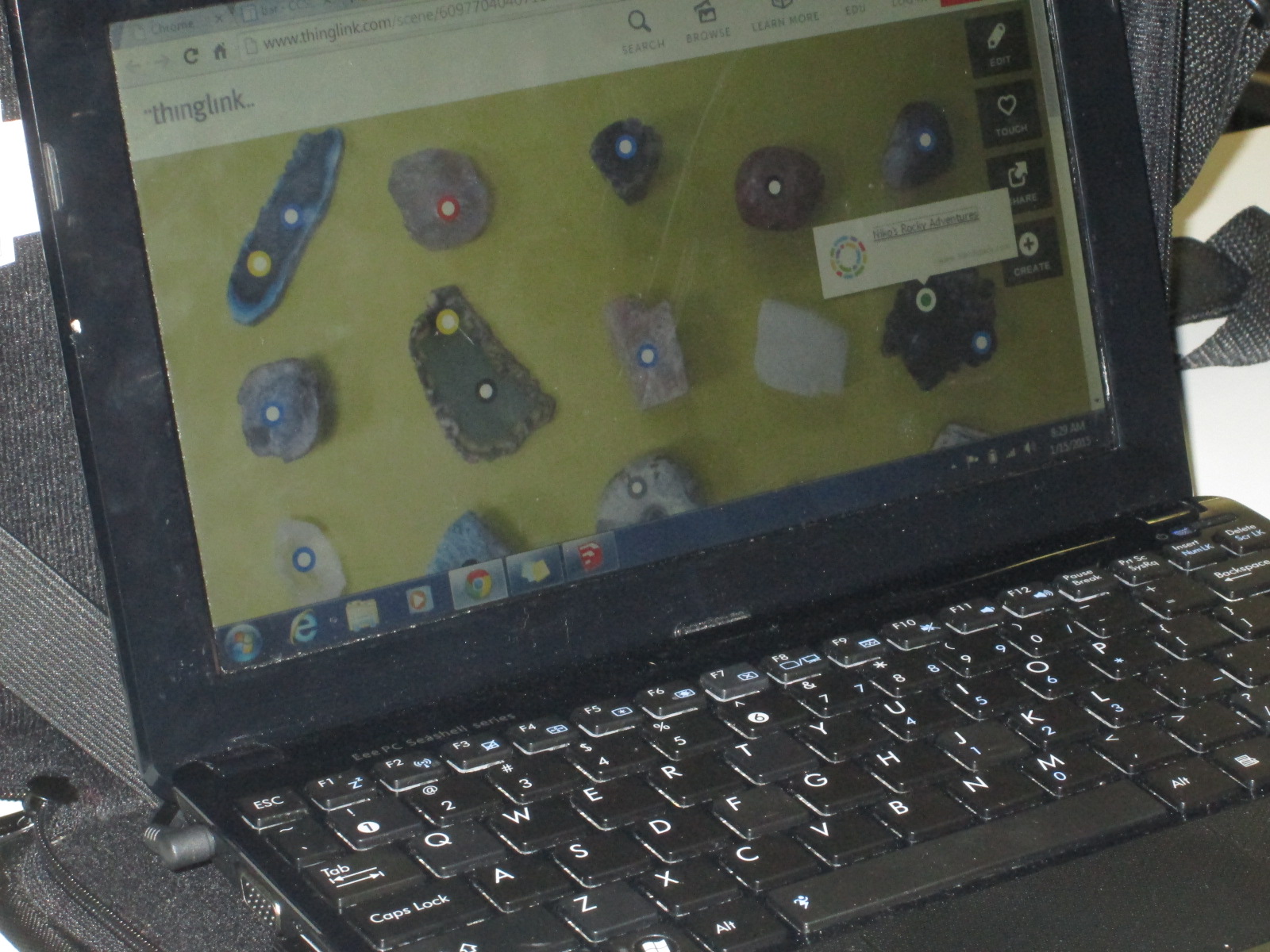
Ms. Hicks emailed the link to the image to all of the students. They went to their Blendspace lessons and selected all of the privacy permissions that they wanted to. Then, they copied the link to their Blendspace lessons and connected them to the Thinglink image. We did run into a problem with several students trying to edit the image at the same time, but as long as they kept retrying, they eventually were able to edit the image.
Now, students are looking at the image to access all of the projects in their class. They are viewing the work and offering feedback to their peers. Since the links are active, any changes they make to their Blendspace is automatically connected to the Thinglink.
I love this way of getting student work out to an authentic audience and I invite you to take a look at their work. Feel free to leave them a comment here on the blog.
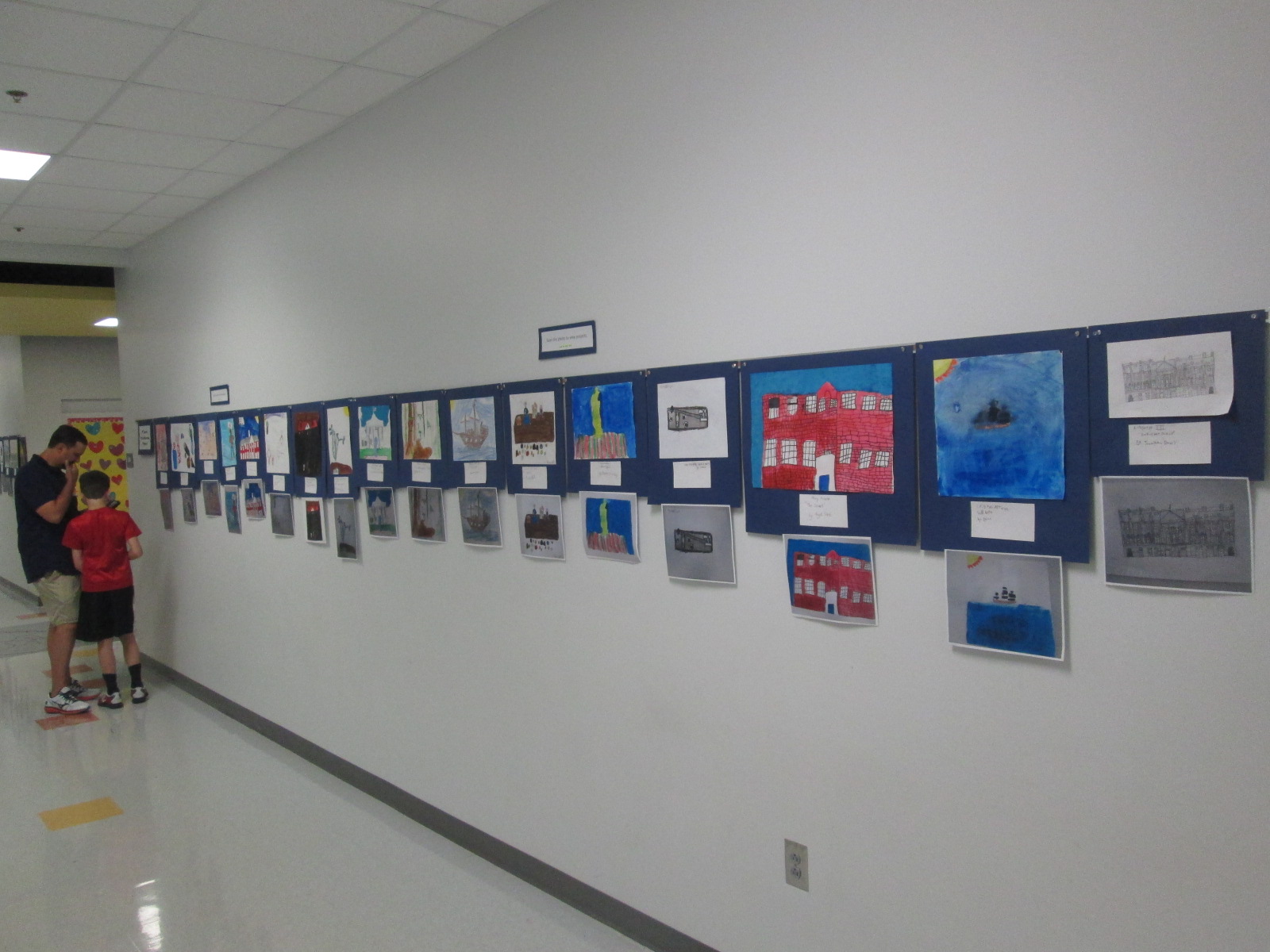
Each year, our 4th grade creates a wax museum for their colonial period social studies standards. Students research a person from that time, write and memorize a script, dress as that character, stand throughout the school, and give their speech multiple times to visitors. This year the 4th grade team and I decided to try something different. We wanted to create a digital wax museum and expand the standards beyond the colonial period to the entire 4th grade social studies standards. This new project would use the augmented reality app, Layar, to unlock all of the digital projects that students created about their person from history. It would also be a collaborative project between 4th grade, art, and the media center.
Updating this project was a big undertaking, but we created a process that I think can grow and expand next year.
First, students came to the library and learned about the project. I showed them various digital resources that they might use for their research including Pebble Go and our state Galileo database which includes Encyclopedia Britannica. I showed them how they could search for websites within Destiny when they are logged in.
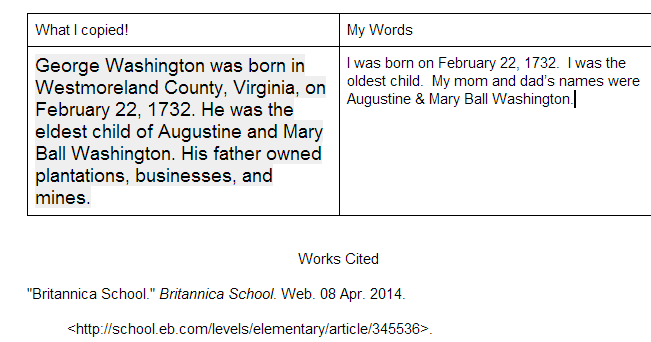
Next, I showed them how they could create a double column table in a Google doc. One side would be a space to copy and paste information from digital resources and the other side would be for putting the information into their own words. I showed them how to use the Easybib add-on within Google docs to document where their information was coming from. They loved this feature and so did the teachers.
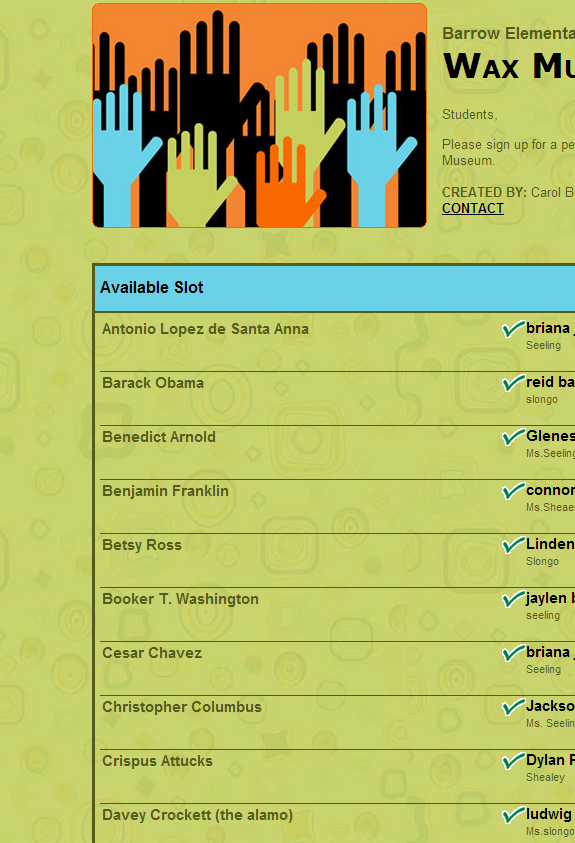
Finally, students used a Signup Genius to sign up for their topics. This made topic selection fast and teachers were able to give a final approval to the person that students signed up for.
After that, students started their research. Most used their gathered facts to write scripts for various projects.
Then, they all returned to the library to learn about their project options. Students did not have to use technology to create their project, but they did have to use technology to document their project. For example, if they made a physical poster, they had to use some type of technology tool to record some information about their poster using their script. Many digital tools were suggested to students, but students were welcome to find and try their own tools. We suggested Chatterpix, Tellagami, and iMovie as main options. Students chose projects and continued working in class.
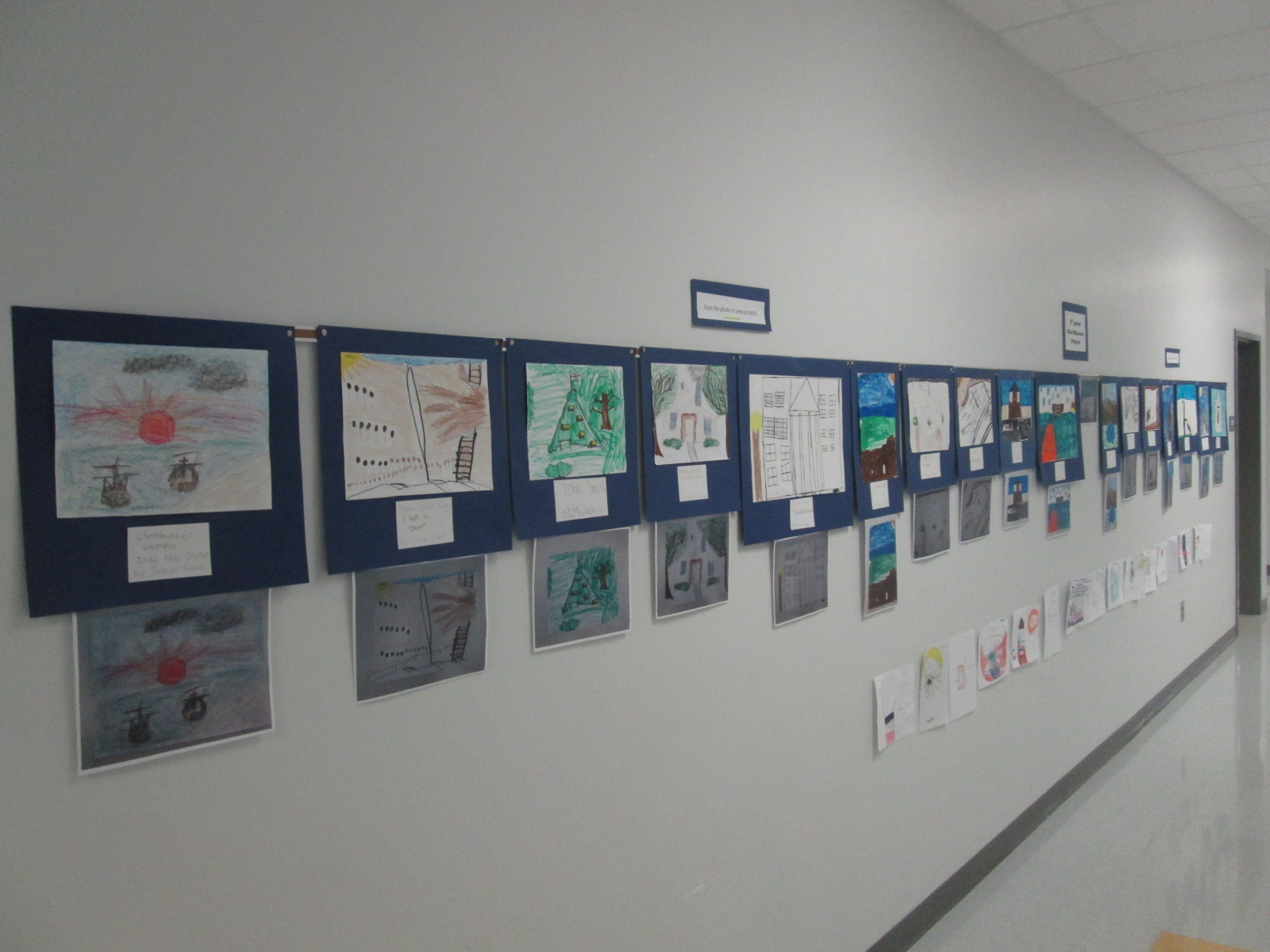
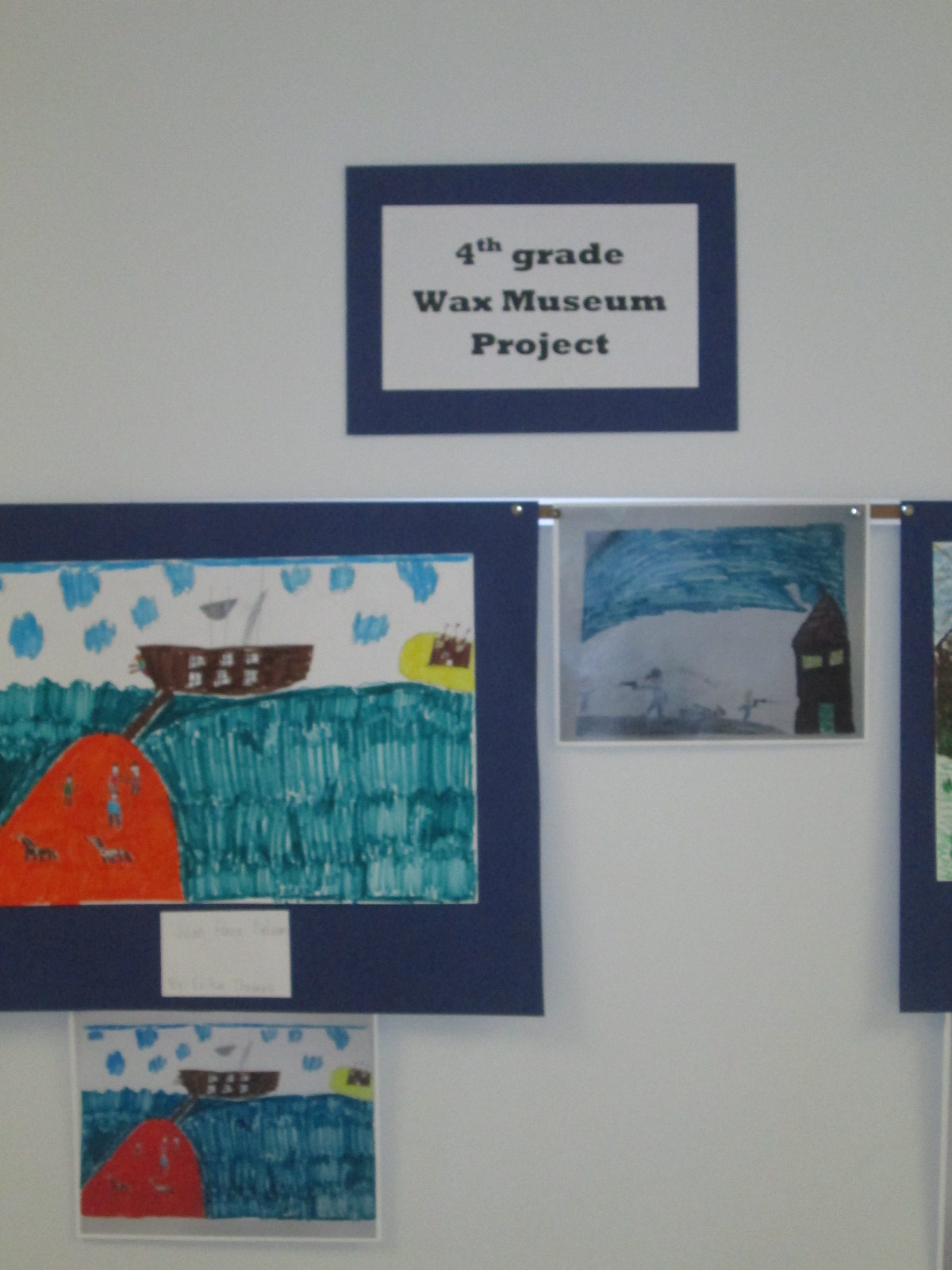
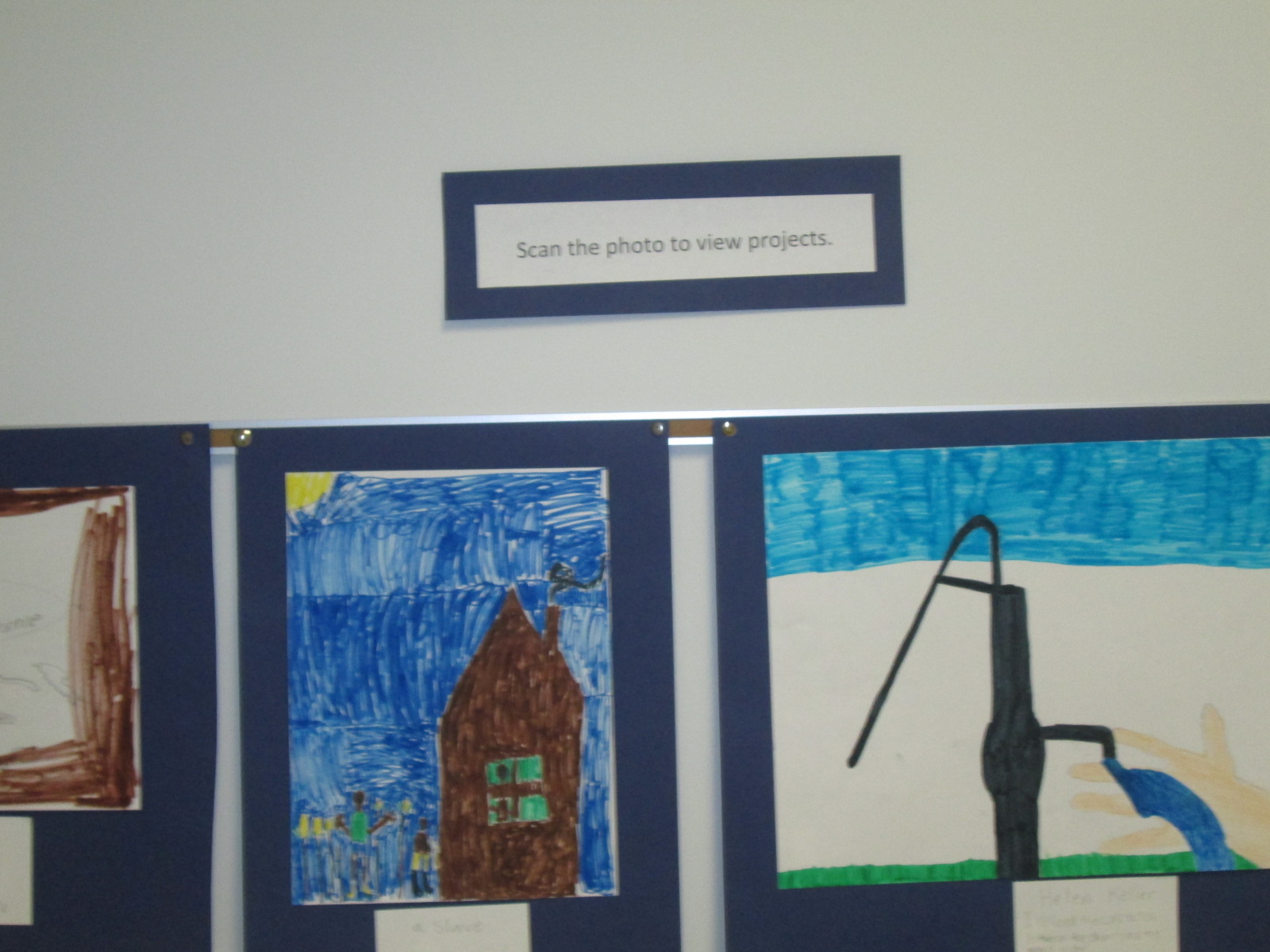
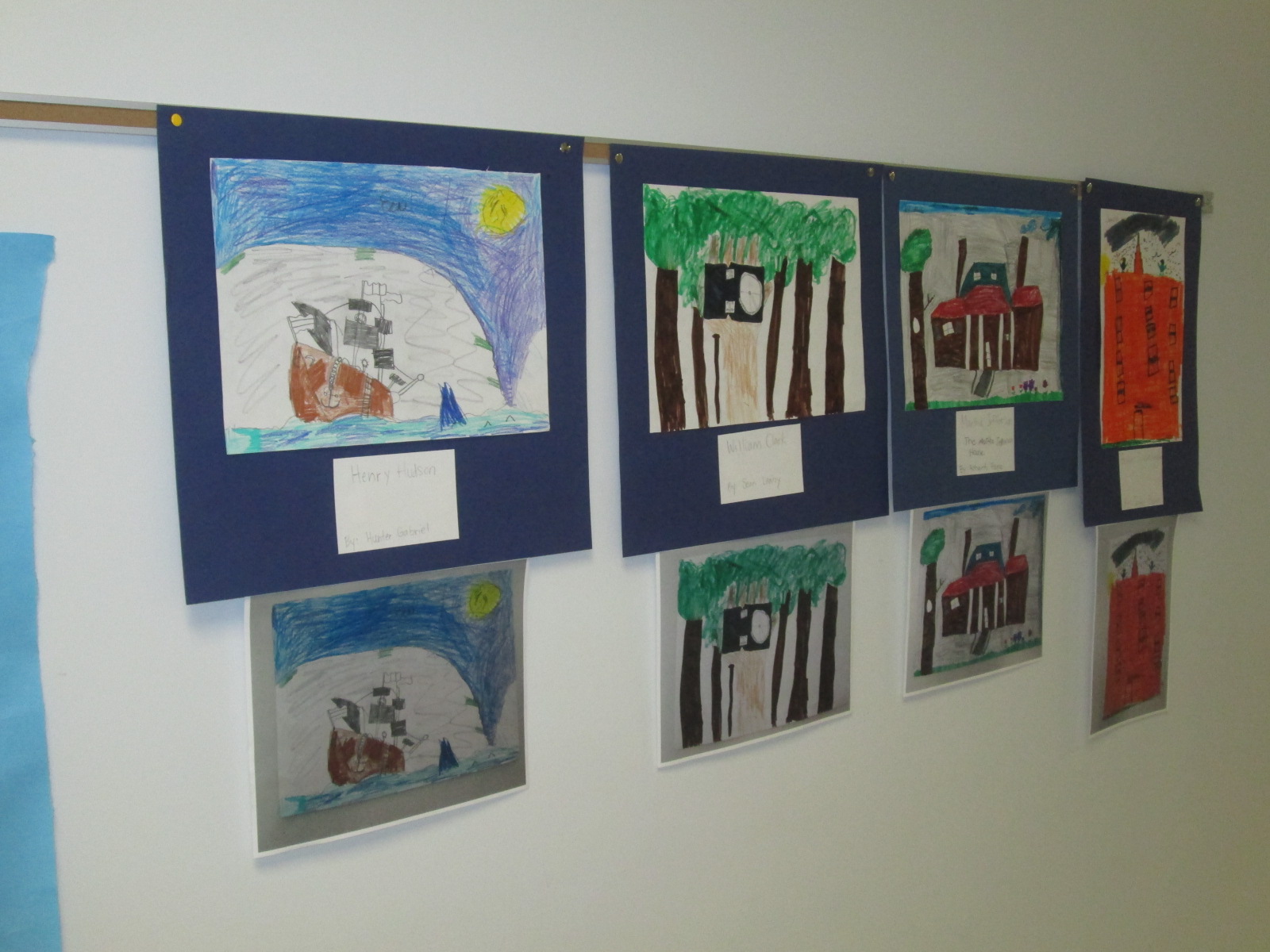
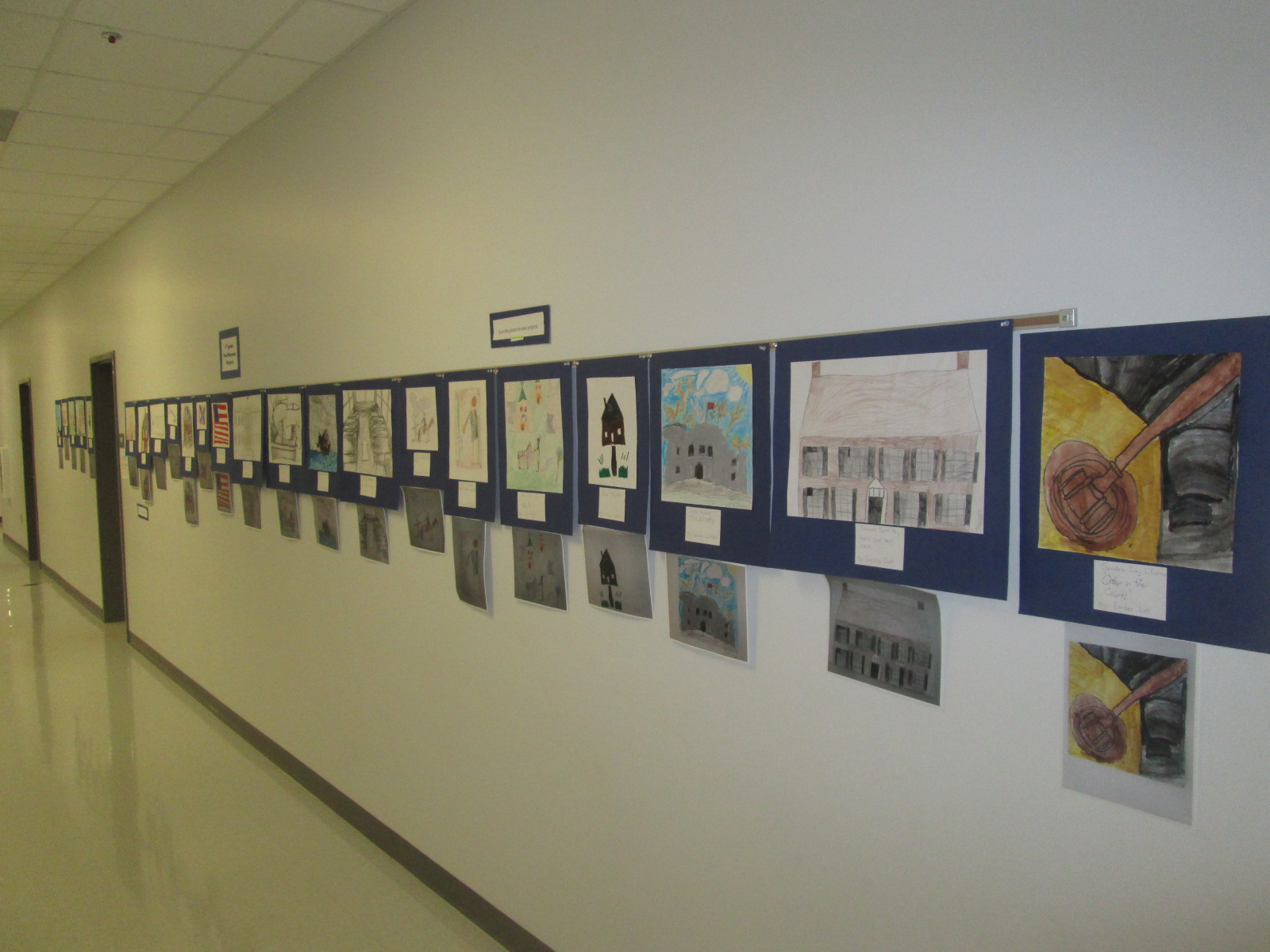
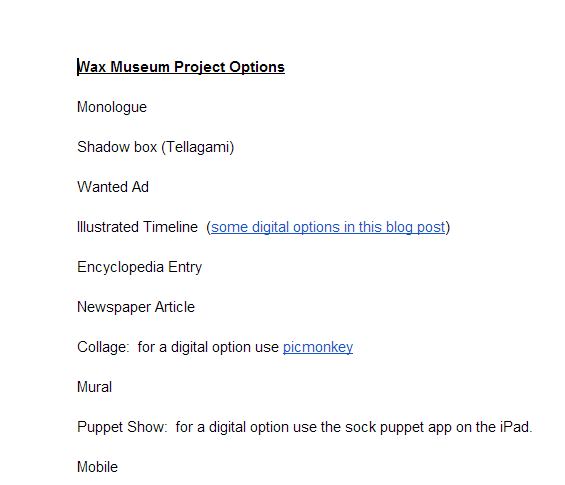
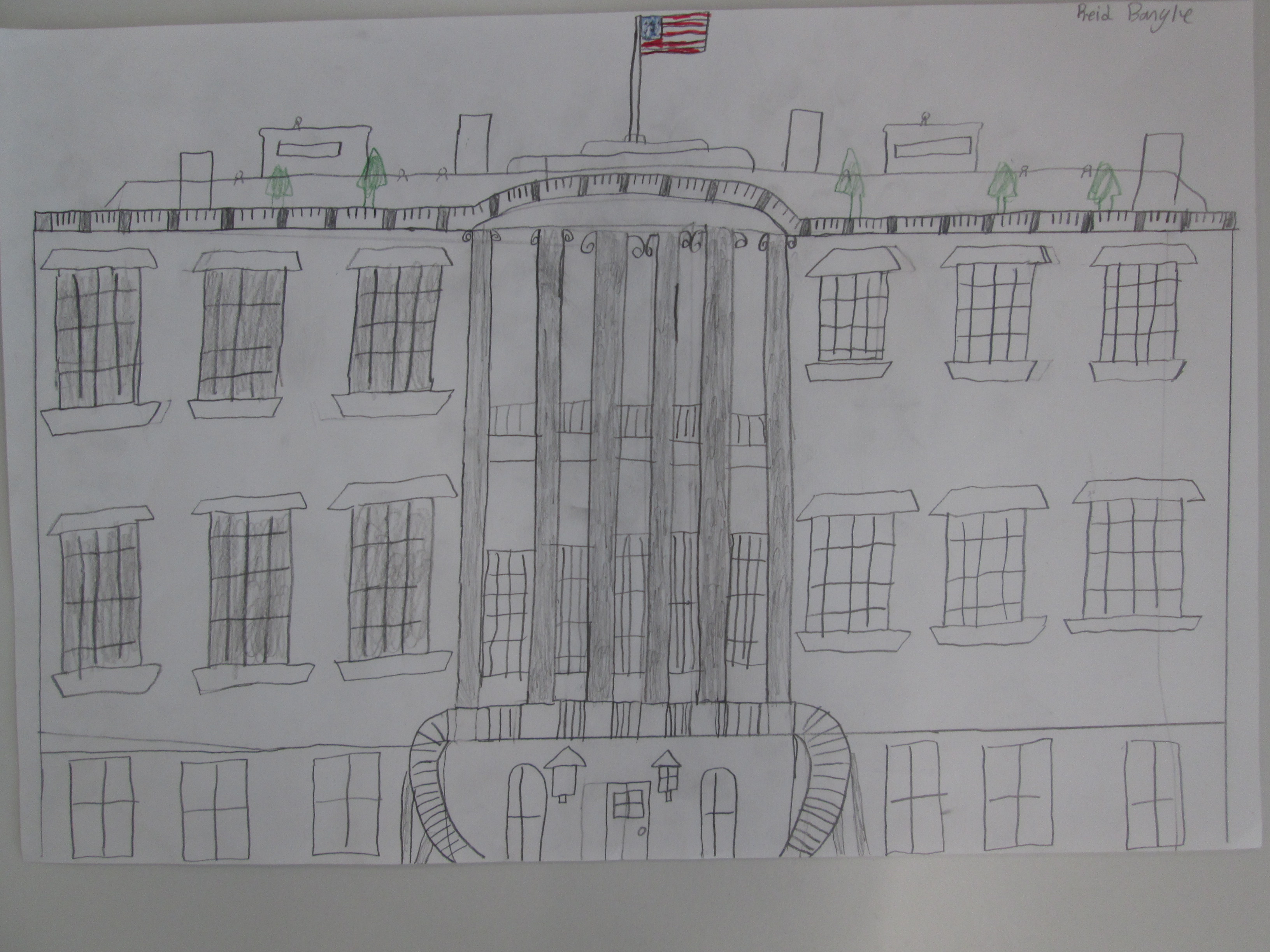
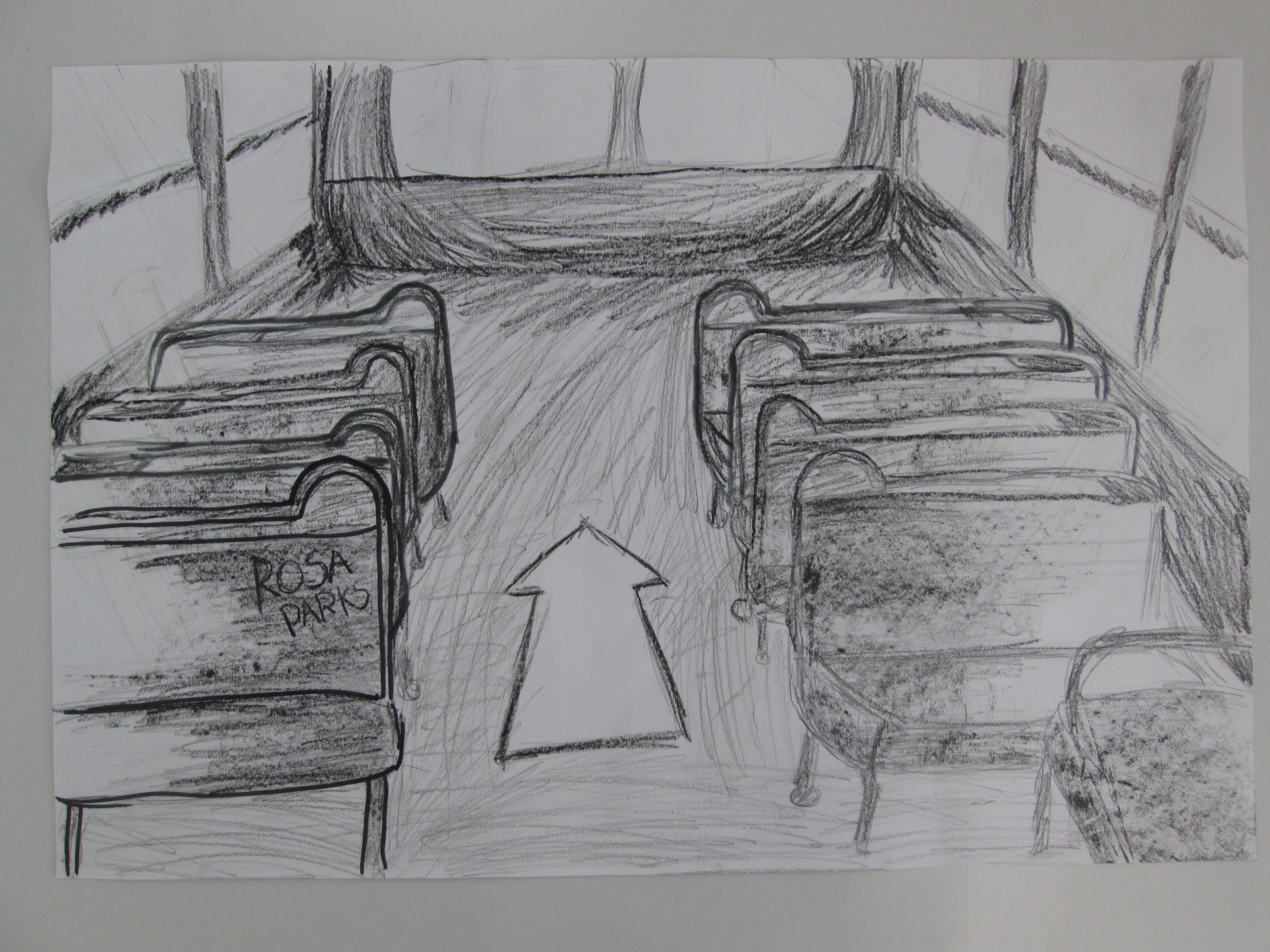
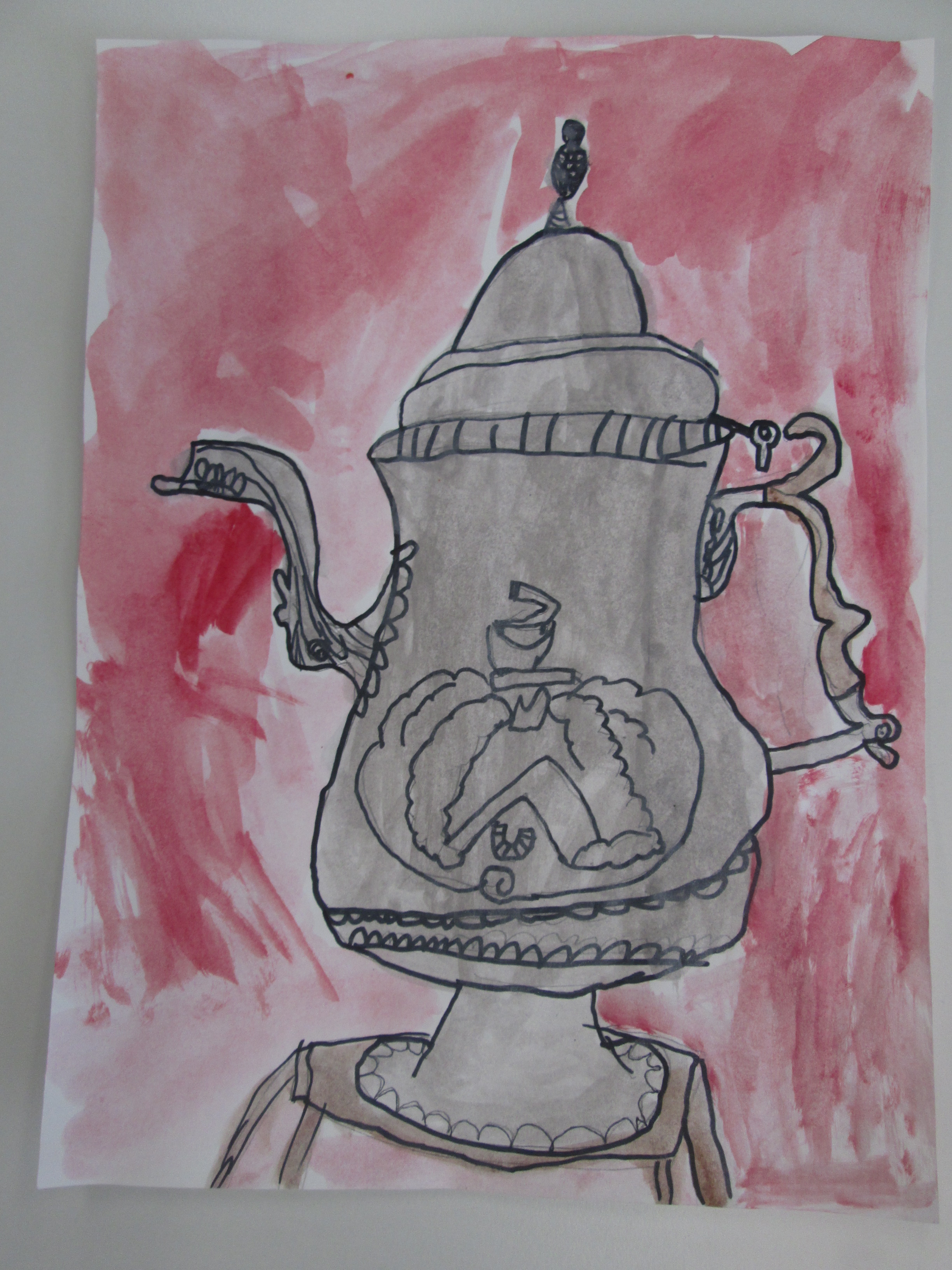
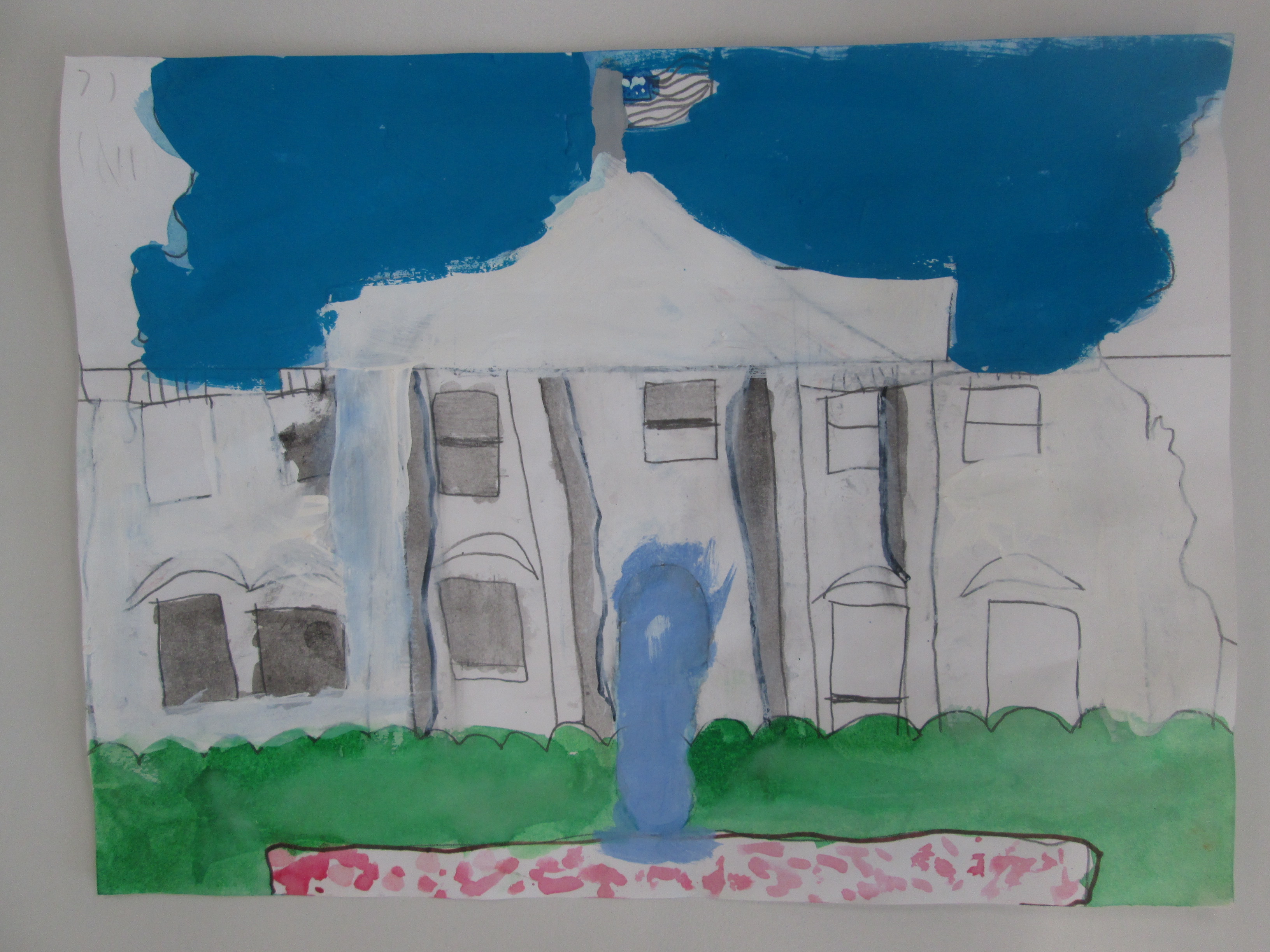
In art, students researched images of the historical events their person was involved in and created an image to serve as the trigger image for the Layar augmented reality app. The images were created with water colors, pencils, crayons, markers, and various other tools.
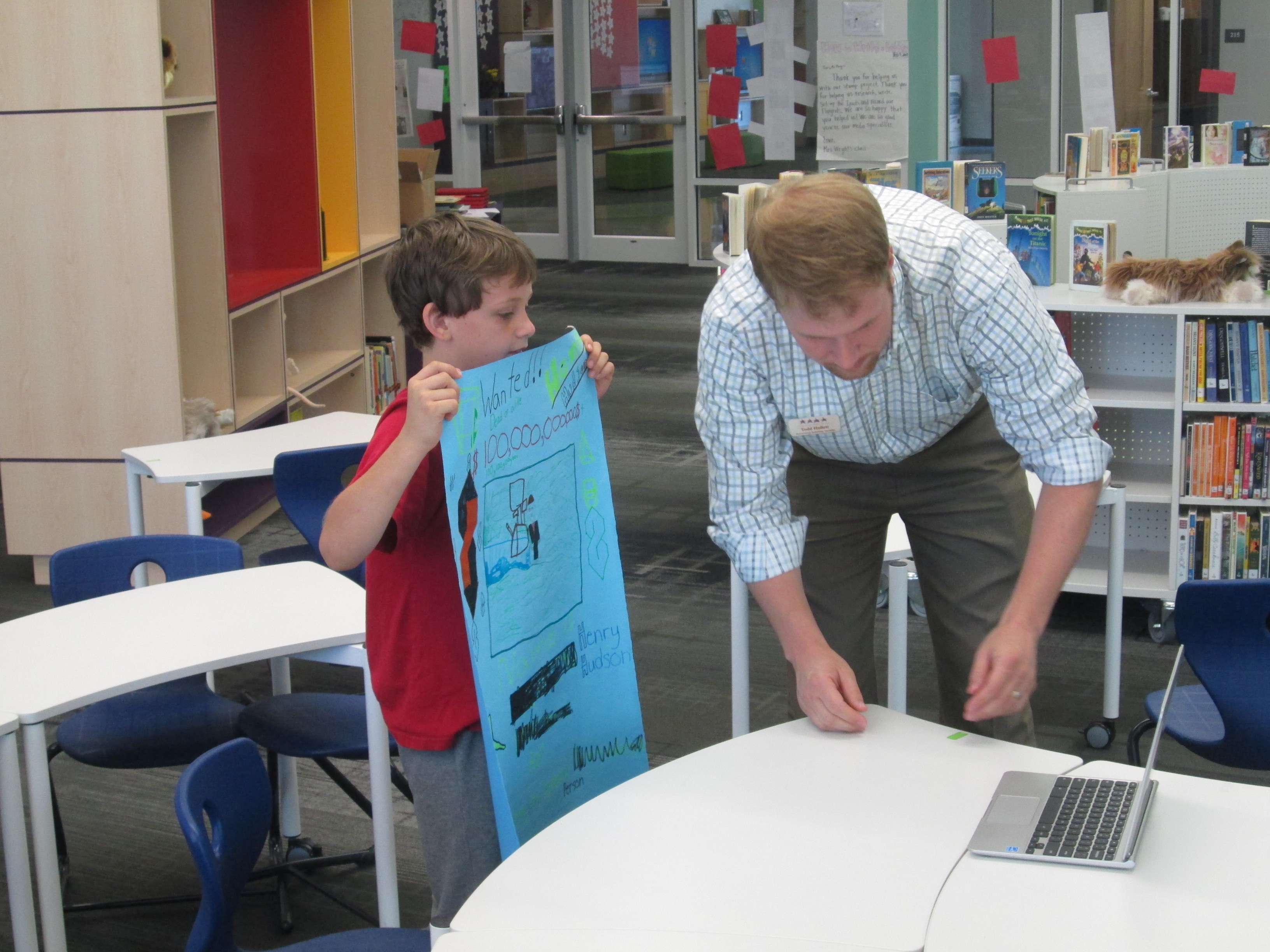
As images were finished, they came to me in the library so that they could be photographed and uploaded to Layar. I also printed each photograph so that we had a uniform size picture to scan in the hallway. This wasn’t necessary, but it was nice to have a smaller image to scan since some were large.
Students made multiple kinds of projects to attach to their image in Layar. Some chose to make gamis in Tellagami. Because this app lets you make 30-second clips, some students chose to make multiple videos to upload to Youtube while others used iMovie to compile their videos.
Some students used Chatterpix to make a picture of their character talk. Once again, they either created multiple files or compiled them.
Some students chose to do the traditional wax museum project of dressing up as your person, but this time, they filmed themselves and uploaded to Youtube.
A few students created unique projects that no one else attempted. One student used Powtoon to make a Common Craft-like video about indentured servants.
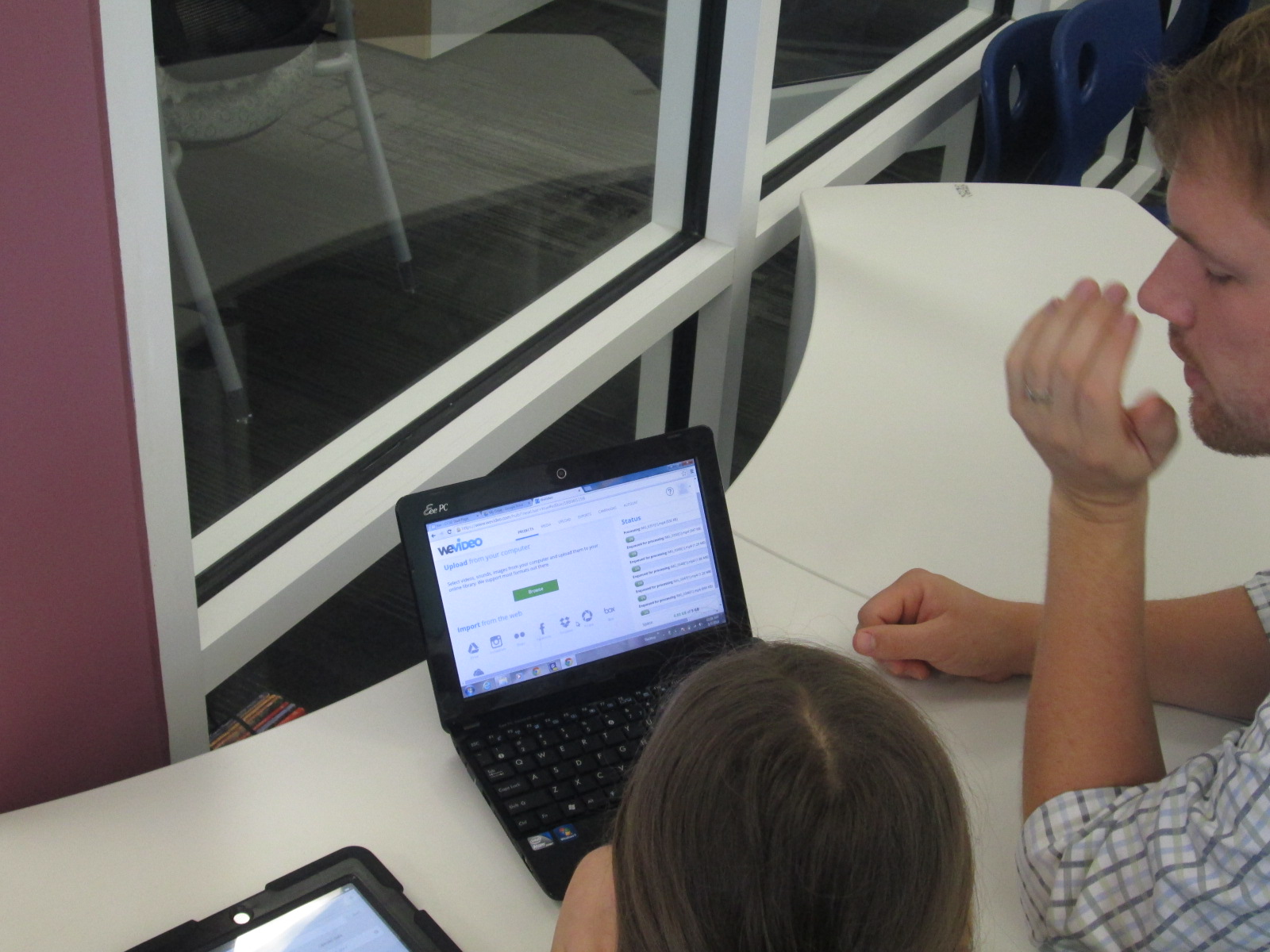
Another student wanted to do an interview, so she filmed clips of herself as a news reporter asking questions and made response videos using Chatterpix. Then, she used WeVideo to put them together. Because the free version of WeVideo doesn’t upload to Youtbe, we had to do a screencast of her project in order to view on the iPad.
Another student used Songify to record a rap song about Martin Luther King. We converted his file in Any Video Converter and put it into iMovie so that it could be uploaded to Youtube.
Once students had a video or link to their project, they emailed it to me to upload to Layar. They could have done the uploading to Layar themselves but we wanted to test most of the Layar pages before we put them in the hall. Many people helped students with the creation and uploading of their projects. Many thanks to the 4th grade teachers, our grad assistant Carol Buller-McGee, our instructional tech specialist Todd Hollett, gifted teacher Heather Carlson, special ed teacher Haley Beaver, an EIP teacher Lee Rogers for assisting me with getting students videos uploaded and emailed.
Students worked with me to connect their links in Layar, put them in right spots on the image, and test them out. I went ahead and published our “campaign” in the Layer creator. You have to “publish” before the images will work when they are scanned. You can still add pages and links even after you have published.
We also uploaded all of the content to a Smore page so that families (and the world) could view the projects from home without Layar.
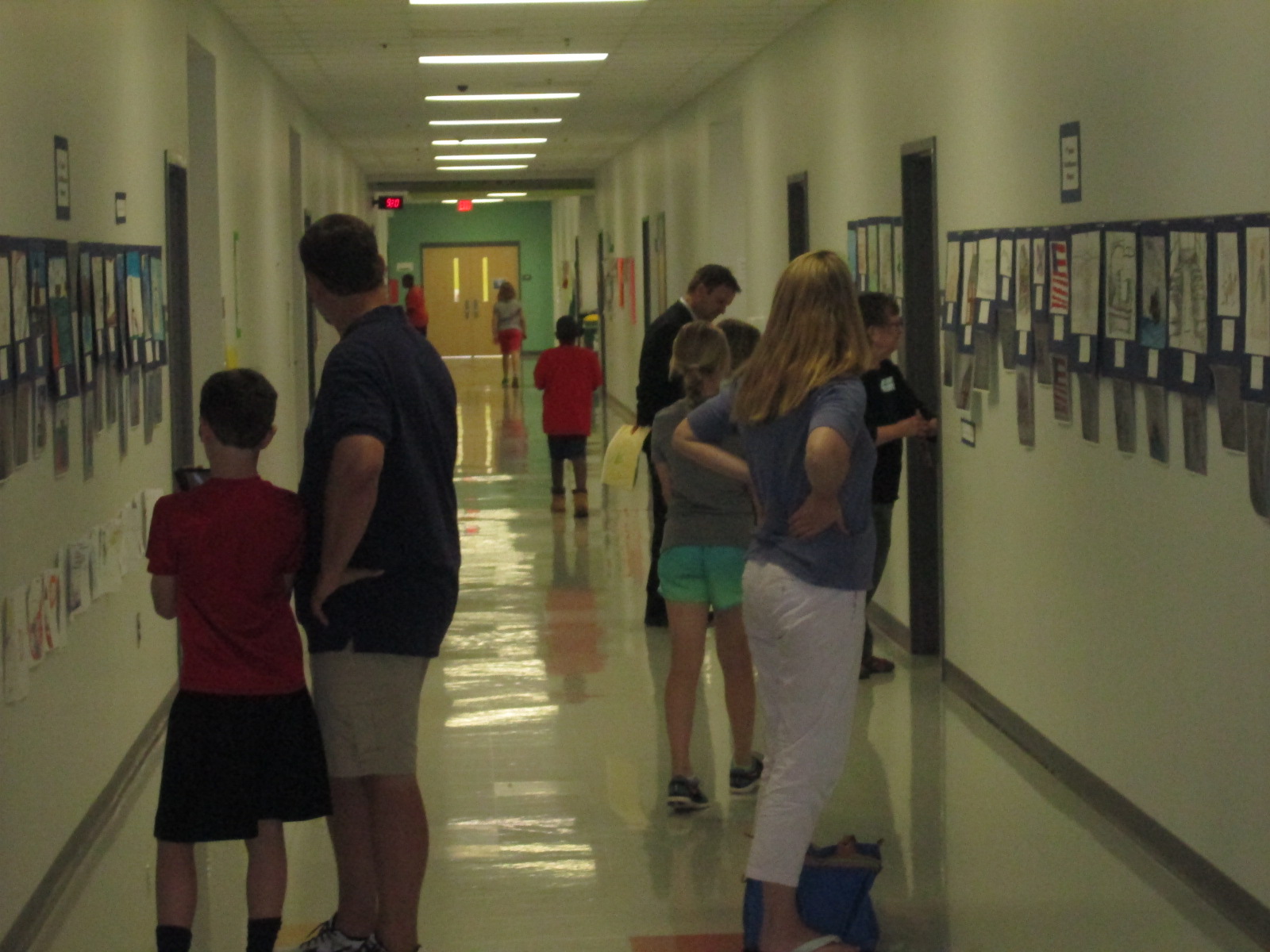
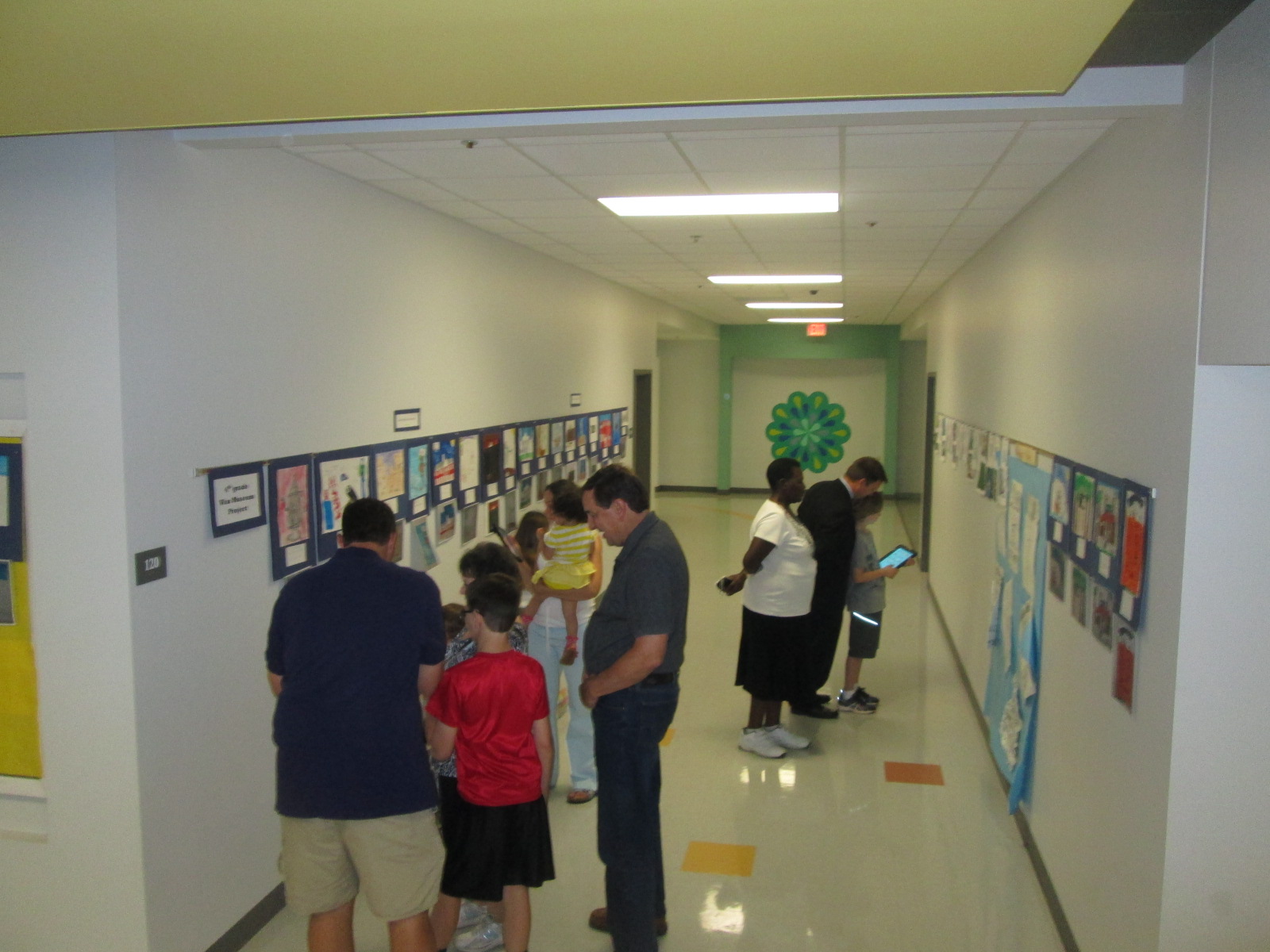
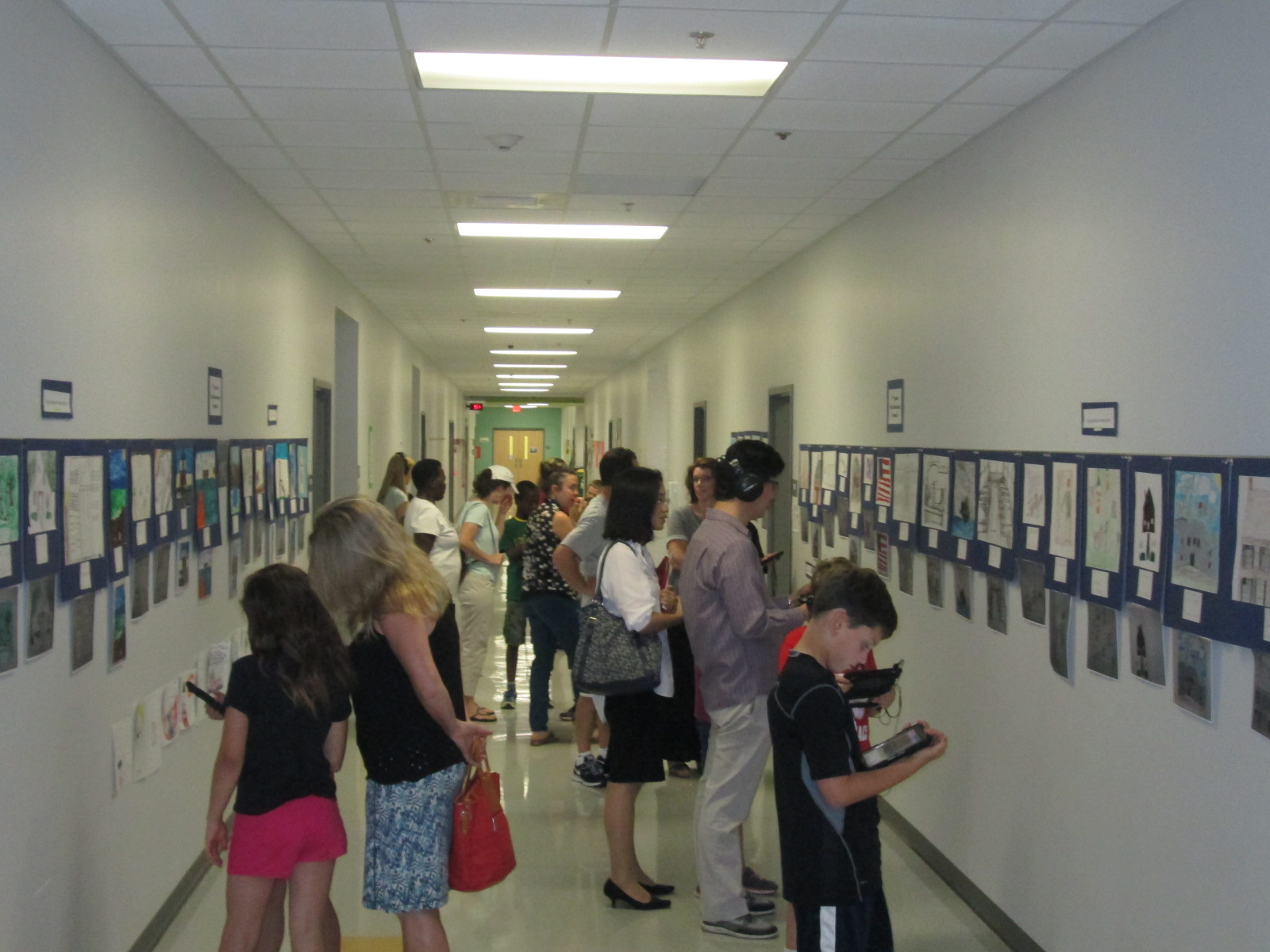
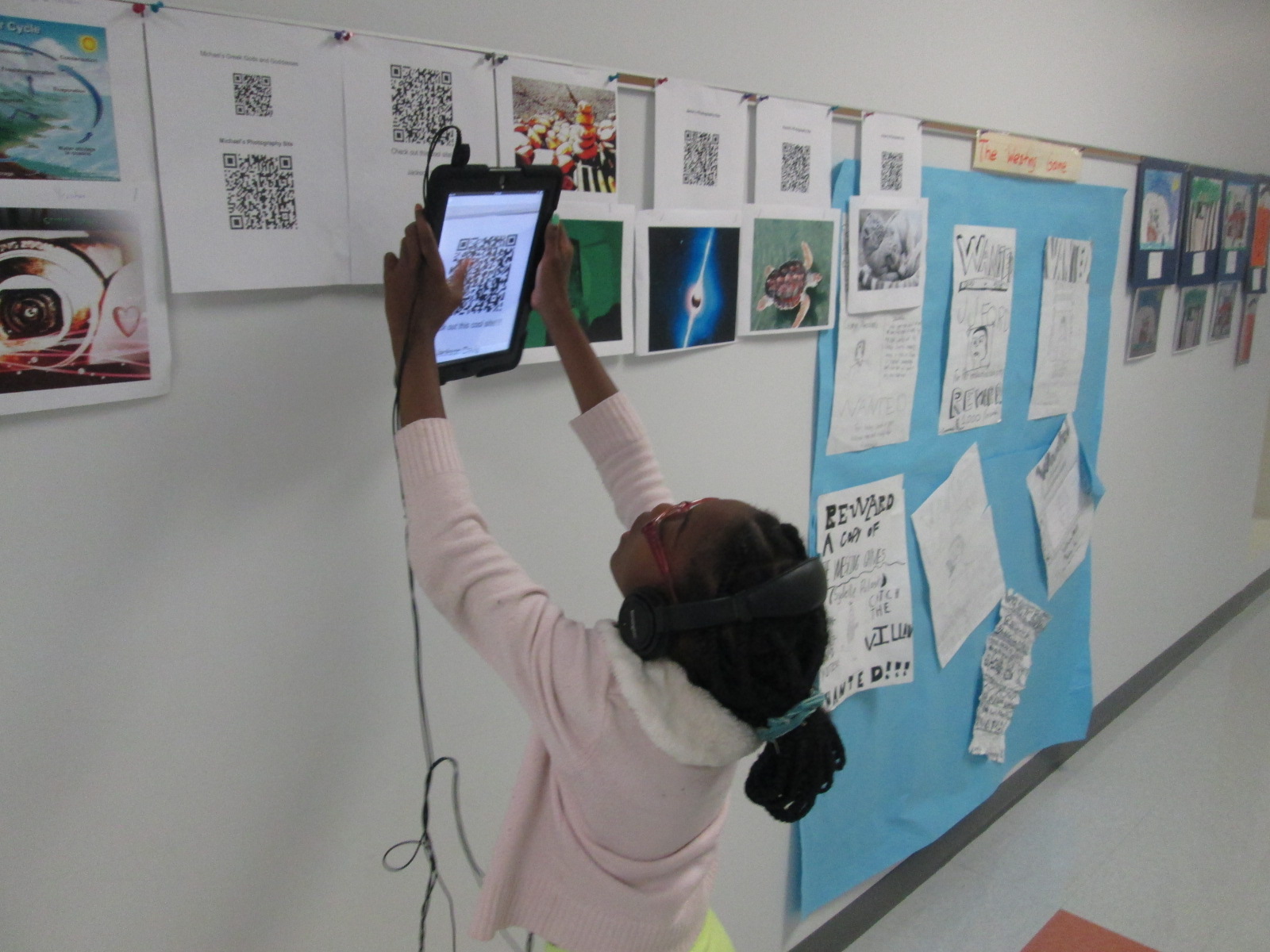
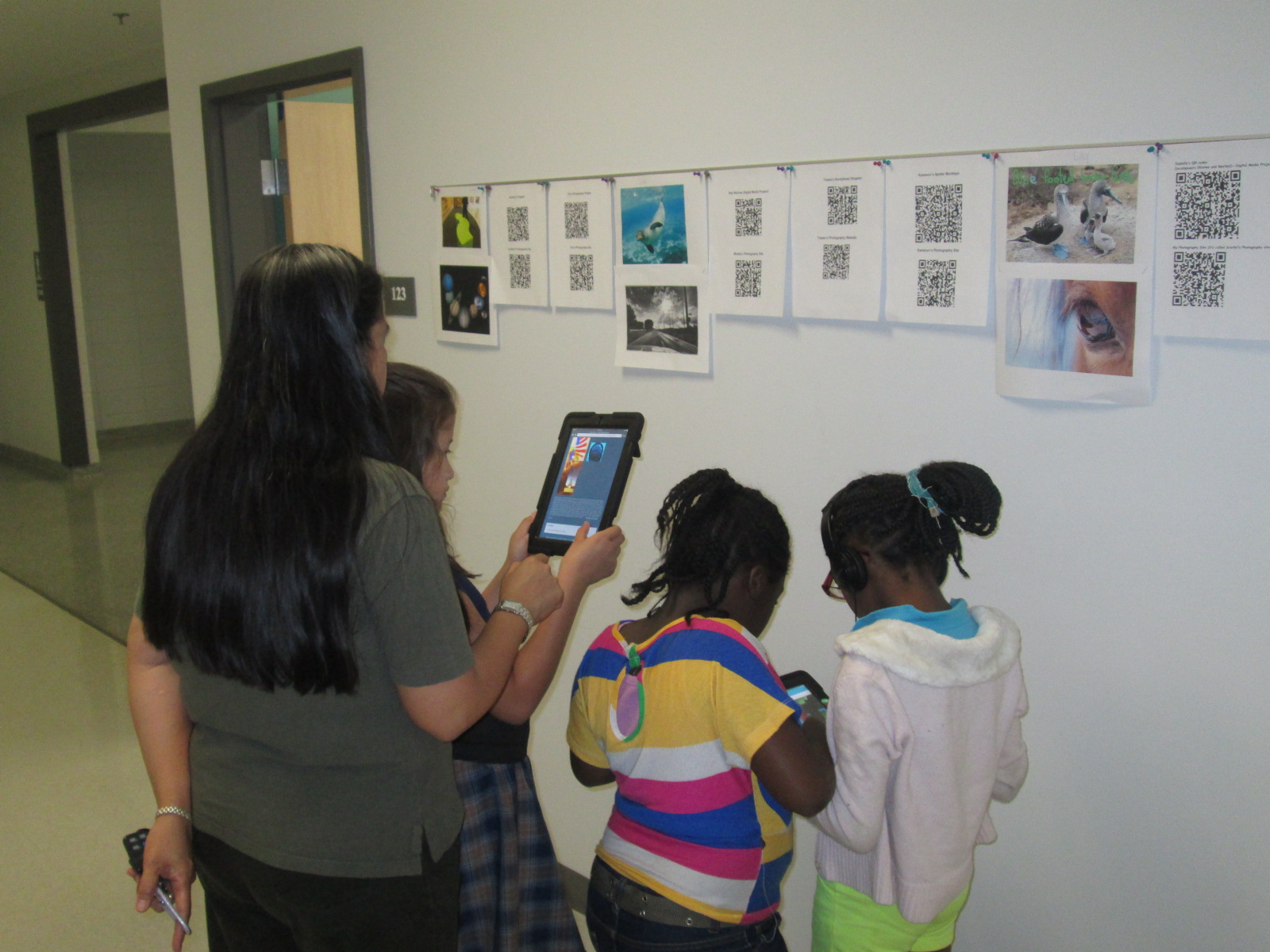
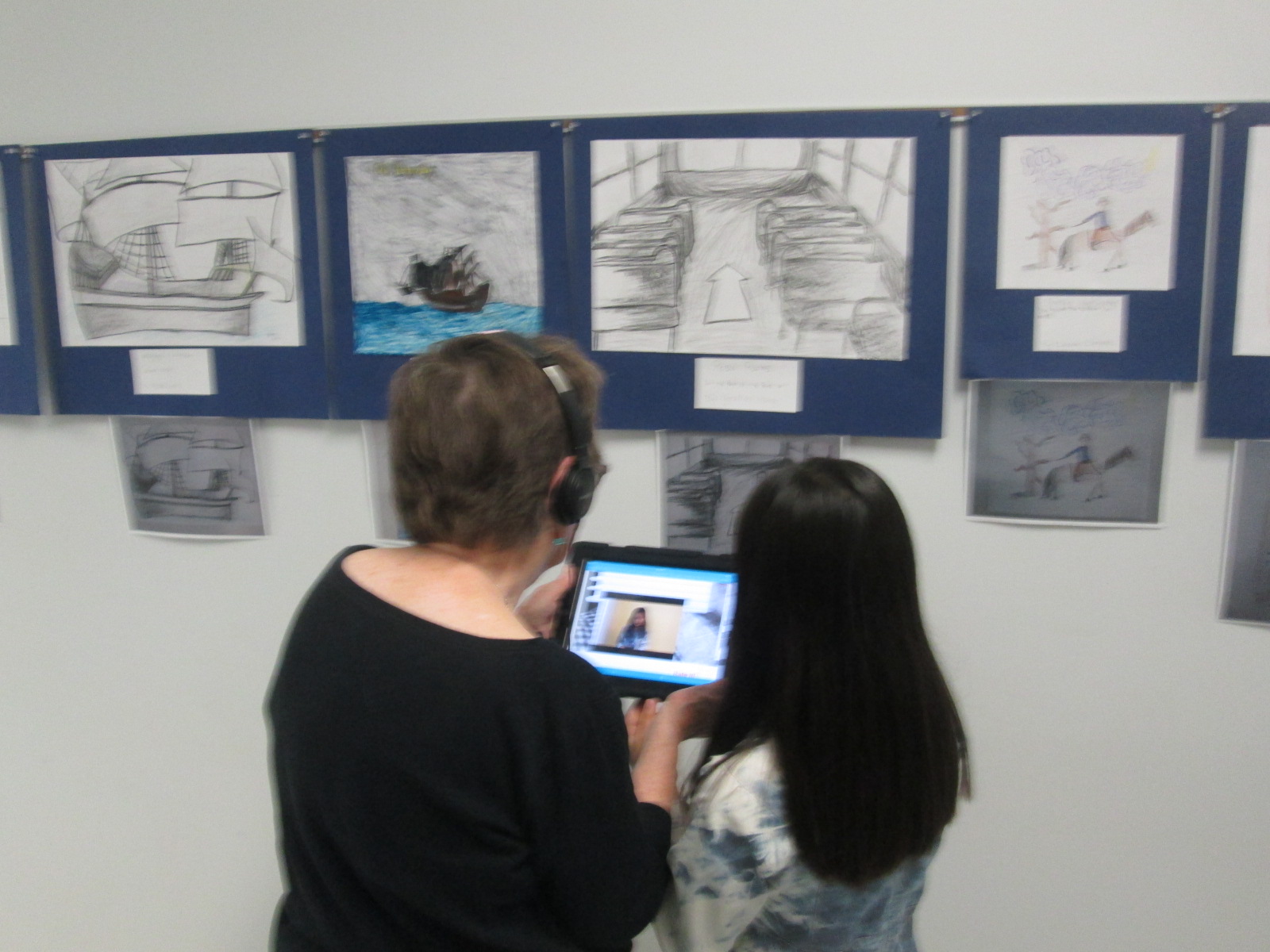
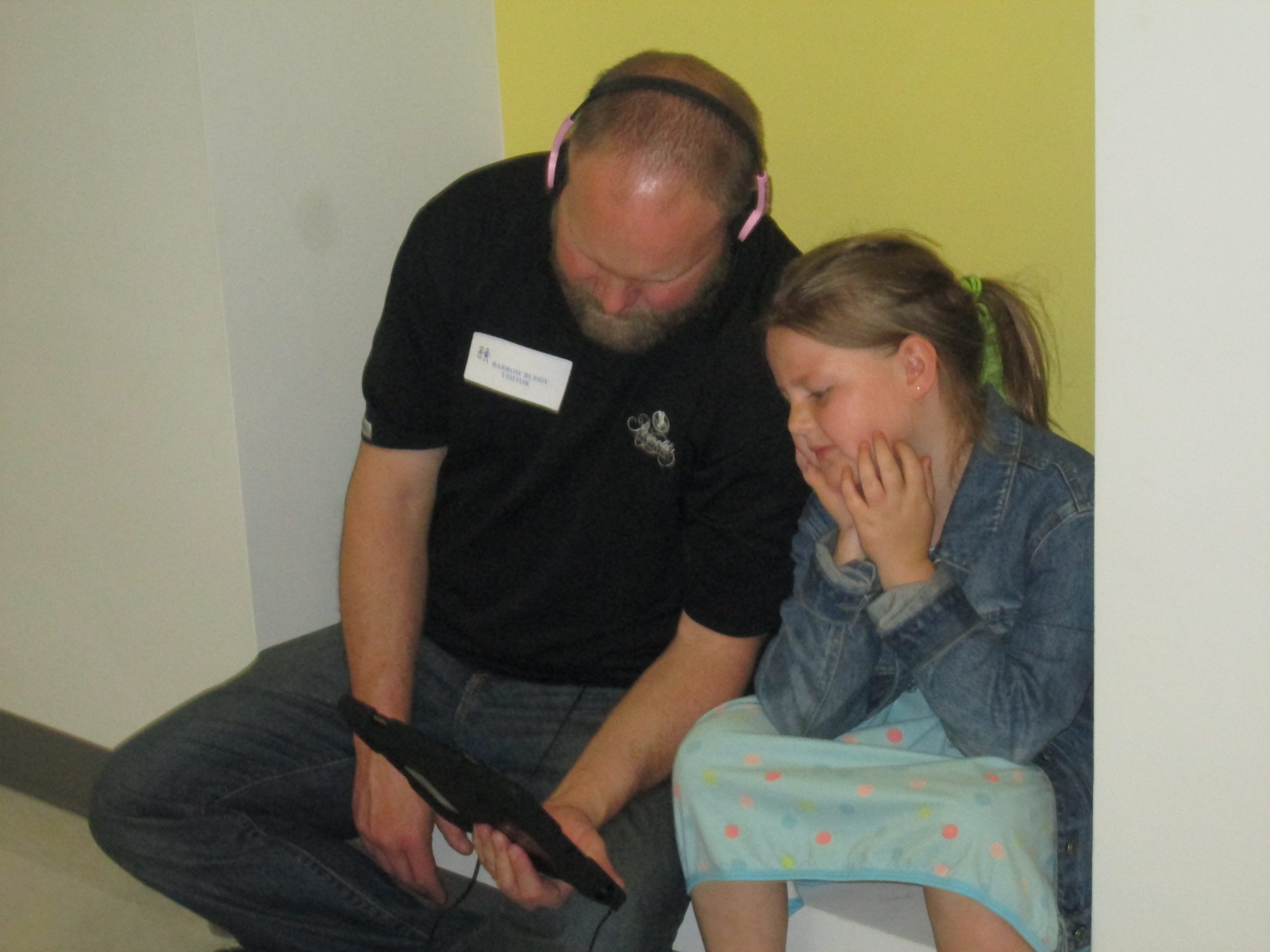
The 4th grade team and art teacher displayed all of the art in the hallway. Today, families were invited to stop by and view the gallery. I rolled the iPads to classrooms and took headphones too. Students came out with their families and showed off their projects and the projects of their friends. They showed parents how to open the Layar app, point the iPad at the image, tap the screen to let Layar scan the image, and watch the content magically pop up on the iPad screen. Several parents had already downloaded Layar on their phones too. There was excitement in the air as families experienced augmented reality for the first time. I overheard some of them saying how they wanted to go home and try it themselves. Others were amazed by the variety of projects that students made. I overheard conversations about social studies content but also conversations on how to use all of the tool that were needed to make this project happen. I loved seeing the students taking a leadership role in sharing with their families how to use the technology that they use at school.
Next week, classrooms will be invited to tour the gallery. I think we learned a lot from this project. One of the things that I loved most was how differentiated it was. Some students created multiple projects for their person while others focused really hard on one project. Students were able to showcase their strengths and interests, and I felt that every single student was fully engaged in this project. I hope that others found value in this project as well so that we can continue and expand upon this type of experience for projects next year.
Our 4th grade team does a huge wax museum project each year for their study of the Colonial Period. Kids get assigned a person from colonial times and spend several days researching their person and taking notes. The notes get condensed into a short script that they memorize. Then, they dress up as the character, stand in the halls of Barrow, and families and classes walk through and listen to the “wax figures” come to life and talk.
It’s a great project, but I’ve always wondered about bringing in some digital components for many reasons. One reason is the fact that many families don’t get to come and listen to their child perform something that he or she has spent a lot of time working on. Another reason is that many students are overwhelmed by the volumes of people walking up and waiting to hear a monologue. Traditionally, boys have chosen males from the colonial period and girls have chosen females, but I’m sure that there are 4th graders who would love to research the other gender and not necessarily dress up as that character.
We have a big project in the works to the end the year in 4th grade. We’ve extended the wax museum to include the entire year’s social studies curriculum and revisit many of the famous people from history in the 4th grade standards. We’ve also decided to give the students many choices about what they will create as their final product. The art teacher is also working with us on this project and having kids research images of their chosen person and create new images or collages with the found images. Whatever students decide to create, it will become digital through a video uploaded to youtube or a link to the project that they create online.
Before I had even tried it, I suggested that the wax museum be a display of all of the pictures that students created or compiled and that we could use the augmented reality app Layar to link those images to the digital wax museum projects. The teachers were thrilled and excited, but I was a little nervous trying something I have never done before. A fantastic opportunity came up for me to try this same project on a much smaller scale with 12 third grade students in Ms. Spurgeon’s ELT class before doing the project with 70 4th graders.
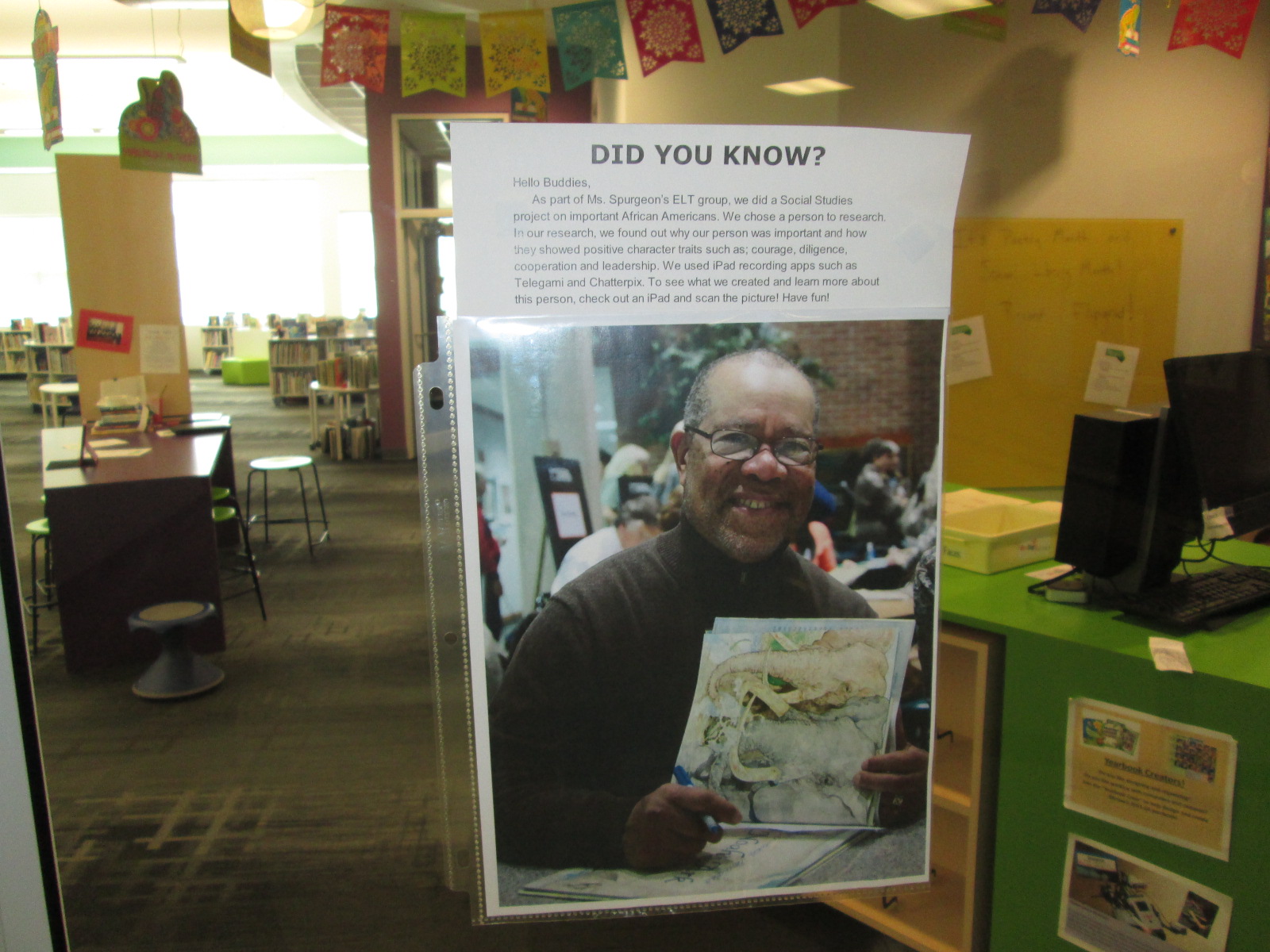
The third graders chose an African American to research, wrote a script, and filmed themselves or created a video using Tellagami or Chatterpix. We uploaded those videos to Youtube. Students searched online for images of their person. We uploaded those to Layar and then linked the videos to each picture. I published our “campaign” in Layar Creator.
Layar is loaded onto all of our iPads. Mrs. Spurgeon took the images we used in Layar and displayed them in the rotunda, library, and third grade hall. Students and families can check out an iPad in the library to go and scan the images. When they scan, the student videos pop up right on top of the picture on the wall and students and families can listen to the video about the person. Here are a few of the videos that pop up through augmented reality:
I think it’s going to be a messy process to do this with the whole fourth grade with only 5 weeks of school left, but it will be fun and we will learn so much about continuing to upgrade this fantastic project into something that reaches a wider audience.
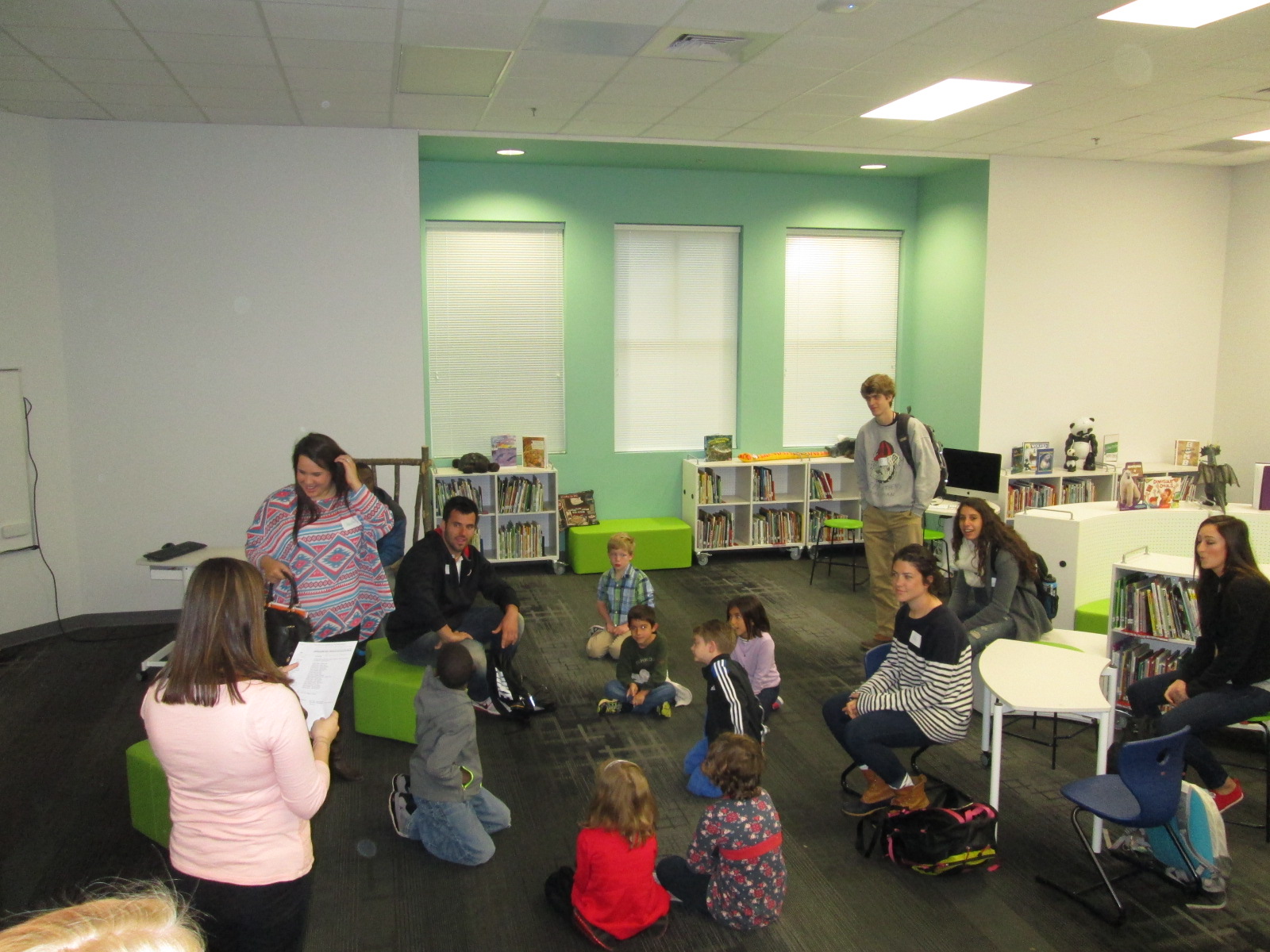
Last week a group from Gretchen Thomas’s EDIT 2000 class at the University of Georgia partnered with Caitlin Ramseyer’s 2nd grade class to work on research for the students’ GeniusCon projects. Students are answering the question: If you could change one thing about your school, what would it be?
Students topics range from improving the lunch menu to healthier options to adding additional playground equipment to eliminating homework to starting school later in the day. Even students who share the same topic are taking different approaches to what they would change and how they would do it.
Today, a new group of Gretchen’s students came to work with the 2nd graders. Last time, most 2nd graders went through their lists of questions and answered them with their own thinking. Today’s focus was to move to researching online and in books as well as developing next steps.
I loved walking around and seeing some of the online reading that students were doing with their partners.
I also loved seeing how the UGA students interacted with the 2nd graders and how they helped to keep our students focused and thinking. Of course, the UGA students learned a lot too about how much our students know about using technology.
Some of those next steps involved created Google form surveys that could be emailed out. Some students crafted emails to send out to the lunchroom or the principal. We asked students to wait before sending anything out. The main reason in doing this was to spend a little more time thinking through the content of the email or the survey. For example, one student had one question in her Google form asking students if they would like more access to the 3D printer. She was ready to send it out, but after talking with me, she realized that if students wanted access to the 3D printer, we would have no idea what they wanted to do with it. Our conversation pushed her to think more about her survey before sending it out. Similar conversations were taking place all over the library.
At the end, Caitlin pulled her class together to debrief what they had accomplished.
Catilin’s students will continue working on this project and our UGA partners will return again.
After students left the library for our kickoff session, they spent time in class reflecting on our chalk talk, writing in their notebooks, and fine tuning their topics. Today, they came to the library with their topics ready to work on question development.
We started with an overview of what happened since our last session. I shared tweets from Sherry Gick, Matthew Winner, Peter Reynolds, and more. I also told them how their work had been featured in the #GeniusCon webinar. Their eyes lit up knowing that their work was already making a difference!
I framed our session for the day by talking about how questions help us think about what we need to know about our topics in order to focus our research. We did a practice session asking questions about a topic that I could do for #Geniuscon: Teaching all of my lessons from home. At the moment, I’m not really doing this topic, but I wanted to choose something that might raise some eyebrows, and it really did! Students began asking questions about my topic, but as we progressed they started to ask questions like “how would you feel if you didn’t see us anymore?” and “what if we needed help with something in the library?” and “Wouldn’t you miss being here?”. This topic did exactly what I wanted because it allowed us to have a conversation about our chosen topics. I told them that it wasn’t our jobs to tell one another that our topics aren’t possible, that they’re wrong, or that we need to pick a different topic. Our job is to push one another’s thinking through questions and to support one another even if it means we disagree with topic choice or we feel personally that a topic is “impossible”.
We spent a bit more time brainstorming questions for my topic with partners. Here are a few questions that they came up with:
What lessons should I teach?
Do I know anyone that will be interested in learning from home?
How will I do it?
How many students will I have?
How many lessons from home can I teach?
What happens if someone needs help checking out and I’m not here?
Why would I want to do this?
How would people know how to connect with me?
What if the Internet doesn’t work?
Next, students logged into their Google Drive and created a document with their topic listed at the top. Then, they started a bullet list and began adding their own questions. After all students were set with their doc ready, we began passing the laptops around the circle and asking one another questions. Students looked at the topic at the top and read the question already generated. Then, they thought of what questions they would add to the list for the researcher to consider. I’ll admit that this part was difficult. Even with our lively opening, students had a hard time generating questions. Several adults had individual conversations with students to support their question development. These conversations were critical. At different times we had me (the media specialist), the classroom teacher, a gifted teacher, a tech integration specialist, and and early intervention teacher supporting students. Here are a few topics with the questions generated.
Taking Tablets Home:
can we for a week?
or for month?
what happens if you break it?
What do students do if they don’t know how to use it?
what happen’s if somone needes one at school and you forget it at home?
how long?
what if people don’t have internet at home?
More Playground Equipment:
what equipment should we get?
how much equipment?
what kind?
what if there’s not enough space?
isn’t it expensive?
why do you wont to change the playground?
will we be kind on it?
is the play ground equipment safe?
who would pay for it?
At our closing, students got their own computers back, read their questions, and shared their documents with me. I told them that it was ok if they didn’t understand a question or if they even disagreed with a question. We closed by once again asking “Why are we asking questions and not jumping into answers?” We framed the idea of thinking about what we need to research. Next, we will spend some time developing a research plan. We’ll brainstorm where we need to look for answers and begin our search for answers.
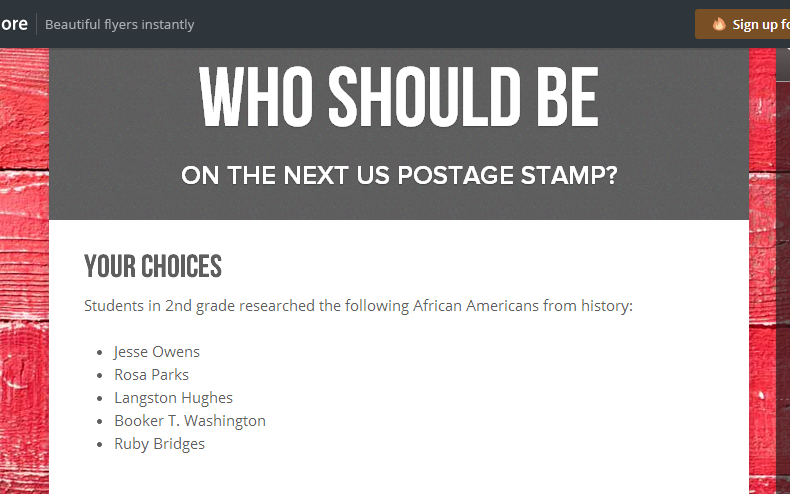
Second grade has been hard at work. For the past few weeks, they have explored the art of persuasion, researched 5 historical figures from black history, designed potential US Postage Stamps featuring these historical figures, and writing persuasive scripts to convince an authentic audience that their historical figure is the most deserving of a US Postage Stamp. You can read more about the beginnings of this project here.
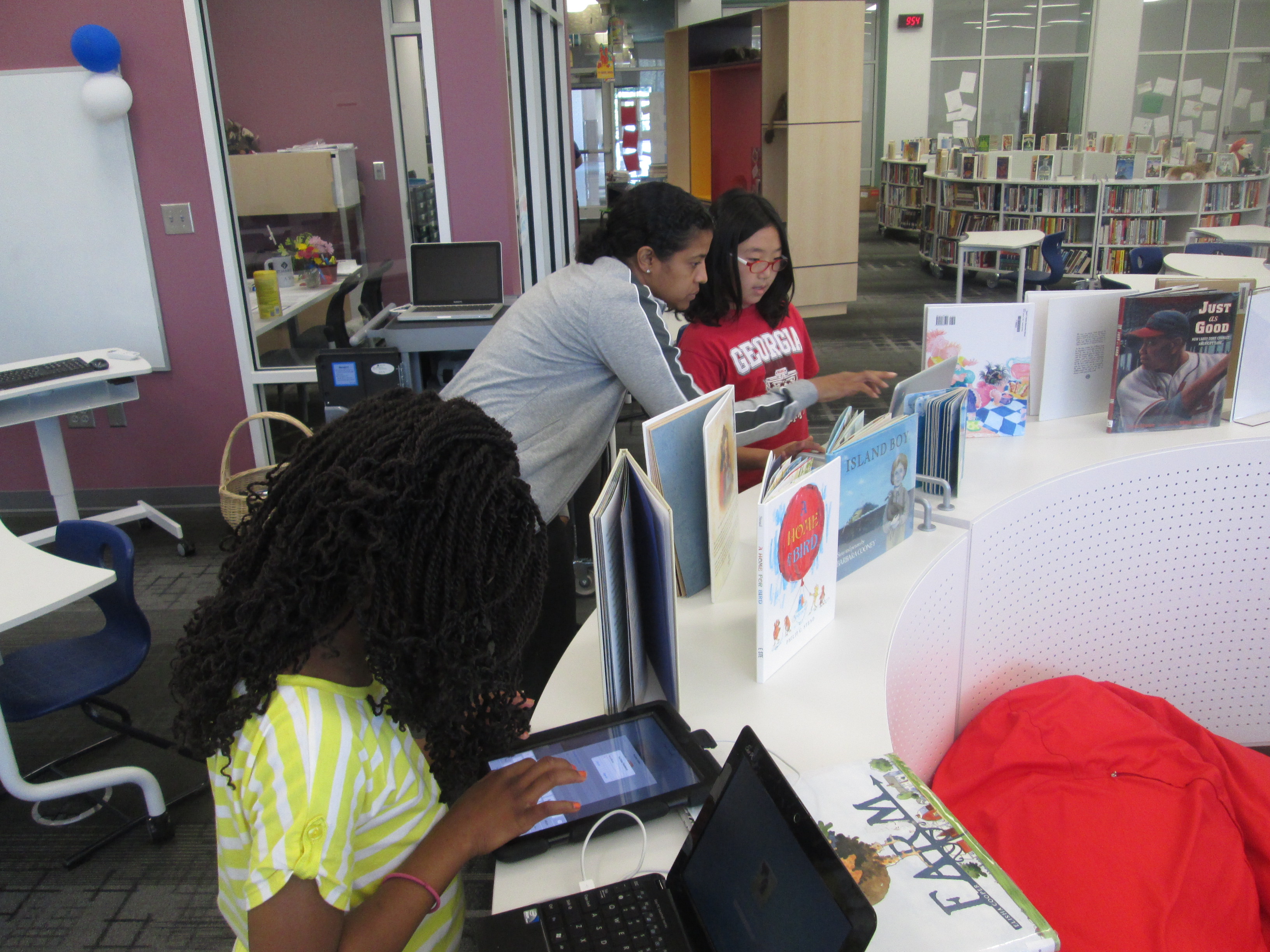
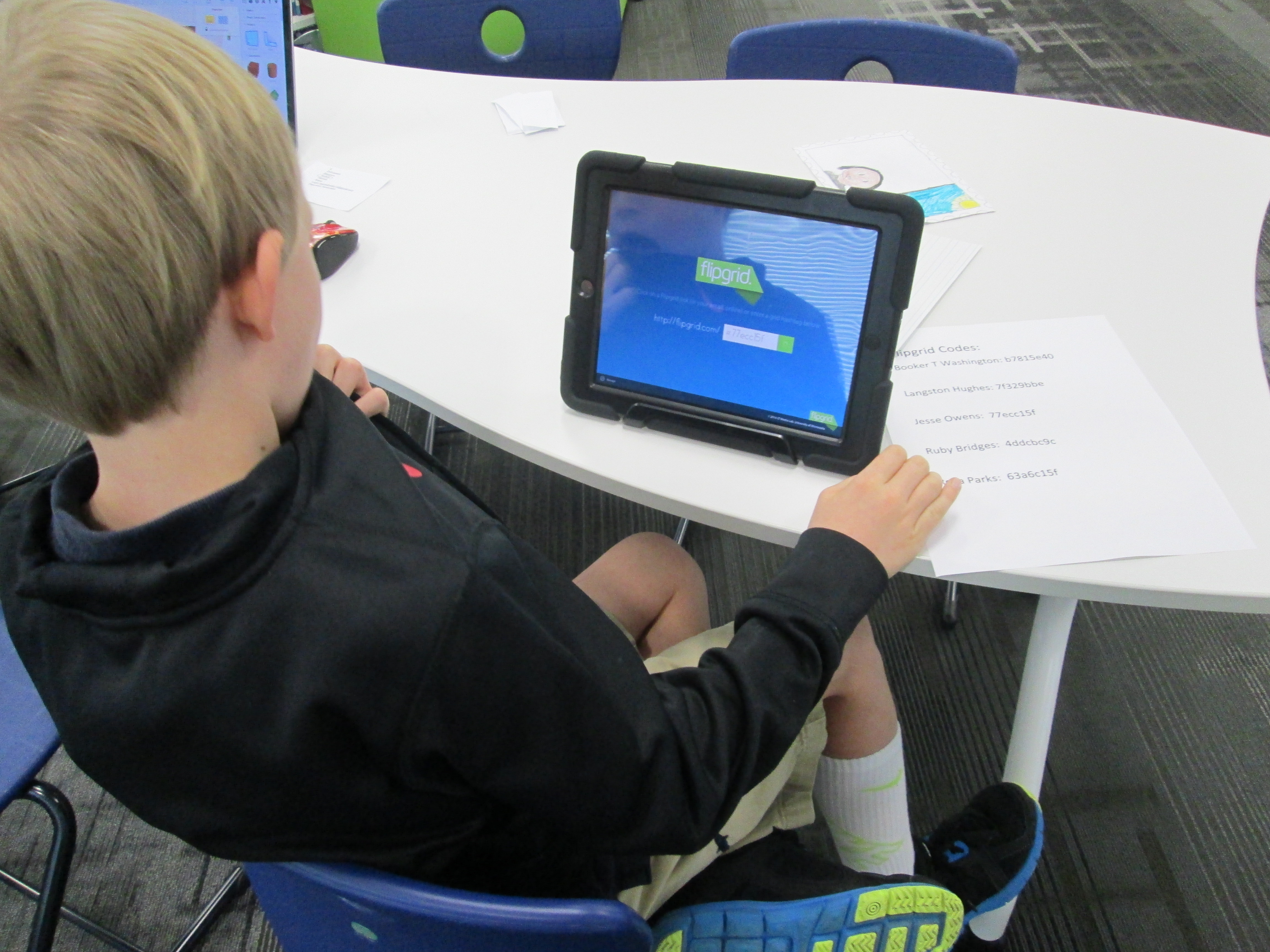
Over the past 3 days, students have been coming to the library with their persuasive scripts and stamp designs to record a persuasive commercial using Flipgrid. This tool, which is web-based or available as an iPad app, allows you to create up to 90 seconds of video in response to a question. I setup a question for each historical figure that was researched. To record in Flipgrid, you just need the special code that takes you straight to the question where you will record your message. I made a sheet of codes and placed them by iPads in the library. Students entered the library, chose a recording spot, and entered their code.
Next, they had a few steps to complete in order to create their video. They had to:
Click the +
Click “I agree”
Take a picture. Some took a picture of themselves and others took a picture of their stamp
Record their video
Review the video
Submit the video to the grid. Students had to put their first name, last initial, and an email address. For speed, I put my own email address in the box, copied it, and then pasted it in each time a student recorded.
Now, students are collectively trying to persuade you to vote for their historical figure. We have created a Smore to pull all of the information together. On this Smore, you can visit each set of videos for a historical figure. Please take some time to listen to the students’ hard work. If you love one of their videos, click on the heart on Flipgrid which is similar to “liking” something on Facebook. This will show the students some appreciation for their efforts. After watching some videos for each person, we invite you think about which historical figure you were the most persuaded to vote for. Then, use the Google Form at the bottom of the Smore, cast your vote.
We’ll be asking all students in our school to vote. In addition, we’ll be posting our Smore to our Barrow Media Center Facebook page and Mr. Plemmons’s Twitter account. We want as many votes as possible to show students how far reaching their audience is when they put their work out to the world.
The students have worked so hard on this project. I can’t wait to tally the results and analyze the data with them.
 Ms. Kelly Hocking’s Kindergarten class has done it again. They have once again ventured out to try something that no other class has tried and inspired other classes and projects with their work. In small groups, they each chose a planet to research. We used PebbleGo, TrueFlix, and books to search for facts in the library and in class. Then, in the library and in class, students worked on sequencing their facts.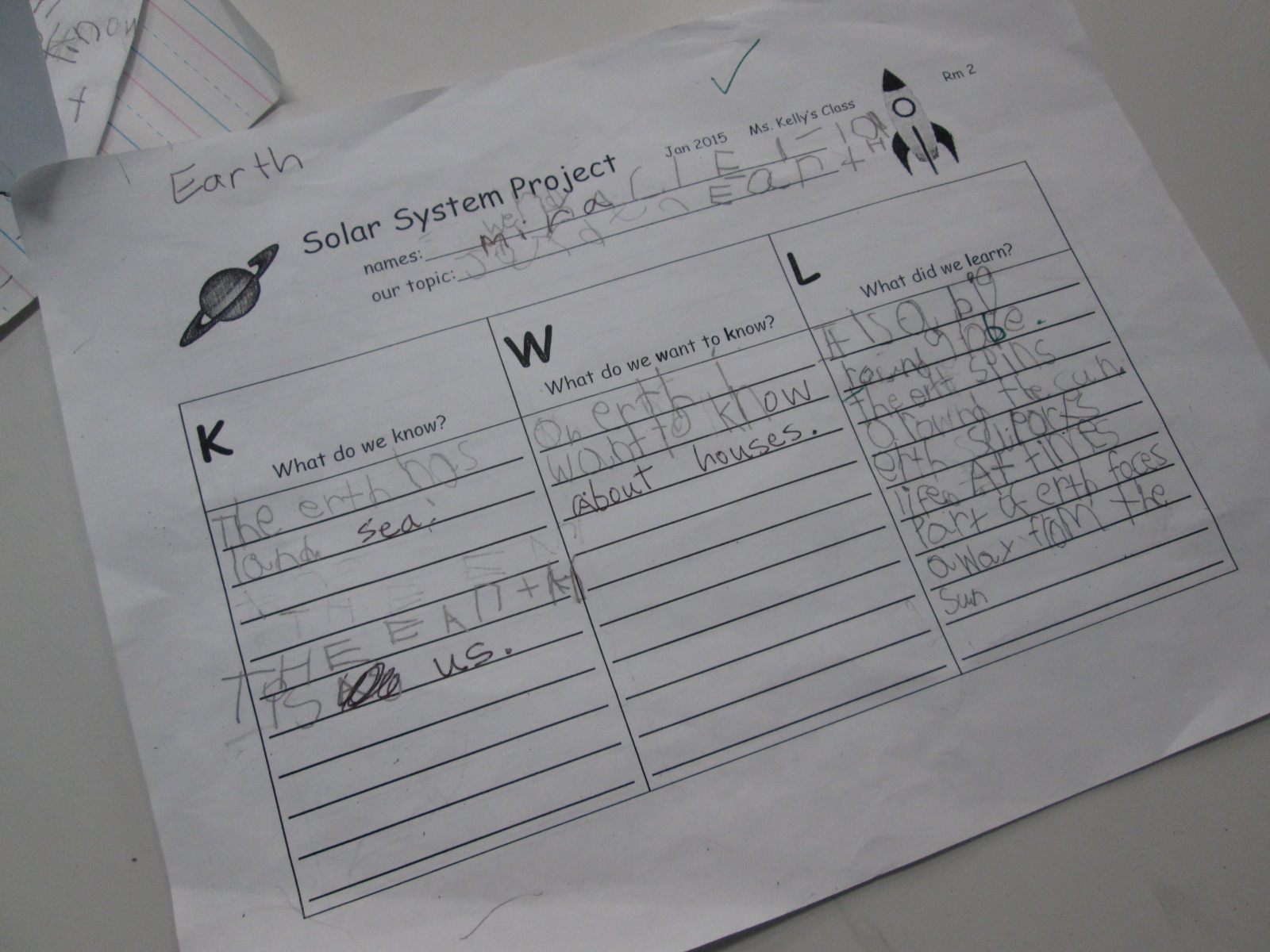


















 Expect the Miraculous